

We put the same sales table on Google Drive in four formats — a spreadsheet, Excel, PDF, and an image — and had ChatGPT read it through a link. In all four cases, it got all three test items right, and even when we had it search by file name alone, it found the file in 48.8 seconds. When we attached the same Excel file directly, ChatGPT answered in 33.2 seconds, but it added a yen unit that wasn’t in the table.
The tests in this article were done in Japanese. AInformation wrote the prompts in Japanese and judged the answers in Japanese, and any character counts are counts of Japanese characters. The prompts shown here are our translations of the Japanese originals, so results in English may differ. Japanese original
- We placed the same sales table on Google Drive in four formats — spreadsheet, Excel, PDF, and PNG image — and asked ChatGPT to read it via a link. It got all three items right in all four cases.
- OpenAI’s official help page names only Google Docs, Google Sheets, and Google Slides, but ChatGPT still read a file left in its original Excel format correctly in 39.3 seconds.
- With the PDF, ChatGPT first showed a table labeled “calculating,” then answered again, producing the longest response of the six at 388 characters.
- With a PNG image of the table, ChatGPT answered in 54.7 seconds and even included the “thousand yen” unit shown in the image.
- Even without a link, searching by file name alone, ChatGPT found the file in 48.8 seconds and got all three items right.
- When the same Excel file was attached directly, ChatGPT gave the shortest answer of the six — 33.2 seconds and 97 characters — but added a “yen” unit that wasn’t in the table.
Linking ChatGPT to Google Drive got all three items right in all four file formats, just by pasting a link
The ChatGPT-Google Drive connection is a feature that lets ChatGPT find and read files stored on Google Drive. On screen, it appears as one of the “plugins,” and it’s provided by OpenAI. Once connected, you can simply paste a link to a Drive file into the chat and ask questions about its contents.
AInformation tested this feature on November 6, 2026, using the paid ChatGPT plan our editorial team subscribes to. We kept the reasoning effort set to Medium throughout. We opened a new chat each time and sent one request per chat, for a total of six submissions.
The test material was a 2025 sales table for a fictional company. It lists monthly sales for five products across 12 months, with no annual total row.
We converted this single table into four formats and placed them on Drive: one converted to a Google Sheet, one kept as Excel (.xlsx), one as a PDF, and one as a PNG image of the table.
Here’s the bottom line: for all four formats, simply pasting a link let ChatGPT read the file and answer all three items correctly. The annual sales total is 558,900.
The month with the highest total was December 2025, at 49,800, and the best-selling product was Product A (tumbler), with an annual total of 146,400. Every run got these three figures right.
OpenAI’s official help page names only Google Docs, Google Sheets, and Google Slides for this feature. Even so, the file left in its original Excel format returned correct figures in 39.3 seconds.
The PDF took 42.6 seconds, and the PNG image took 54.7 seconds. The run where we had ChatGPT search by file name alone also found the file in 48.8 seconds.
The difference showed up in how units were written. In the Drive-based runs, when the table had no unit listed, ChatGPT noted that it was showing the figures as-is.
For the PDF and the image, it correctly added the “thousand yen” unit written above the table. Only the run where we attached the same Excel file directly to the input field added a “yen” unit that wasn’t in the table.
Four steps to connect and use ChatGPT with Google Drive
The process is simple. Our editorial team’s account was already connected to Google Drive beforehand, so we didn’t capture screenshots of the connection step itself. Here, we walk through the actual screens for what happens after connecting, up to having ChatGPT read a file.
- Open the ChatGPT plugins screen (chatgpt.com/plugins) and check whether Google Drive appears under “Installed.” If the detail page shows “Manage” and “Try in chat” buttons, it’s connected.
- Make sure the file you want ChatGPT to read can be opened with the connected Google account. OpenAI’s official help page also recommends confirming that the connected account can open the file directly.
- Open a new chat, paste the file’s link, and type a request asking ChatGPT to read that file and answer. A Google Drive icon appears at the start of the pasted link.
- Check the file name shown at the top of the answer and the source link that appears below the answer to confirm which file was read.
Note: The charts and screenshots in this article are the same images as in the original Japanese edition, so the text inside them is in Japanese. The captions and image descriptions have been translated.
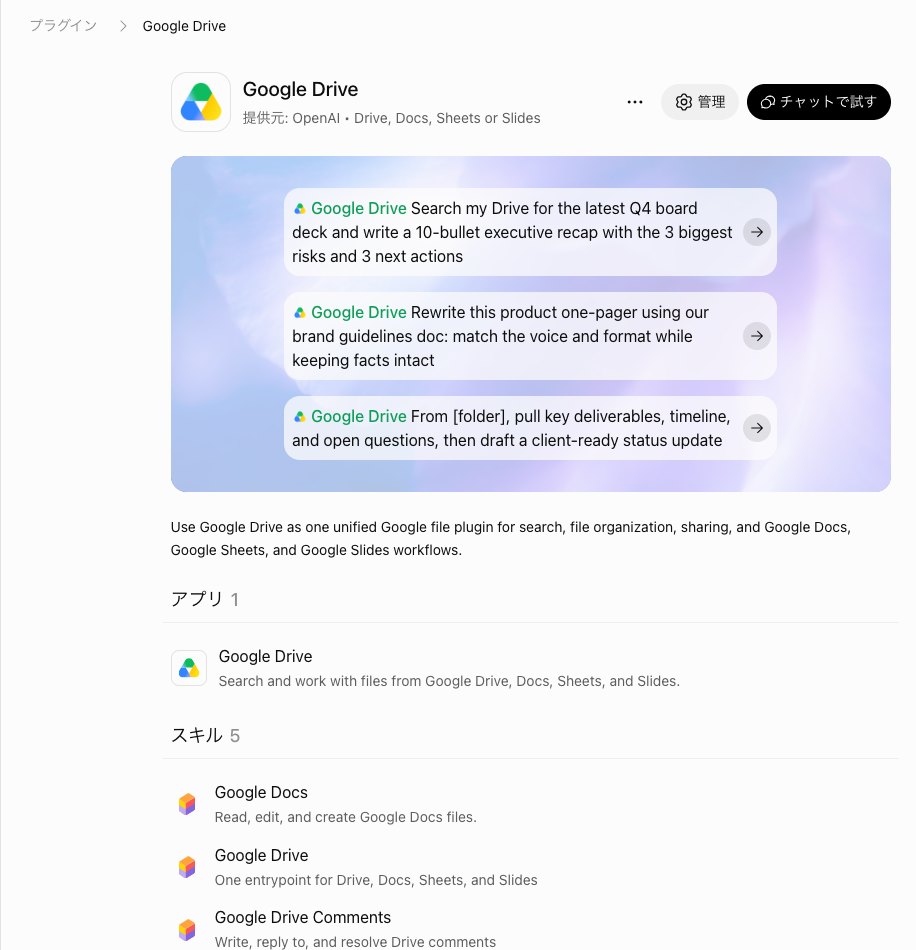
The Google Drive detail page listed one app and five skills. The skills were Google Docs, Google Drive, Google Drive Comments, Google Sheets, and Google Slides.
The capabilities field read “Interactive, Write,” meaning it’s built to write, not just read. The developer is OpenAI, and the version was 0.1.22.
Near the top of the page, three example prompts are listed. All are in English and describe ways to ask ChatGPT to find and summarize material from Drive. For an app that isn’t installed, the button reads “Install plugin” instead of “Manage.”
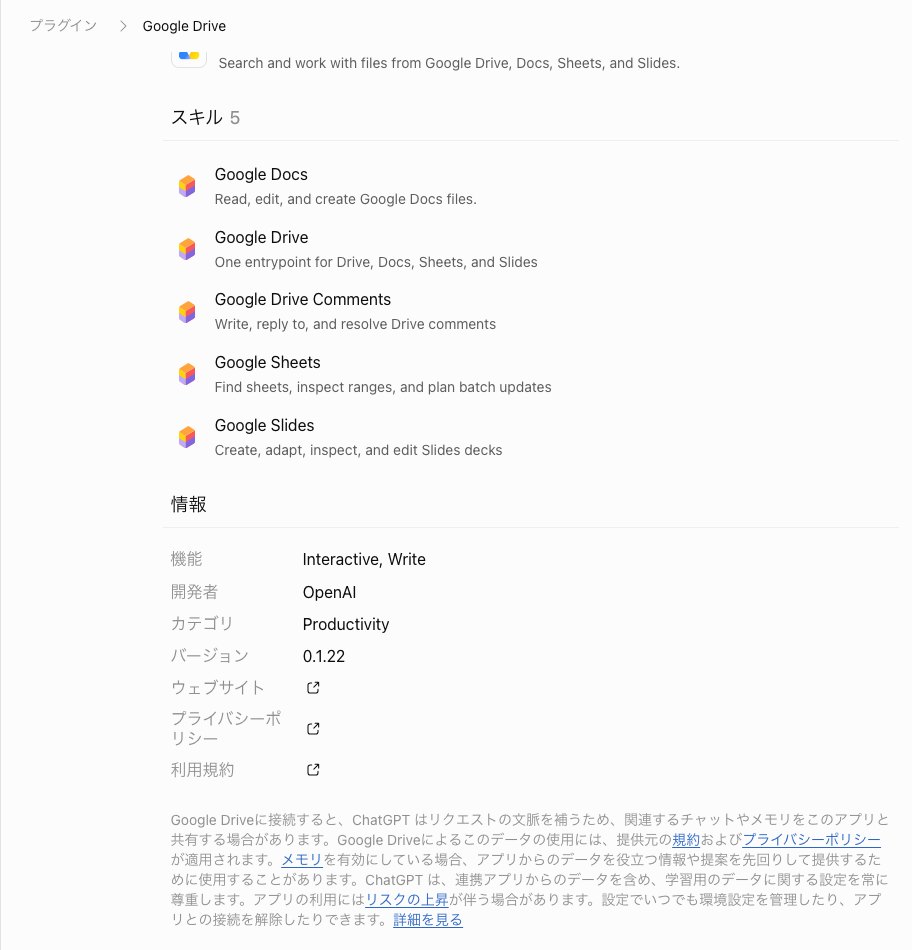
At the very bottom of the page is a disclosure about how data is handled. It explains that ChatGPT may share related chats or memory with this app in order to fulfill a request. It’s worth reading this section once before connecting any work files.
In every run this time, we followed step 3 and pasted a link along with a written request. The exact prompts we used are given below, organized by condition.
We’ve replaced the link itself with “(paste your file link here).” What our editorial team actually pasted was a link to a verification file we prepared ourselves. When you try this, insert a link to your own file.
With a spreadsheet link, ChatGPT got all three items right in 51.8 seconds
Please read this spreadsheet on Google Drive and answer the following three questions using the exact figures from the table: (1) the total 2025 annual sales, (2) the month with the highest monthly total and that total, and (3) the product with the highest annual total and that total. File: (paste your file link here)
Our baseline was the run where we converted the Excel file into a Google Sheet and placed it on Drive. The tab was named “Sales2025,” containing a table with 13 rows and 7 columns. When we pasted the link and sent the request, ChatGPT returned a 326-character answer in 51.8 seconds.
All three items were correct. The annual sales total was 558,900. The highest month was December 2025, at 49,800, and the top product was Product A (tumbler), with an annual total of 146,400.
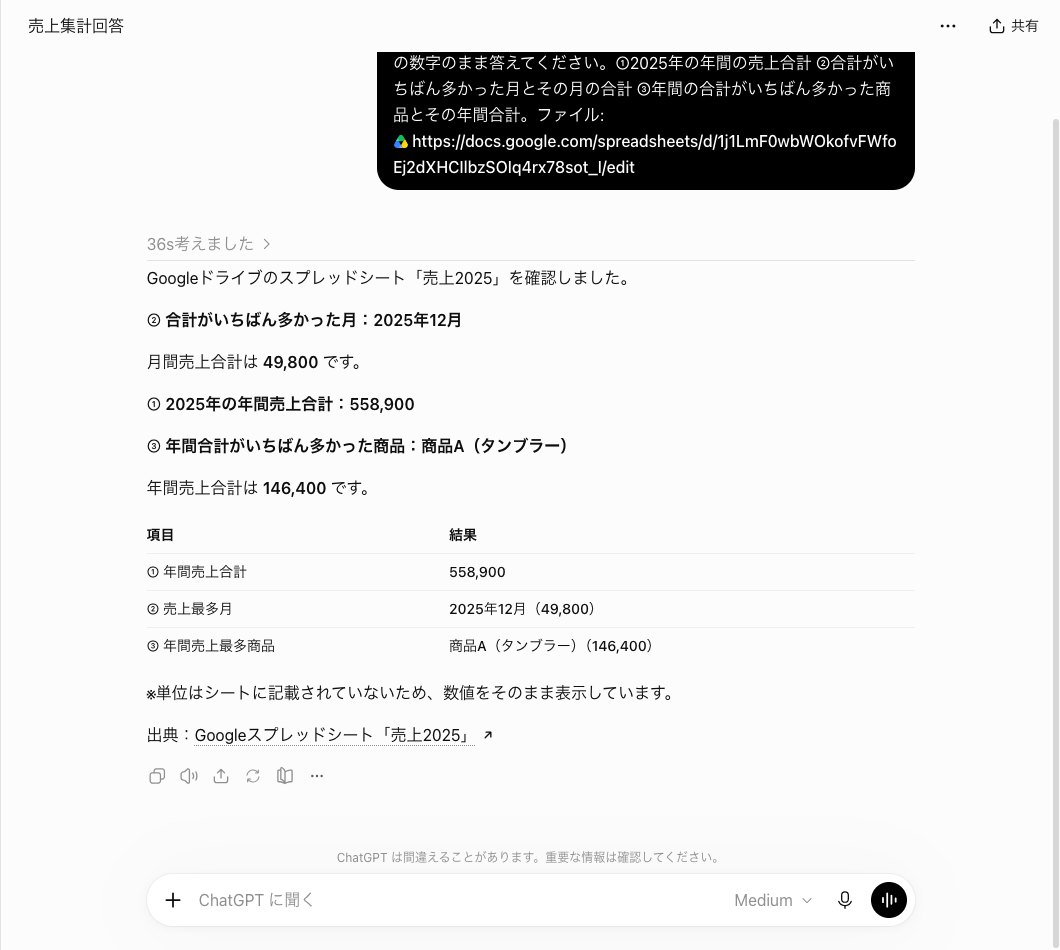
The order of the answer was a bit unusual. Although we asked for items in the order 1, 2, 3, ChatGPT wrote the month from item 2 first.
Next came the annual total from item 1, followed by the product from item 3. It then reorganized the same content into a table, which brought the character count to 326 — the second-longest of the six runs.
The answer opened with “I checked the Google Sheet ‘Sales2025.’” It referred to the file by the name of the internal tab rather than the file name. Below the answer, a link appeared reading “Source: Google Sheet ‘Sales2025.’” This confirms on screen that ChatGPT read the Drive file; no web search source was attached.
There was also a line about units: “No unit is specified in the sheet, so the figures are shown as-is.” Since the original table doesn’t include a unit, this means ChatGPT didn’t add “yen” or “thousand yen” on its own. This wording turned out to be a key difference from the direct-attachment run discussed later.
Even left as Excel on Drive, ChatGPT got all three items right in 39.3 seconds
Please read this Excel file (.xlsx) on Google Drive and answer the following three questions using the exact figures from the table: (1) the total 2025 annual sales, (2) the month with the highest monthly total and that total, and (3) the product with the highest annual total and that total. File: (paste your file link here)
Next, we kept the same table but left it as an Excel file instead of converting it to Sheets. The file name is “AIF_test_sales2025_excel.xlsx,” and its size is 5,480 bytes. Only the file format changed; the contents are identical to the previous round.
The official help page says this feature works with Google Docs, Sheets and Slides. It does not say whether it can read a file left in Excel format. That is what this round checked.
The answer came back in 39.3 seconds with 264 characters, and all three items were correct. The three numbers match the Sheets round exactly.
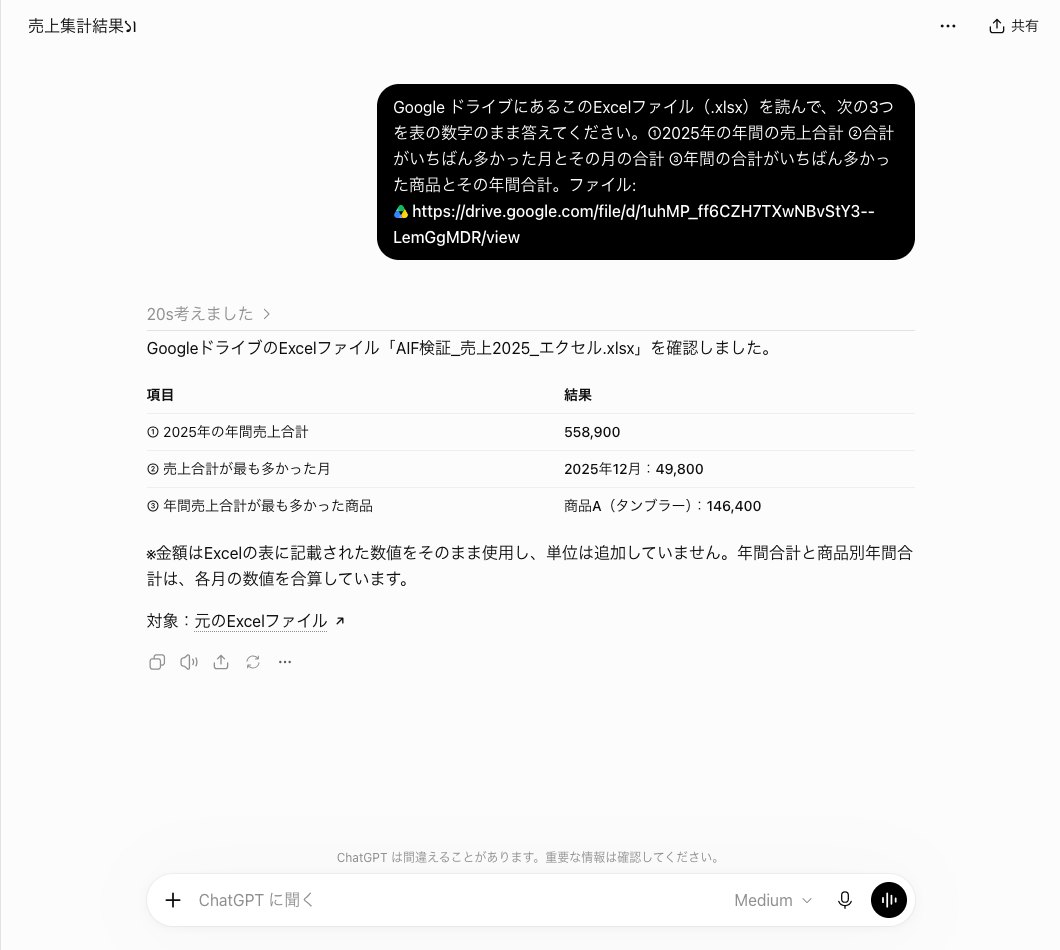
The answer opens with, “I checked the Excel file ‘AIF_test_sales2025_excel.xlsx’ on Google Drive.” Unlike the Sheets round, it wrote the file name correctly. There was only one table, and it listed the items in the requested order of 1, 2, 3.
Below the table was a note: “The amounts are used as they appear in the Excel table, and no units have been added.” It also noted that the annual total and the per-product totals were calculated by adding up the monthly figures.
At the end was a link labeled “Source: original Excel file,” which leads back to the file on Drive.
For this table at least, converting to Sheets made no difference to the result. If you upload your own Excel file to Drive, you can ask about it directly without the trouble of converting it.
That said, we only tested one small table with 13 rows and 7 columns. This check did not confirm how the tool would handle a large file with multiple sheets.
With a PDF, ChatGPT showed a “calculating” table, then answered in thousand yen (42.6 seconds, 388 characters)
Read this PDF on Google Drive and answer the following 3 items using the exact numbers in the table. 1) The total sales for all of 2025. 2) The month with the highest total and that month’s total. 3) The product with the highest annual total and that total. File: (paste the file link here)
The third round turned the same table into a PDF. It is a PDF with selectable text, with the table’s title on the first line. The second line reads “Unit: thousand yen.” The file size is 119,773 bytes.
The answer came back 42.6 seconds after sending. All three numbers were correct, and each one carried “thousand yen.” It read the unit written in the PDF and attached it as is.
Only in this round did the structure of the answer change. In the first table, the fields for item 1 (the annual total) and item 3 (the product) stayed marked “calculating.” It then wrote, “Calculation complete,” and gave all the numbers in a second table.
Because the table appeared twice, the answer reached 388 characters, the longest of the six rounds.
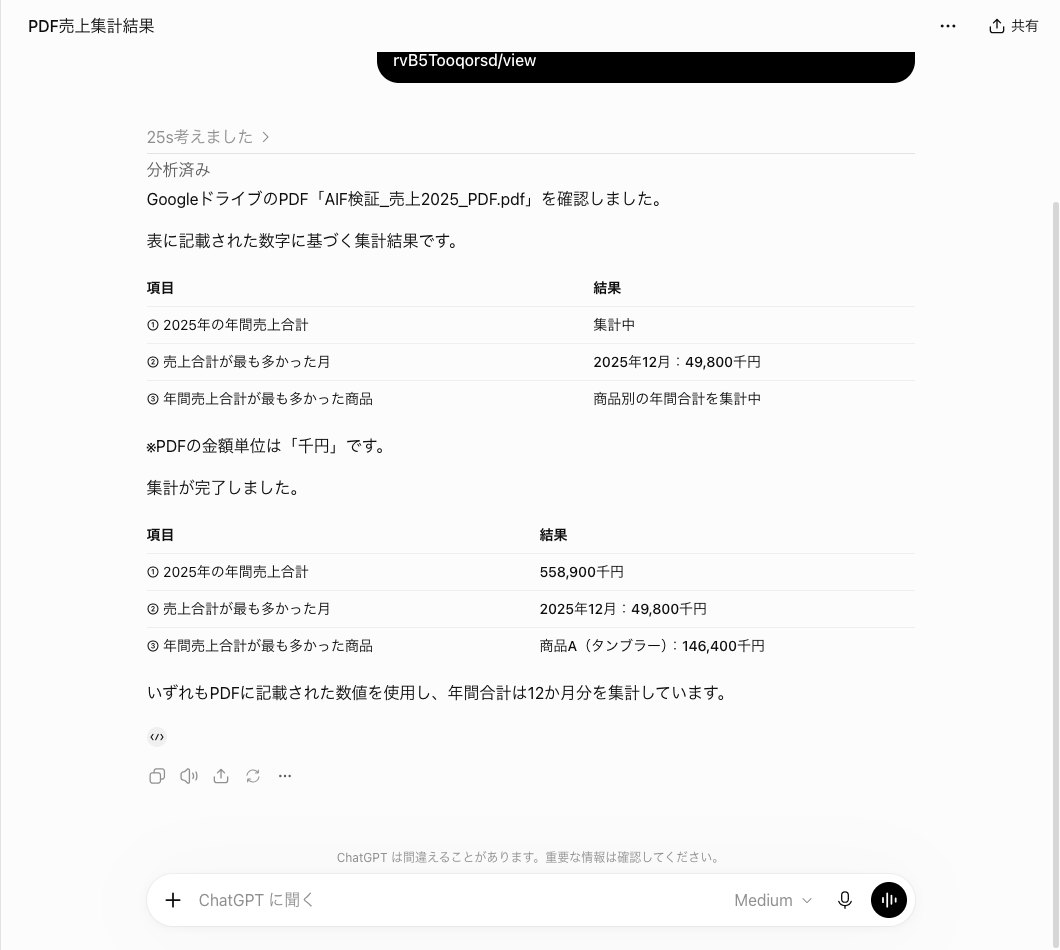
An “analyzed” label appeared above the answer, and a code icon (</>) appeared below it. Neither the Sheets round nor the Excel round showed either of these. The screen did not reveal what calculation happened behind the scenes.
The official help page notes that even if a file’s name or details show up, that does not always mean ChatGPT can pull out the contents.
With this PDF, ChatGPT went beyond just reading the file name and returned the correct numbers from the table itself. Still, an intermediate table showing “calculating” remains in the answer, so it is safer to read through to the final table before using the answer.
With a PNG image of the table, ChatGPT also answered all 3 items in thousand yen in 54.7 seconds
Read this image (a PNG photo of a table) on Google Drive and answer the following 3 items using the exact numbers in the table. 1) The total sales for all of 2025. 2) The month with the highest total and that month’s total. 3) The product with the highest annual total and that total. File: (paste the file link here)
The fourth round turned the table into an image and placed it on Drive. It is a PNG file sized 93,251 bytes, with text that exists only inside the image. Above the image we placed the title “2025 Monthly sales by product (thousand yen).”
We included this round to see where the limit of readability lies, but the answer came back in 54.7 seconds with 231 characters. That is the longest response time of the six rounds. Even so, all three items were correct, and every number carried “thousand yen.”
What stood out was how the file was referred to. The answer opens with, “I checked the PNG image ‘2025 Monthly sales by product (thousand yen)’ on Google Drive.” Rather than the file name “AIF_test_sales2025_image.png,” it used the title written inside the image.
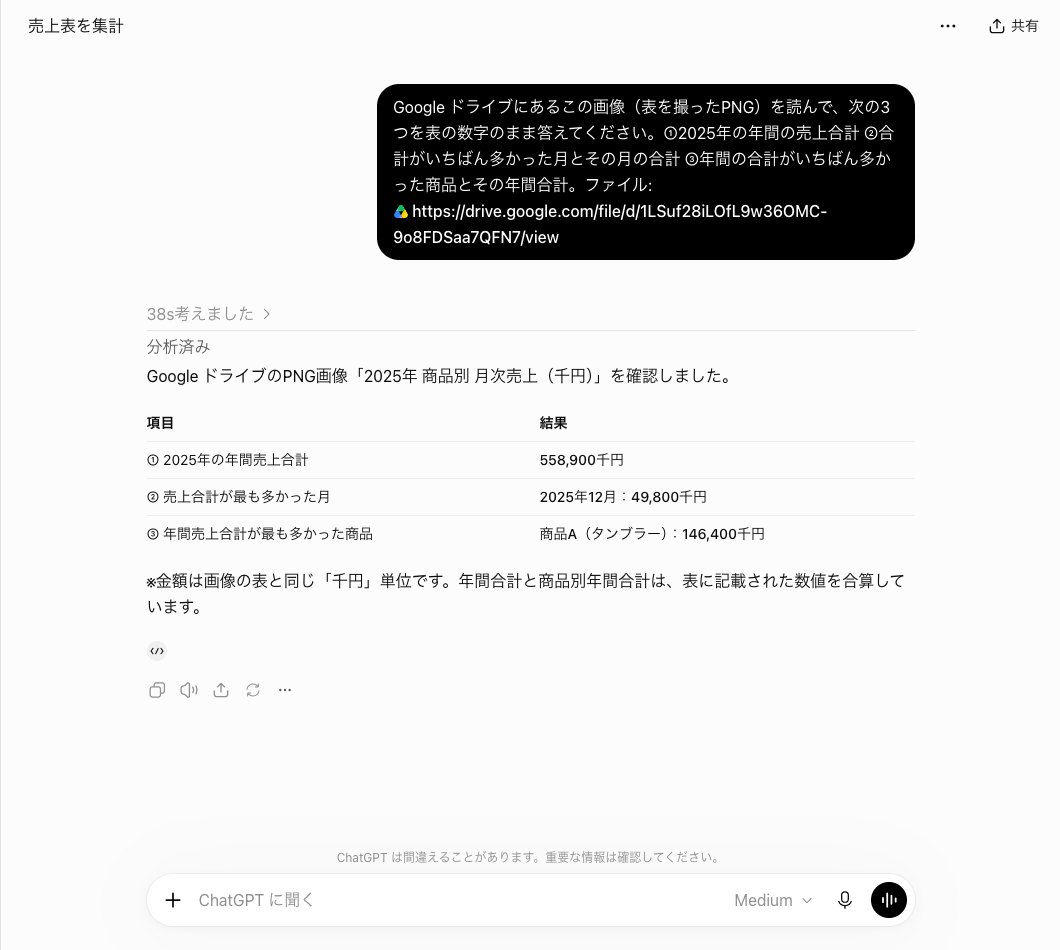
As with the PDF, an “analyzed” label appeared above the answer, and a code icon also appeared below it. The answer’s structure was cleaner than the PDF’s, with no table marked “calculating.” It listed all 3 items in a single table and finished by noting that it had summed the table’s figures.
Image files carry no text data. This is good news for anyone keeping scanned documents or photographed materials on Drive. That said, we only tested a single image of a table with clearly legible text.
We did not confirm whether the tool can read handwritten text or a photo taken at an angle the same way.
Even without a link, ChatGPT found the file by name alone in 48.8 seconds
Find the file named “AIF_test_sales2025_spreadsheet” on Google Drive, read it, and answer the following 3 items using the exact numbers in the table. 1) The total sales for all of 2025. 2) The month with the highest total and that month’s total. 3) The product with the highest annual total and that total. If you cannot find it, answer only “Not found” and do not write the names of any other files.
For the fifth round, we changed how the file was handed over. Instead of pasting a link, we gave only the file name and had the tool search Drive for it. We asked it to answer only “Not found” if it could not locate the file, and also asked it not to write the names of any other files.
The answer came back in 48.8 seconds, and the file was found. It opens with, “I checked the specified Google Drive file ‘AIF_test_sales2025_spreadsheet.'” It wrote the name without a single character off, and all three items were correct. The answer ran 236 characters.
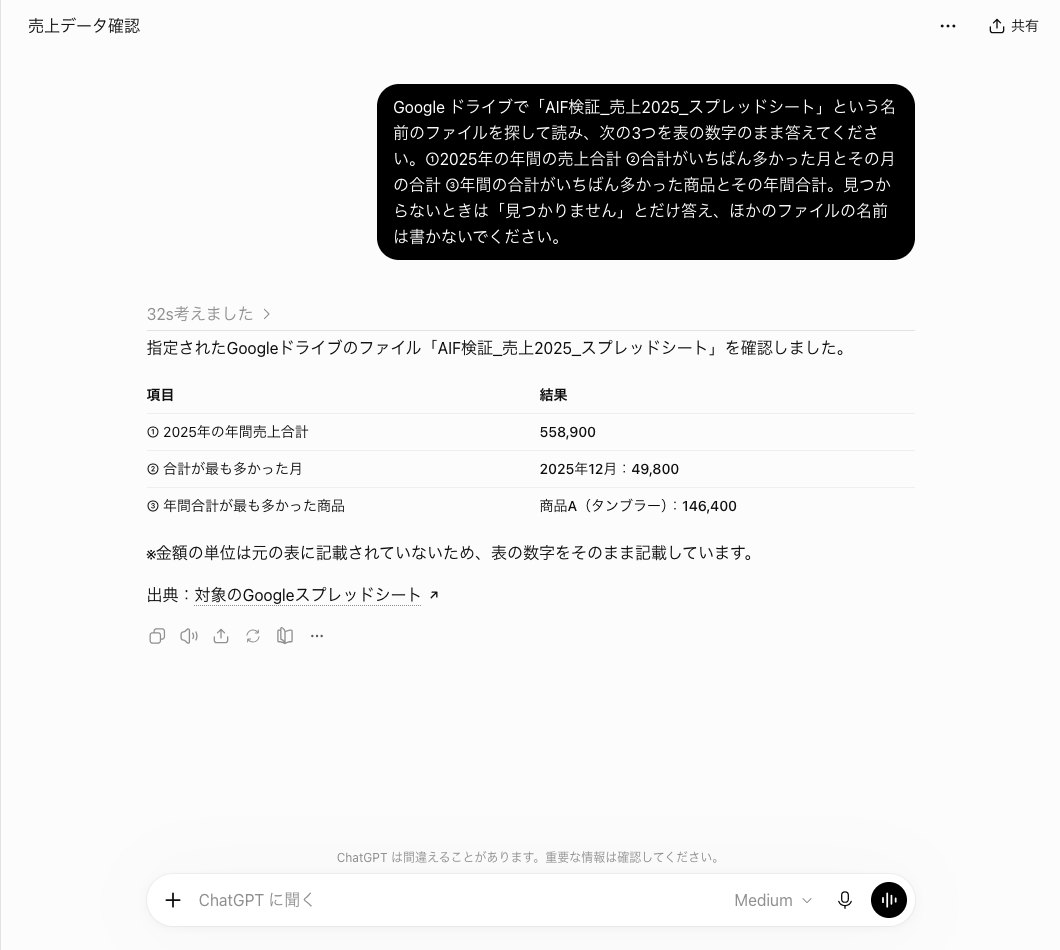
A link labeled “Source: target Google Spreadsheet” was attached below the answer. No other file names appeared at all. As with the Sheets round, it noted that since the original table had no units written in, it used the numbers from the table as is.
One thing to watch is the condition for finding a file by name.
If a file does not appear in results, one check the official help page suggests is whether “the connected account can open that file directly.” In this case, the file was set to be viewable by anyone with the link. Whether the connected account was the file’s owner was not confirmed on screen.
When searching by name for a file someone else shared with you, first check whether the connected account can open it.
A file that cannot be opened may not show up in the answer even if you ask for it by name. If you want to be sure it gets read, pasting a link is more reliable than relying on the name.
With the same Excel file attached directly, the answer took 33.2 seconds but gave the unit as yen
Read the attached Excel file and answer the following 3 items using the exact numbers in the table. 1) The total sales for all of 2025. 2) The month with the highest total and that month’s total. 3) The product with the highest annual total and that total.
The last round skipped Drive entirely. We attached the same Excel file (5,480 bytes) used in the second round directly to the input field. This serves as a baseline for comparison with the Drive-linked rounds.

When you attach a file, a card appears above the input field. The card shows a small preview of the table contents, so you can check it’s the right file before sending. After sending, the screen showed “Spreadsheet” under the card.
The answer came back in 33.2 seconds, the fastest of the six rounds. It ran 97 characters, much shorter than the rounds that went through Drive. There was no table and no source citation.
The answer was simply three bold lines for items (1), (2) and (3). This round’s screen also didn’t show the thinking-time display that normally appears above the answer.
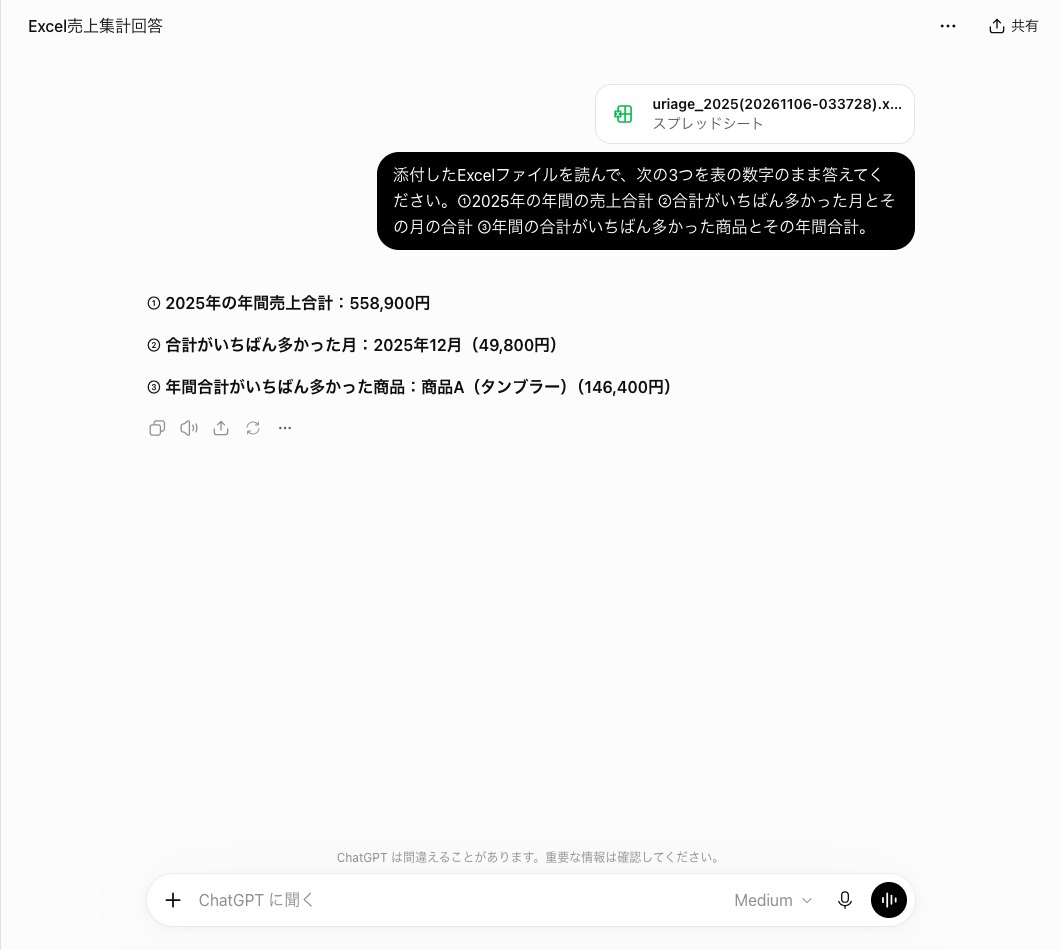
All three figures were correct. However, every one of them was labeled as “yen.” The annual total was given as “¥558,900.” December was listed as “¥49,800,” and Product A as “¥146,400.”
The original Excel file doesn’t specify a unit. The correct unit for this table is thousands of yen, and only the PDF and image versions actually state “thousand yen.” If you copy these figures into a document while they’re labeled as yen, you’ll read the sales figures as far smaller than they actually are.
In the round that went through Drive, ChatGPT noted for the same Excel file that “no unit has been added.” This difference in how the answer was written is the biggest discrepancy among the six rounds. It’s not clear from the screen why yen was attached only in the direct-attachment case. Before using any figures, check the unit yourself.
All six results in a table: all three items correct every time, with differences in units and length
| Delivery method | File format | Time to answer | Character count | Score | Unit style | Source link |
|---|---|---|---|---|---|---|
| Link | Spreadsheet | 51.8 sec | 326 characters | 3/3 | None (noted explicitly) | Yes |
| Link | Excel (.xlsx) | 39.3 sec | 264 characters | 3/3 | None (noted explicitly) | Yes (target) |
| Link | 42.6 sec | 388 characters | 3/3 | Thousand yen | No (already analyzed) | |
| Link | PNG image | 54.7 sec | 231 characters | 3/3 | Thousand yen | No (already analyzed) |
| Search by name | Spreadsheet | 48.8 sec | 236 characters | 3/3 | None (noted explicitly) | Yes |
| Direct attachment | Excel (.xlsx) | 33.2 sec | 97 characters | 3/3 | Yen (a unit not in the table) | No |
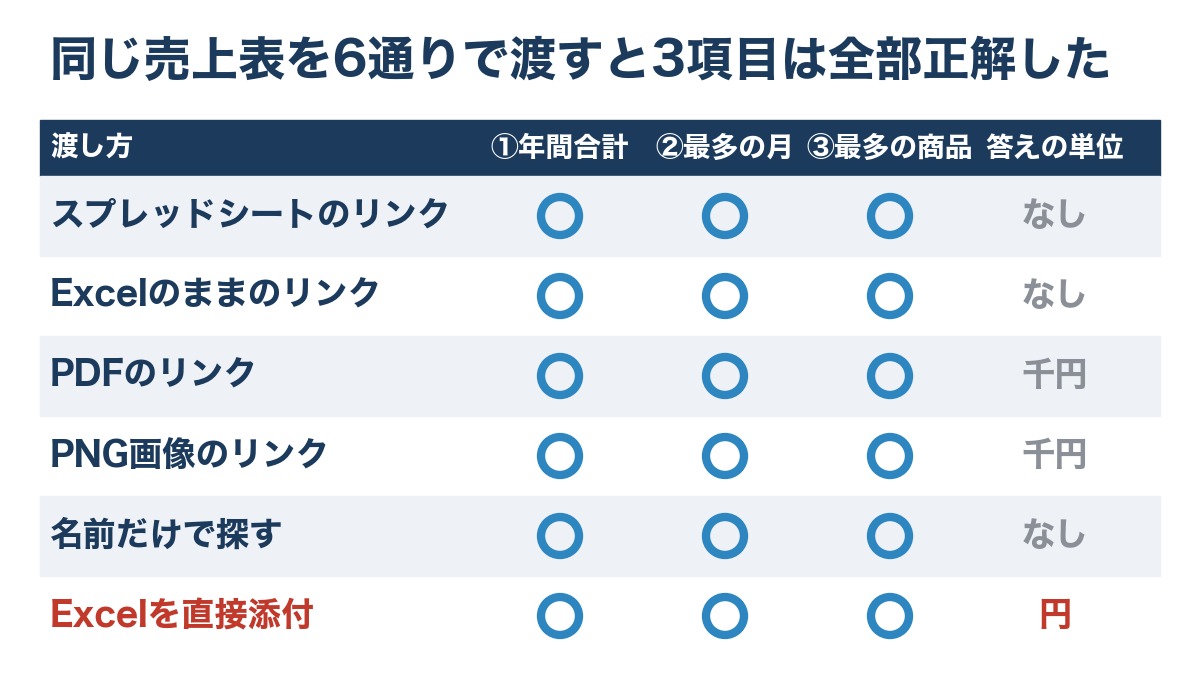
All six rounds got all three items correct. Getting the annual total requires adding up all 12 monthly totals.
The table has no row for an annual total, so ChatGPT had to do the addition itself. Even so, no round produced a figure other than 558,900.
ChatGPT also didn’t miss the figures that are easy to mix up. The second-highest month was August 2025 at 49,000, quite close to December’s top figure of 49,800.
The second-highest product was also close: Product B (eco bag) at 140,600 versus Product A’s 146,400. In all six rounds, ChatGPT correctly picked December and Product A as the top performers.
The differences showed up in units and character count. In the five Drive-based rounds, units were either omitted or given as “thousand yen,” matching what was written in the table.
Only the direct attachment added “yen,” a unit not in the table. Character count ranged from 97 characters for the direct attachment to 388 characters for the PDF link.
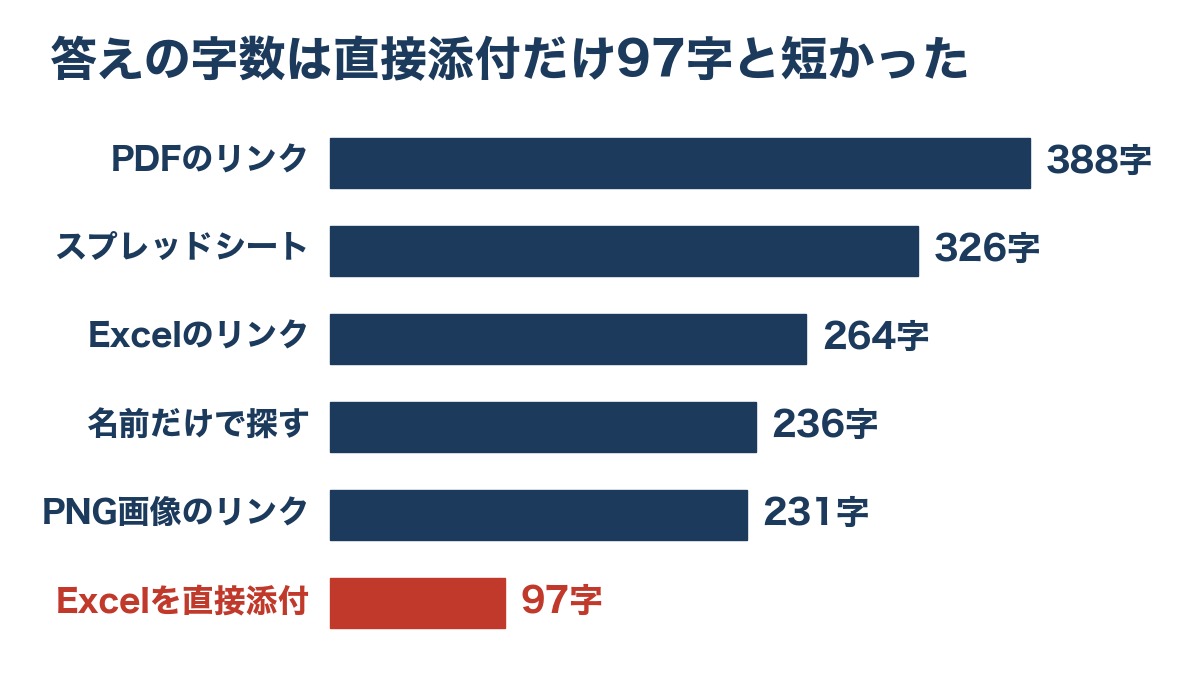
The seconds shown are the time from sending the message to when the full answer appeared, measured using our own system. Each was measured only once, so treat the speed differences as a rough guide.
How useful this feature is shows up less in speed and more in whether it returns correct figures and units. In these six rounds, going through Drive produced more accurate handling of units.
Three ways to use the Google Drive integration, based on actual testing
Paste a link without changing the file format
For Excel, PDF and image files alike, simply pasting a link got all three items correct. The results matched the round that used a spreadsheet instead.
If you’ve already uploaded a file to Drive, it’s fastest to first try asking with a link to the file as is, without converting it. PDFs sometimes show “tabulating” in an intermediate table, so check the table at the very bottom.
Provide a version with the units written in
The only two rounds that got the units correctly labeled were the PDF and the image. Both had “thousand yen” written above the table. For the spreadsheet and Excel files that had no unit listed, ChatGPT noted via Drive that it wasn’t adding a unit.
With direct attachment, it added “yen” on its own. If your table shows amounts of money, writing the unit in a single line above the table keeps the answer consistent.
Use the source link to check which file ChatGPT read
The rounds using a spreadsheet, Excel file, or a file found by name all included a source link below the answer. Clicking it takes you back to the file in Drive, so you can immediately confirm there’s no mix-up. The PDF and image rounds had no source link; instead, they showed an “already analyzed” label.
In those cases, check the file name or title written at the top of the answer. As in the spreadsheet round, ChatGPT sometimes refers to a file by its tab name rather than its file name, so watch for that.
Excel, PDF and image files can all be read via link, even though the official help page doesn’t name them
We read OpenAI’s official help article “Google Drive app and setup in ChatGPT” in English on November 6, 2026. The page showed it had been updated 15 days earlier, and the body text ran 7,372 characters. The opening section describes this feature as connecting ChatGPT to files and folders that a Google account can open.
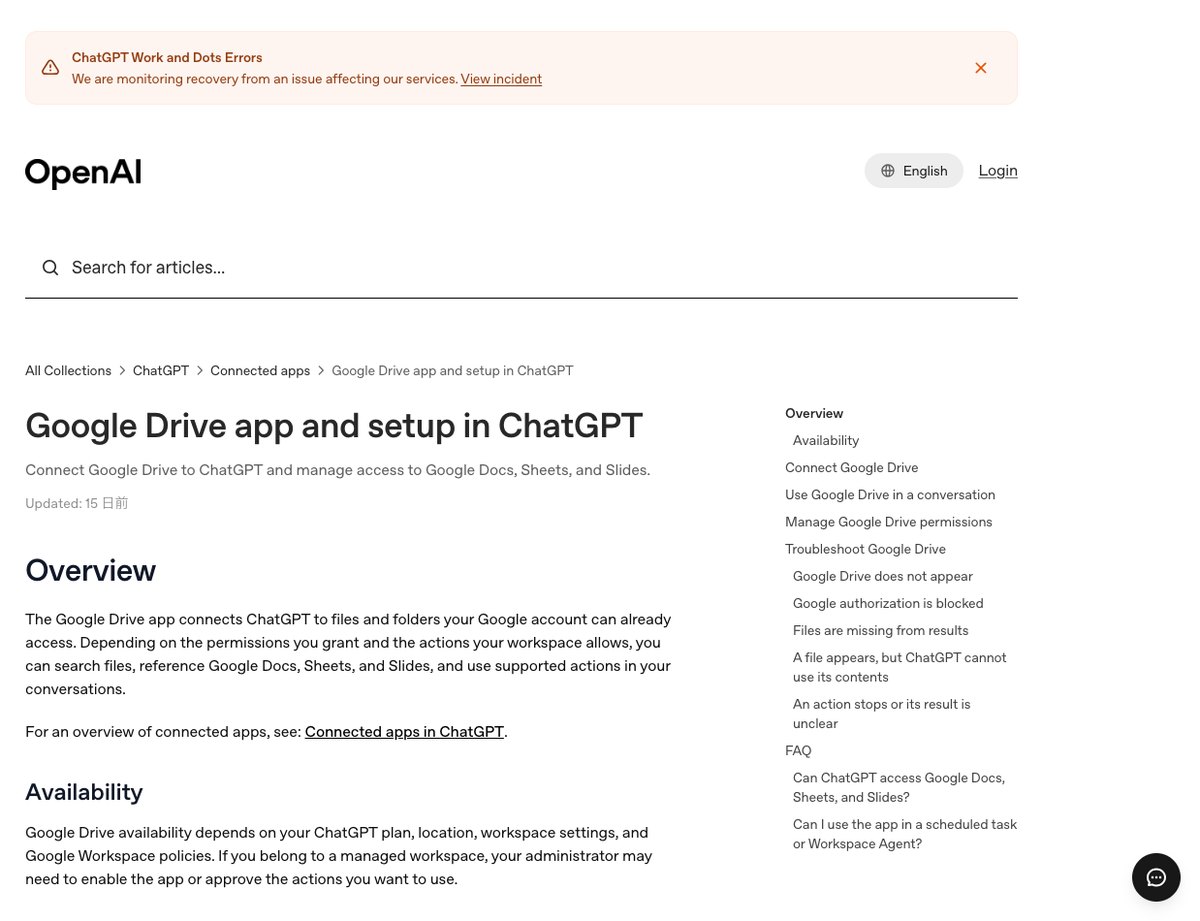
The help page lists searching for files and referencing Google Docs, Sheets and Slides. It also says you can use supported actions within a conversation.
It notes that availability varies by plan and region. On workplace accounts, the feature may be unavailable unless an administrator enables it.
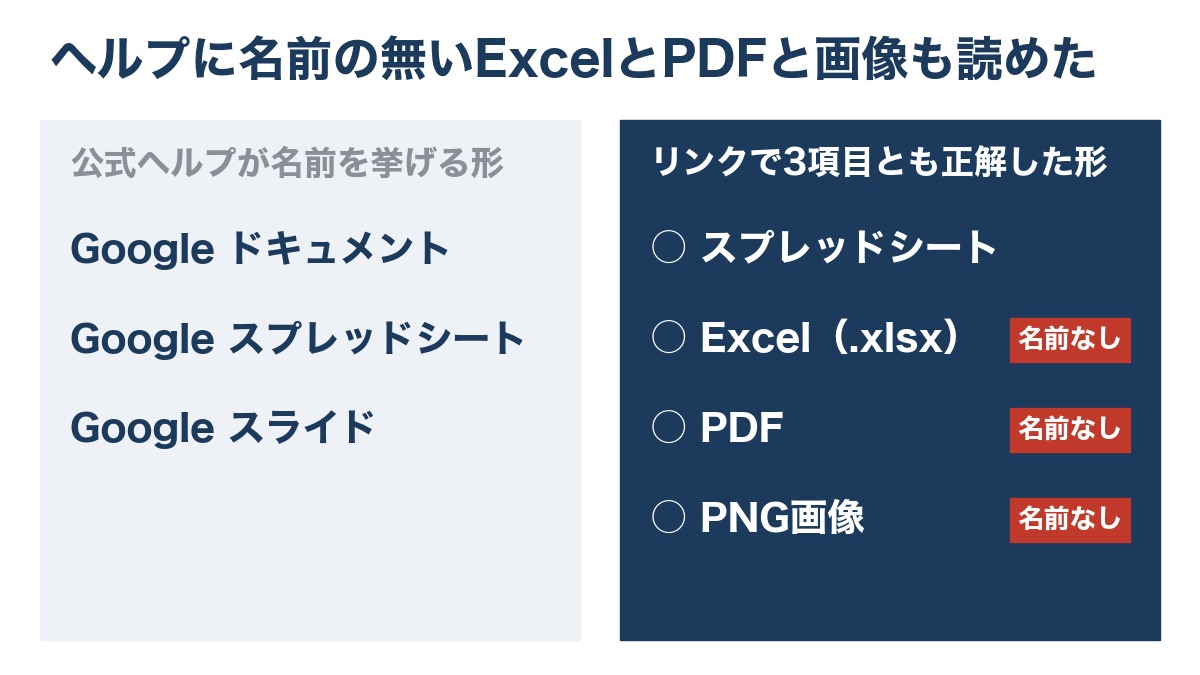
This help page does not mention Excel, PDF, or image files by name. In this test, all of them got all three items correct when shared by link.
Formats not listed in the help page can sometimes still be read, but that is not something officially guaranteed. For important documents, always compare the numbers in the answer against the original table.
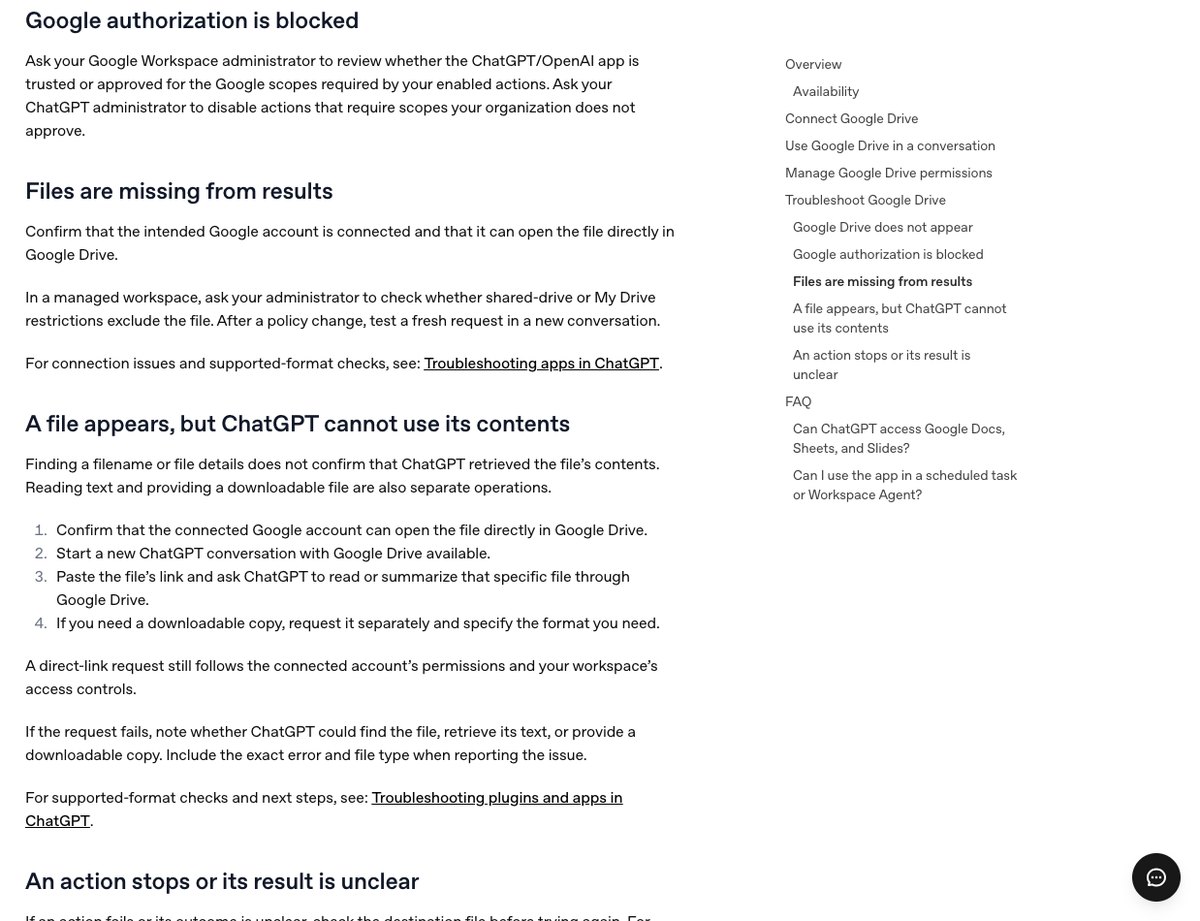
The help page also has a section for when a file appears but its contents cannot be used. It explains that even if a file name or file details show up, that does not always mean the contents can be pulled out.
As a fix, it suggests starting a new conversation, pasting a link to the file, and asking ChatGPT to read or summarize it. The approach used in this test matched exactly this format.
It also states that even when asked via a link, ChatGPT still follows the permissions of the connected account and any workplace access rules. Pasting a link does not mean everything becomes readable. When a file cannot be read, the quickest fix is to first check whether the connected account can open that file directly.
Watch for units, permissions, and untested scenarios with Google Drive integration
The first thing to watch is units. The biggest problem in this test was that the direct attachment added a “yen” unit on its own.
Even if the numbers themselves are correct, the wrong unit makes the answer unusable as a reference. With Drive integration too, a table with no unit will return numbers alone.
The second thing to watch is account permissions. This test could not confirm on screen whether the connected account was the file’s owner.
For that reason, the test file was set so that anyone with the link could view it. It was not confirmed whether files with link sharing turned off, or files shared by someone else, can be read the same way.
The third thing to watch is how data is handled. The plugin’s detail page notes that related chats or memory may be shared with the app in some cases. If you plan to connect work files, check your workplace’s rules first.
Here is what this test did not cover. Write functions were not tested. ChatGPT was not asked to create new documents in Drive or rewrite any tables.
Google Docs and Slides files were also not placed in Drive for this test, to keep the compared content limited to a single sales table.
This test also left out the method of selecting Google Drive from the input field before making a request. To match the official help page’s suggested fix, every request was made by pasting a link and asking in a sentence.
Every result here came from sending the request once. Even with the same wording, the format of the answer can change each time it is sent.
Related articles and tools to read alongside ChatGPT’s Google Drive integration
ChatGPT’s pricing and other features are covered on a dedicated page. In the previous installment of this series, we tested whether ChatGPT could build a skill just by being asked.
- ChatGPT pricing, features, and how to use it (AI Tools Database)
- Can ChatGPT build a skill just by being asked? It took 69.4 seconds and asked zero questions
- Can ChatGPT read an Excel file stored in Google Drive as is?
- Yes, it could in this test. When AInformation pasted a link to a sales table kept in Excel format on November 6, 2026, an answer came back in 39.3 seconds with all three items correct. The official help page lists Google Docs, Sheets, and Slides as what this feature handles, and does not mention Excel. For important documents, always compare the numbers against the original table.
- Can ChatGPT also read PDFs or images stored in Google Drive?
- Yes. When the same sales table was converted to PDF, the answer came back in 42.6 seconds. For a PNG image of the table, it took 54.7 seconds. Both got all three items correct, and both even included the thousand-yen unit written above the table. In the PDF run, ChatGPT showed an in-progress table once midway through and then answered again, so it is safer to read through to the final table before using the results.
- Can ChatGPT find a file by name alone, without pasting a link?
- Yes, in this test it found the file. When only the file name was given and ChatGPT was asked to search for it, an answer came back in 48.8 seconds, with the file name correctly identified and all three items correct. However, the official help page says that when a file does not appear, you should check whether the connected account can open that file directly. For files shared by someone else, pasting a link is more reliable.
- Should I use Google Drive integration or direct attachment?
- The numbers were correct either way, but unit handling was more accurate with Drive integration. When the same Excel file was attached directly, the answer came in 33.2 seconds but added a yen unit that was not in the table. When the file went through Drive, ChatGPT either declined to add a unit or used the thousand-yen unit written in the table. For tables with monetary amounts, check the units yourself no matter which method you use.
- What should I do if ChatGPT shows the file name but won’t read its contents?
- Start a new conversation, paste a link to the file, and ask ChatGPT to read or summarize it again. This is the fix listed on OpenAI’s official help page. The help page notes that even if a file name or details appear, that does not always mean the contents can be pulled out. Also check whether the connected Google account can open that file directly.
Articles to read next
- Related readingChatGPT Images 2.6 how to use: 5 prompts and test results
- Related readingChatGPT study mode: asked for answers, got 18- and 64-char questions
- Related readingHow to create a ChatGPT Skill: 69.4 seconds, zero follow-up questions
- Related readingChatGPT Go vs Plus: ¥1,400 Go was enough for everyday use