
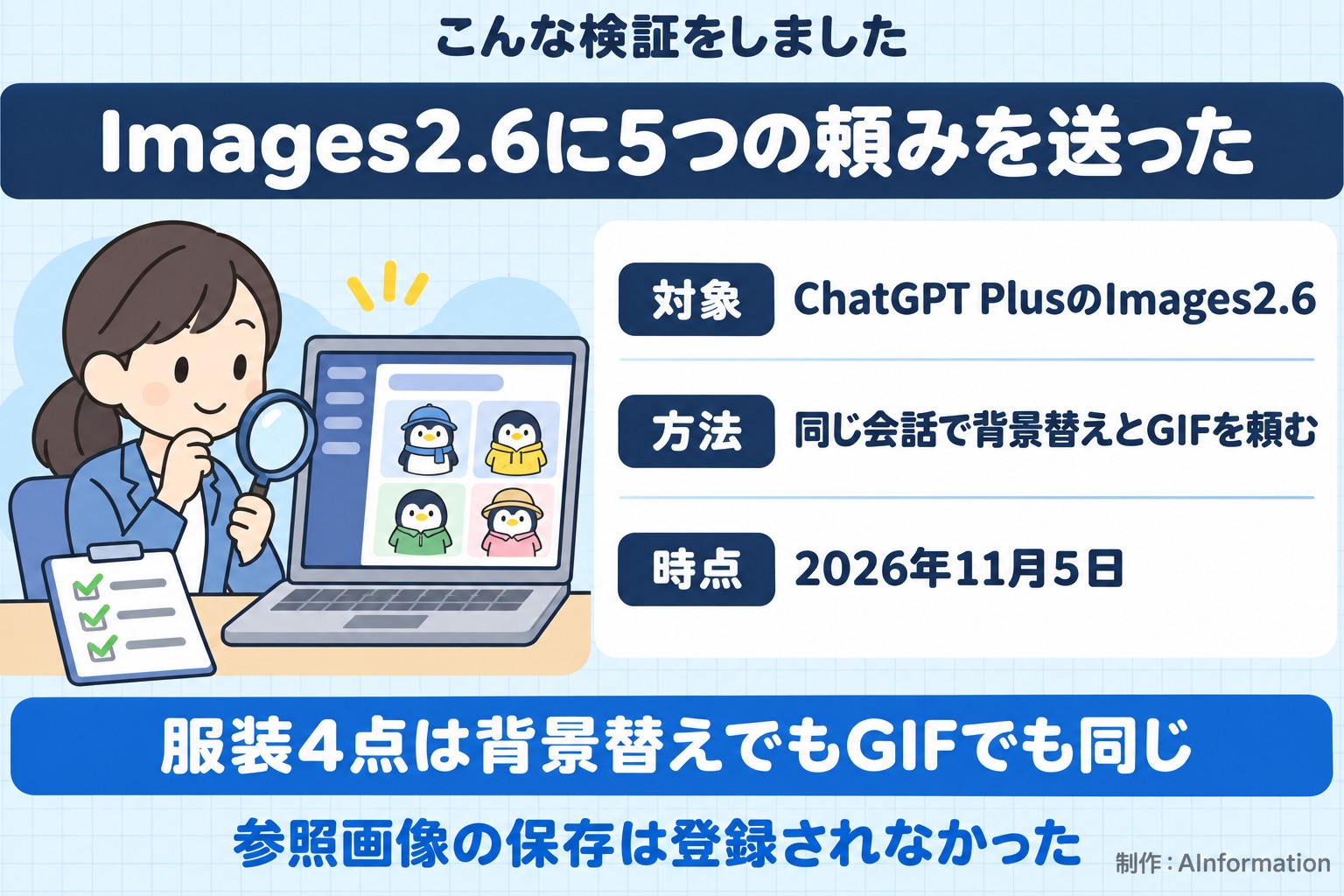
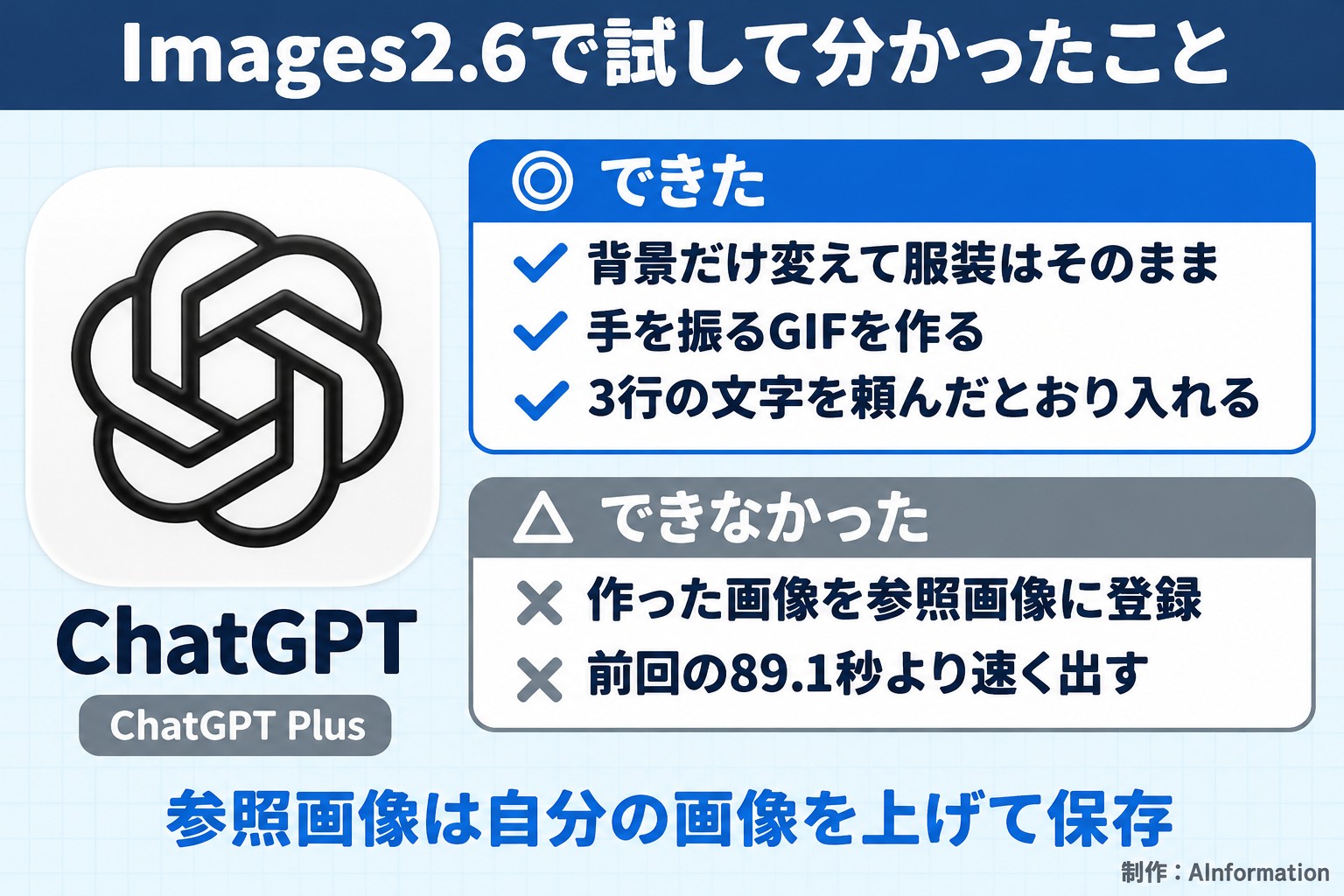
We tried ChatGPT Images 2.6 on ChatGPT Plus on November 5, 2026. A request to change only the background to a snowy shopping street came back in 51.3 seconds, and all four clothing items stayed intact. We were also able to make a waving GIF. A request to save the generated image as a reference image was not registered, and the system returned steps for re-uploading it instead.
- To make a GIF with ChatGPT’s Images 2.6, we simply asked, in the same conversation where we made the image, to “create a looping GIF animation”
- A request to place a penguin with a white background back into a snowy shopping street came back in 51.3 seconds, and the four clothing items did not change
- A notice image with three lines of text took 114.3 seconds to appear, and all three lines matched the text we requested exactly
- The same text took 89.1 seconds on ChatGPT Pro with Images 2.5, so we could not confirm the announced “50% faster” claim with this Plus test
- A request to save the generated image as a reference image under the name “Sample-kun” returned “Could not register” after 84.9 seconds
- We include five ready-to-use prompts, along with screenshots of the results and a pass/fail table
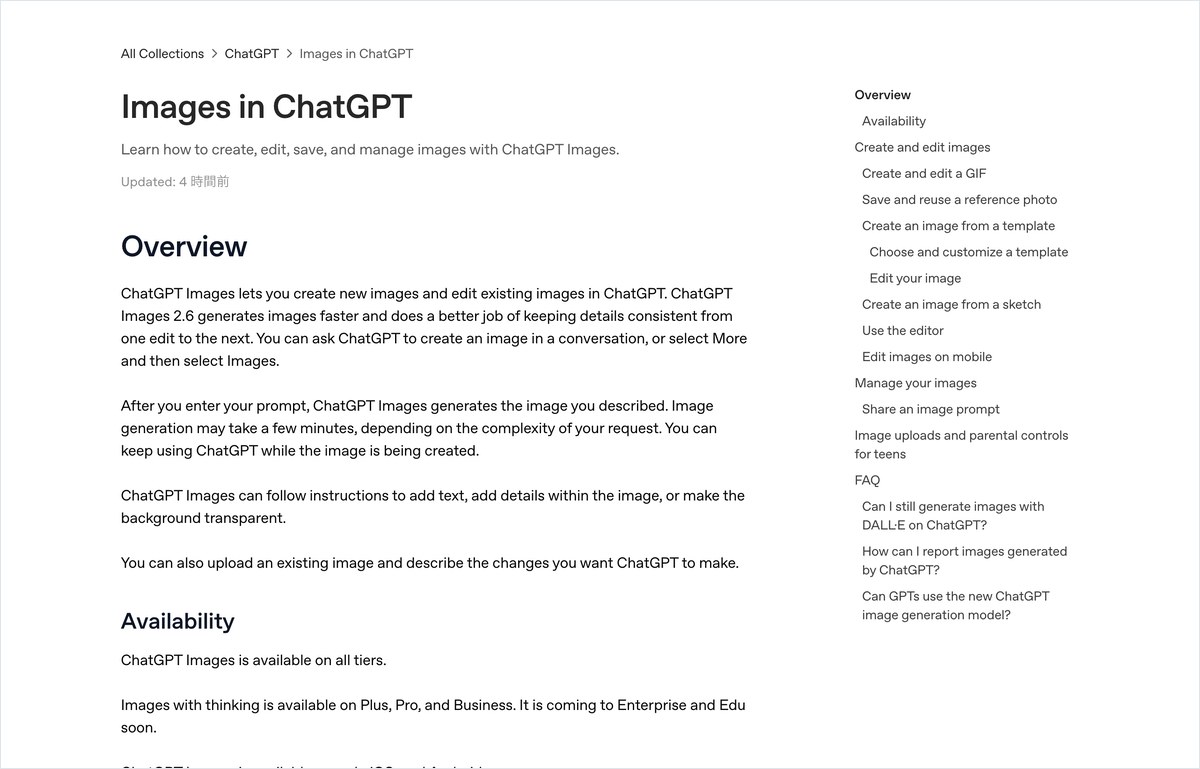
How to use ChatGPT Images 2.6: select “Create image” from the + button and describe what you want in text
Using ChatGPT Images 2.6 is simple. Click the + button to the left of the input field, select “Create image,” and describe what you want to make in text.
AInformation sent five requests on ChatGPT Plus on November 5, 2026. The biggest finding was that clothing did not fall apart even when the background was changed. A request to place a penguin with a white background into a snowy shopping street at night came back in 51.3 seconds. The four items — a yellow raincoat, a red scarf, blue rain boots, and round glasses — all stayed intact. Even in a GIF of the same penguin waving, the four items and the background did not change.
Speed, however, did not match the announcement. A notice image with three lines of text took 114.3 seconds (about 2 minutes). When we sent the same text to ChatGPT Pro (Images 2.5) on October 19, it took 89.1 seconds. Because the plan and settings differ, this single test cannot determine which model is faster.
OpenAI wrote the following in its release notes on November 4, 2026: “The new model generates images faster and is better at preserving details, such as a character’s clothing, when the background is changed.” On the same day, GIF creation and reference image saving were both added to ChatGPT.
We tested the browser version of ChatGPT Plus. The model display on screen read “Thinking amount: High,” and “High” also appeared to the right of the input field. We split the test into two conversations. In the first, we created the notice image. In the second, we continued requesting a character, a background change, a GIF, and reference image saving one after another in the same conversation.
How to use it in four steps
- Click the + button to the left of the input field and select “Create image” from the list that appears. A blue “Create image” tag appears at the start of the text you send
- Describe the image you want in text. If you want text included, write the exact text and add “Do not change a single character”
- Edit the finished image by continuing the same conversation. If you only want to change the background, name the parts you want kept unchanged as well
- To animate it, ask in the same conversation to “create a looping GIF animation.” The resulting GIF comes with a playback speed button
The one-line prompt for making a GIF
We start with the GIF request that most readers probably want to try. This is the exact text AInformation sent. We sent it as a follow-up in the same conversation where we had changed the character’s background.
Please create a looping GIF animation of this character waving one hand in greeting. Keep the background as the snowy shopping street at night.
In this prompt, we limited the motion to a single action — “waving one hand” — and named the background we wanted kept unchanged. The remaining four prompts appear below, alongside screenshots of the results.
The notice image took 114.3 seconds and included all three lines of text with no characters missing
We set the pass line as: “all three lines of text appear without a single character changed, and the image is in portrait format (4:5).” The result was a pass. All three readable lines matched the requested text exactly, and the image came out in portrait format.
In the first conversation, we selected “Create image” from the + button and sent the following text.
Please create a portrait-format (4:5) notice image. Include only the following three lines of text, without changing a single character.
Line 1: Sample Trading Co. Winter Stock-Up Fair
Line 2: Through Tuesday, November 3 (holiday) — 15% off for 2 or more items
Line 3: Available in stores and online
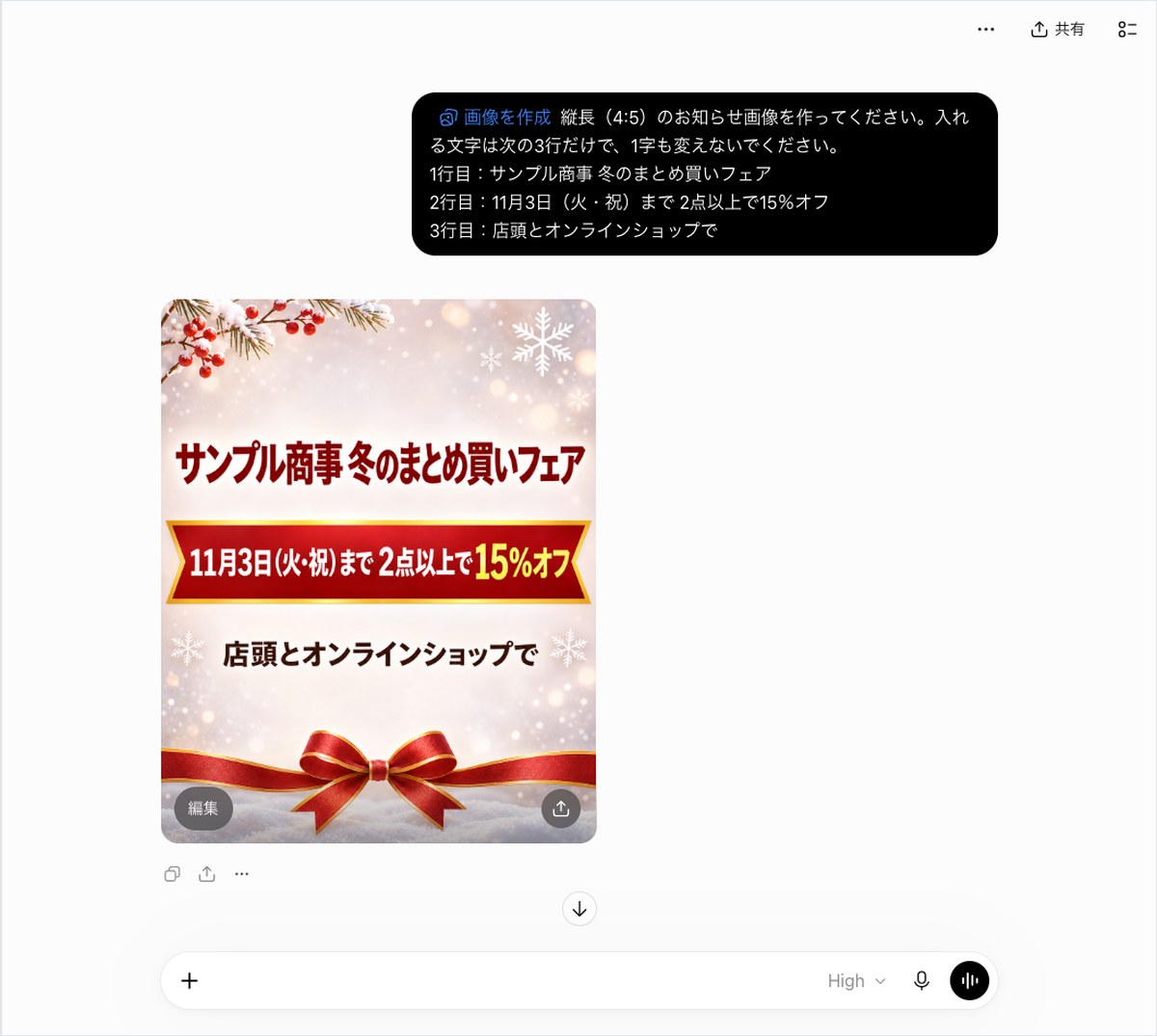
It took 114.3 seconds (about 2 minutes) for the image to appear. No text accompanied the answer — only a single image came back. Line 1, “Sample Trading Co. Winter Stock-Up Fair,” appears in large, dark red text. Line 2 appears in white text on a red band, with only “15% off” enlarged in yellow. Line 3, “Available in stores and online,” appears in brown text, flanked above and below by decorative snowflakes and a red ribbon.
We zoomed in and checked each character against the original. No characters were missing or added. The order of the characters was not swapped anywhere, and no unrequested text appeared in the image. Even for text where a single wrong character would be a problem — such as a company name or a date — this image required no corrections.
One thing that stood out was the shape of the parentheses. The parentheses around “(holiday)” in line 2 were drawn in a narrow form that matched the illustration’s typeface. We could not tell from the image alone whether they were full-width or half-width characters. If you plan to use this directly in a flyer or on social media, it is worth double-checking the parentheses and other symbols yourself.
The shape came out as portrait format, taller than it is wide. The requested three lines sit centered in the middle of the image, from the decoration at the top down to the ribbon at the bottom.
The speed left something to be desired. According to the announcement, this request should have come back faster than before. Even so, 114.3 seconds took longer than the previous 89.1 seconds. We have summarized the differences in conditions between the previous and current tests in a table later in this article.
The character appeared in 36.3 seconds with all four clothing items and a full body
We set three pass conditions. All three were met, so we marked this a pass.
- All four clothing items (yellow raincoat, red scarf, blue rain boots, round glasses) are present
- The full body is visible, down to the feet
- No text appears in the image
The image appeared in 36.3 seconds, the shortest time among the five requests in this test. We opened a new, second conversation, selected “Create image” from the + button again, and sent the following.
Please create an image of Sample Trading Co.’s mascot character. It is a small penguin with a round face, wearing a yellow raincoat, a red scarf, blue rain boots, and round glasses. Use a solid white background, and show the full body. Do not include any text.
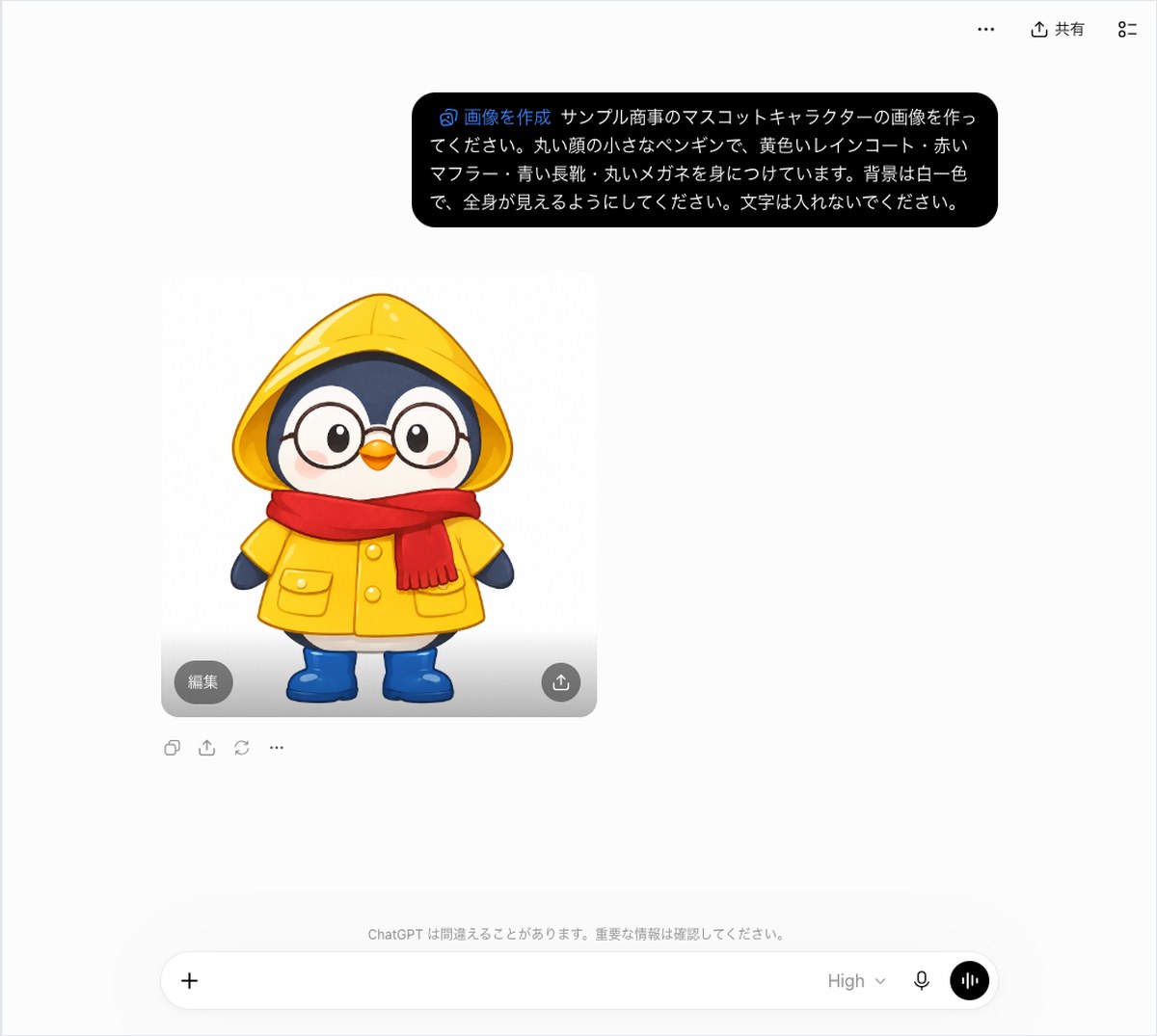
What came back was a round-faced penguin wearing a yellow hood. Round glasses with brown rims sit on its face inside the hood, and its cheeks are shaded a light red. A red scarf is wrapped around its neck, with the fringed ends hanging down to the right.
The raincoat shows two gold buttons and two pockets with flaps. The feet are covered in blue rain boots, visible all the way to the toes. The on-screen “Edit” button overlaps the lower part of the image, but the boots are not cut off. The background is solid white, with no text at all.
We described this image in detail for a reason: it serves as the reference point for checking whether the clothing changed in the later background-change and GIF tests. We compared four details against later images — the number of buttons, the number of pockets, the direction the scarf’s fringe hangs, and the shape of the glasses.
One thing we were careful about in the prompt was pairing each worn item with its color, writing them together as a single unit, as in “yellow raincoat.” We did not test how the results would differ if color and item were specified separately.
A request to change only the background took 51.3 seconds, and all four clothing items stayed unchanged
The pass bar was: “only the background changes, while the four clothing items, the face, and the pose stay the same as in the previous image.” If even one color or shape changed, we marked it a fail. As far as we could see, the result passed. The answer came in 51.3 seconds, and only one image was returned.
This is the message we sent next, in the same conversation.
Change only the background of the character you just created to a shopping street on a snowy night. Do not change the character’s face, clothing, glasses, or pose.
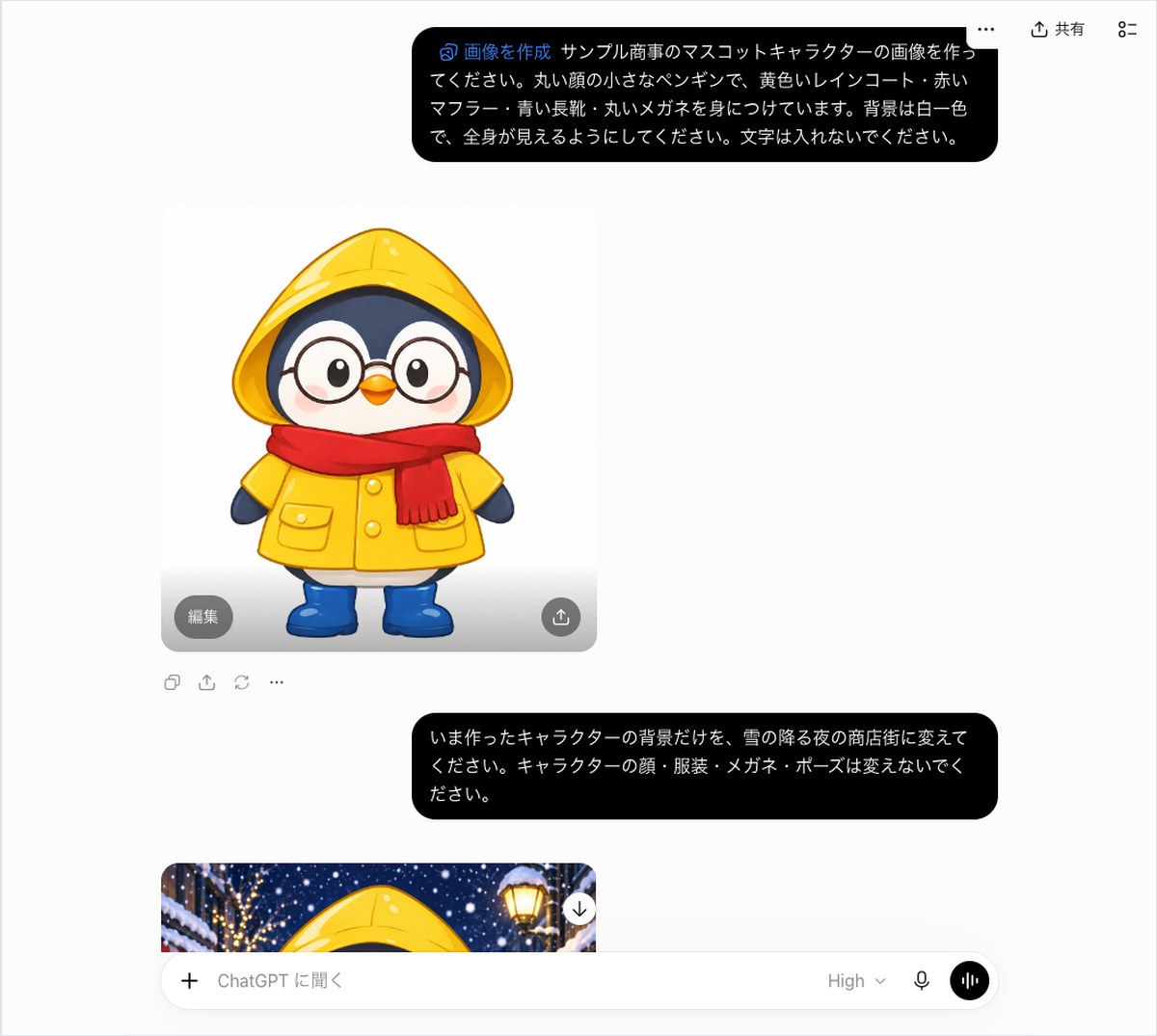
The background changed from white to a shopping street on a snowy night. A streetlight glows in the upper right, and the shop on the left has string lights. Snow falls from the sky, and the yellow hood keeps the same color and shape as before.
However, the screenshot only captured the upper part of the new image. We compared the full body using frames from a GIF we requested next in the same conversation. In the GIF frames, all four clothing items matched, and the number of buttons and pockets was the same as in the white-background image. The scarf tassels still hang down on the right side, as before.
OpenAI’s announcement states that the model “keeps details such as the character’s clothing when changing the background.” In this one test, that held true. Comparing the white-background image with the snowy shopping street image side by side, even the color of the glasses frames did not change.
One thing we did when writing the prompt was to list the elements to keep unchanged by name. We wrote “do not change the face, clothing, glasses, or pose.” We did not compare this against a request that omitted those names in this test. Readers who want to change a character’s background by season can try this by swapping out only the “shopping street on a snowy night” part of the prompt.
ChatGPT’s GIF showed a waving animation with a “1x” playback speed button
The pass bar had three conditions, and all three were met. We sent the GIF request below as a continuation of the conversation where we changed the background, using the text from the first chapter.
- The output is a GIF with a playback speed button
- It includes a waving motion
- The four clothing items and the snowy shopping street background remain
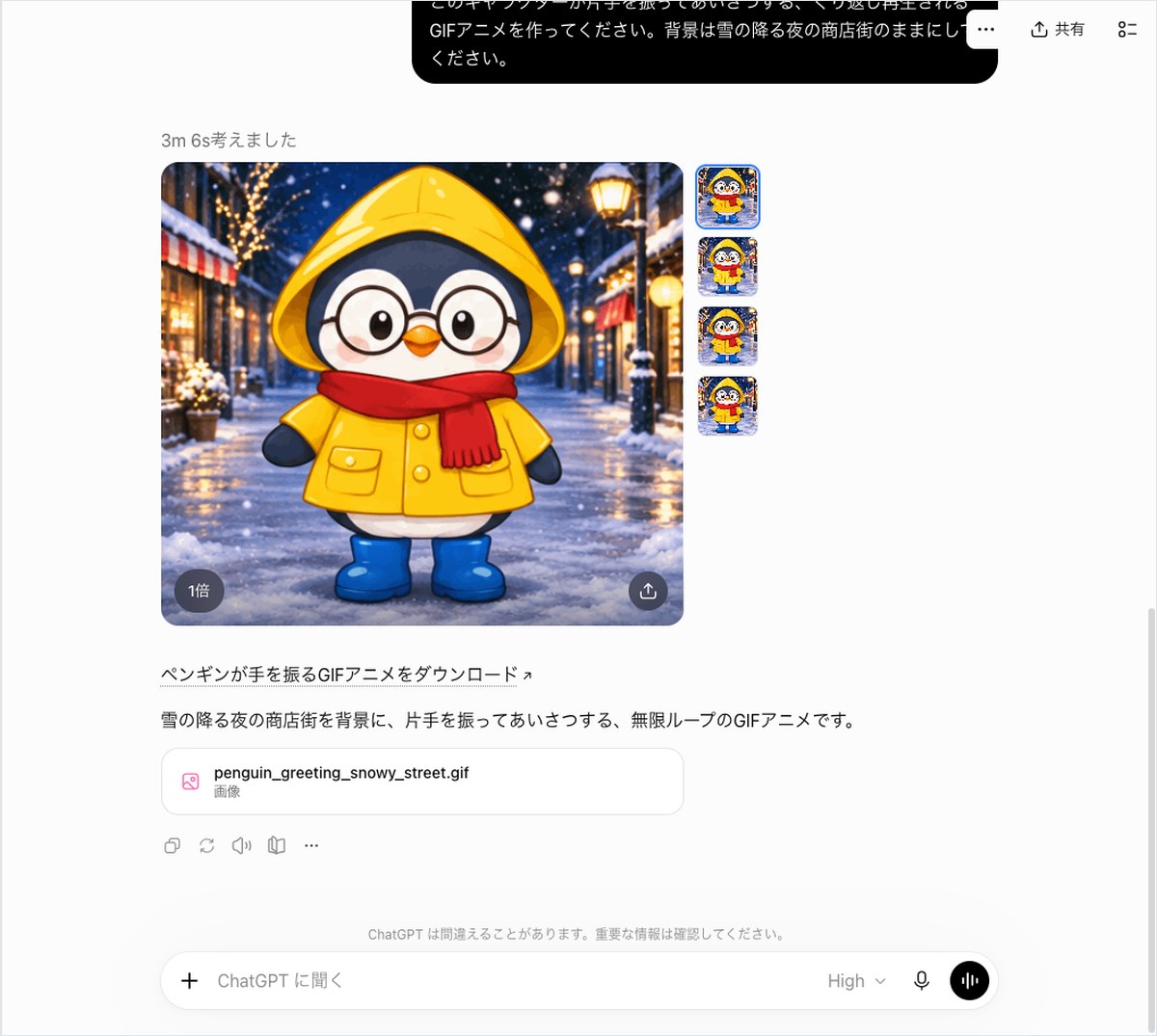
A “1x” button appeared in the lower left of the image. This button controls playback speed. OpenAI’s help documentation also states that opening a GIF lets you change the playback speed, save it, or share it. A share button appeared in the lower right.
Below the image is a link labeled “Download the waving penguin GIF animation.” Below that is a file tag named penguin_greeting_snowy_street.gif. The answer text runs 66 characters. It ends with: “This is an infinitely looping GIF animation of the character waving one hand in greeting.”
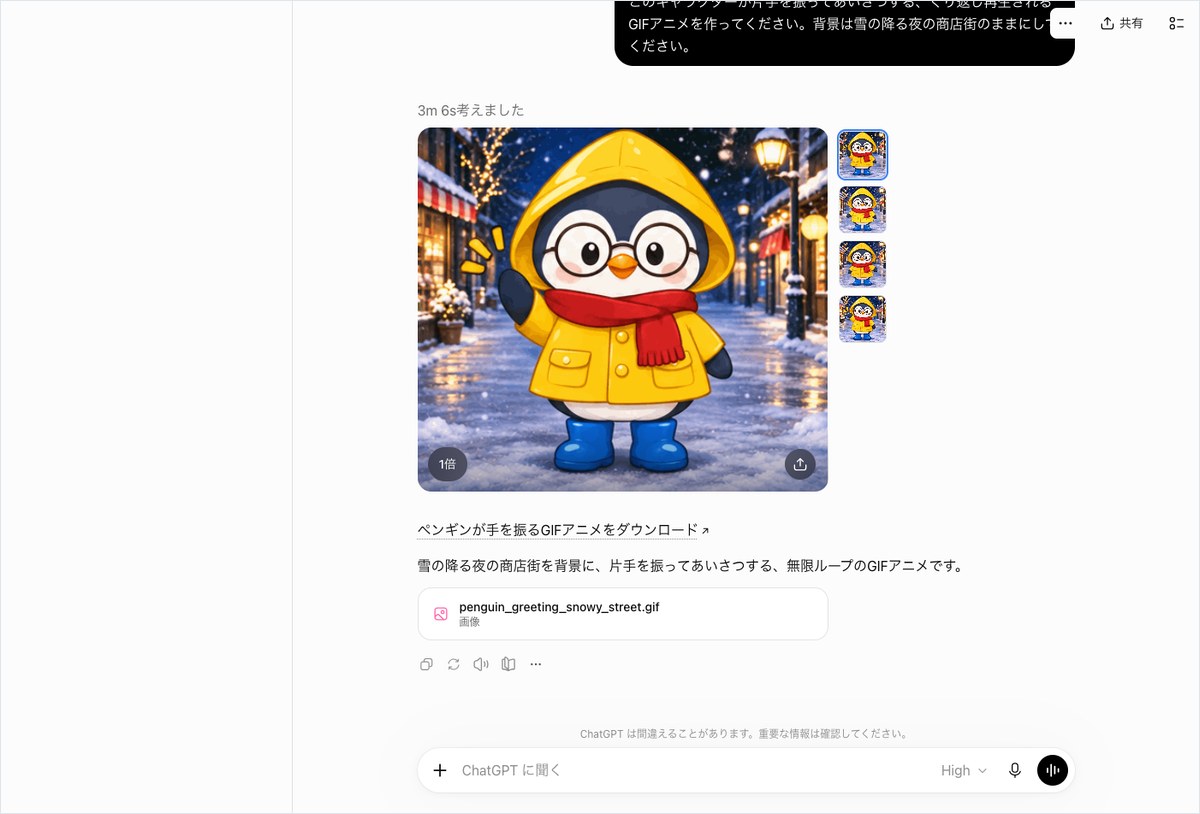
We took these two screenshots back to back. In the first, the penguin has both hands down. In the second, its left hand (from our view) is raised, with yellow lines drawn beside it to indicate waving motion. This shows it is an animated GIF, not a still image.
To the right of the image, four small images were lined up vertically. Two showed the hand raised and two showed it lowered. The screen gave no explanation of what this strip represents, so we could not determine it in this test.
We could not confirm from the two still screenshots whether the GIF actually loops. The answer text states it is an “infinite loop.” We also could not determine the number of frames or the length of one loop from these screenshots.
We also compared the clothing and background. The penguin in the GIF still wears all four items: the yellow raincoat, red scarf, blue rain boots, and round glasses. The background also remains the snowy shopping street, with the streetlight and shop decorations intact. Compared with the white-background image, we found no changes in color or shape.
The wait time was long. By our team’s measurement, it took 303 seconds (about 5 minutes) from sending the request to reading the answer. We were not able to measure the exact moment the GIF appeared on screen, so treat this figure as a reference only. Above the GIF answer, a “thinking time” indicator appeared, showing this is not a request the model starts generating immediately.
Saving a reference image by chat request alone did not register it; instructions came back in 84.9 seconds
The pass bar was: “being able to save a reference image through a chat request alone.” If that was not possible, the bar became: “correctly explain where to save it, and answer without generating an image.” Saving failed. The explanation, however, matched the same steps as OpenAI’s help documentation, so it passed.
The answer came in 84.9 seconds and ran 546 characters. We sent the following message as a continuation of the conversation where we created the GIF.
Please answer without generating an image. Save the character image created in this conversation as a reference image named ‘Sample-kun’ so it can be called up later from a different conversation. If you are able to save it, also explain how to call it up in a different conversation. If it cannot be saved through a chat request, explain what steps I need to take to save it.
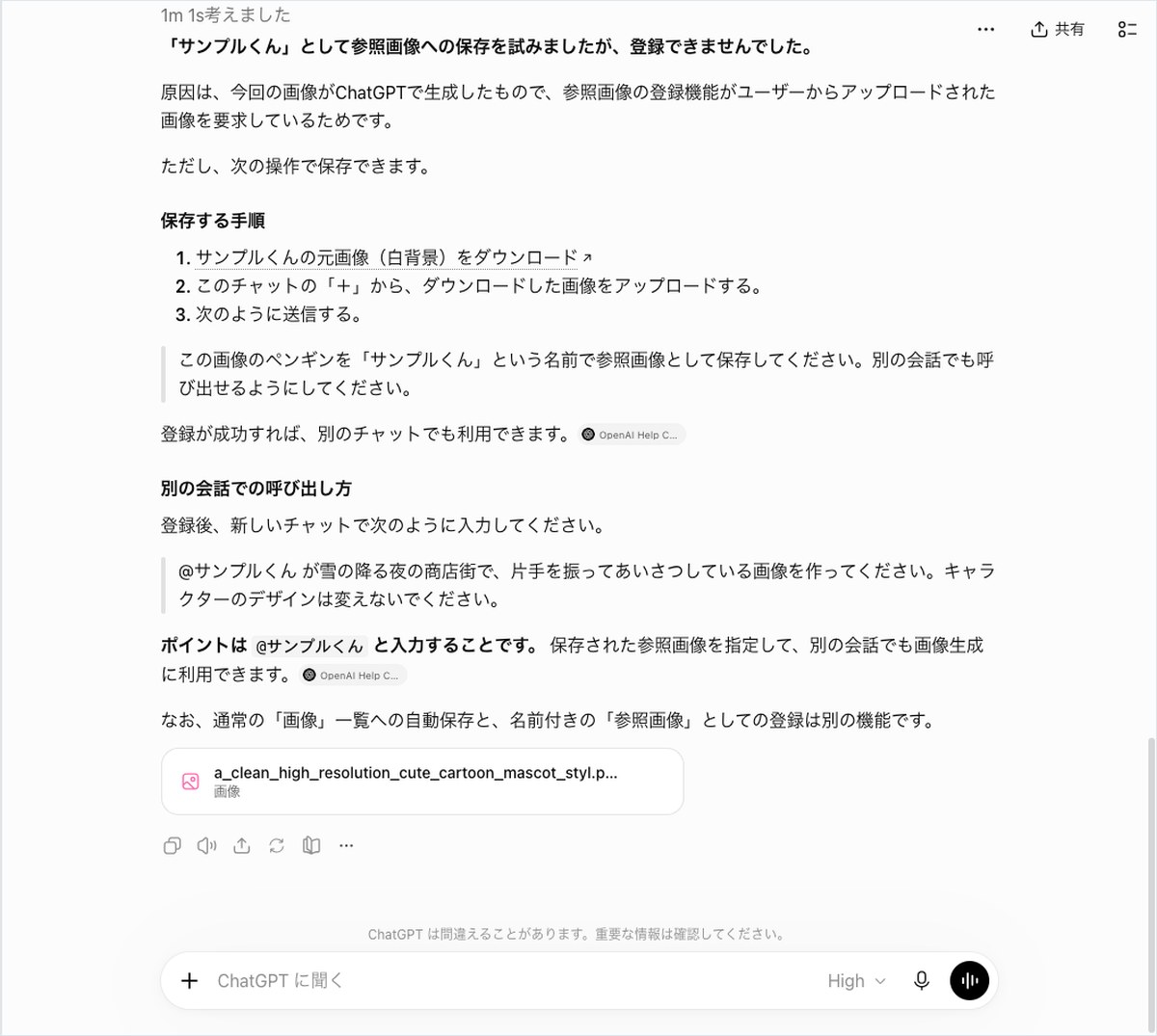
The first line of the answer read: “I tried to save this as a reference image named ‘Sample-kun,’ but it could not be registered.” ChatGPT tried the save itself and reported that it did not work.
As for the reason, ChatGPT wrote that “the reference image registration feature requires an image uploaded by the user.” In other words, an image generated within ChatGPT cannot be registered as is. This explanation came from ChatGPT’s own answer; we did not verify the underlying mechanism through the screen itself.
It then gave three steps for saving the image.
- Download the original Sample-kun image (the one with the white background)
- Use the + button in this chat to upload the downloaded image
- Ask ChatGPT to save it as a reference image named ‘Sample-kun’
To call it up, you type “@Sample-kun” in a new conversation. The answer stated: “The key is to type @Sample-kun.” It also noted that this named reference image feature is separate from the feature that automatically keeps images in the regular ‘Images’ list.
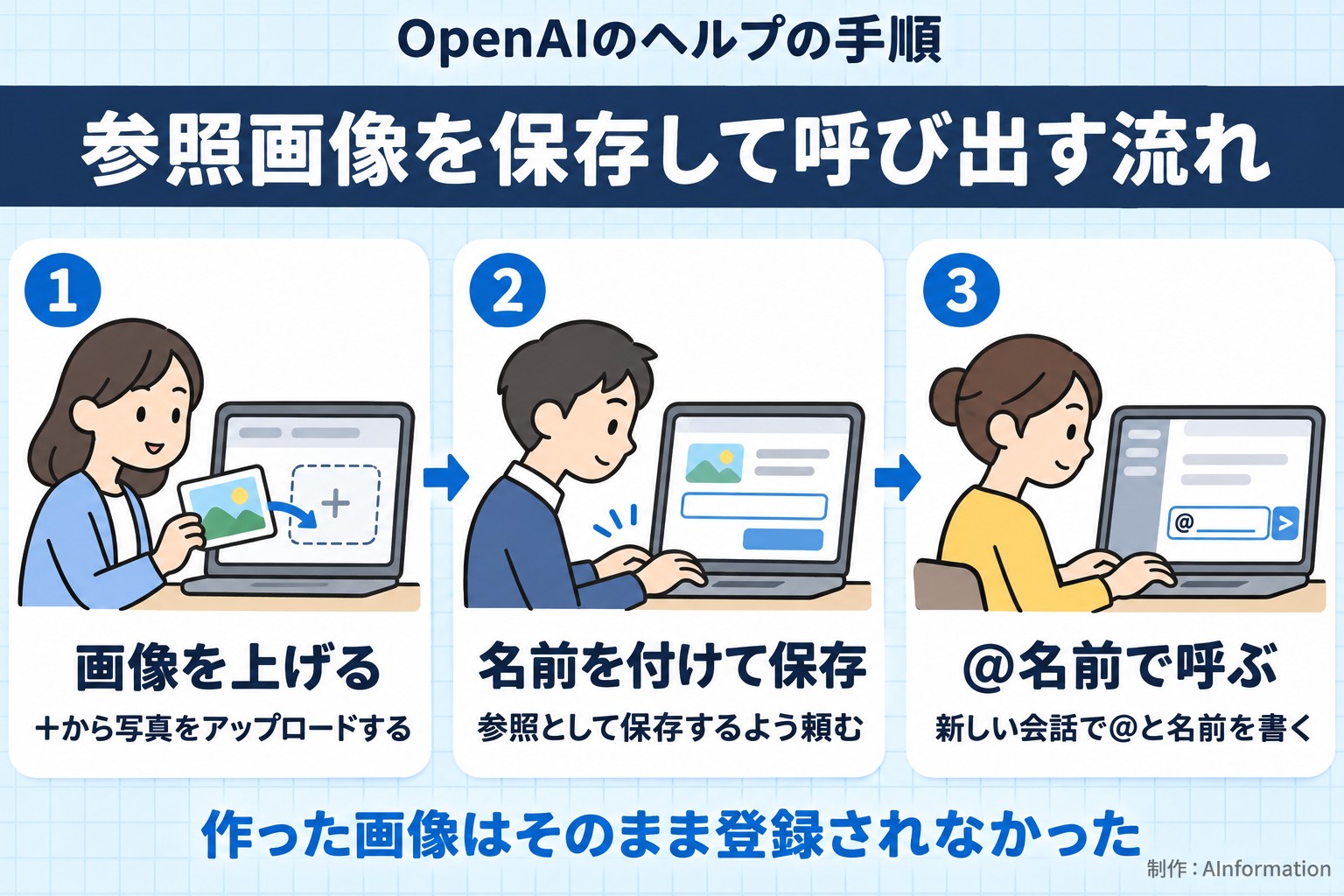
OpenAI’s help documentation also describes a process of uploading a photo and asking to save it as a reference. In later conversations, you call it up by typing @ followed by the saved name. ChatGPT’s guidance matched the steps in OpenAI’s help documentation.
The answer came with one image file attached, and the first step also included a download link. No new picture appeared in the chat itself. As requested, ChatGPT answered without creating an image.
We did not try re-uploading and saving the image by following the instructions this time. We also did not send the sixth request, which was to call up a saved reference image in a different chat. AInformation limits itself to five image requests per day, and the five requests had already reached that limit.
Four of five requests passed, and one image took 36.3 to 114.3 seconds
Passing means meeting every condition set for that task. Four of the five requests passed, and only the saved reference image failed. Based on the guidance, the save request was handled correctly, but the one thing it could not do was “turn a generated image into a reference image.”
Time in seconds and pass/fail for each of the five requests
| Request | Time taken | What came back | Pass/fail |
|---|---|---|---|
| Vertical announcement image (3 lines of text) | 114.3 sec | 1 image | Pass – all 3 lines had matching text |
| Mascot penguin | 36.3 sec | 1 image | Pass – 4 clothing items, full body, no text |
| Background changed to a snowy shopping street only | 51.3 sec | 1 image | Pass – clothing unchanged in the visible area |
| Waving GIF | 303 sec (reference) | GIF plus 66 characters | Pass – playback speed button and motion |
| Save as reference image | 84.9 sec | 546 characters | Fail – not registered; steps provided instead |
Among the three requests that returned a single image, the character took 36.3 seconds. The background change took 51.3 seconds, and the announcement image took 114.3 seconds. The announcement image with text took the longest of the three. The GIF took 303 seconds (reference), and the reference-image question took 84.9 seconds.
The length of the written answers also varied. The three requests that returned an image came with no text, just the image. The GIF came with a 66-character description plus the file. The reference-image question came with 546 characters, including steps and how to call it up later.
Comparing clothing is not something we can judge with numbers. So we checked four points visually: the number of buttons, the number of pockets, the direction of the scarf tassels, and the shape of the glasses. Since this comparison depends on how much detail the screen size shows, we could not track differences in fine patterns.
For the text comparison, we checked the requested three lines against the text in the image, character by character. Where something could not be determined from the image, such as the width of the brackets, we noted it as a caution rather than counting it toward pass or fail.
The difference from Images 2.5 did not show up in speed: it took 114.3 seconds
We decided to call it faster only if it beat the previous run’s 89.1 seconds. The result was 114.3 seconds, so it did not get faster. The claim of “50% faster” from the announcement could not be confirmed under this test’s conditions.
Comparing the previous run and this run using the same announcement-image text
| Item | October 19 run | November 5 run |
|---|---|---|
| Image model | Images 2.5 | Images 2.6 |
| Plan | ChatGPT Pro | ChatGPT Plus |
| Prompt sent | Same 3-line announcement | Same 3-line announcement |
| Time until image appeared | 89.1 sec | 114.3 sec |
The two runs being compared differ in two conditions. The previous run used ChatGPT Pro, while this run used ChatGPT Plus. This time, the on-screen model display showed “Thinking level High.” OpenAI’s help page states that the feature that thinks before creating an image is available on Plus, Pro, and Business plans.
The answer for the announcement image did not show a thinking-time display. The GIF and reference-image answers did show one. Whether thinking time was included for the announcement image cannot be determined from the screen.
A single run like this cannot settle which model is faster. Without measuring several times under the same plan and the same settings, it is not possible to separate the effect of the plan from the effect of the model. Anyone who wants to check the speed for themselves should send the same prompt on their own screen and time it directly, which is the most reliable way.
Previous results are summarized in the article testing Images 2.5 on October 19. It also covers how to ask for text overlays and how to request edits to just a date.
The November 4 entry in the release notes lists two items side by side: GIF creation and saving reference images. For GIF creation, it describes asking for a looping animation, with an example of uploading a sketch and having it wave. For reference images, it gives the example of saving a photo of a dog under the name Pepper and calling it with @Pepper. This test replaces those two examples with Sample Trading Company’s penguin.
Speed showed no difference, but keeping clothing intact matched what was announced. Both the 51.3-second background swap and the GIF kept all four clothing details unchanged. If you want to feel the benefit of the new version, we recommend starting with a background swap.
Where Images 2.6 works best, and the caveat: build reference images from your own images
This works best for jobs that reuse the same character or product repeatedly. Based on these results, we think it suits three situations.
- Swapping only the background to match a season or event (the background swap took 51.3 seconds and left the outfit unchanged)
- Making small animated images for social media (a waving GIF appeared with a playback speed button)
- Making notice images with about three lines of text (114.3 seconds, with all three lines in matching lettering)
You cannot register a generated image as a reference image as is
The biggest caveat involves reference images. We could not turn a character made in ChatGPT into a reference image through chat requests alone. Following ChatGPT’s own guidance, you need to download the image first and then upload it again yourself.
If you plan to reuse an in-house mascot, keeping the original image file on hand will save you this extra step next time. OpenAI’s own help documentation example also starts from a photo you already have, like the dog photo.
No usage limit was shown, and we did not check pricing
After sending five requests and opening a new conversation, the screen showed no indicator of remaining uses. This test did not confirm how many images a Plus plan can generate per day.
OpenAI’s help documentation states that image features are available on all plans. It notes that GIF creation is being rolled out to ChatGPT gradually. If it has not appeared in your account yet, wait a while and check the + menu again.
Wait times and how to check the text
A single image took between 36.3 seconds and 114.3 seconds, and the GIF took 303 seconds (for reference). Rather than rushing to generate something between meetings, send the request and plan to move to another task, so the wait time feels less noticeable.
Whenever an image contains text, always zoom in and check it letter by letter. In this test, no characters were missing or swapped. Even so, some details, such as the width of brackets, cannot be fully judged from the image alone.
Related articles and tools for ChatGPT and Images 2.6
- A list of ChatGPT pricing, plans, and features
- How to check your Claude usage and three cautions about the usage limit system (AI Testing Lab, November 4)
- How to use Claude’s weather and recipe cards, plus 6 prompts (AI Testing Lab, November 3)
- How to use Gemini’s PDF creation and where to verify the numbers (AI Testing Lab, November 2)
- News that you can now generate images from hand-drawn sketches (covering faster image generation in free ChatGPT)
Keeping clothing intact even after a background change is the most welcome improvement for jobs that reuse the same character. In this test, the outfit’s four details stayed unchanged in 51.3 seconds. On the other hand, you cannot register a generated image as a reference image as is; it takes extra steps to download it and upload it again. If you plan to reuse an in-house mascot, it is safer to start by keeping the original image file on hand. Speed cannot be compared fairly across different plans and settings, so we recommend measuring it once in your own environment before building it into your workflow.
- How do I ask ChatGPT’s Images 2.6 to create a GIF?
- You can ask by continuing the conversation where you generated the image and requesting, “Please create a looping GIF animation.” When AInformation tested this with ChatGPT Plus on November 5, 2026, it produced a GIF of a waving penguin. A “1x” playback speed button appeared in the bottom left of the image, and the GIF file could also be downloaded. In the request, specify which part should move (one hand, for example) and note that the background should stay unchanged.
- Does the character’s clothing change when you change the background?
- In this test, it did not change. A request to move a penguin from a white background to a snowy nighttime shopping street returned in 51.3 seconds, and all four details — a yellow raincoat, a red scarf, blue rain boots, and round glasses — stayed the same. The request specified not to change the face, clothing, glasses, or pose. This is a single result, so we did not confirm whether it is consistent every time.
- Can you save an image made in ChatGPT as a reference image?
- You cannot save it through chat requests alone. ChatGPT responded after 84.9 seconds that it “could not register” the image and explained that an uploaded image was required. The guided steps were to download the image, upload it via the + menu, and ask for it to be saved under a name. OpenAI’s help documentation also describes a process of uploading and saving a photo.
- Is Images 2.6 faster than Images 2.5?
- In this single test, it was not faster. A notice image with three lines of text took 114.3 seconds, longer than the 89.1 seconds it took to generate the same text with ChatGPT Pro (Images 2.5) on October 19. However, the plan and the reasoning-effort settings differed between the two tests. The announced claim of “50% faster” can only be confirmed by measuring multiple runs under the same conditions.
- How do you call up a saved reference image in a different conversation?
- In a new conversation, type @ followed by the saved name. OpenAI’s help documentation gives the example of saving a dog photo under the name Pepper and calling it up by typing “@Pepper”. ChatGPT also instructed us to type “@SampleName”. Since saving did not work in this test, we have not yet tested the call-up step itself.
Articles to read next
- Related readingChatGPT study mode: asked for the answer, got an 18-char question
- Related readingHow to create a ChatGPT Skill: 69.4 seconds, zero follow-up questions
- Related readingAI web search compared: 4 tools, 3 sourced prompts, ChatGPT wins
- Related readingChatGPT Go vs Plus: ¥1,400 Go was enough for everyday use