
AInformation’s ChatGPT Plus account could also build a Skill. When we wrote out five rules for meeting minutes and asked for a Skill, SKILL.md came back in 69.4 seconds with all five rules inside. Using that Skill to summarize a 3,359-character meeting record took 39.2 seconds and followed all five rules. ChatGPT never asked a single question, and when we asked for a prompt instead of a Skill, no file came back.
- The Skills screen opened even on a ChatGPT Plus account, with skill-creator already installed from the start
- Writing out five rules for meeting minutes and asking ChatGPT to “make a Skill” returned SKILL.md and a ZIP file in 69.4 seconds, with all five rules included
- Asking the new Skill to summarize a 3,359-character meeting record produced an answer in 39.2 seconds, and all eight correct decisions were included
- Asking for a “reusable prompt” with the same rules returned paste-and-use text in 46.6 seconds, with no SKILL.md attached
- Asking only to “make a Skill” without writing any rules still drew zero questions, and the Skill was built in 65.3 seconds
- Across five submissions, ChatGPT never asked a follow-up question, and when we opened the Skills screen again at the end, skill-creator was still the only one installed
Building a ChatGPT Skill in Plus took 69.4 seconds just by asking in chat
A ChatGPT Skill lets you store a work procedure or a set of rules and have ChatGPT carry out the same task the same way every time. The official help page describes it as a “reusable, shareable workflow” that can hold instructions, examples and code. Once you build and install a Skill, ChatGPT uses it on its own whenever it fits the situation.
On November 4, 2026, AInformation tested whether a ChatGPT Plus account could build a Skill. We used a new chat window with the reasoning effort set to Medium. We sent five messages in total, and chose meeting minutes as the subject, since summarizing minutes the same way every time is a common task and makes it easy to count whether the rules were followed.
Here is the result up front. When we wrote out five rules for summarizing meeting minutes and asked, “Please make a Skill,” the answer came back in 69.4 seconds. It included a Skill name, a description, and all five rules, along with two files: SKILL.md and a ZIP. None of the five rules we asked for were missing.
In the same chat, we then attached a 3,359-character meeting record as a file and asked ChatGPT to summarize it following the rules in the Skill we had just built. The answer came back in 39.2 seconds and followed all five rules. All eight correct decision items we had prepared as the answer key were included, with none dropped.
Some results differed from what the official help page describes. The help page says “ChatGPT will ask follow-up questions,” but across all five submissions, it never asked a single question. Even when we asked only “make a Skill” without writing any rules, ChatGPT built the Skill in 65.3 seconds without asking anything. And when we replaced the word “Skill” with “reusable prompt,” no SKILL.md came back—only paste-and-use text. This article walks through all five submissions in order. Every prompt we sent is included, so you can copy it and try the same thing yourself.
How to build a ChatGPT Skill in 4 steps: check the Skills screen, then ask in chat
Here is the procedure first. This is the order AInformation followed in this test.
- Open the Skills screen. The official help page says to select the Skills tab from Plugins in the sidebar, but AInformation opened chatgpt.com/skills directly
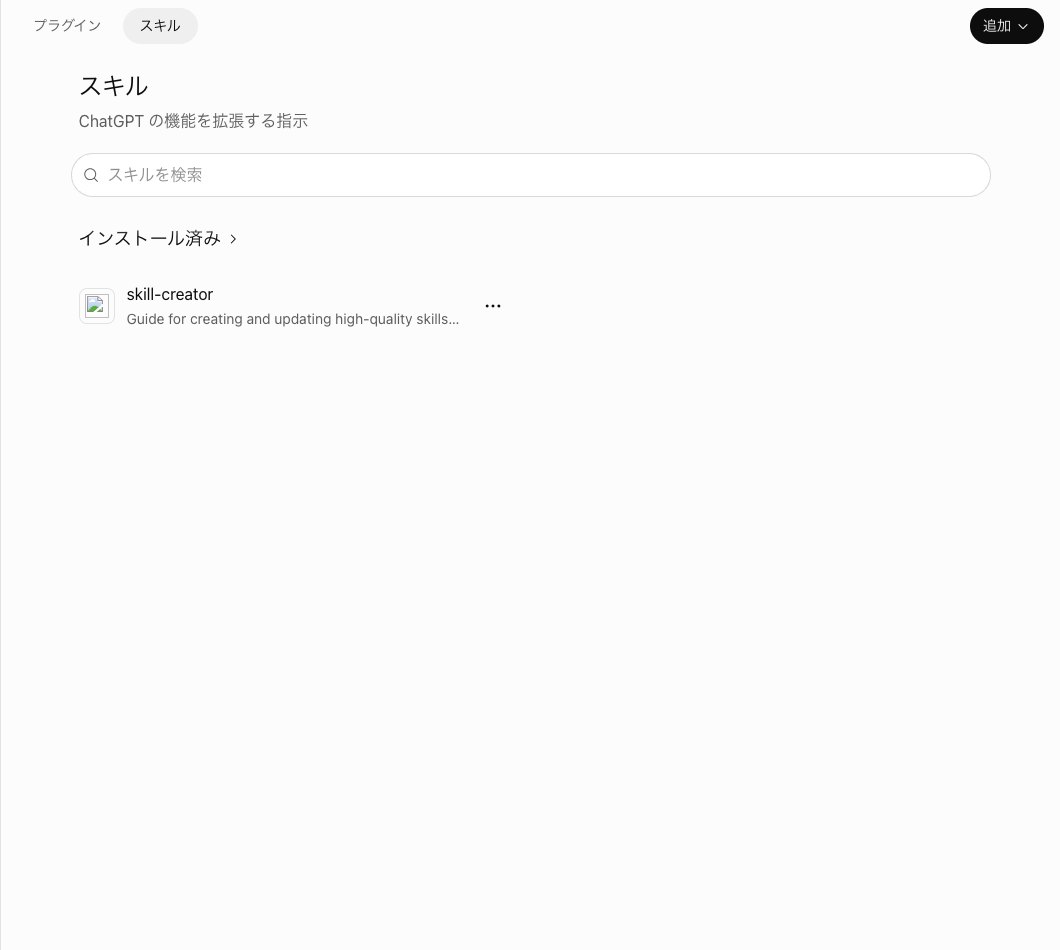
- Check whether skill-creator is already listed under Installed
- In a new chat, write out the rules for the Skill you want to build and ask, “Please make a Skill.” Add a note saying not to install it yet
- Check the returned name, description and rules, then attach a file in the same chat to test it
Opening the Skills screen shows the heading “Skills” at the top, with the description “Instructions that extend ChatGPT’s capabilities.” Only one item, skill-creator, appeared under Installed. Its description is in English and gets cut off on screen after “Guide for creating and updating high-quality skills.” There is an “Add” button in the top right. You can build a Skill from there too, but this time we asked through chat instead.
Next, we opened a new chat and sent the following message. The rules run from ① to ⑤, five in total, covering points that commonly get mishandled when summarizing meeting minutes. We added the last two sentences to stop ChatGPT from installing the Skill on its own and to see the contents of the answer.
Please make a Skill that always summarizes meeting minutes in the same format. There are five rules: (1) Write the meeting name and date on the first line. (2) List every decision made, numbered. (3) Put action items in a three-column table with owner, content and deadline. (4) Keep amounts, headcounts and dates exactly as written in the minutes, without rounding. (5) Write the date and time of the next meeting on the last line. Please don’t install it yet. Once it’s done, show me the Skill’s name, its description, and the rules you built into it.
The video below records the process from checking skill-creator on the Skills screen to entering this prompt and seeing the answer. The only action needed is typing and sending, so there’s no hunting for buttons.
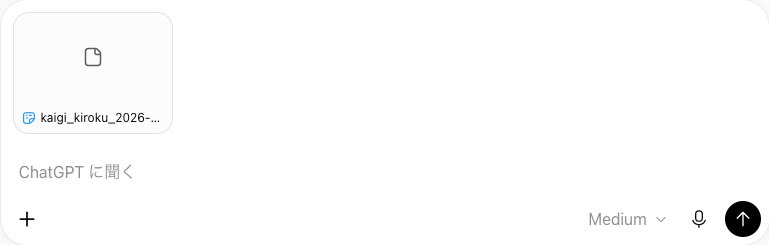
To test the Skill we built, we attached a file using the plus icon to the left of the input box in the same chat. We attached a fictional meeting record named kaigi_kiroku_2026-09-10.txt, 3,359 characters long. Once attached, a tag with the file name appears above the input box, confirming it went through.
Calling it a “Skill” and writing the rules first got all five rules included in 69.4 seconds
The first submission was our baseline. We sent the prompt above exactly as written. The answer took 69.4 seconds and ran 762 characters. ChatGPT asked no questions before building it, and the Skill was completed in a single exchange.
The answer opened with a heading, “Skill Basic Information,” and the Skill name was “Meeting Minutes Format Standardization.” It also had an English identifier, “meeting-minutes-standardizer,” lowercase letters joined with hyphens. The description was written in Japanese and summarized the Skill as one that extracts decisions, action items, and the date and time of the next meeting from meeting notes or transcripts.
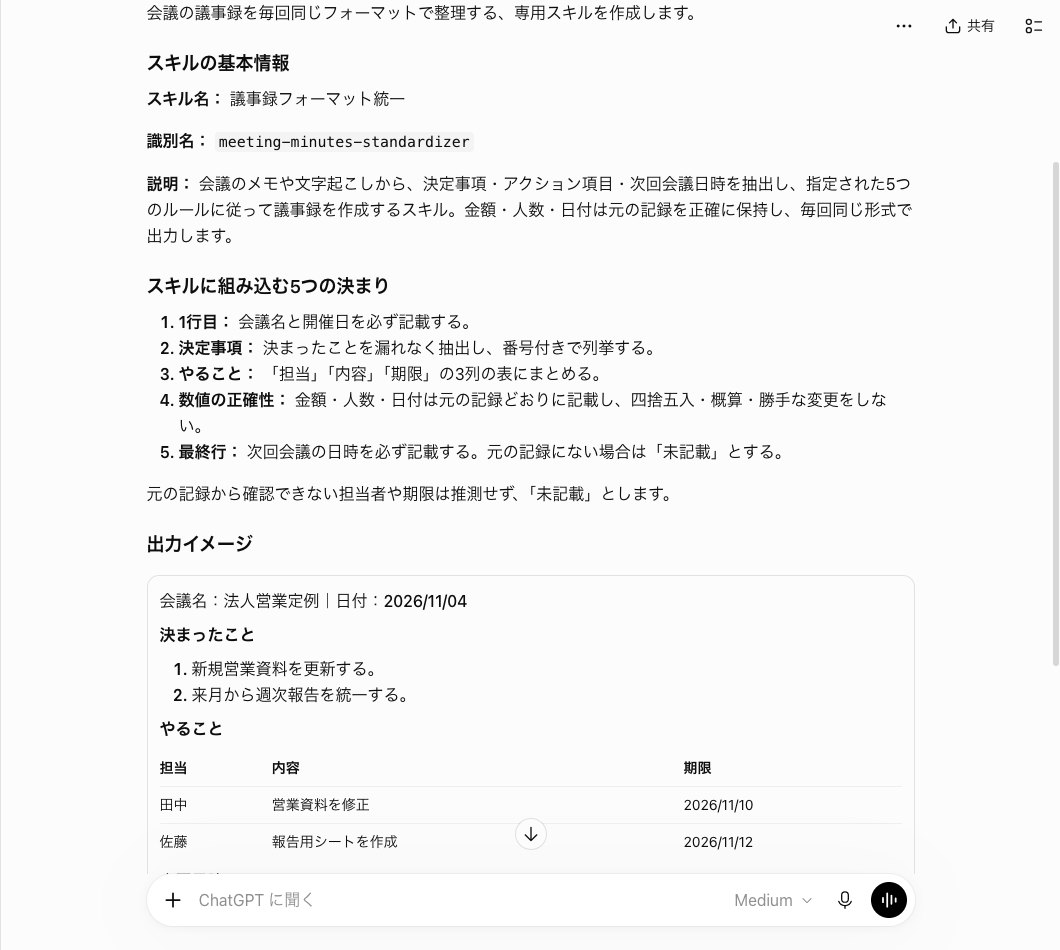
The content rules appeared as a numbered list called “5 rules built into the skill.” Checking them against the 5 I asked for, all of them are included. The wording changed slightly: rule 4 became more specific, reading “do not round numbers, estimate, or make unauthorized changes.” Rule 5 gained an added sentence: “if something is not in the original record, mark it as not recorded.”
Below the rules was also a disclaimer I hadn’t asked for, saying that any person in charge or deadline that can’t be confirmed should be marked “not recorded” rather than guessed. It’s a line meant to stop the model from inventing things that aren’t in the minutes. Below that was a sample output built from a fictional meeting. The layout was a first line with the meeting name and date, a numbered list of decisions, a three-column table, and the next meeting’s date and time on the last line.
At the very bottom was a “files created” section. One was labeled “check SKILL.md,” described as containing all the skill’s rules, execution steps, and output template. The other was a “full skill package (ZIP),” described as being “for storage and installation.” The status read “created, not installed” — as requested, nothing was actually installed.
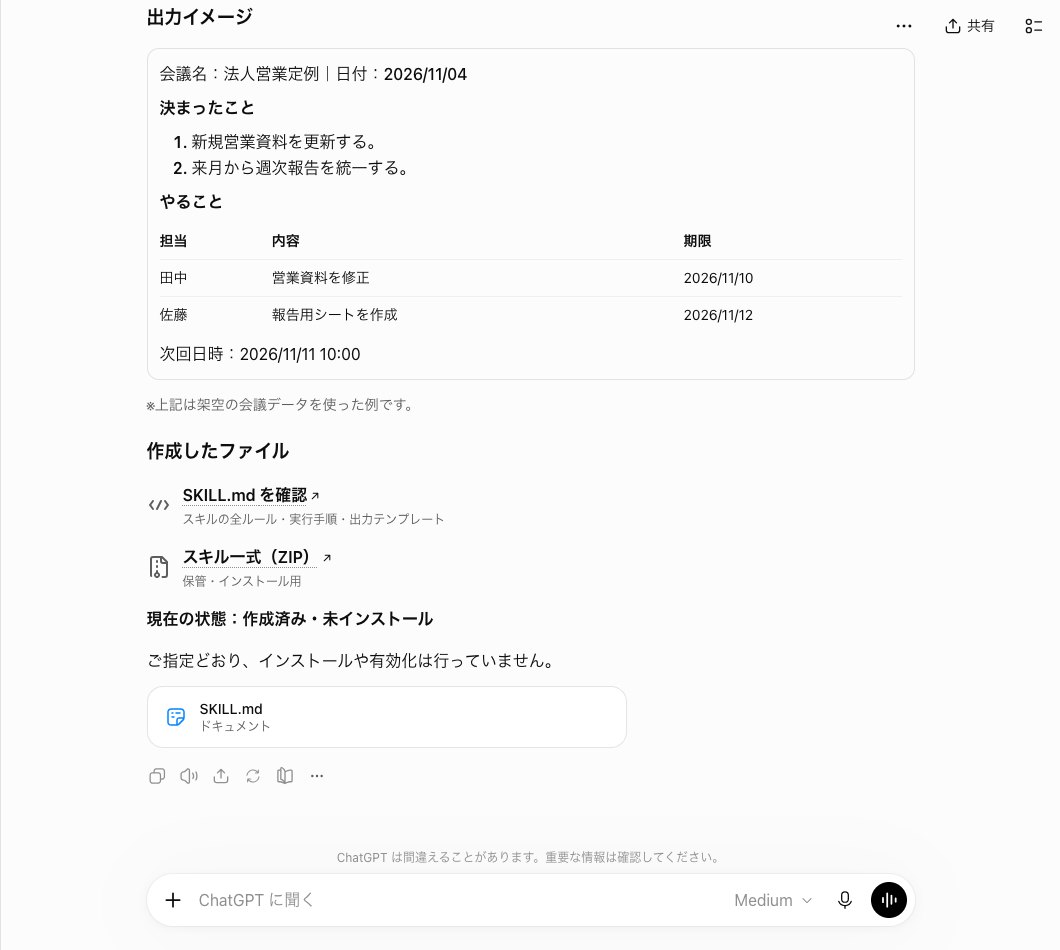
The name “skill-creator” never appeared in the body of the answer. Going by the official help documentation, this is a case where skill-creator should have run. But since the name never showed on screen, this test couldn’t confirm which skill was actually used. What’s clear is that two skill-shaped files were attached.
Using the skill’s rules to summarize a 3,359-character set of minutes took 39.2 seconds and followed all 5 rules
The second test continued the same chat as the first. I attached a minutes file and sent the following message. In case a question came up as it did in the first test, I wrote upfront that the answer should be left to the model’s judgment.
(If a question comes up, leave the answer entirely up to you.) Without installing it, please summarize the attached meeting minutes following the rules of the skill you just created.
One thing to note upfront: since the skill wasn’t installed, this turn wasn’t actually invoked as a skill. It was used as a set of rules within the same conversation. Even so, seeing how well the rules were followed is a useful gauge of how well the skill’s content was built.
The first line and the list of decisions included all 8 correct items
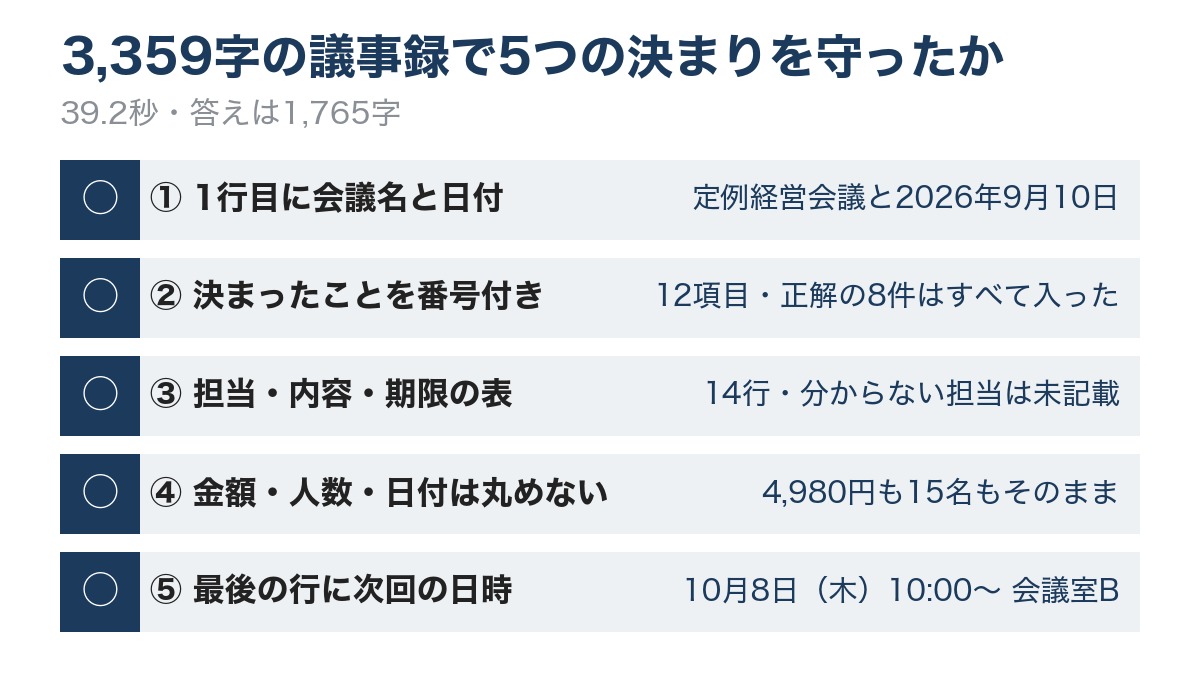
The answer came back in 39.2 seconds and ran 1,765 characters. The first line listed a fictional company name, “Regular management meeting,” and “September 10, 2026 (Thu).” This matched the title of the minutes, so rule 1 was followed.
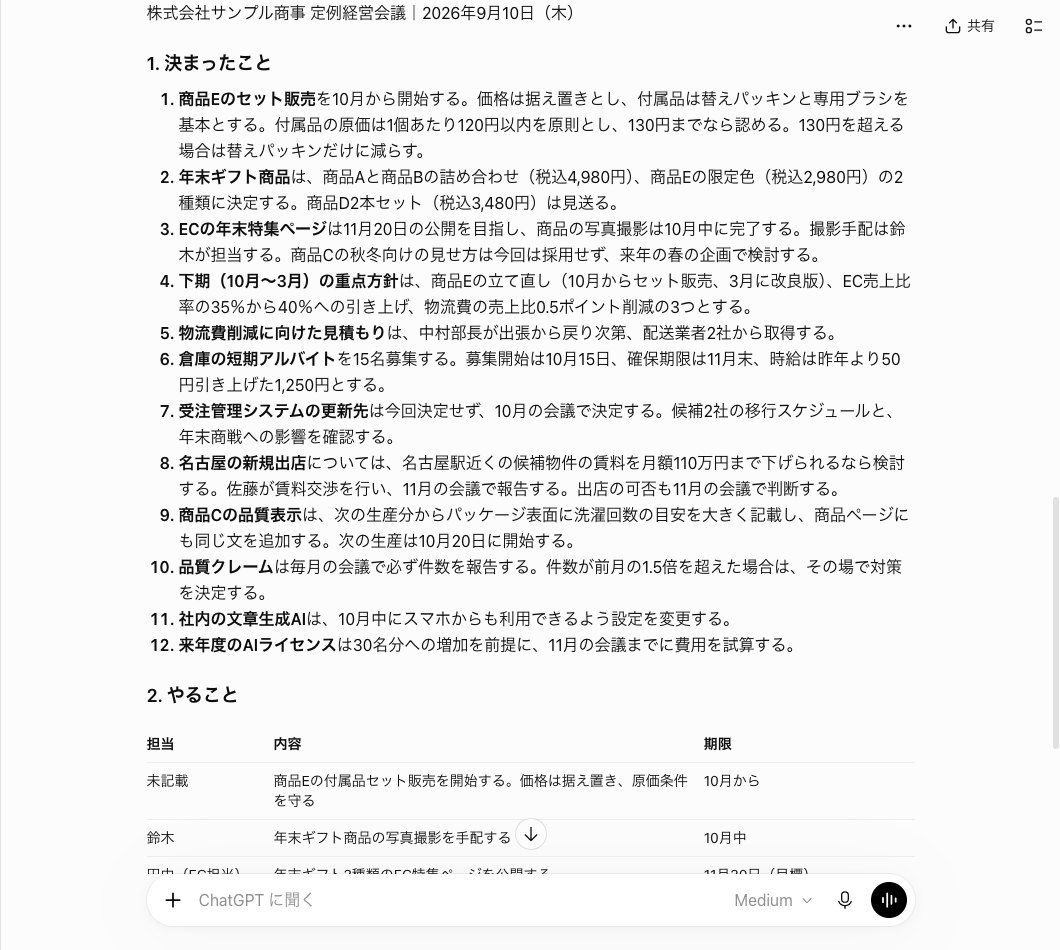
Rule 2’s list of decisions came back numbered 1 through 12. Checking against the 8 items I’d prepared as correct answers, all of them were included: the set sale of Product E starting in October at the same price, narrowing the gift options down to two at ¥4,980 and ¥2,980, recruiting 15 part-time workers at an hourly wage of ¥1,250 starting October 15, and deciding by November whether the Nagoya store opening could proceed if rent could be lowered to ¥1.1 million. None of these were missing. Some items I hadn’t included as correct answers were mixed in too. Things closer to action items — like launching an e-commerce feature page or setting up the in-house AI tool for smartphone use — also showed up on the decisions side.
The table, the numbers, and the last line also followed the rules
Rule 3’s action items came out as a three-column table with person in charge, content, and deadline, totaling 14 rows. All 7 items where the minutes clearly stated both a person in charge and a deadline made it into the table. Tasks without a named person in charge were marked “not recorded,” and the delivery company quote without a stated deadline was marked “upon return from the business trip.” No row appeared to invent a deadline not found in the minutes. However, the new hire’s joining date, which was only reported information, also ended up as a row in the table.
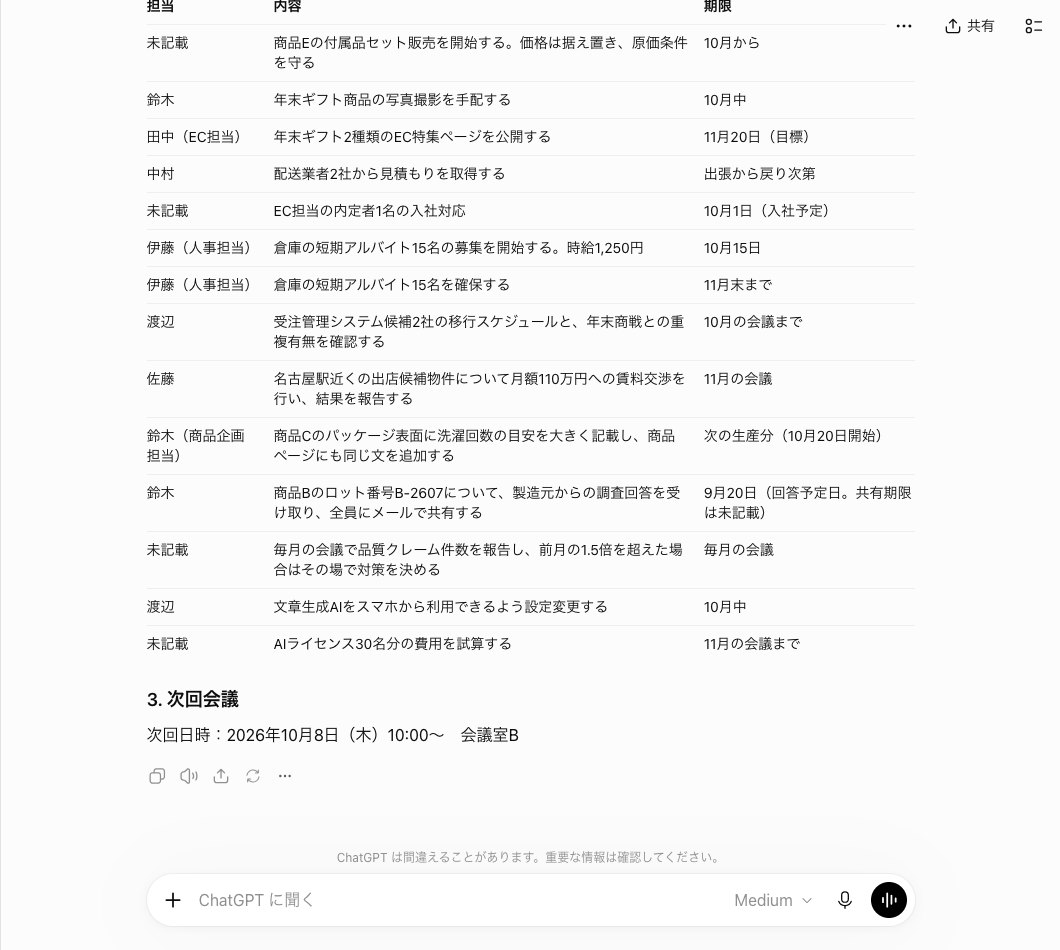
Rule 4’s numbers were written exactly as given. The gift prices of ¥4,980, ¥2,980, and ¥3,480 were not rounded. The hourly wage of ¥1,250, the 15 workers, and the ¥1.1 million figure were also kept as is. The e-commerce (EC) ratio of 35% to 40%, the 0.5-point shift in logistics costs, and the 1.5x increase in complaints all matched the minutes. The cost of the accessory part was a figure that changed partway through the meeting discussion; the answer captured both versions, stating a ceiling of ¥120 as the standard but allowing up to ¥130, picking up the mid-discussion revision. On the other hand, the roughly 30 washes benchmark for Product C never appeared anywhere in the answer. The rule to state the washing benchmark prominently was followed, but the number itself was dropped.
Rule 5’s last line read: “Next meeting: October 8, 2026 (Thu) 10:00– Meeting Room B.” The minutes’ section on the next meeting didn’t state a year, so 2026 was added by the answer itself. The date, time, and room matched the minutes exactly. Looking at all 5 rules, every one was followed, and all 8 of the correct decision items were included as well.
Asking for a “reusable prompt” took 46.6 seconds and returned a paste-ready text, with no SKILL.md attached
The third test used a new chat. I replaced “skill” with “reusable prompt” in the wording of the first message, keeping the rules unchanged. I also kept the line about not installing it.
Please create a reusable prompt that always summarizes meeting minutes in the same format. The rules are the following 5: 1. Write the meeting name and date on the first line. 2. List all decisions with numbers. 3. Make action items a three-column table of person in charge, content, and deadline. 4. Write amounts, headcounts, and dates exactly as given in the minutes, without rounding. 5. Write the date and time of the next meeting on the last line. Please don’t install it yet. Once it’s done, show me the prompt’s name, description, and the rules built into it.
The answer came back in 46.6 seconds and ran 1,522 characters. The first sentence stated that it had created a “prompt you can copy and reuse repeatedly,” with “No installation or registration will be performed” right below it. The prompt was named “Unified Minutes Format Creation Prompt.”
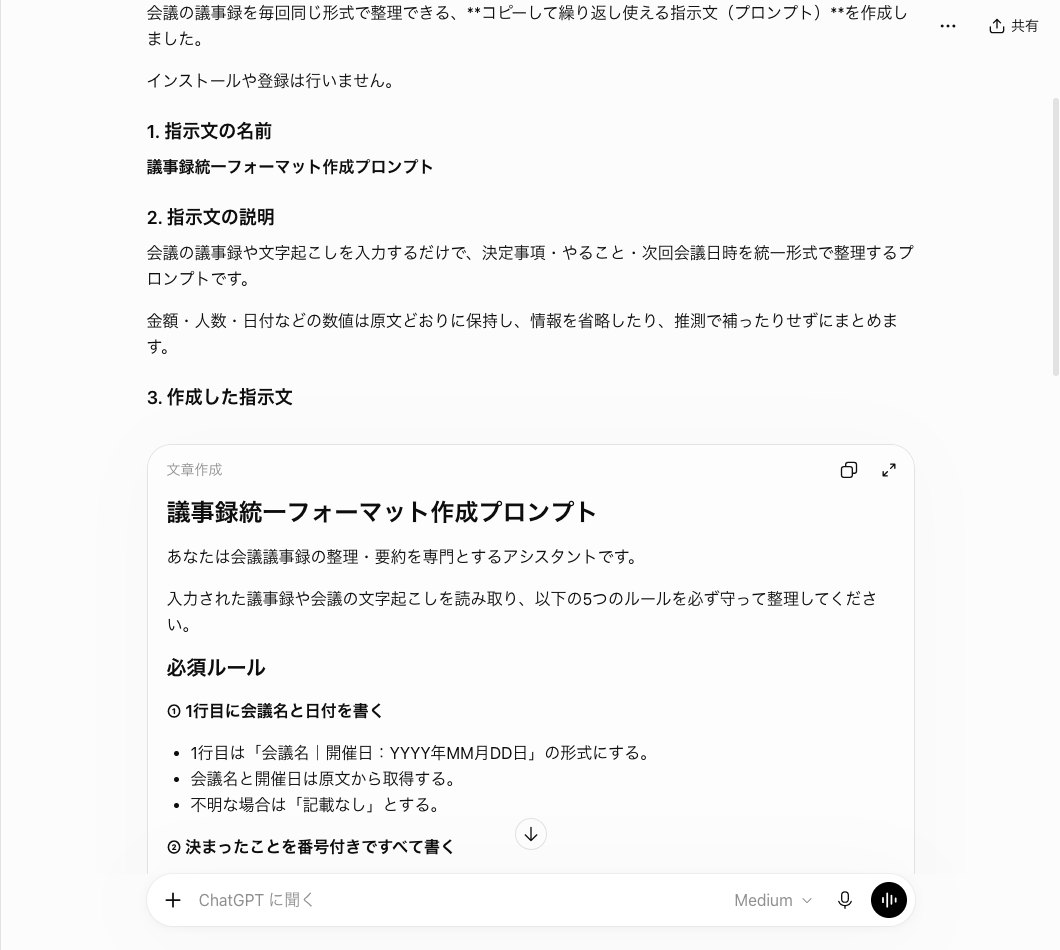
The content was a long prompt meant to be pasted and used as is. It opened with the role statement “You are an assistant specializing in organizing and summarizing meeting minutes,” followed by the 5 rules listed under headings 1 through 5. Each rule came with detailed notes. Rule 4 included examples instructing not to change “¥1,234,567” to “about ¥1,230,000” and not to change “17 people” to “about 20 people.” It ended with a blank field labeled “paste the minutes text here.” All 5 rules were included, and a table also laid out all 5 side by side.
What differed was the files. This answer came with no SKILL.md and no ZIP. Even though the same rules were sent as in the first test, simply removing the word “skill” meant the output never took skill form. The English-language description of skill-creator on the skills screen states that it’s used when asked to create or fix a skill. This result appears to match exactly where that description draws the line.
Which one is more convenient depends on how you use it. A prompt you paste in works even on accounts that don’t have the skills screen. You have to paste it into every conversation, but you can see the full text, which makes it easy to fix. If you want it saved as a skill, you need to include the word “skill” in your request.
Asking for a skill without writing any rules still took 65.3 seconds with zero questions
Requests four and five are a continuation of the same chat. The official help page says ChatGPT asks follow-up questions when you request a skill in chat. So we asked without writing any rules and counted what it asked.
The first message with no rules was built without any follow-up question
Here is the short message sent as request four. It only said we wanted to organize meeting minutes and included no rules at all.
Please create a skill for organizing meeting minutes. Don’t install it yet.
The answer came back in 65.3 seconds and ran 542 characters. There were zero questions. The top of the answer said it had created a “Meeting Minutes Standardizer Skill,” and right below that it noted “This has not been installed.” The identifier was the same as request one: “meeting-minutes-standardizer.”
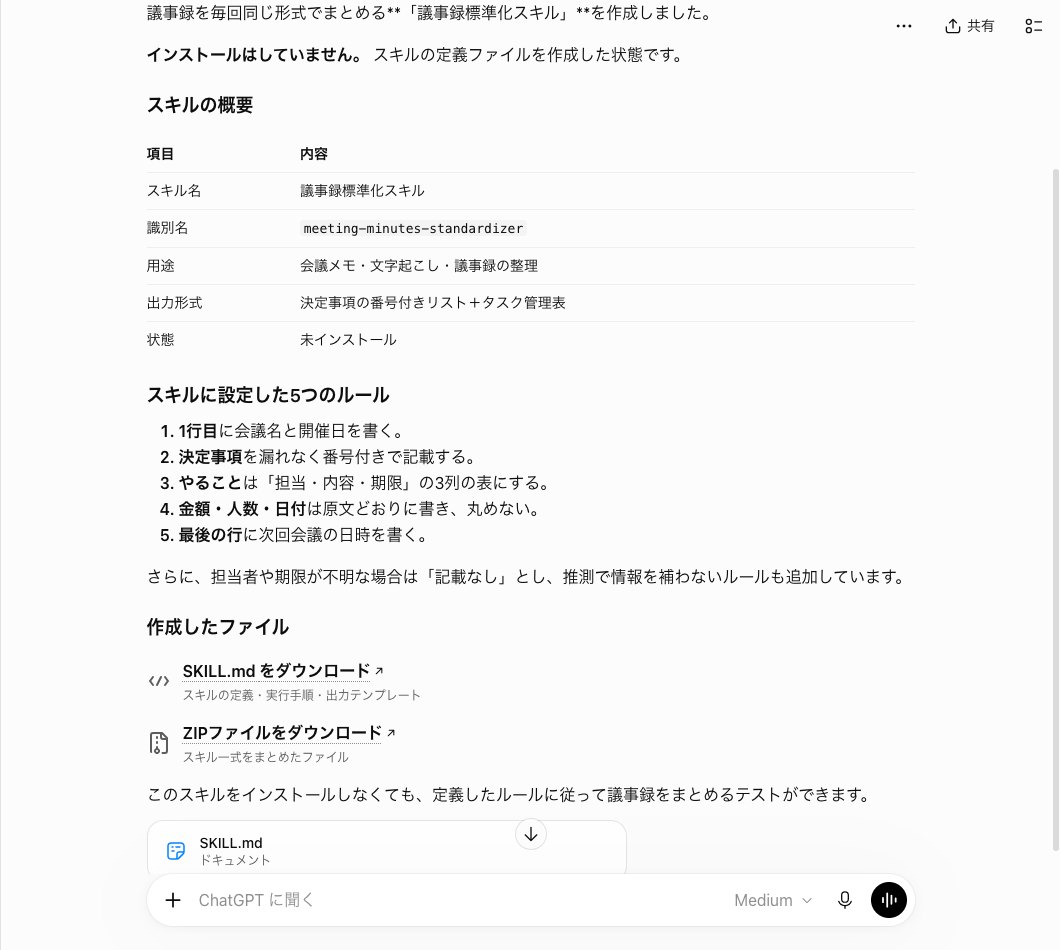
What’s striking is what’s inside. The “5 rules set in the skill” were: write the meeting name and date on the first line, number the decisions made, build a 3-column table for assignee, task and deadline, never round amounts, headcounts or dates, and write the date of the next meeting on the last line. None of these rules were included in this message, yet they match the same 5 rules sent in requests one and three. ChatGPT also added a rule to write “not listed” when the assignee or deadline is unclear.
On this same account, requests one and three — sent earlier in the same session — had already included these same 5 rules. We can’t tell from the screen whether ChatGPT remembered and reused them, or simply happened to pick the same rules. This test didn’t check the reason. On a different account, the same message might produce a skill with different rules.
The second message, which supplied the rules afterward, fixed the skill in 45.4 seconds
In request five, we answered with the 5 rules afterward, in response to the question. Since request four produced no question, we’re treating this as a fix to the skill already created.
Here are my answers. The rules are: (1) write the meeting name and date on the first line, (2) list every decision made, numbered, (3) put action items in a 3-column table for assignee, content and deadline, (4) write amounts, headcounts and dates exactly as they appear in the minutes, without rounding, (5) write the date and time of the next meeting on the last line. For anything else, use your own judgment. Don’t install it yet. Once it’s done, please show me the skill’s name, description, and the rules you put inside it.
The answer came back in 45.4 seconds and ran 909 characters. Again, there were no questions. The skill name stayed “Meeting Minutes Standardizer Skill,” and the English identifier was the same. The description was a single sentence in Japanese explaining that it organizes decisions and action items from meeting notes or transcripts.
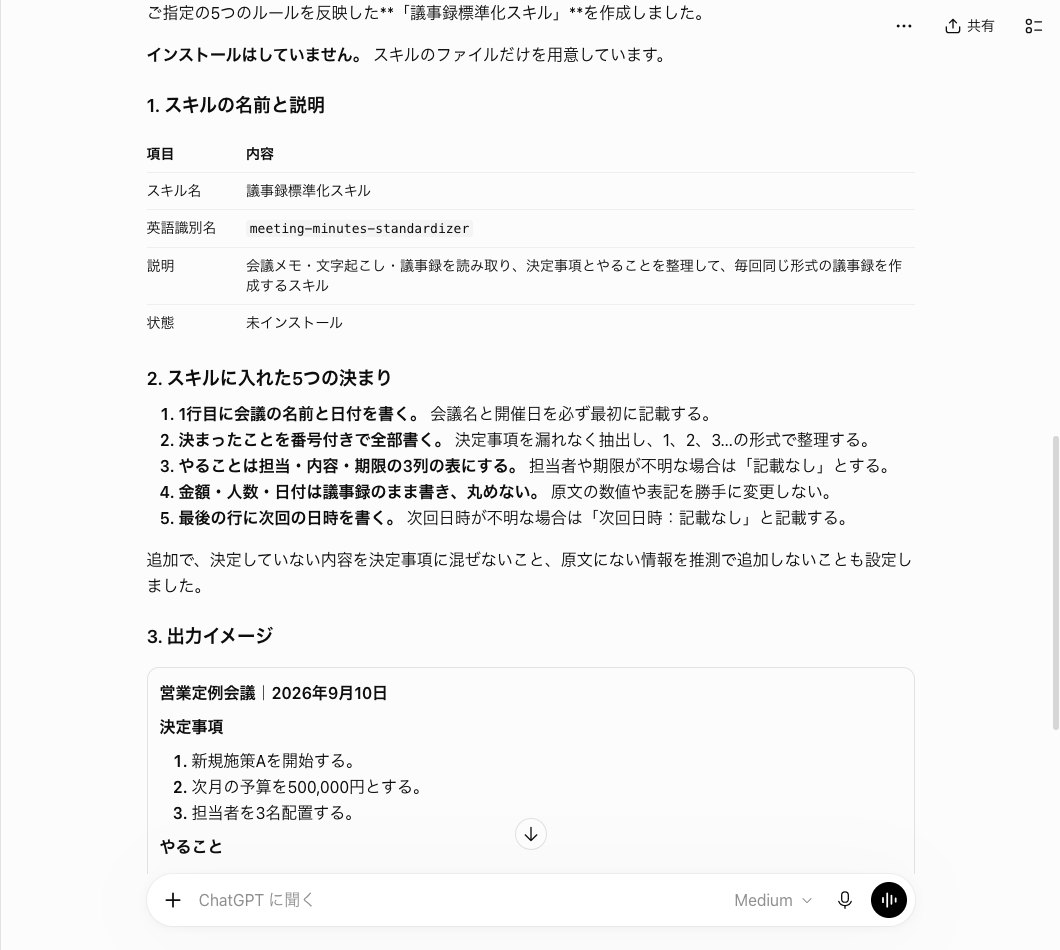
The 5 rules were listed using the exact wording we sent as bold headings, each with a short note added. Two more rules were also added: never mix undecided items into the decisions list, and never add information by inference that isn’t in the original text. Below that was a sample output built from a fictional regular sales meeting, along with a SKILL.md file and a ZIP file. It ended with a note saying, “You can also test this with real meeting minutes without installing it.”
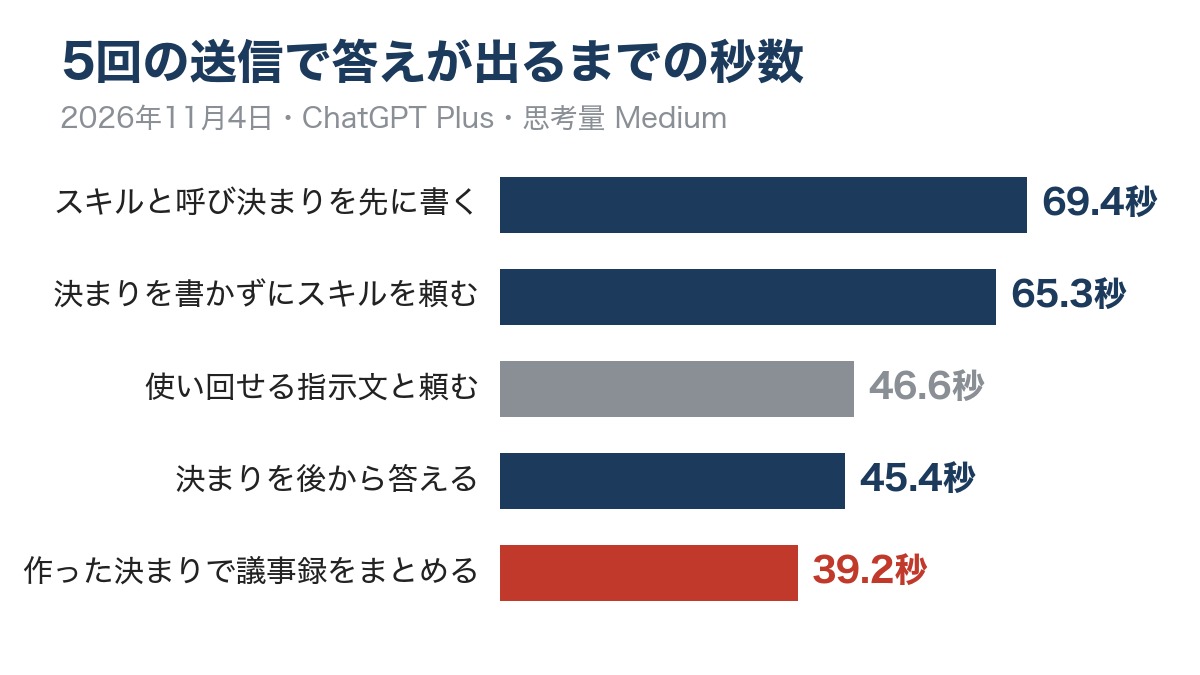
This took two exchanges, but the resulting skill had the same 5 rules as request one. The combined time was 65.3 seconds plus 45.4 seconds. Request one, which wrote the rules up front, only needed one message and 69.4 seconds.
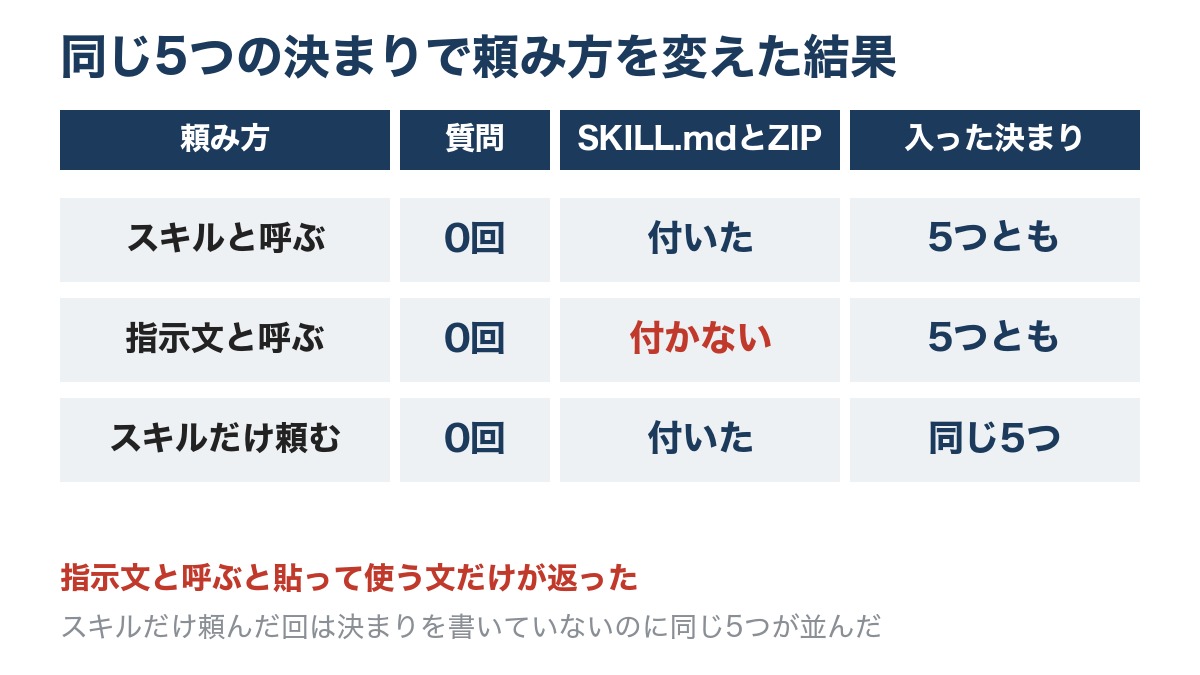
Across all 5 requests, every run included 5 rules and not a single question came back
Here’s a table summarizing the results of all 5 requests. The seconds column shows the time until the answer appeared, and the character count shows the length of the answer.
| Run | How it was requested | Time taken | Answer length | Questions | SKILL.md and ZIP | Rules |
|---|---|---|---|---|---|---|
| 1 | Called it a “skill” and wrote the rules up front | 69.4 sec | 762 chars | 0 | Included | All 5 included |
| 2 | Attached meeting minutes in the same chat and organized them per the rules | 39.2 sec | 1,765 chars | None | None | All 5 followed, all 8 decisions covered |
| 3 | Called it a “reusable prompt” and wrote the rules up front | 46.6 sec | 1,522 chars | 0 | Not included | All 5 included (as a paste-in prompt) |
| 4 | Requested a “skill” with no rules given | 65.3 sec | 542 chars | 0 | Included | 5 rules appeared that were never written |
| 5 | Continued from request 4 and supplied rules afterward | 45.4 sec | 909 chars | 0 | Included | 5 rules + a rule against inference |
The longest run was request one at 69.4 seconds, followed by request four, which had no rules given, at 65.3 seconds. Both runs that created a skill took over a minute. The shortest was request two, which organized meeting minutes, at 39.2 seconds — and its answer was also the longest, at 1,765 characters. The prompt request, request three, took 46.6 seconds, and request five, which answered with rules afterward, took 45.4 seconds.
Answer length also varied. The three runs that created a skill produced 762, 542 and 909 characters — short answers showing the name, rules and files. Request three, which returned a paste-in prompt, ran 1,522 characters, since the full prompt text was included as-is.
No questions came back across all 5 runs. The rule count reached 5 in every case — the three skill-creation runs and the one prompt run. The mistakes were concentrated in the run that organized the meeting minutes: it dropped the note about “about 30 times” for the laundry count, added the year 2026 to a date that had no year, and included in the table a hire who had only been reported, not someone who had actually joined.
Three ways to use ChatGPT skills, based on the test results
Based on the 5 results, here are three tips for creating and using skills.
Write all the rules in your first message
In this test, ChatGPT never asked a follow-up question. If you ask without writing any rules, it will decide on its own rules and build the skill right then. If you want your own rules included, the fastest path is to write them all in your first message. Request one, with all 5 rules in a single message, was done in 69.4 seconds. Supplying rules afterward means sending two messages instead. Writing the rules as a short numbered list also makes it easy to check that the answer lists the same numbers.
Include the word “skill” in your request
Even with the same rules, asking for a “reusable prompt” didn’t produce a SKILL.md or a ZIP file. If you want the skill files, include the word “skill” in your request. Conversely, if you’re on an account without the skills screen and want the same result, you can ask for a prompt and use it as a paste-in text. Request three’s prompt came back in 46.6 seconds and included all 5 rules.
Test the skill with real documents in the same chat before installing it
You can check how well a skill works by attaching a real document in the same chat. In this test, we used 3,359-character meeting minutes, and in 39.2 seconds, the answer came back following all 5 rules. That said, number drops can still happen: the “about 30 times” note for laundry frequency didn’t appear in the answer, and the next meeting date had a year added that wasn’t in the original minutes. Compare the test answer against the source document, and if any rules are missing, add them to the skill before installing it.
The official help page lists skills as a Business and Enterprise feature, but the screen opened on a Plus account too
Finally, let’s compare the official Help Center explanation with today’s results. The Japanese version of the help page is a machine translation, titled “ChatGPT skills.” The overview section explains that a skill is something you create and install, and that ChatGPT automatically uses one or more skills whenever they are useful.
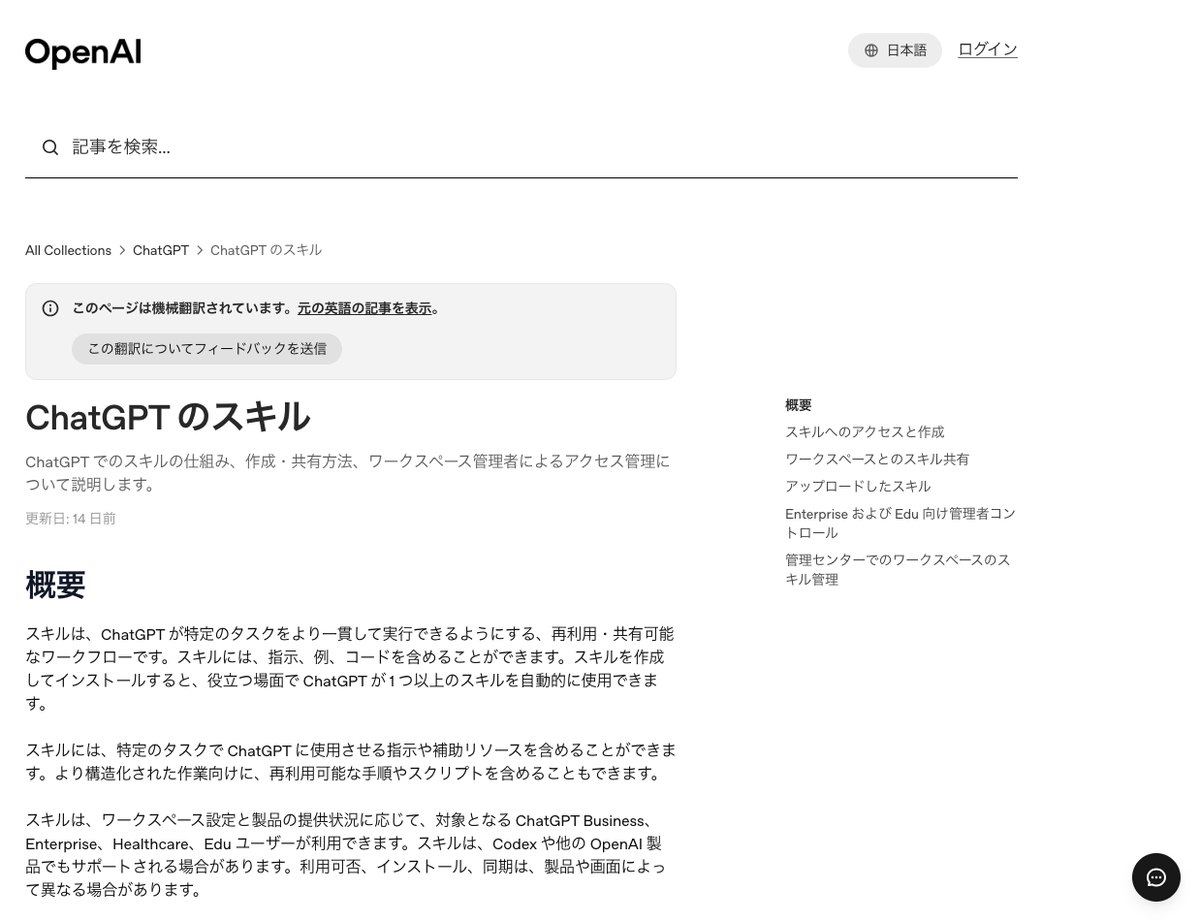
As for who can use skills, the page says eligible users on Business, Enterprise, Healthcare, and Edu plans can use them, depending on workspace settings and product availability. Plus is not listed by name. However, the same paragraph also notes that availability, installation, and syncing can vary by product and by screen. In this test, the skills screen opened on a Plus account, and skill-creator was already installed. This is a result seen on the editorial team’s account on November 4, 2026. We did not check whether every Plus account behaves the same way.
The “Accessing and creating skills” section states that eligible accounts come with one skill, skill-creator, installed by default. When you ask ChatGPT to create or fix a skill, skill-creator is used automatically to help with creation and updates. Four ways to create a skill are listed: creating one through chat, installing a skill shared with you or your workspace, creating one in the editor, and uploading one from your computer.
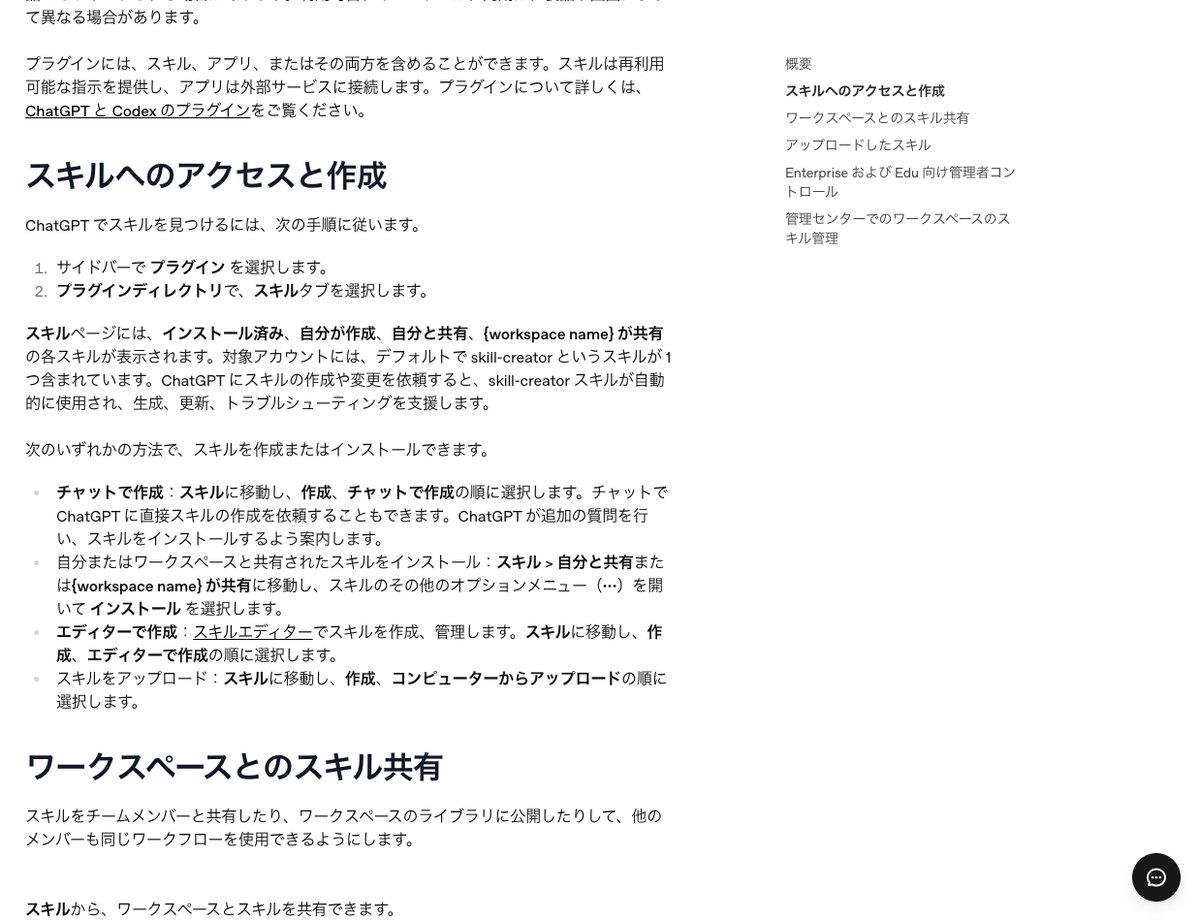
The explanation of creating a skill through chat says ChatGPT will ask additional questions and guide you through installing the skill. In the five attempts in this test, no questions came up. No installation guidance appeared either, but that’s because we told it every time, “Don’t install it yet.” Instead, the answers noted a “not installed” status and labeled the ZIP file as “for storage and installation.”
The help page has three other sections: sharing skills within a workspace, uploaded skills, and administration for Enterprise and Edu. It explains that uploaded skills go through a review before being imported, and can end up marked “Needs Review” or “Blocked.” Since an individual Plus account has no workspace to share with, we did not test the sharing or administration features this time.
What to watch for with ChatGPT skills: no follow-up questions and missing numbers
The first thing to watch for is that ChatGPT doesn’t ask follow-up questions. If you make a request without specifying rules, ChatGPT will choose its own rules and build the skill. In this test, the same five rules came up as in the earlier conversation, but we don’t know why. If you want your own rules included, write them in your first message and check each rule it returns one by one.
The second thing to watch for is missing or added numbers. Amounts of money and head counts came out unrounded, but the detail about washing the laundry about 30 times had disappeared. ChatGPT sometimes adds a year to a date that didn’t originally include one. In one case, a note meant only as a status report ended up listed as a to-do item in a task table. For documents that people will later rely on, such as meeting minutes, it’s safer to compare the output against the original text before passing it along.
The third thing to watch for is installation. In this test, we received three answers in the form of a skill, but never installed any of them. When we opened the skills screen again at the end, skill-creator was still the only one installed. Once a skill is installed, it stays on the account and is used automatically whenever it’s useful. We did not test whether a new chat would call it without naming it.
There are other things we didn’t test: creating a skill in the editor accessed from the “Add” button in the upper right, uploading a file from your computer, and sharing within a workspace. We also left out asking for the same rules in English and rebuilding the skill with a different reasoning setting. As for which plans can use skills, the official help page lists Business, Enterprise, Healthcare, and Edu. The fact that it worked on Plus is based on what we saw on the editorial team’s account, so check whether it’s available on your own screen first.
Related articles and tools to read alongside ChatGPT skills
- ChatGPT pricing, features, and how to use it (AI tools database)
- The trick to building a website with ChatGPT: checking 3 items in 23.6 seconds
- Can you create skills with ChatGPT Plus?
- On AInformation’s Plus account, yes. When we opened the skills screen on November 4, 2026, skill-creator was already installed by default. When we asked in chat, “Create a skill,” we got an answer with SKILL.md and a ZIP file attached in 69.4 seconds. However, the official help page lists Business, Enterprise, Healthcare, and Edu as eligible plans, and Plus isn’t named. Check availability on your own screen.
- How should I word a request to get ChatGPT to create a skill?
- The most reliable way is to write all your rules in a single first message and ask, “Please create a skill.” In our test, when the editorial team wrote out five rules for meeting minutes and made the request, it produced a skill containing all five rules in 69.4 seconds. When we asked for “reusable instructions” with the same rules, the answer came back as text to copy and paste, without a SKILL.md file. If you want skill files, include the word “skill” in your request.
- Does ChatGPT ask questions while creating a skill?
- In this test, it never asked a single question. The official help page says it asks additional questions, but across five requests, no follow-up questions came up. Even when we made a request without specifying rules, it built the skill directly in 65.3 seconds. If you want your own rules included, you need to write them in your first message.
- Can ChatGPT follow a skill’s rules without installing it?
- Yes, within the same chat. When we attached a 3,359-character set of meeting minutes and asked it to apply the skill we’d created, without installing it, we got back an answer in 39.2 seconds that followed all five rules. However, this wasn’t the skill being called as an installed skill; it was used as rules within the same conversation. We did not test whether it gets called automatically in a new chat.
- What should I watch for when using a skill to summarize meeting minutes?
- Check for missing or added numbers with your own eyes. In our test, amounts of money and head counts came out unrounded, but a detail about washing the laundry about 30 times never appeared in the answer. When the minutes didn’t include a year for the next meeting’s date, 2026 was added. A note about an incoming hire that was meant only as a status report also ended up as a line item in the to-do table.