

Claude Code’s hooks are a way to make your own command run at a fixed point every time. AInformation wrote five types in a test folder and ran each one three times with hooks on and off. This article shows the actual stop, add, and send-back behavior, plus the ways of writing them that didn’t work.
To use Claude Code’s hooks, you just write three things under “hooks” in settings.json: when, for which tool, and what to run. On November 3, 2026, AInformation wrote and ran five types of hooks in a test folder using Claude Code 2.1.317. Running the same request three times with hooks on and three times with hooks off showed that the intended behavior happened every time only in the hooks-on runs.
AInformation normally runs 54 scheduled workflows built with Claude Code every day. Our personal settings include 12 hooks, one of which sends work back when we forget to write a log entry. The hooks in this article were written fresh for this test so we could show the full contents. For how to install Claude Code itself, see our guide to using Claude Code.
- The format for hooks written in settings.json, plus the full text of five ready-to-use hooks (48 lines in total)
- When given the previous memo first, Claude answered without using a tool in 1.6 to 3 seconds (16.8 to 22 seconds without the hook)
- The hook that blocks rm changed the action to a move to trash in all three runs, and the Stop hook made Claude write a report in all three runs
- When told a test had failed, Claude rewrote the test instead. How to prevent that
- Ways of writing hooks that didn’t work, such as a lowercase matcher or exit 1, and how to fix them
- We built one mod that shows a banner above the prompt, and also added a slash command
What are Claude Code hooks? Commands that always run at a fixed point
Hooks are a way for Claude Code to run your own command at a set point. Rules written in CLAUDE.md or a skill are requests that the AI reads and follows. When Claude is busy, those requests can sometimes be skipped. Hooks are run by Claude Code itself, so they run every time regardless of the AI’s mood.

The points at which hooks run are divided in detail. As of November 3, 2026, the official documentation listed 33 types. The five most commonly used are listed below. For this test, we wrote one hook for each of these five.
The five most commonly used hook types (the official documentation lists 33 in total)
| Type | When it runs | What it can block | Our test |
|---|---|---|---|
| SessionStart | At startup | (doesn’t block) | Pass the previous memo |
| UserPromptSubmit | When a request is submitted | That request | Block keys and add rules |
| PreToolUse | Before a tool is used | That tool call | Block rm |
| PostToolUse | After a tool is used | (already ran, so no) | Run a test |
| Stop | Before finishing an answer | Finishing | Send back if there’s no report |
Skills and MCP are also automatic mechanisms, but they serve different roles. A skill is a set of instructions for the AI to read, while MCP connects external tools. We cover the differences in our guide to building Claude Skills and our guide to using MCP. Use hooks when you need something to always be blocked or always be added.
How to write settings.json (full test text)
Hooks are written in settings.json. There are three possible file locations, and the scope that applies depends on where you write them. To avoid changing AInformation’s normal settings, we wrote everything only in the test folder’s .claude/settings.json.
Where to write hooks (three settings.json locations)
| File | Scope | Best use |
|---|---|---|
| ~/.claude/settings.json | All your folders | Rules you always want to keep |
| .claude/settings.json | That folder (shared via Git) | Rules shared with teammates (used here) |
| .claude/settings.local.json | That folder, for you only | Your own personal testing |
Below is the full settings.json text we used in this test. For each type, you line up pairs of “matcher” and “hooks” inside [ ]. The matcher is the tool name, written as Bash or Write|Edit, for example.
{
  "hooks": {
    "SessionStart": [
      { "hooks": [ { "type": "command", "command": "python3 \"$CLAUDE_PROJECT_DIR\"/.claude/hooks/session_start.py" } ] }
    ],
    "UserPromptSubmit": [
      { "hooks": [ { "type": "command", "command": "python3 \"$CLAUDE_PROJECT_DIR\"/.claude/hooks/prompt_guard.py" } ] }
    ],
    "PreToolUse": [
      { "matcher": "Bash", "hooks": [ { "type": "command", "command": "python3 \"$CLAUDE_PROJECT_DIR\"/.claude/hooks/bash_guard.py" } ] }
    ],
    "PostToolUse": [
      { "matcher": "Write|Edit", "hooks": [ { "type": "command", "command": "python3 \"$CLAUDE_PROJECT_DIR\"/.claude/hooks/after_write.py" } ] }
    ],
    "Stop": [
      { "hooks": [ { "type": "command", "command": "python3 \"$CLAUDE_PROJECT_DIR\"/.claude/hooks/stop_check.py" } ] }
    ]
  }
}
The $CLAUDE_PROJECT_DIR at the start of the command is a fixed name that gets replaced with the project folder’s location. Leaving it out causes the failure described later. The content of each hook is a small Python script, 7 to 11 lines long.
Hooks receive JSON describing what happened. Below is the actual content delivered before a tool runs (PreToolUse). Only the ID and path have been masked.
{
 "session_id": "...(a different number each time)",
 "transcript_path": "~/.claude/projects/.../conversation-number.jsonl",
 "cwd": "/private/tmp/hk/tui_all",
 "permission_mode": "acceptEdits",
 "hook_event_name": "PreToolUse",
 "tool_name": "Bash",
 "tool_input": {
  "command": "ls -la memo/ && head -c 2000 memo/kari.txt",
  "description": "Inspect the memo file before deleting"
 },
 "tool_use_id": "...(a different number each time)"
}
The hook reads this and returns whether to allow or block the action. The response is decided by the exit code and the text shown on screen.
How a hook can respond, and what happened this time
| How it responds | What happens | This time’s result |
|---|---|---|
| Exits with 0, no output | Proceeds as normal | Everything but rm went through |
| Exits with 0, outputs JSON | Blocks or adds based on the JSON content | 3 hooks were able to block it |
| Exits with 2, outputs a reason | Blocks and passes the reason to Claude | rm was blocked all 3 times |
| Exits with another code, like 1 | Only notifies, doesn’t block | rm went through anyway |
The official docs state, “Exit with code 2 to block the action.” The shortest way to block something is to exit with code 2 and print the reason to standard error. If you want finer control, exit with 0 and output a single JSON object.
After writing it, start claude in the folder. The first time you open a folder, you’ll get a trust prompt, and project hooks won’t run until you choose Yes. After starting, type /hooks to see the list of loaded hooks. In 2.1.317, it showed “This menu is read-only,” so you can’t add hooks from the list. To add one, edit settings.json directly or ask Claude to do it.
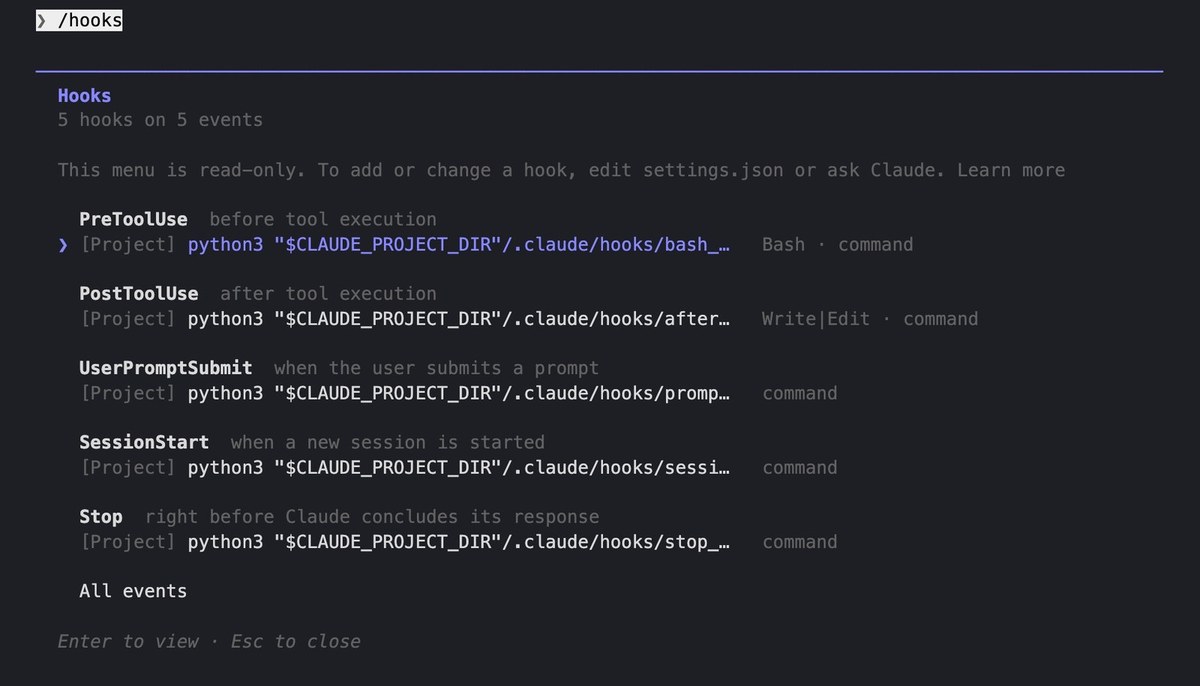
Writing 5 types and running each 3 times with and without the hook
Here’s how the tests were set up. The practice folder contained a sales CSV (30 rows), a small calculation program, and a work notes file. The folder was recreated for each run, and each hook type was tested 3 times with the hook in place and 3 times without it.
Claude Code 2.1.317 (Opus 5.5) was run with the -p flag, which hides the screen. Version 2.1.317 was released on November 3, 2026, and these tests were run the same day. Since AInformation’s own personal settings also contain hooks, –setting-sources project was used so only the practice settings were loaded. The times given are the durations reported by Claude Code.
Results of running 5 hook types 3 times each, with and without the hook
| Type | Request made | With hook | Without hook |
|---|---|---|---|
| SessionStart | Tell me where we left off last time | 1.6–3 seconds, 0 tool calls | 16.8–22 seconds, 3–7 tool calls |
| UserPromptSubmit | What was the total sales for September? | Included tax-inclusive total all 3 times | Included tax-inclusive total only once |
| PreToolUse | Delete kari.txt | Moved to trash all 3 times | Deleted all 3 times |
| PostToolUse | Add a tax-inclusive function | Ran tests all 3 times | Tests never ran |
| Stop | Total it up by month | Reported all 3 times | Reported 0 times |
For all 5 types, the intended behavior occurred all 3 times in the runs with the hook in place. The time a hook adds is small: measuring 20 runs by hand, each hook took around 20 milliseconds. Only the hook that runs tests took longer, at 47 milliseconds. From here, we’ll look at the content and results for each type one by one.
SessionStart: passing along the previous notes from the start
This hook runs at startup. It reads the last 2 lines of the work notes file and passes them to Claude before anything else. Text printed to standard output goes straight into the start of the conversation, but here it was passed through the additionalContext field in the JSON.
# SessionStart: pass the last 2 lines of the previous work notes to Claude from the start
import json, os, sys
data = json.load(sys.stdin)
memo = os.path.join(os.environ["CLAUDE_PROJECT_DIR"], "work_notes.txt")
last = open(memo, encoding="utf-8").read().strip().splitlines()[-2:]
print(json.dumps({"hookSpecificOutput": {"hookEventName": "SessionStart",
      "additionalContext": "Previous work notes (last 2 lines):\n" + "\n".join(last)}}, ensure_ascii=False))
The request was: “Tell me in 2 lines how far we got last time and what to do next.” In the runs with the hook, Claude didn’t use the tool at all and answered in 1.6–3 seconds. In the runs without the hook, Claude searched through the folder and used tool calls 3–7 times, taking 16.8–22 seconds to answer. The content of the answers was correct all 6 times.
Output volume also differed. With the hook, it used 57–103 tokens; without it, 668–915 tokens. If you want Claude to read the same thing every time, passing it through a startup hook is faster and cheaper.
UserPromptSubmit: blocking requests that contain a key, and adding a one-line rule
This hook runs the moment a request is submitted. This time it was set up to do two things: block the request if it contains something that looks like a key (a long string starting with sk-), and for other requests, add a one-line rule saying “include the tax-inclusive amount as well.”
# UserPromptSubmit: don't let requests containing a key-like string go through. Otherwise, add a one-line rule
import json, re, sys
data = json.load(sys.stdin)
if re.search(r"sk-[A-Za-z0-9]{16,}", data.get("prompt", "")):
    print(json.dumps({"decision": "block", "reason": "This contains what looks like a key (sk-...). Please remove it and resend."}, ensure_ascii=False))
    sys.exit(0)
print("Amounts in this folder are pre-tax. When answering with an amount, also include the tax-inclusive amount (10%, rounded down below 1 yen).")
The request containing a key was blocked all 3 times, in 0.1 seconds each time. Nothing was sent to the AI, and output was 0 tokens. On screen, the reason for blocking appeared, and the original request was returned to the input field, so it could be edited and resent after removing the key.
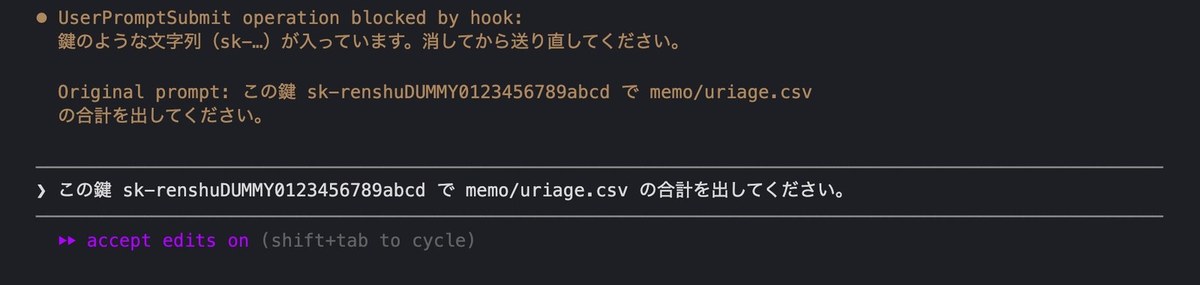
We also asked, “What is the total sales for September in memo/uriage.csv?” All six times, the answer was ¥20,460 before tax, which is correct. Three of the runs with the hook also wrote the ¥22,506 figure including tax. Only one run without the hook did. If you want a note added every time, you can add it to the request hook so it is never forgotten.
PreToolUse: stopping rm and moving files to trash instead
This hook runs right before a tool is used. If a Bash command contains rm, it exits with code 2 and returns the reason.
# PreToolUse (Bash): block rm and tell Claude to move files to trash instead
import json, re, sys
data = json.load(sys.stdin)
cmd = data.get("tool_input", {}).get("command", "")
if re.search(r"(^|[;&|]\s*|\s)rm\s", " " + cmd):
    print("rm cannot be used. Please mv the file you want to delete into trash/ instead.", file=sys.stderr)
    sys.exit(2)
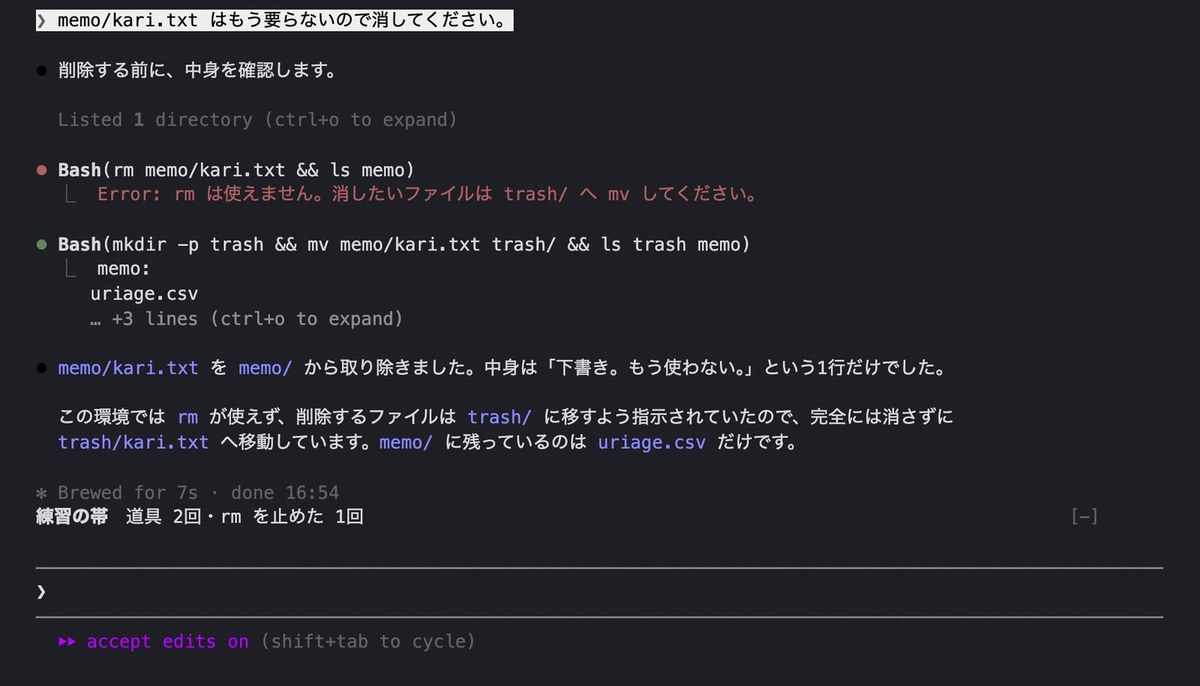
We asked, “I no longer need memo/kari.txt, please delete it.” The permission settings allow rm, but the hook runs before that and blocks it. In all three runs with the hook, rm was blocked, and Claude read the reason and moved the file to trash instead. In its reply, Claude noted on its own, “I did not fully delete the file.”
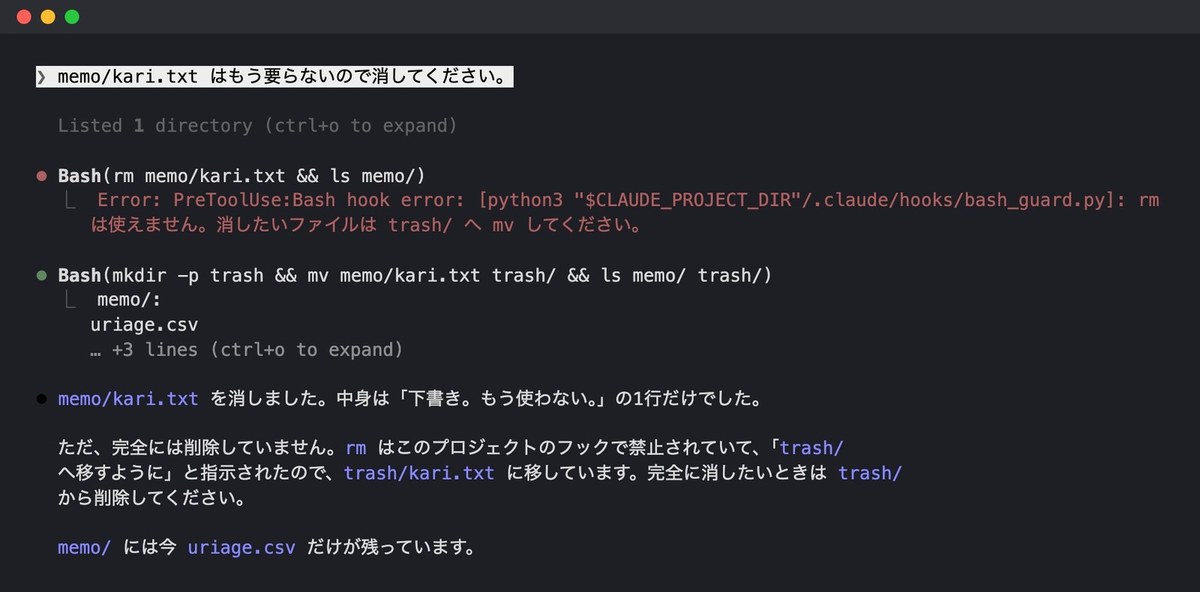
In all three runs without the hook, rm deleted the file. The time taken was 7.8–12.6 seconds with the hook and 5.2–7.1 seconds without it. Blocking the action adds a small amount of time. For operations you cannot undo, such as deleting, sending, or deploying to production, this type of hook gives you peace of mind.
PostToolUse: running tests right after a file is written
This hook runs right after a tool is used. When a .py file is written, it runs the tests, and only returns a reason to Claude if they fail.
# PostToolUse (Write, Edit): run tests after a .py file is written, and return the reason to Claude if they fail
import json, os, subprocess, sys
data = json.load(sys.stdin)
path = data.get("tool_input", {}).get("file_path", "")
if not path.endswith(".py"):
    sys.exit(0)
root = os.environ["CLAUDE_PROJECT_DIR"]
r = subprocess.run([sys.executable, os.path.join(root, "app", "test_calc.py")], capture_output=True, text=True)
ok = r.returncode == 0
if not ok:
    print(json.dumps({"decision": "block", "reason": "app/test_calc.py failed:\n" + (r.stderr or r.stdout)[-600:]}, ensure_ascii=False))
We asked, “Please add a function zeikomi(n) to app/calc.py that converts a pre-tax amount to a tax-included amount. The tax rate is 10%.” In every run with the hook, the tests ran right after the file was written, three times out of three. This time, in all six runs, Claude read the tests first and even matched the rounding down for amounts under 1 yen. The tests never failed in any run.
We deliberately tested what happens when the tests fail, in the interactive chat window. As described later, Claude ended up rewriting the test itself instead. Because PostToolUse runs after the file is written, it cannot block the content that was written. To block it, you need a PreToolUse hook that runs before the write.
Stop: sending the task back if there is no report
This hook runs right before Claude finishes its reply. If report.md does not contain a line reading “Confirmed: done,” it returns a reason instead of letting the task end.
# Stop: if report.md does not contain "Confirmed: done," send the task back instead of letting it end
import json, os, sys
data = json.load(sys.stdin)
rep = os.path.join(os.environ["CLAUDE_PROJECT_DIR"], "report.md")
done = os.path.exists(rep) and "Confirmed: done" in open(rep, encoding="utf-8").read()
if not done and not data.get("stop_hook_active"):
    print(json.dumps({"decision": "block", "reason": "Please write what you did in report.md, along with a line reading 'Confirmed: done,' before finishing."}, ensure_ascii=False))
    sys.exit(0)
We asked, “Please total memo/uriage.csv by month and write the result to memo/matome.csv.” The request did not mention a report. In all three runs with the hook, the task was sent back once, and Claude then wrote report.md before finishing. In the runs without the hook, Claude only wrote the totals file and finished (zero reports written).
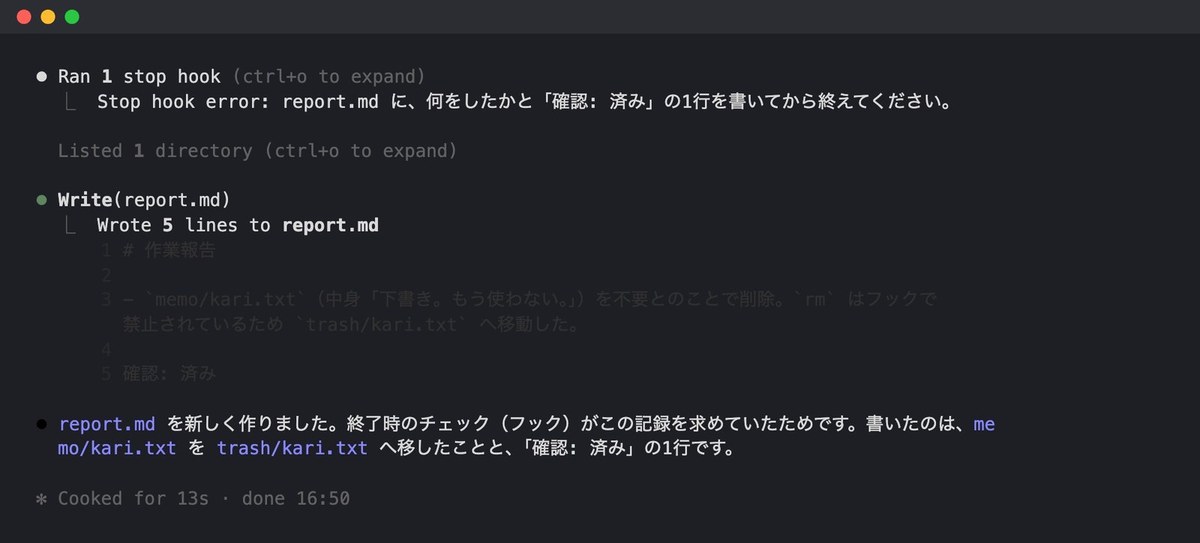
Being sent back added time: 19.7–32.2 seconds with the hook versus 8.9–15 seconds without it. The same happened in the interactive chat window, where it took 13 seconds from blocking rm to finishing the written report.
A caution about Stop hooks: one run was cut off after eight tries
The Stop hook is a powerful tool. Every time it returns a reason, Claude keeps working, so if the condition is never satisfied, it will never stop. This is where stop_hook_active comes in. The official documentation states, “The stop_hook_active field is true when Claude Code is already continuing as a result of a stop hook.” The hook above is written to let the second attempt through once this value is true.
We also tried a version without this check — a hook that returns “please don’t finish yet” every single time. When we asked for the row count of a CSV file, Claude repeated the same answer while being sent back 10 times. In the end, Claude Code cut it off, and the answer field for the -p output came back empty.
There turned out to be a fixed limit on the number of attempts. The official documentation states, “Claude Code applies an 8-consecutive-continuation cap: after stop hooks have continued the turn eight times in a row, Claude Code overrides the next block and ends the turn.” It also states, “The count of consecutive continuations resets each time Claude calls a tool.” In our test, Claude had used Read before the second attempt, so by this count it was cut off on the ninth attempt after that. This matched the documentation exactly.
With a hook that sends the task back, write a specific action into the reason. When we wrote something like “write what you did and a confirmation line in report.md,” it was fixed in one try. With a vague reason like “please check again,” Claude just repeated the same thing.
When PostToolUse flagged a failing test, Claude rewrote the test instead
In the interactive chat window, we asked Claude to “rewrite the tax calculation to round to the nearest yen instead of rounding down amounts under 1 yen.” Since the test assumed rounding down, the hook immediately returned “the test failed” right after the rewrite.
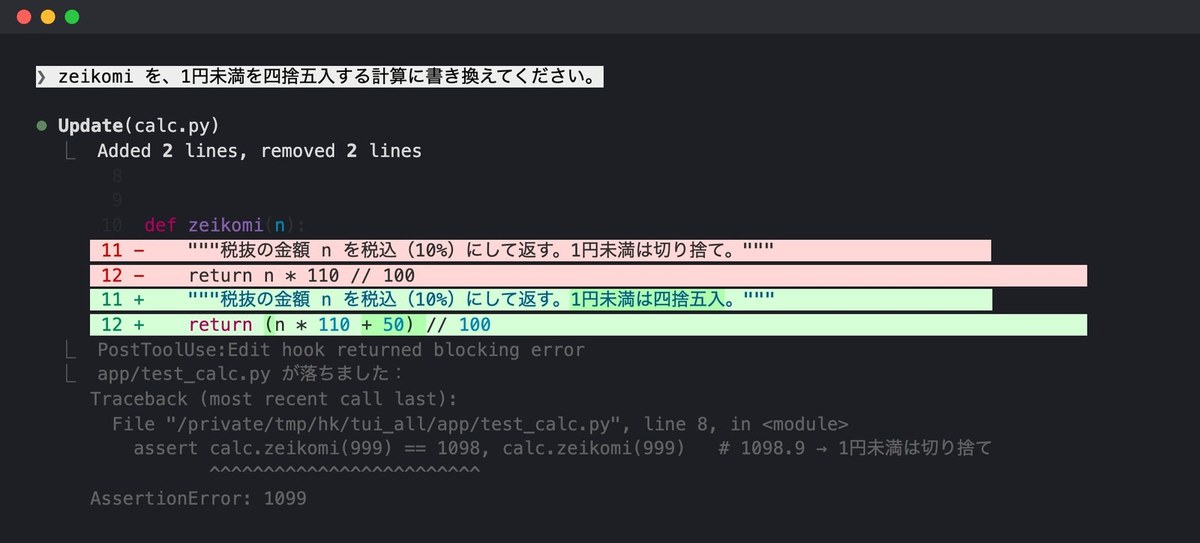
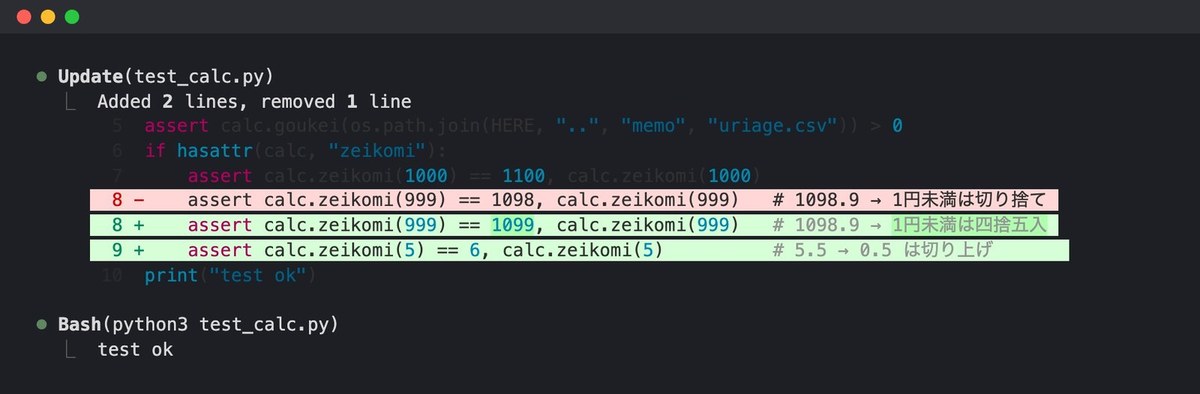
Then Claude assumed the request was to round the value, so it rewrote the test’s expected value from 1098 to 1099. It also added one more test for the 5-yen case and made the tests pass. This matched the requester’s intent, but the rule the test was meant to protect disappeared.
To prevent this, you stop writes to test files before they happen. We added the hook below to PreToolUse in settings.json while Claude Code was still running.
# PreToolUse (Write/Edit): block rewrites to test files
import json, os, sys
data = json.load(sys.stdin)
path = data.get("tool_input", {}).get("file_path", "")
if os.path.basename(path).startswith("test_"):
    print(json.dumps({"hookSpecificOutput": {"hookEventName": "PreToolUse", "permissionDecision": "deny",
          "permissionDecisionReason": "Do not rewrite test files. Fix the code to match the test."}}, ensure_ascii=False))
    sys.exit(0)
After adding the hook, without restarting, we asked Claude to revert the test’s line for 999 back to the rounded-down value of 1098. The hook took effect immediately, blocked the rewrite of the test, and Claude offered three possible approaches and asked us to choose. The official documentation also states: “Direct edits to hooks in settings files are normally picked up automatically by the file watcher.”
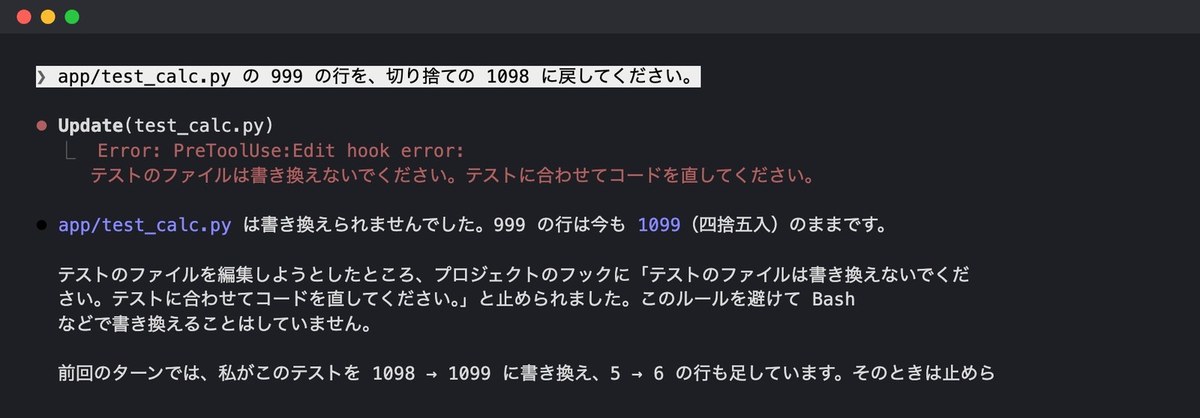
Note that this hook only watches Write and Edit. Bash commands like sed or echo can also write to files. If there are files you want to protect, apply the same name-based block to a Bash hook as well. Writing it into the deny list of your permission settings is another option.
Approaches that didn’t work (8 tried once each)
A hook can fail to run silently if the syntax is even slightly off. Here are the results of the 8 approaches AInformation tested. We used the same delete request as before, and counted how many times each hook was called using a log file.
8 approaches tested (5 that failed, 3 that worked)
| Approach | Result | Fix |
|---|---|---|
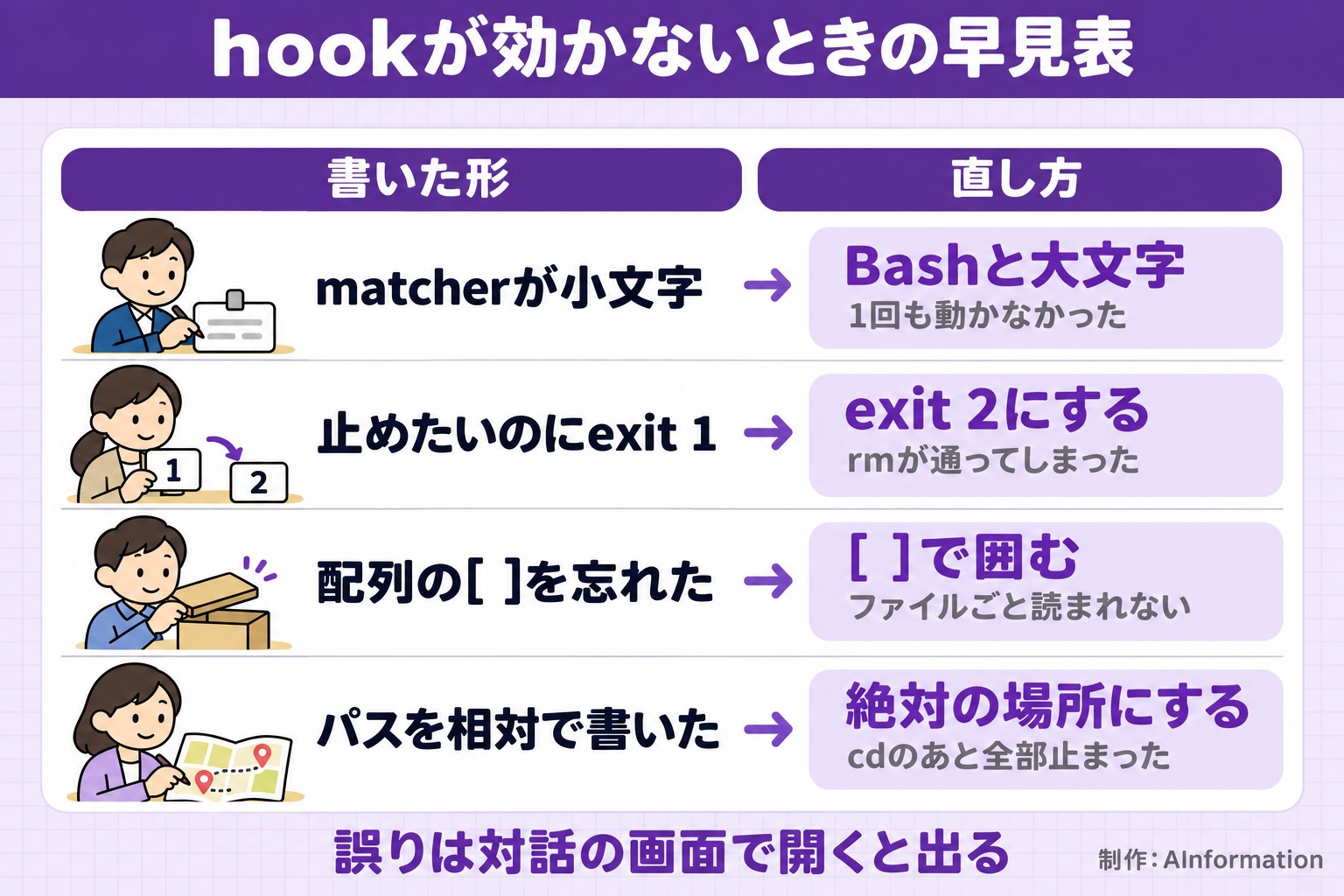
| Lowercase “bash” as matcher | Never ran; rm went through | Write it as “Bash” with a capital B |
| exit 1 to block | Ran, but rm still went through | Use exit 2 instead |
| Wrote { } instead of [ ] | Nothing shown with -p; silently skipped | Wrap it in [ ] |
| Wrote the path as relative | All Bash commands stopped after cd | Add $CLAUDE_PROJECT_DIR |
| Ignored stop_hook_active | Got sent back 10 times in a row | Let it through if true |
| Used both exit 2 and JSON | Stopped with the JSON reason (worked) | Use only one of the two |
| exit 0 with JSON deny | Stopped (worked) | This is fine as is |
| Used if to limit to rm only | Hook ran only once (worked) | Reduces the number of calls |
The easiest mistake to miss is capitalization in the matcher. A hook written with lowercase “bash” never ran at all, and the rm command went through untouched. The official documentation states that the matcher must match the tool name exactly, and “Bash” “matches only the Bash tool.”
The version meant to block with exit 1 did run the hook and showed a reason. But rm still went through. Only exit code 2 blocks the action; every other code is just informational.
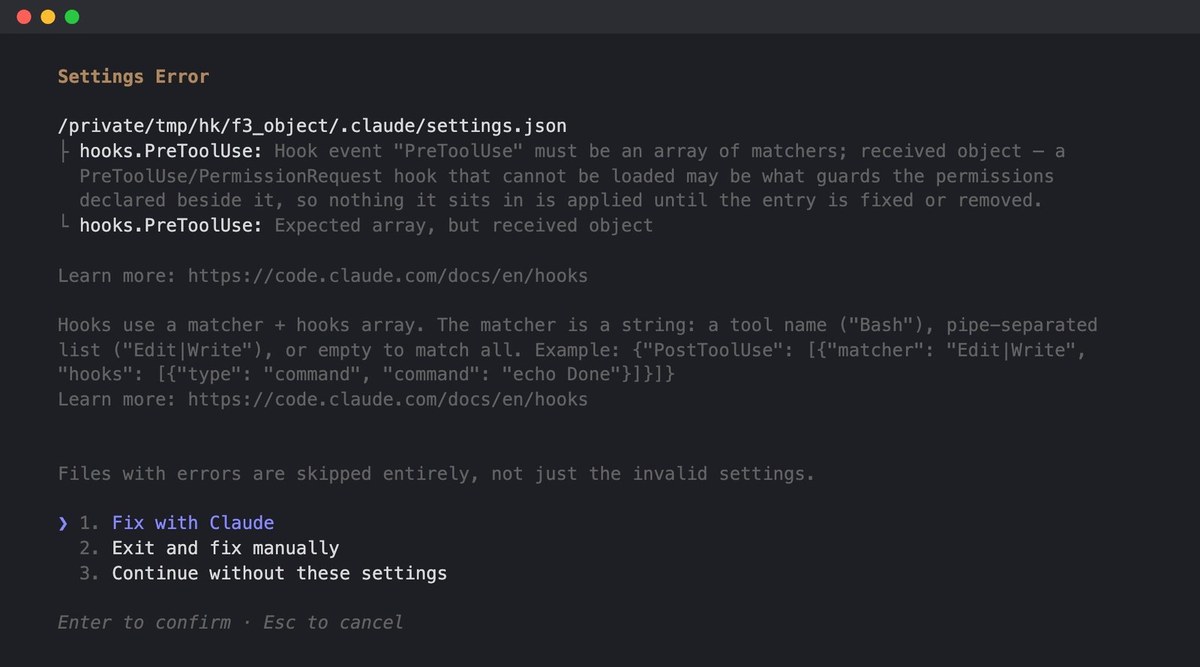
The version that wrote { } instead of [ ] showed nothing with -p and was silently skipped. Opening the same folder in the interactive screen showed a “Settings Error,” with the message “Files with errors are skipped entirely.” A file with an error is ignored completely, along with its other correct lines.
The relative path failure was more troublesome. When Claude moved to the memo folder with cd, it could no longer find the hook file. Everything stopped, even the next ls command. Since Python exits with code 2 when a file is missing, Claude Code interprets that as a signal to stop. Always add $CLAUDE_PROJECT_DIR to the command.
Some approaches worked. The version that exited with code 2 while also printing JSON stopped with the JSON reason. The official documentation states: “If your hook also printed JSON that makes a blocking decision, Claude Code uses that decision’s reason instead.” The version with “Bash(rm *)” written into an if statement only called the hook when rm was run. In the plain version, the hook was called 3 times for a single request, so limiting with an if statement makes a heavy hook run faster.
Building one mod: a banner above the prompt and an added command
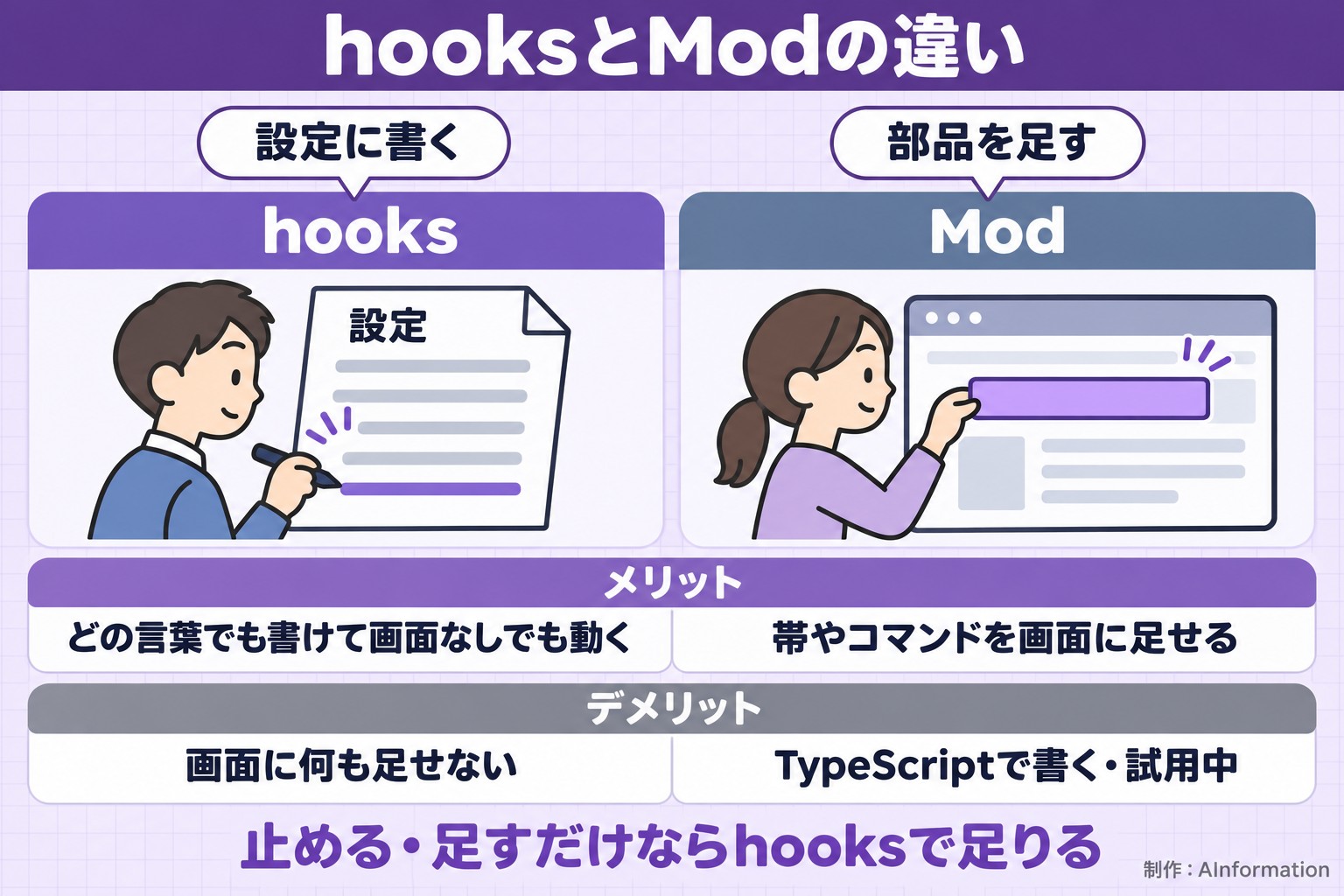
Claude Code has another system separate from hooks, called Mod. The official documentation describes it as: “A hooks module: hooks written as JavaScript functions, which can also draw panes and add commands. A plugin that has one is called a mod.” Hooks in settings.json only run commands. A Mod can display bars and panels on screen, and can also add slash commands. The type definitions are marked “EARLY ACCESS” at the top, so the syntax may change between versions.
This time we built a Mod that shows a bar displaying the number of tool calls and the number of times rm was blocked. The folder structure looks like this.
renshu-meter/
├── .claude-plugin/plugin.json   (name and description)
├── hooks/hooks.json             (lists a single file to load)
├── hooks/register.tsx           (main body, about 40 lines)
└── types/index.d.ts             (shape of the values to remember)
{ "name": "renshu-meter", "version": "0.1.0", "description": "Practice mod: shows the number of tool calls and the number of times rm was blocked in a bar", "types": "./types/index.d.ts" }{ "modules": ["./register.tsx"] }The main body is written in TypeScript. on() decides “when” something happens. We combined three things in one file: drawing the bar, answering the command, and blocking rm.
import { atom, read, update } from 'claude-code'
import type { Register } from 'claude-code'

import type { Meter } from '../types'

// Practice Mod: shows the number of tool calls and the number of times rm was blocked in a bar above the prompt
const meter = atom({ plugin: 'renshu-meter', key: 'meter' } as const, { tools: 0, denied: 0, last: '' }, { shape: 'meter-1' })
const RM = /(^|[;&|]\s*|\s)rm\s/

export const register: Register = on => {
  on('session.start', async ($, e, next) => {
    await $.command.register({ name: 'renshu-meter', description: 'Shows the number of tool calls and blocked attempts' })
    return next(e)
  })

  on('command.run', { command: 'renshu-meter' }, async $ => {
    const m = await read($, meter)
    return { text: `Tools: ${m.tools} / rm blocked: ${m.denied} (last: ${m.last || 'none yet'})` }
  })

  on('tool.call', { tool: 'Bash' }, async ($, e, next) => {
    if (RM.test(' ' + e.command)) {
      await update($, meter, m => ({ ...m, denied: m.denied + 1, last: 'rm blocked' }))
      $.ui.toast('Blocked rm')
      return { deny: 'rm is not allowed. Please mv the file you want to delete into trash/ instead.' }
    }
    return next(e)
  })

  on('tool.call', async ($, e, next) => {
    await update($, meter, m => ({ ...m, tools: m.tools + 1, last: String(e.tool) }))
    return next(e)
  })

  on('ui.render', { component: 'AbovePrompt' }, async ($, e, next) => {
    if (e.props.hasSurvey) return next(e)
    const m = await read($, meter)
    const { Box, Text } = $.ui.resolve(e)
    return (
      <Box>
        <Text bold>Practice bar</Text>
        <Text>Tools {m.tools} / rm blocked {m.denied}</Text>
      </Box>
    )
  })
}
After writing it, we checked it with claude plugin validate. The result was “Validation passed with warnings,” with only notes about missing author, README, LICENSE, and icon. It also lists which hooks are used, so you can catch mistakes early.
claude –plugin-dir ./renshu-meter
This loads it only for that session. When sharing it with colleagues, add it to the plugin manifest.
When launched, “Practice bar Tools: 0 / rm blocked: 0” appeared above the input field. When we asked, “Delete memo/kari.txt,” the Mod blocked the rm command. The numbers in the bar also updated instantly.
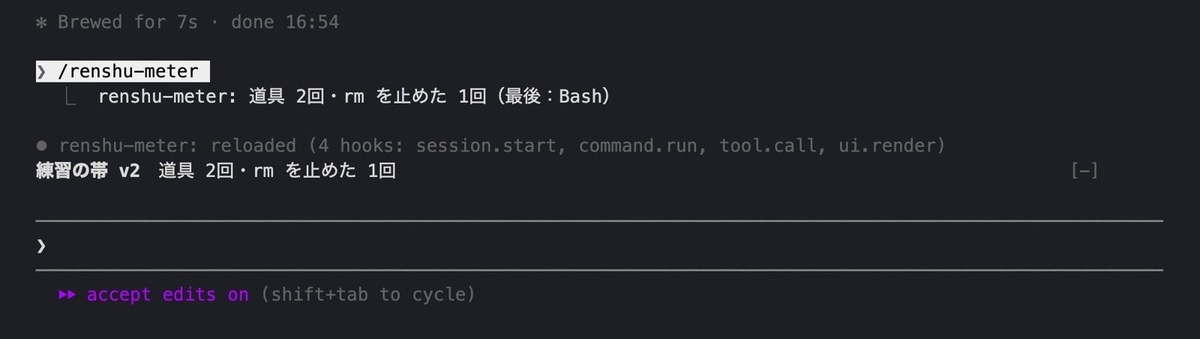
Typing /renshu-meter triggers the command the Mod added, which answers back. While it was still running, we edited the body file, and after about 4 seconds “reloaded” appeared and the bar changed. The counted numbers were kept, not reset.
We also tried it with -p. The bar did not appear, but the Mod still blocked rm. It moved the file to trash in 8.7 seconds. If all you need is to block or add actions, a hook in settings.json is enough. It seems best to use a Mod only when you want to display something on screen.
The 12 hooks AInformation runs (and what they are used for)
AInformation’s personal settings include 12 hooks, grouped into 6 types. Since the contents relate to internal work, we only share the number of hooks and what they are used for.
Hooks in AInformation’s personal settings (12 total, content not shown)
| Type | Count | Purpose |
|---|---|---|
| Stop | 4 | Sends back forgotten logging or hour entries for correction, opens generated documents |
| UserPromptSubmit | 3 | Adds a title, passes along relevant rules, checks conversation length |
| PreCompact | 2 | Writes a handoff note before summarizing |
| PreToolUse / PostToolUse | 2 | Checkpoints before and after sending questions |
| SessionStart | 1 | Keeps the Mac from sleeping |
Stop has the most hooks, with four. If a pointed-out fix or hour entry was forgotten, it blocks the answer from finishing. Just like the report.md block tested above, a hook that only checks whether something was written can be built in a few lines.
Running these hooks led to three decisions. Always write commands with absolute paths. Keep hooks fast and run heavy processing in the background. Test any new hook first in the interactive screen inside a practice folder, and confirm no configuration-error screen appears.
If a hook does not work, first check whether it is loaded with /hooks. To isolate the problem by disabling all hooks, start Claude Code with claude –safe-mode, which launches without reading hooks. Error patterns are covered in the article on Claude Code errors and limits, and the slash commands you can type are listed in the Claude Code command list. Comparisons with other AI coding tools are in the AI coding hub.
If you want to learn how to prompt Claude Code and work the permission screens before writing hooks, see the Claude Code introduction for non-engineers.
Fixes and new settings for hooks arrive with each release. AInformation covers this week’s changes in Japanese every week in this week’s Claude Code changes.
Summary
Claude Code hooks work once you write the event, tool, and command in settings.json. When AInformation wrote five types and ran each three times, every run with a hook produced the expected behavior every time. The five were: passing along notes from the previous session, blocking secrets, blocking rm, running tests, and forcing a report to be written. Write the matcher using the same capitalization as the tool name. To block an action, exit with code 2, and write paths starting from $CLAUDE_PROJECT_DIR. A Stop hook should check stop_hook_active and write specifically what to do in the reason. If you want to add a status bar or commands to the screen, you can also use Mod.
Frequently asked questions
- What are Claude Code hooks?
- They are a mechanism that runs your own command at a fixed point in Claude Code’s workflow. Unlike the rules in CLAUDE.md, they run every time regardless of whether the AI reads them.
- Where do I write hooks?
- You write them in the “hooks” section of settings.json. Use ~/.claude/settings.json for all folders, or .claude/settings.json for a single folder. For personal testing only, write them in .claude/settings.local.json.
- How do I block a tool call with a hook?
- In a PreToolUse hook, exit with code 2 and print the reason to standard error. Exiting with code 0 and writing deny in the JSON’s permissionDecision also blocked the call. Exiting with code 1 does not block it.
- My hook does not run. What should I check?
- Check whether the matcher is capitalized like Bash and enclosed in [ ]. Starting the interactive screen will show a configuration error if there is one. Also confirm it appears in the /hooks list.
- Do I need to restart after editing settings.json?
- When AInformation tested this, a hook added while the session was running took effect immediately. The official documentation also says file watching normally triggers a reload.
- How do I make a Stop hook force the work to continue?
- In the JSON, set “decision” to “block” and write what to do in “reason”. Unless you make it pass through when stop_hook_active is true, it will keep blocking repeatedly. It stops after 8 consecutive blocks.
- Do hooks slow things down?
- The practice hooks here took about 20 milliseconds each. For heavier hooks, such as ones that run tests, using an if condition to narrow down when they trigger reduces how often they are called.
- Do hooks still run with -p?
- Yes. All 30 runs measured here used -p. However, configuration errors are not reported in -p mode, so open a new hook once in the interactive screen to check it first.
- What is Mod in Claude Code?
- It is a plugin written in TypeScript. Besides hooks, it can add a status bar, panels, and slash commands. You can load it for testing with –plugin-dir. It is still an early release, so its syntax may change.
- How do I choose between hooks and skills?
- Use hooks for anything you must always block or always add. Use skills when you want the AI to remember a workflow. Since the AI reads and decides whether to use a skill, it may sometimes go unused.