

Claude Code can be used for work automation even by people who have never written a program. AInformation started using it in March 2026, and from August 31, 2026, gradually put it in charge of running the site. Now 54 scheduled jobs run every day. This article covers how to get started, how to give instructions, and the errors that came up, with measured results and screenshots.
- The tasks AInformation, run by non-engineers, automated, and what makes up the 54 scheduled jobs
- Four steps to get started on a Mac (install, log in, trust the folder, give an instruction)
- Even requests written without technical terms came out correct 54 out of 54 times, as long as conditions were spelled out
- Requests given with just a short phrase sometimes produced runs that did not leave a file, or saved it in the wrong place
- The permission screen appeared 11 times across 3 tasks. What the English wording means and how to respond
- 8 errors that actually came up while running the site, and how to fix them
AInformation runs a site about AI information, but the person running it has never written a program. Even so, they started using Claude Code in March 2026 and now run 58 scheduled jobs. Excluding 4 one-off jobs, 54 run every day or every week at a set time. Based on that experience, this article walks through, in order, the points where a non-engineer first gets stuck.
Can non-engineers use Claude Code?
Yes. But while it removes the need to write code, you still need to learn how to give instructions and how to check the results yourself. At AInformation, automated AI news posting started running every day from two days after August 31, 2026, and the number of articles published each month changed dramatically.
Over the 13 months from July 2025 to July 2026, 14 articles were published. July 2026 had 0. August, when automation began, had 12. September had 273, and October had 338. The count was taken on November 3, 2026, using the actual number of published articles on the live site.
Breaking down the 58 jobs currently running by type: the largest group is jobs that write and publish articles, followed by jobs that collect and report numbers, and jobs that rebuild pages.
AInformation’s daily scheduled jobs (breakdown of 58 jobs)
| Count and type | Example |
|---|---|
| 15 jobs: write and publish articles | Writing and publishing AI news and feature articles every day |
| 10 jobs: aggregate and report | Collecting and analyzing traffic numbers every Monday |
| 10 jobs: rebuild data pages | Updating AI tool pricing and outage records |
| 9 jobs: translate into English and Spanish | Translating and publishing articles and pages |
| 7 jobs: monitoring | Checking whether official pricing or limit wording has changed |
| 7 jobs: support tasks | Search engine submission requests and daily backups |
The number of jobs did not grow all at once. Counting by the date each job’s file was created, there were 2 as of August 31. That grew to 30 by the end of September and 48 by the end of October. By November 3, it reached 58. The pattern was adding 1 to 2 jobs a day, each time one problem was solved.
There were three main sticking points: getting used to the black screen (the terminal), the English permission screens, and how to phrase instructions. The sections below cover each of these in turn.
How to get started as a beginner (4 steps on a Mac)
There is an official guide for people using a terminal for the first time (Terminal guide for new users). On a Mac, there are 4 steps. AInformation followed the same steps on November 3, 2026, and recorded the time taken and the screens shown.
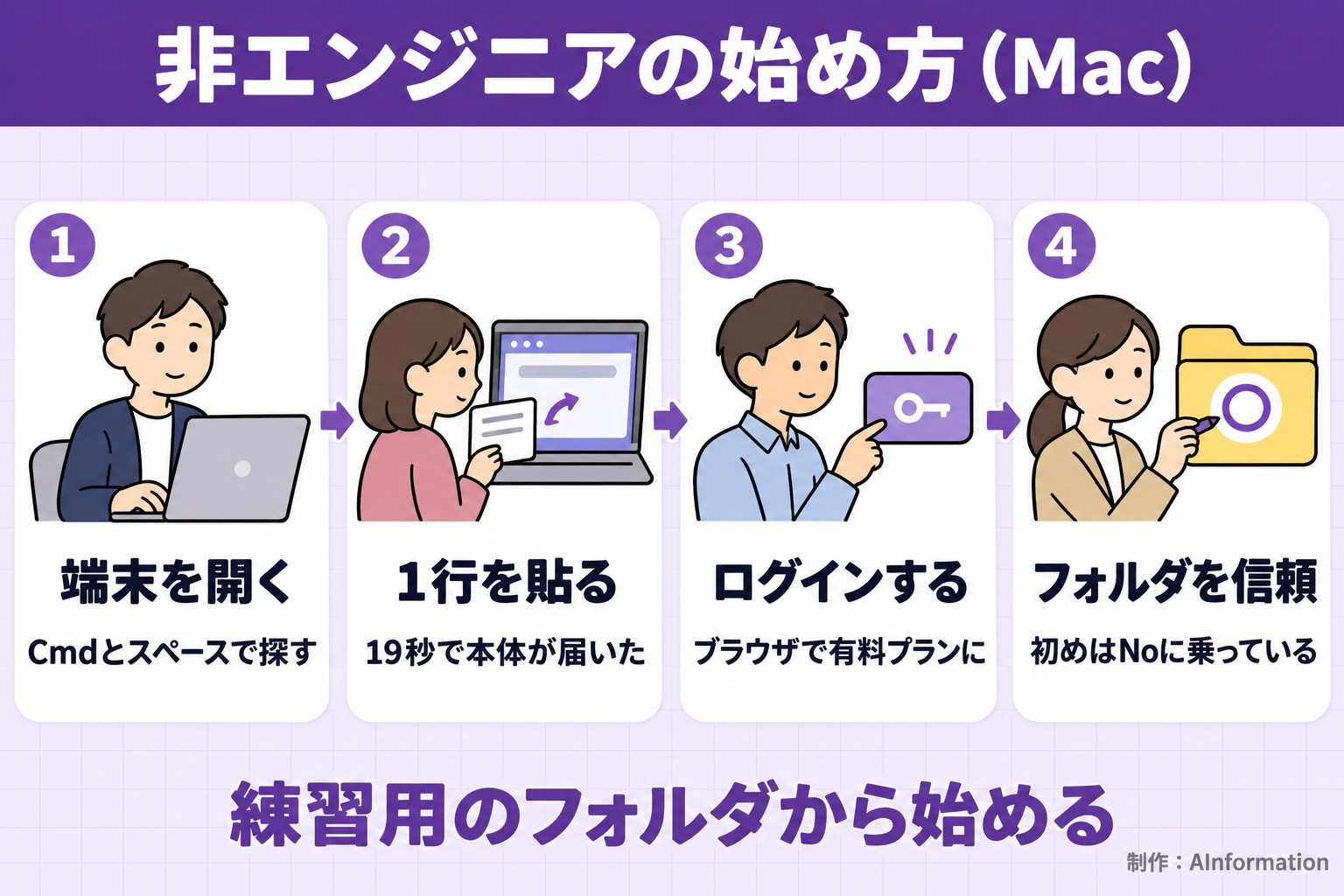
The first step is to open the terminal. Press Cmd and Space, type “Terminal,” and press Enter.
The second step is to paste the official one-line command and press Enter. This line runs the steps to download and install the app. When AInformation downloaded the same app, its size was 312.8MB. On the connection used, it took 19 seconds. The official guide also notes that nothing is displayed while it downloads, so you should keep the window open and wait.
curl -fsSL https://claude.ai/install.sh | bash
This is the one line shown in the official guide. When it finishes, it displays “Claude Code successfully installed!”
The third step is to type “claude” to launch it and log in through the browser. To use it, you need a paid plan or a Claude Console account. The plans listed in the official documentation are Pro, Max, Ultra, Team, and Enterprise. Pricing is summarized in AInformation’s article on Claude Code pricing.
Fourth is trusting the folder. This was the first pitfall. When you open the folder, a screen asks whether it is okay to run, but the cursor starts on “No, exit.” If you just press Enter, nothing happens and the program quits.
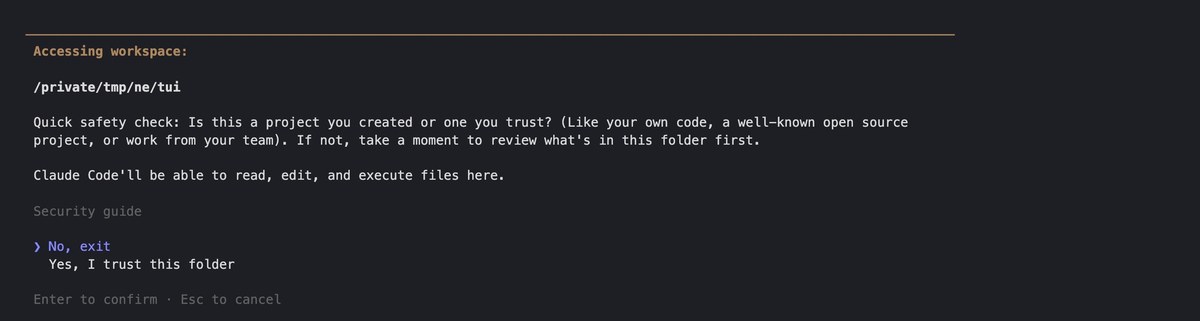
Press the down arrow once to move to “Yes, I trust this folder,” then press Enter. Only trust folders you made yourself. For this practice, AInformation started by creating one new folder that had no work files in it.
Once it starts, the version, model and plan appear at the top of the screen. On the screen as of November 3, 2026, they were “Claude Code v2.1.317” and “Opus 5.5 · Claude Ultra.” You can type requests in Japanese directly into the input field.
If you’d rather not use the terminal, there is an official desktop app. The guide also says, “If you don’t want to use the terminal, the desktop app lets you skip it.” The same guide covers PowerShell steps for Windows. Installing Git is optional.
Is it okay to ask without using technical terms?
Yes, it was fine. What mattered was not how technical the wording was, but whether you specify what to do, where to put it and how to leave it. AInformation uses the same three tasks every time it compares AI coding tools: formatting a table, tallying 3,000 lines of access logs, and posting a draft to WordPress. Each is a smaller version of work the team actually does every week.
On November 3, 2026, we ran these three tasks three times each, changing only how we asked. The first matched the October 28 format: we had it read an instruction file with the conditions written out. The second laid out the conditions in plain language, without words like CSV or JSON. The third was a one-line request. We deleted the instruction file before the second and third rounds.
The monthly price table in the task1_table folder is messy and hard to read. Please clean it up, convert everything to a monthly price in Japanese yen, and sort it from cheapest to most expensive. When you’re done, tell me what you did in three lines.
This is the kind of request a non-engineer might write first. It doesn’t specify a file name or column names.
prices_raw.csv in the task1_table folder is a table of monthly AI service prices. Clean it up as follows and save it in the same folder as prices_clean.csv.
1. Remove blank rows and any row that is an exact duplicate of another (treat leading/trailing spaces as if they weren’t there when comparing)
2. Remove leading/trailing spaces from the service name and plan name
3. Make the price column numbers only (convert full-width digits to half-width; remove commas, $, yen and dollar signs)
4. Set the currency column to either JPY or USD. If it’s blank, decide based on how the price was written (yen means JPY; $ or “dollar” means USD; if nothing is attached, use USD)
5. Add a monthly_jpy column converted at 150 yen to the dollar (round decimals to the nearest whole number)
6. Sort from cheapest to most expensive in yen. If tied, sort by service name, and if still tied, by plan name
7. Order and name the columns as service, plan, price, currency, monthly_jpy, with column names on the first row
8. No notes column is needed
When you’re done, tell me what you did in three lines.We wrote the same eight conditions as the instruction file, but without technical terms. We did specify the file name to save and the column names.
We scored this two ways. One looked only at the content: for the table, the number of rows and the yen amounts; for the tally, the sum of the numbers; for the post, whether the draft was entered correctly. The other used the same scoring as October 28, checking whether even the file name and column names matched the instructions.
The same three tasks run three times each, with three different ways of asking (Claude Code 2.1.317)
| Way of asking | Content correctness | Score including format | Total of the three |
|---|---|---|---|
| Read from an instruction file | 54/54 items | 60/60 items | 90.6 seconds |
| Conditions laid out in plain language | 54/54 items | 48/60 items | 103.8 seconds |
| One-line request only | 47/54 items | 25/60 items | 104.6 seconds |
When the conditions were laid out in plain language, the content was correct for all 54/54 items, matching the round that read from the instruction file. Even without technical terms, writing out the conditions kept the content accurate. The 12 items lost in the format-included scoring came from two runs where the tally results were saved one folder up instead of in the task folder. The table-formatting prompt included “save it in the same folder,” but the tally prompt left out that phrase.
In the one-line-request round, the content was also correct for 47/54 items. However, what was left behind varied from run to run.
What happened in the three one-line-request runs
| Task | One-line request | Conditions laid out |
|---|---|---|
| Table formatting | Decided on its own to use 150 yen to the dollar all three times | Calculated using the specified 150 yen |
| Access log tally | Once, no file was created — just shown on screen | Twice, saved one folder up |
| Draft post | No procedure file left behind in any of the three runs | Procedure and numbers saved in all three runs |
For the table formatting, even though we never mentioned exchange rates, all three runs decided on their own to use 150 yen to the dollar. One run added a note to its answer: “150 yen is a provisional rate, so please let me know the correct rate.” For the tally, one run never created a file — it just displayed the table on screen and finished. The numbers on screen were correct, but nothing remained once you closed the window. The draft posts were entered correctly all three times. However, the posting steps were written to a temporary folder, so there was no record left for doing the same thing again.
Time didn’t change much. Adding up the medians for the three tasks, the run that read from the instruction file took 90.6 seconds. The plain-language version took 103.8 seconds, and the one-line request took 104.6 seconds. On October 28, when we asked the same way using an instruction file with the previous version, the times were 40 seconds, 41 seconds and 35 seconds.
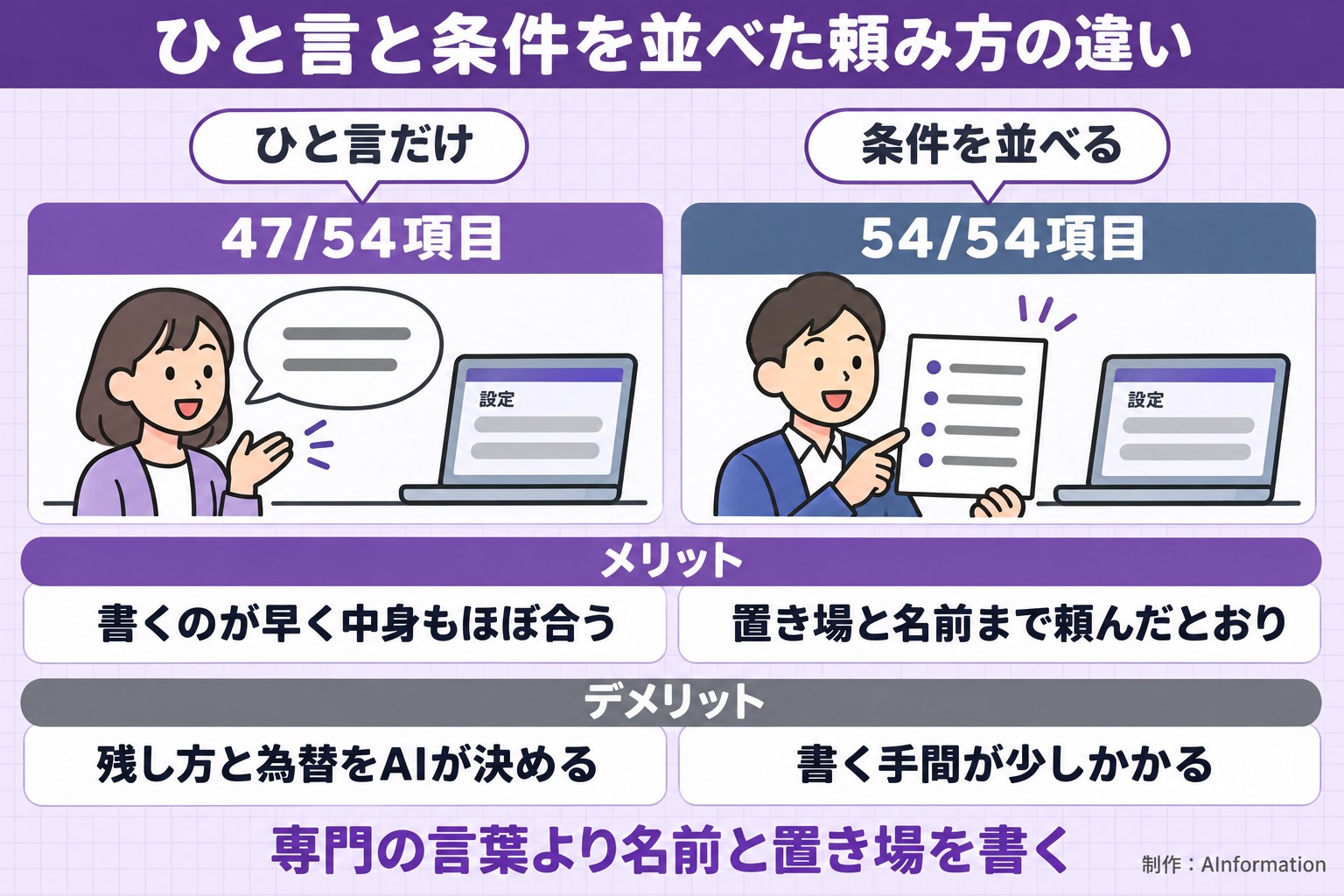
From this, AInformation settled on the following template for how to ask. It contains no technical terms. It includes three things: first, the file names and locations to keep; second, any fixed numbers; and third, a line asking the AI to check with you if something is unclear.
Using (file name) in (folder name), please (what you want done).
Rules to follow: (list the conditions one per line, including any numeric rules).
Save the result in the same folder under the name (file name).
If anything is unclear, ask me first instead of guessing.
When you’re done, tell me what you did in three lines.For anything you don’t specify, Claude will decide on its own and move forward. Write down in advance anything whose answer could change, such as exchange rates or sort order.
There’s also a looser style of use, like “vibe coding,” where you just ask for roughly what you want. That’s fine for a one-off test. For work where you need the same result every week, we found it more reliable to spell out the storage location and the rules.
What to do when the permission screen appears
Claude Code asks whether it’s okay to proceed before it rewrites a file or runs a command. With the default settings, the screen shows “manual mode on” at the bottom. AInformation asked for the same three tasks using a one-line request, with this screen left on. Each approval was given only after reading the content.
The permission screen appeared 11 times in total: twice for formatting the table, five times for the aggregation, and four times for drafting the post. When we measured again on November 2 using the instruction-sheet style of request, the counts were the same for each task—two, five, and four—for the same total of 11. Changing how you phrase the request doesn’t change how many times you’re asked for permission.
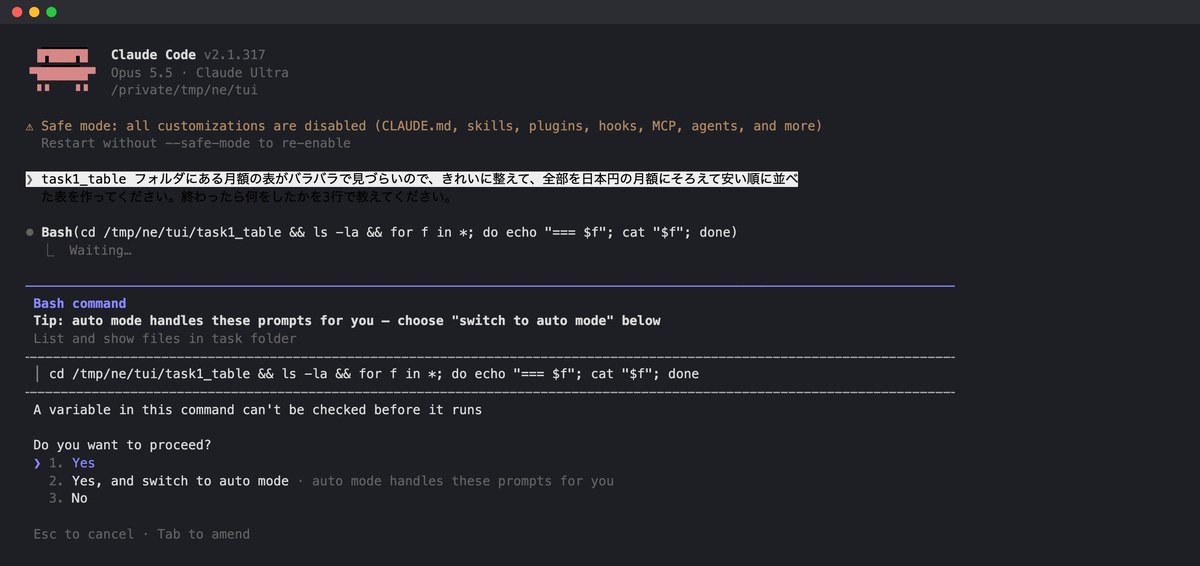
Of the 11 prompts, six were simply for viewing a file list or the start of a file. The other five were for writing and running a formatting procedure (three times), rewriting a file (once), and sending a query to a test site running locally (once). Not one involved deleting data, sending data outside, or an operation that costs money. On-screen working time was 27, 49, and 40 seconds for the three tasks, and all three produced fully correct results.
The screen is in English. Here’s a table of what to press.
Text shown on the permission screen and how AInformation responded
| Text on screen | Meaning | What to press |
|---|---|---|
| Do you want to proceed? | Whether it’s okay to run this command | Press 1 after reading the content |
| 1. Yes | Allow it just this once | Use this at first |
| 2. Yes, and switch to auto mode | Leave the decision to Claude from now on | Use once you’re comfortable |
| 3. No | Don’t run it | Use to stop deletions or sends |
| Do you want to make this edit to …? | Whether it’s okay to rewrite this file | Press 1 after reviewing the diff |
The reasoning line is also shown in English. For example, “A variable in this command can’t be checked before it runs” simply means the content of the command can’t be fully verified in advance. It doesn’t mean the command is dangerous. For commands that only read or count something, press 1 and proceed.
When a file is being rewritten, lines being removed appear in red and lines being added appear in green. Check what’s changing before you press anything.
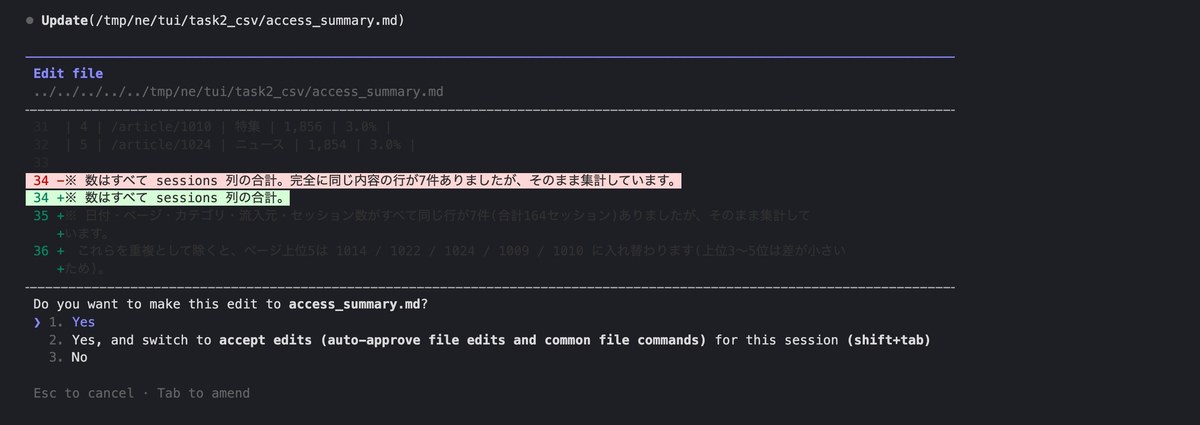
For the first month, AInformation pressed through every prompt one at a time. As we got more comfortable, we started choosing “Yes, and switch to auto mode” more often to hand off control. Even so, we still stop and check the content every time for anything involving deletion, sending data outside, or an operation that costs money.
For the task that asked for aggregation, a “things to check” note appeared at the end. It flagged that seven rows were exact duplicates. Claude Code didn’t decide on its own whether to delete them—it asked to be told if they should be removed. Answering these kinds of follow-up questions is itself an important part of the non-engineer’s job.
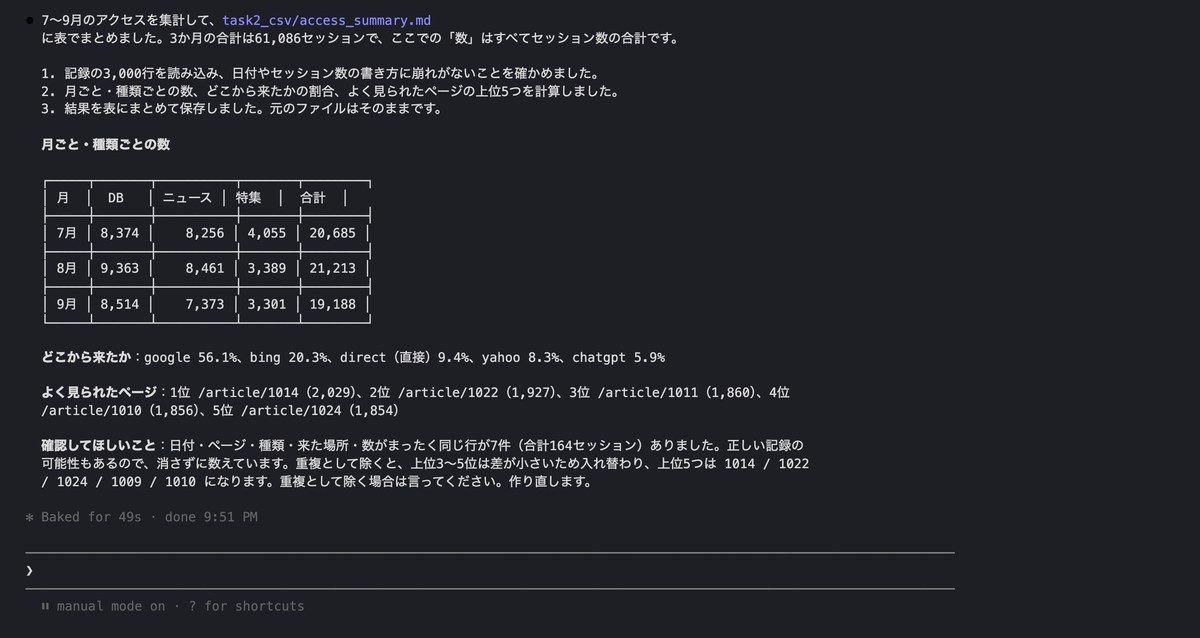
Tasks AInformation automated as a non-engineer team
Here are three tasks that AInformation actually handed off to Claude Code. Each one started as a single request and was refined gradually while running.
Table aggregation (weekly traffic analysis every Monday)
One of the first systems we built pulls numbers from Google Analytics and Search Console every Monday at 4 a.m. and analyzes them. We built it on August 31, 2026. Before that, a person had to copy numbers from two separate screens into a table and compare them with the previous week. Now the results arrive Monday morning, and all we need to check are the pages that dropped and the pages that grew.
Article drafts (news and features)
Automated posting of AI news has been running eight times a day since September 2. Feature articles have run once a day since the same date. The initial request for the feature articles was this one sentence:
Analyze the top-ranked pages on AI-focused sites like ITmedia AI+, and create and publish one regular article a day on AInformation, separate from the news articles.
No specialized terms are used here. From this starting point, we gradually added rules—such as word count and number of diagrams—while running it.
The rules grew as we used the system. Articles now run 6,000 words or more, with 2 to 5 diagrams. We only use numbers we’ve counted ourselves. Every time we looked at a finished draft and pointed out something wrong, Claude Code added that point to its procedure. AInformation now has 49 of these procedure files (skills) on its own, and the number of working folders has grown to 155.
Scheduled runs (running at a set time)
Running something at a set time relies on a feature built into the Mac from the start. Ask Claude Code to “run this every morning at 7 a.m.,” and it will create the configuration file and load it for you. We only get notified in our chat app when a run fails.
That said, nothing runs while the Mac is asleep. If the lid stays closed through the morning, that run gets skipped. AInformation now keeps the Mac plugged in and set not to sleep, and we’ve also added a system to catch up on any skipped runs.
Errors we actually ran into, and how we fixed them
It wasn’t all smooth. From our operating records, we picked out eight examples that are safe to share publicly. Each one is a type of mistake a non-engineer is likely to run into.
Errors AInformation actually hit in production, and how we fixed them
| Date | What happened | On-screen message | Fix |
|---|---|---|---|
| Sep 3 | Feature articles didn’t come out for four days in a row | Cut off after 45 minutes / failed verification | Added a step that passes only the failure reason back to Claude Code and has it try again, and kept a timestamp for each step |
| Sep 7 | Rewrote the procedure file while it was still running | command not found (exit code 127) | Copy the procedure file before running it, and run the copy instead |
| Sep 15 | Hit the cap on the flat-rate plan’s usage limit | Six automations stopped on the same day | Spread heavy jobs out every 5 days, and only re-run in the morning on days when nothing was created |
| Sep 18 | A symbol inside the article body broke the article file | Couldn’t read the article data | Run a small tool that fixes broken symbols before reading the file |
| Sep 23 | Wrote a variable right before a full-width parenthesis | unbound variable | Made it a rule to wrap variables in { } |
| Sep 25 | Making the instructions longer made the research step never stop | Error: Reached max turns (45) | Added a line saying “don’t do additional research” and raised the turn limit |
| Oct 5 | The Mac went to sleep and stopped the job | Publishing appeared to stop for 15 minutes | Set a no-sleep setting before long jobs |
| Oct 11 | The ChatGPT login had expired overnight | The diagram failed to generate all three times | When something fails, check the login status first |
The biggest headache was not noticing that an article pipeline had stopped, even though error notifications were coming in. For four days starting September 3, not a single feature article came out. We added a step that keeps a record of why a job failed, plus a step that hands that reason to Claude Code so it can fix it. We haven’t seen that kind of stoppage since.
The next most common problem was usage limits. Even on a flat-rate plan, there are limits on how much you can use every 5 hours and every week. If you stack heavy jobs at the same time, you hit the cap and everything fails at once. For how to read the limit messages, see our article on Claude Code errors and limits. For the slash commands you can type, see our list of Claude Code commands.
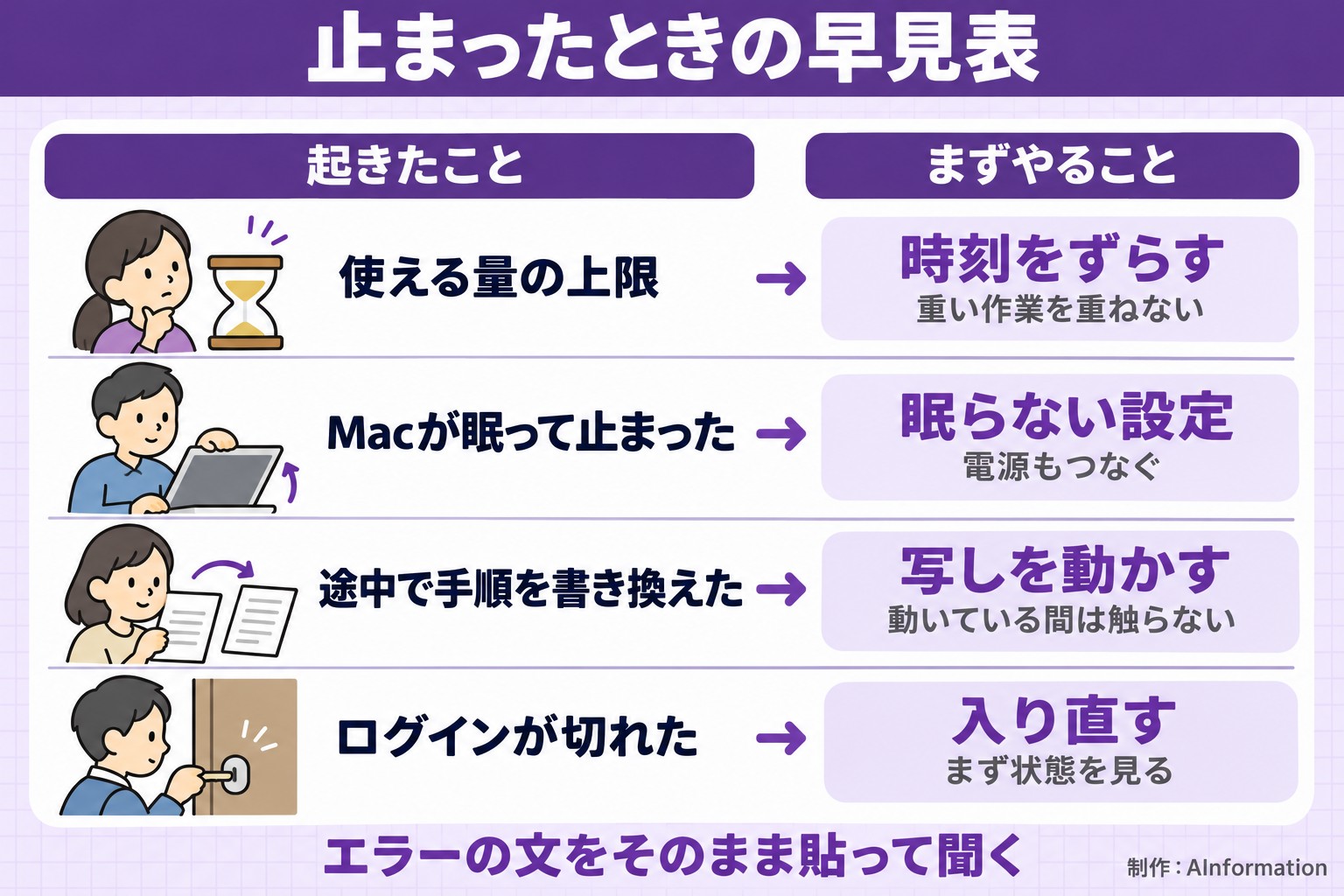
What non-engineers should watch out for
First, don’t start right away with your real work files. Run it once in a practice folder with copies of the files, check the results, and only then use it on the real ones.
Second, never write keys or passwords directly in your prompt to Claude Code. If it needs one, put it in a file and tell Claude Code where that file is.
Third, don’t leave delete operations and operations that send data out to Claude Code unsupervised. Pressing “No” on the permission screen makes Claude Code consider a different approach. If there’s an operation you always want blocked, you can block it using a mechanism called hooks. See our article on Claude Code hooks for how to write them.
Fourth, check the results with your own eyes at least once. As with the one-line request shown earlier, there are cases where Claude Code just answers on screen without leaving a file. Having it state in its answer “what was saved where” cuts down on things you might miss.
For a full overview of how to use it, see our article on how to use Claude Code. For comparisons with other AI coding tools, see our AI coding hub. If you’d rather use a Google tool, our article on how to use Antigravity is also worth a look.
Claude Code updates to new versions automatically. If you want a weekly rundown of what’s changed, see our This week’s Claude Code changes.
Summary
Claude Code can be used for work automation even by people who have never written a program. AInformation started using it in March 2026, and now runs 54 scheduled automations every day. We never needed technical jargon. Writing conditions in plain language produced results that were just as fully correct as when we had it read an instruction document. Only three things are needed: write the name and location to save results under, and write the fixed numbers involved. Finally, add a line asking it to ask when something is unclear. The permission screen came up 11 times across three tasks. Most of them were just read-only actions, so once you learn how to respond, they won’t stop your workflow. Start in a practice folder, and try asking it to format one of your everyday tables.
Frequently asked questions
- Can I use Claude Code if I can’t program?
- Yes. The operator at AInformation has never written a program but still runs 54 scheduled workflows. You write what you want done and the conditions in Japanese, and Claude Code writes the code.
- Is Claude Code free to use?
- According to the official documentation, you need one of the paid plans — Pro, Max, Ultra, Team, or Enterprise — or a Claude Console account. Pricing is summarized in our article on Claude Code pricing.
- What should a beginner start with?
- Create one practice folder and start with a small task, such as formatting a table. You can get going with four steps: open the terminal, paste one line, log in, and trust the folder.
- Can I start without using the black screen (terminal)?
- Yes, the official desktop app lets you start without using the terminal. The official guide notes that if you don’t want to use the terminal, you can skip it with the app.
- Do I need technical terms when giving instructions?
- No. Requests written as plain-language lists of conditions produced correct results on all 54 items across three test tasks. What matters is writing the file name to save, where to place it, and any fixed numbers to use.
- What happens if I give only a one-line request?
- The content was correct on 47 of 54 items. However, in some runs the tool only displayed the answer on screen instead of creating a file, and in one run it decided the exchange rate on its own. For work use, add instructions on how to save the output.
- Which option should I choose on the permission screen?
- If you read the content and see no problem, choose “1. Yes” to allow it just this once. For operations that delete data, send it outside, or cost money, choose “No.” Across the three test tasks, this screen appeared 11 times, and 6 of those were read-only operations.
- How do I automate a task with Claude Code?
- First run the task once manually and confirm the result is correct, then ask it to “run this every day at 7 a.m.” Claude Code will even set it up in the Mac’s scheduled task system. It’s safer to set it up to notify you only when a run fails.
- Does it still run automatically if my Mac is closed?
- It won’t run while the Mac is asleep. AInformation keeps the Mac plugged in with sleep disabled, and has also added a mechanism to recover any missed runs.
- What should I do when an error appears?
- Paste the exact error text from the screen and ask “what happened here?” The most common causes were usage limits, the Mac going to sleep, and expired logins. How to read usage limits is summarized in our article on Claude Code errors and limits.