

Turning off training alone does not prevent data leaks from ChatGPT. Even with training off, temporary chats can stay on OpenAI’s servers for up to 30 days, and clicking a thumbs-up can send the whole conversation into training data. When we asked Claude two questions on November 5, 2026, it did not mention shared links or memory in either answer.
- A 12-item yes/no checklist to run through before you paste work documents into ChatGPT
- Three prompts you can paste as they are when you need to mask customer names
- Five things that turning off training does not protect against, and how many days a temporary chat stays on the server
- Five steps to delete something you already pasted by mistake (with official help center instructions)
- What was missing from Claude’s answers when we asked it twice (tested on November 5, 2026)
- A table comparing 4 companies – ChatGPT, Gemini, Claude, and Copilot – across 7 points
Is it safe to paste an estimate or a customer’s name into ChatGPT? This is usually the first thing people wonder when they start using it for work. Most articles that rank at the top of search results stop at “turn off the training setting and you’ll be fine.” But OpenAI’s official help center describes several things that stay in place and several paths data can still take out of the system, even with that setting turned off.
AInformation opened OpenAI’s official help center on October 19, 2026, copied down what it said, and checked the ChatGPT settings screen on the AInformation account the same day. On the morning of November 5, 2026, around 7 a.m., we sent ChatGPT and Claude the same two questions each. This article lines up those three sources and organizes them into a 12-item checklist for before you paste anything, plus a 5-step process for after.
ChatGPT data leak prevention: check these 12 items before you paste anything
Here’s the short version: preventing data leaks in ChatGPT isn’t just a matter of flipping one switch. It only works once you combine two things: what you don’t paste in, and which settings you check. The two tables below list 12 items to look at before using ChatGPT, whether you’re a company or an individual. The first table covers six types of information you should never paste in. The second covers six settings you should check.
The table above has a right-hand column that explains why turning off the training switch doesn’t protect you from each risk. OpenAI’s official help article “Data management in ChatGPT” states that turning off the switch does not delete chats that were already saved. Don’t assume you’re safe just because you turned it off — read that right-hand column once before you start using the tool.
Six types of information you should never paste into ChatGPT
| Information | What to do instead | Why turning off training doesn’t protect you |
|---|---|---|
| Customer or business partner names and contact details | × Replace with “Company A” / “Contact 1” | ● Turning the setting off doesn’t apply retroactively to earlier chats |
| Employee personal information (address, performance reviews, health) | × Don’t enter it | ● Staff may review it during a misuse investigation |
| Unreleased quote or revenue figures | × Round to “about ¥X” | ● Clicking thumbs-up can send the whole conversation into training |
| Full text of contracts or NDAs | × Summarize the key points in your own words | ● Creating a shared link sends it outside your account |
| Passwords, API keys, internal URLs | × Never enter these | ● They can remain for up to 30 days even after deletion |
| Unreleased plans, HR matters, or deals | × Don’t enter these even in a temporary chat | ● Temporary chats can also remain for up to 30 days |
Six ChatGPT settings to check
| Setting | Where to find it | What to check |
|---|---|---|
| Which account you’re logged into | Your name in the bottom left | ○ Use a company Business account for work |
| “Improve the model for everyone” | Settings → Data controls | ○ Turn it off (applies to new chats going forward) |
| Thumbs-up / thumbs-down buttons | Below each response | ○ Don’t click these on work-related conversations |
| Temporary chat | New chat screen | ○ Start without personalization enabled |
| Shared links | Data controls → Manage shared links | ○ Delete any links you no longer need |
| Memory and connected apps | Settings → Personalization / Connected apps data | ○ Review what work-related information and access you’ve granted |
Six types of information you should never enter
Customer and partner names and contact details, employee personal information, and unreleased quote or revenue figures are the three things people most often paste in without thinking during work. Add three more — full contract or NDA text, passwords and API keys, and unreleased plans or HR matters — and that’s six categories you should never enter, even with training turned off. The moment you send the text, it reaches OpenAI’s servers. If you still need help revising text like this, use the masking prompts in the next section.
Six settings to check
First, check whether you’re currently logged into a personal account or your company’s Business account. Second, confirm the “Improve the model for everyone” switch is off. Third, pay attention to how you use the thumbs-up and thumbs-down buttons below each response. Fourth, check how you start a temporary chat. Fifth, review your list of shared links. Sixth, check what information memory and any connected apps have access to. All of these can be checked directly from the settings screen.
The third item — the feedback buttons — is the one people most often overlook. OpenAI’s official help center states that even after training is turned off, clicking one of these buttons can cause the entire conversation to be used for training. Don’t click them on conversations that contain work information, even if the response was a good one.
Three prompts for asking ChatGPT to help while masking customer names
Even text that contains information you shouldn’t enter can still get help from ChatGPT, as long as you replace names and numbers first. The process has three steps. First, replace names and amounts with placeholders on your own. Second, paste only the replaced text and make your request. Third, manually swap the placeholders in the returned text back to the real names yourself.
The first prompt is for when you hand over the replaced text and ask for help. Turn company names, people’s names, and amounts into placeholders before pasting.
In the text below, I’ve replaced company names with Company A and Company B, people’s names with Contact 1 and Contact 2, and amounts with approximate figures like “about ¥X.” Keep these placeholders exactly as they are — do not guess at or write out the real names or amounts. Please turn this text into a polite draft email to send to a business partner.
The key line is “do not guess at or write out the real names or amounts.” It’s there to make sure the placeholders come back as placeholders. Once you swap them back to the real names in the returned email yourself, the actual company names never get sent to ChatGPT at all.
The second prompt helps you figure out what to remove before you paste anything. You don’t paste the actual document — you just describe what kind of document it is.
I want an AI to help me polish the wording of a quote I’m about to send to a business partner. I haven’t pasted the actual text yet. Please list 10 items commonly found in quotes that should be replaced with placeholders before pasting them into an outside AI tool, along with a table showing an example of how to replace each one.
Keep the resulting table on hand and you won’t have to decide what to remove every single time. The same approach works just as well if you swap “quote” for “meeting minutes” or “hiring documents.”
The third prompt is for asking ChatGPT about its current settings. As the next section explains, when you ask an AI about its own settings, the names can come out slightly wrong or details can go missing. Restricting the AI’s sources to the official help center makes it less likely to go off track.
Base your answer only on these three OpenAI Help Center articles: “Data Controls in ChatGPT,” “Temporary Chats in ChatGPT,” and “Deleting and Archiving Chats in ChatGPT.” Make a table with three columns — the setting’s name as it appears on the settings screen, where to find it, and what remains even after it’s turned off — listing the settings I should check before entering work information. Include how shared links, memory, and the thumbs-up button are handled. If something isn’t documented officially, write “not documented,” and don’t use blog posts or roundup articles as sources.
All of these prompts work the same way whether you’re on a personal plan or a Business plan. Use the first and second prompts only after you’ve turned off the training switch.
Turning off ChatGPT’s training: three things to check on the data controls screen
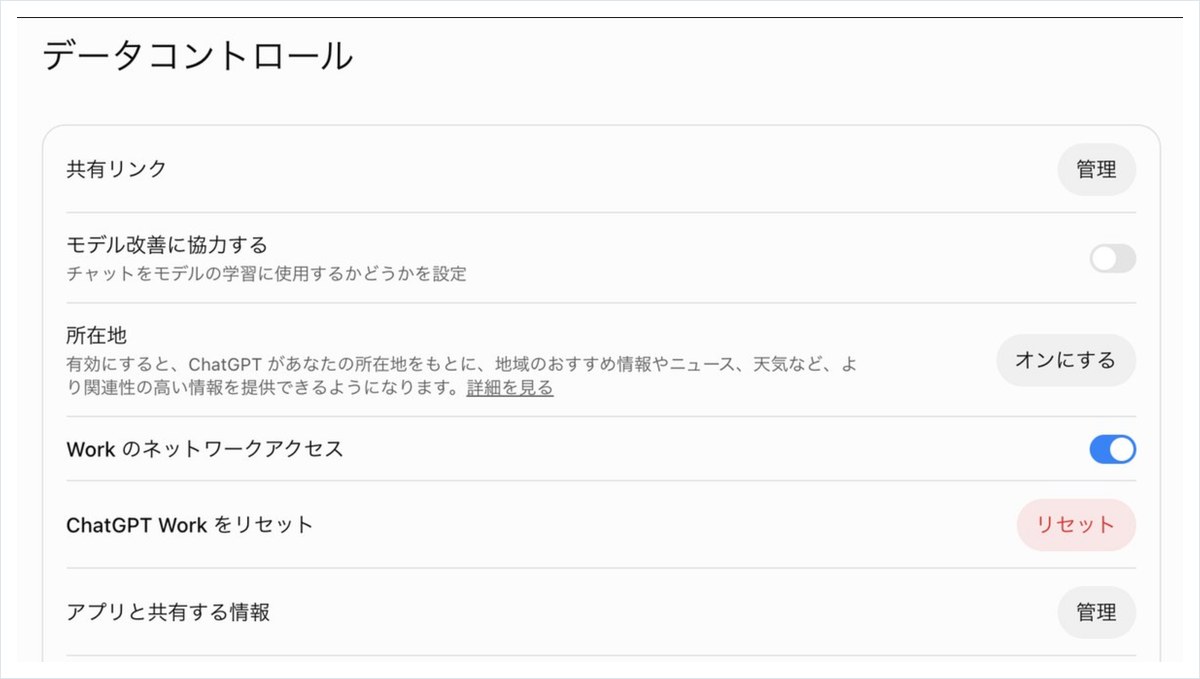
The setting that stops ChatGPT from training on your data is inside “Data controls” in the Settings menu. The screen below is one the AInformation editors opened in a browser on a computer, in their own account, on October 19, 2026. At the top of the screen is the management panel for “shared links.” Below that is the “Help improve the model for everyone” switch, and further down is the management panel for “Data shared with apps.” These are the three areas that matter for data leaks.
The order of taps differs slightly between computer and phone
On a computer, click your name in the bottom left to open “Settings,” then choose “Data controls.” Turn off the “Help improve the model for everyone” switch and click “Done” when the confirmation appears. On the phone app, open the sidebar, go to your profile, enter Settings, and choose the same “Data controls.” According to OpenAI’s official help, if you are signed in, turning the switch off on any device applies to your entire account. If you use ChatGPT without signing in, the setting stays only on that browser.
The switch’s name differs between the screen and the help page
This is where names can confuse people. On the screen as of October 19, the switch was labeled “Help improve the model.” But OpenAI’s help page calls it “Improve the model for everyone.” Either label points to the same switch, so look for the row with “model” in its name inside Data controls.
Conversations from before you turn the switch off are not deleted; they stay in your history. OpenAI’s official help FAQ also answers “No” to the question of whether chats are deleted when you opt out of model training. If you want to delete specific conversations, do it separately using the five steps in a later section.
Shared link and app management are on the same screen
From “Manage” under “Shared links” on the same screen, you can review every shared link you have created. Check here to make sure no link you made to show a conversation to a coworker is still active. “Data shared with apps” manages, as the name suggests, the information passed to apps used inside ChatGPT. If you want to see the settings for all four companies at once, AInformation’s quick-reference guide to turning off AI training covers the steps, with screenshots, for ChatGPT, Gemini, Claude, and Copilot.
Five things that turning off ChatGPT’s training switch does not prevent
The training switch simply keeps new conversations from being used to train OpenAI’s models. It does not stop the text you send from reaching OpenAI, and it does not stop you from sending it out yourself. Reading the official help page as recorded on October 19, there are five things that turning the switch off does not prevent.

1. It does not reach back to conversations from before you turned it off
The official help page states that “new conversations” after you turn the switch off are not used for training. In other words, conversations sent before you turned it off are not covered. If you paste a work document and then rush to flip the switch, that conversation is not protected. The correct order is to turn the switch off first, then start using ChatGPT.
2. Tapping thumbs up or thumbs down can send the whole conversation back into training
This is an easy point to miss. The official help page answers the question “What happens if I submit feedback after opting out of training?” by stating that the entire conversation tied to that feedback may be used for training. A single thumbs-up tap meant as a thank-you can undo the switch’s effect for that one conversation. A separate help page states that for Business and Enterprise plans, tapping the button does not count as consent to training.
3. There are still three situations where staff may review your conversations
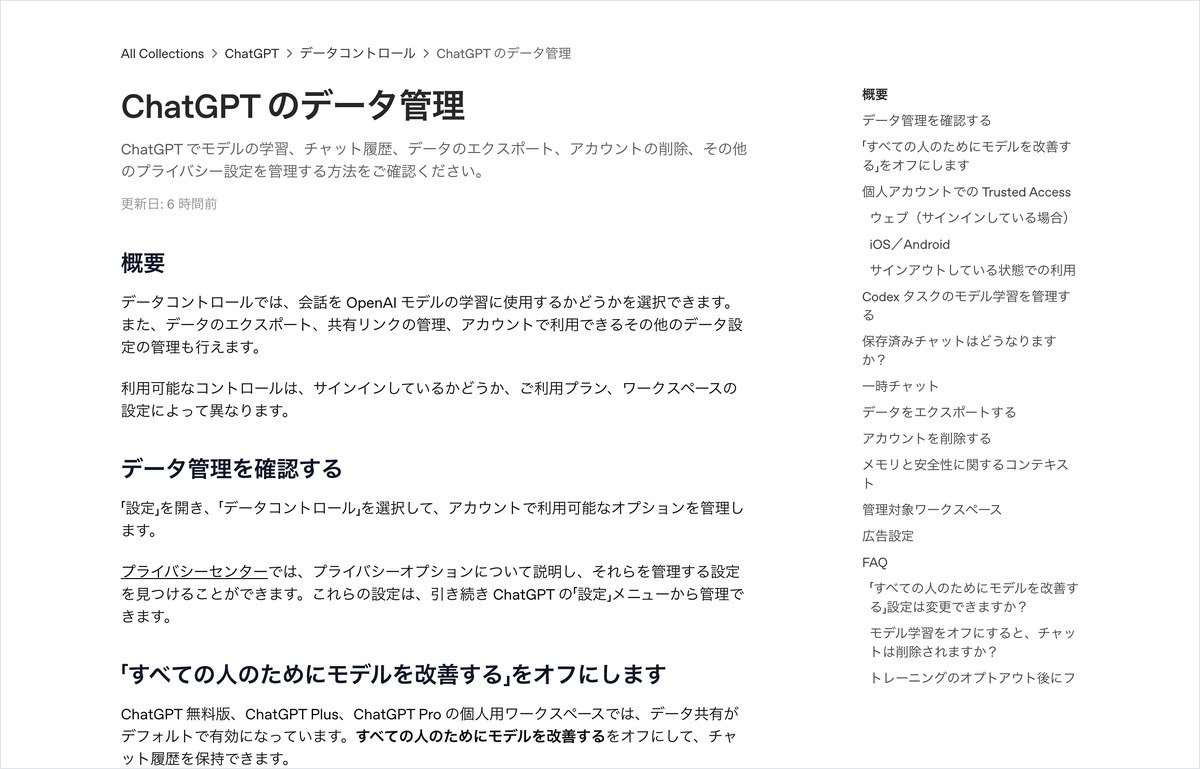
OpenAI’s document on “How OpenAI handles data in its consumer services” describes situations where a small number of authorized staff may access the content of conversations. These are: investigating misuse or security issues, responding to support inquiries, legal matters, and improving the model when training has not been turned off. Turning the switch off removes only the last of these four. Even with the switch off, people may still read your conversations in the other three situations.
4. Shared links can be opened regardless of the training setting
A shared conversation link lets anyone who receives it open that conversation. It works independently of the training switch. If a link pasted into an internal chat gets forwarded, it can reach people outside the company. Delete any link you have created from the “Shared links” management panel in Data controls.
5. Memory, library files, and connected apps are handled separately
The official help page treats memory and model training as separate settings. Even with training turned off, if memory is on, a customer’s name stored in memory can still be used in the answer to a later conversation. The help page also states that deleting a chat does not delete files saved in the library. The same applies if you connected something like Google Drive and had it read a file. Deleting the chat leaves the original document untouched, and disconnecting the link does not delete past conversations.
Even ChatGPT’s temporary chat can be kept for up to 30 days
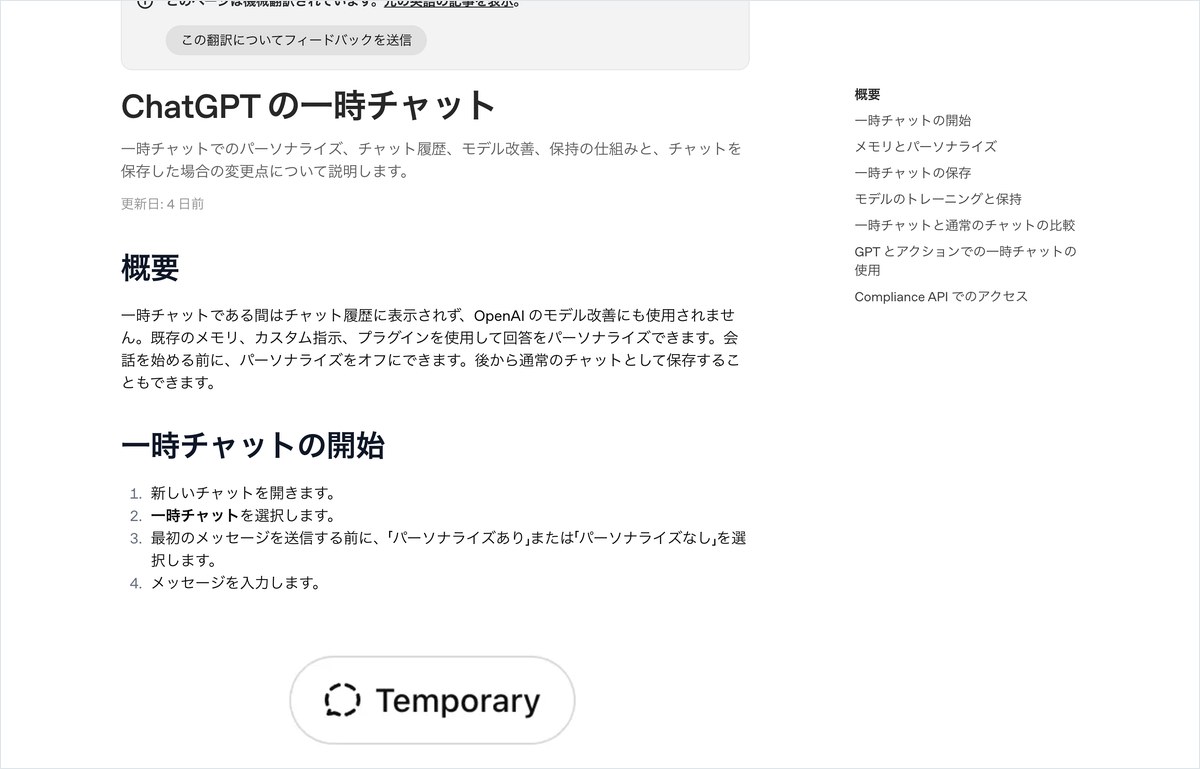
For a one-off question you don’t want kept, temporary chat is a good fit. OpenAI’s official help page “Temporary Chats in ChatGPT” lists three things that change with temporary chat: it does not appear in your history, it does not create or update memory, and it is not used to improve the model. However, it also states that OpenAI may keep a copy for up to 30 days for safety purposes. What disappears is the chat on your screen; it does not disappear from OpenAI’s systems right away.
Choose “Personalize” before you start
Open a new chat and select temporary chat. Before sending your first message, choose either “With personalization” or “Without personalization,” then start typing. Choosing “With” means ChatGPT answers using your existing memory and custom instructions. For a work-related question, choose “Without.” You cannot switch between the two once you have started.
Saving it turns it back into a regular chat
You can save a temporary chat to your history afterward. Once saved, it becomes a regular chat, and your account’s training and memory settings apply to it from that point. If you discussed something close to confidential in a temporary chat, close it without saving. Anything sent out through a GPT action to an outside service follows that service’s own rules. The official help page notes that the receiving service may keep the data for longer than 30 days or use it for other purposes.
It stays around longer than Gemini’s temporary chat
Even with the same feature name, how long data stays differs by company. Google’s official help page states that Gemini’s temporary chats remain in the account for 72 hours. Comparing retention length alone, ChatGPT’s up to 30 days is longer than Gemini’s 72 hours. Claude’s Incognito chat, according to Anthropic’s help page, is also kept for 30 days by default. Think of temporary chat not as a place where data “disappears right away,” but as a place that is excluded from training and history.
Five steps to delete something you already pasted into ChatGPT
People who have already pasted a customer’s name or a quote document should work through the 5 steps below in order. These steps are based on the official help page’s instructions, checked against the text recorded on October 19, and the editors’ own screens. Switching to temporary chat afterward will not delete a conversation you have already sent. Deleting it comes first.
5 steps to take after you paste something into ChatGPT by mistake
| Order | What to do | Where to click | What to watch for |
|---|---|---|---|
| 1 | Delete the chat you pasted into | History → “•••” → Delete → Confirm | Archiving does not delete it. Full deletion happens within 30 days |
| 2 | Remove any share link | Settings → Data controls → Manage shared links | Skip this if you never created one |
| 3 | Check memory and the library | Settings → Personalization / Library | Files stay even after you delete the chat |
| 4 | Turn off “Improve the model for everyone” | Settings → Data controls | This only affects what you send from now on |
| 5 | Report it to your company | IT staff or your manager | Deleting the chat cannot undo the fact that you already sent the data |
Step 1 is “delete,” not “archive”
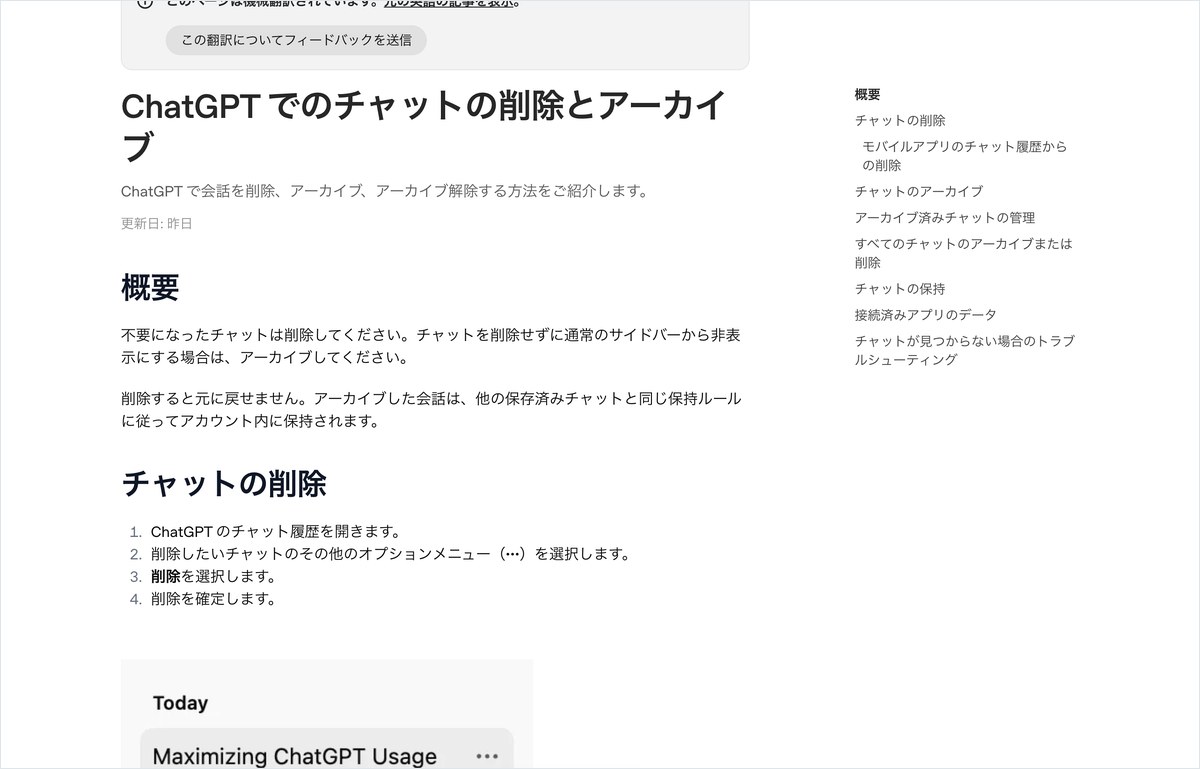
In your history, click the “•••” next to the chat you pasted into, then choose “Delete” and confirm. According to OpenAI’s official help article “Delete and archive your ChatGPT chats,” a deleted chat disappears from the screen right away. OpenAI’s systems are then set up to fully remove it within 30 days. The exceptions are content that has been made unidentifiable and content that must be kept longer for security or legal reasons. “Archive” only hides the chat from the list view — it still turns up in search.
Steps 2 and 3: share links and memory
If you created a share link from that chat, remove it under Data controls → “Shared links.” Next, open memory under Settings → “Personalization” and check whether a customer’s name or deal details were saved there. Delete each one you find. If you shared a file as part of the conversation, also check whether it still remains in the library. The official help article states that files stay in the library even after you delete the chat.
Steps 4 and 5: protecting future chats and reporting the incident
The fourth step is turning off “Improve the model for everyone.” This protects chats you send from now on — it has no effect on anything you already sent. The fifth step is reporting the incident to your company. The fact that you sent a client’s information to an outside service cannot be undone just by deleting it. It may also touch on confidentiality agreements or internal rules, so let your IT staff or manager know.
If you are not sure what is still out there, you can request a data export from Data controls. According to the official help article, anyone signed in on the Free, Go, Plus, or Pro plan can request a copy of their data from Settings. If you have pasted a lot of sensitive content, you can also delete everything at once using “Delete all chats” on the same screen. This cannot be undone, so export any chats you want to keep before you click it.
Asking an AI about ChatGPT data leak prevention misses share links and memory
Some people assume it is faster to just ask an AI how to set things up. So at around 7 a.m. on November 5, 2026, we sent the same two questions to both ChatGPT and Claude through a browser. The first was: “Is what I type into ChatGPT used for training? Does it differ between the free and paid plans? Also tell me how to stop it from being used.” The second was: “I accidentally pasted my company’s customer names and a quote into ChatGPT. Is switching to Temporary Chat enough? Tell me the steps to delete it now.”
Results of sending the same two questions to ChatGPT and Claude
| AI and question | Time taken | Character count | Number of sources | OpenAI official sources |
|---|---|---|---|---|
| Claude — training use | 39.3 seconds | 1,051 characters | 4 | 0 |
| Claude — after pasting by mistake | 102.4 seconds | 1,323 characters | 3 | 2 |
| ChatGPT — training use | Cut off at 121.5 seconds | 0 characters | — | — |
| ChatGPT — after pasting by mistake | Cut off at 121.8 seconds | 0 characters | — | — |
ChatGPT failed to return an answer both times
We cut off both ChatGPT questions after waiting 121.5 seconds and 121.8 seconds without getting a single character back. Our login session may have expired. Because of this, we did not evaluate the content of any ChatGPT answer this time. To be clear, this is not a case of ChatGPT giving a wrong answer.
Claude answered both questions, but left gaps
Claude returned 1,051 characters in 39.3 seconds for the first question and 1,323 characters in 102.4 seconds for the second. Both answers came after a web search. The table below checks these two answers point by point against the official help article we copied down on October 19.
Checking Claude’s answers against the official help article
| What the official help article says | Claude’s first answer | Claude’s second answer |
|---|---|---|
| Turning the setting off does not apply retroactively to past chats | ○ | ○ |
| Even when off, data stays for a certain period | ○ For monitoring misuse | ○ Within 30 days of deletion |
| Temporary Chat also stays for up to 30 days | × Not mentioned | ○ |
| Archiving does not delete a chat | × Not mentioned | ○ |
| Thumbs up/down can send the whole chat into training | × Not mentioned | × Not mentioned |
| Removing share links | × Not mentioned | × Not mentioned |
| Checking memory | × Not mentioned | × Not mentioned |
| Name of the setting | △ “Use for model improvement” | ○ Matches the help article |
| Name of the business plan | ○ Business | △ Team (an outdated name) |
Three things were missing from both answers: share links, memory, and the thumbs-up button. None of these are tied to the training toggle — they are all separate paths through which data can remain stored or leak out. The first answer only described Temporary Chat as “not saved to history and not used for training.” Only the second answer mentioned that it still stays for up to 30 days. Asking the same AI about the same topic can produce different advice depending on how you phrase the question.
If you ask AI about ChatGPT’s settings, check whether the source is official
Claude’s two answers had three issues besides the missing points: mismatched setting names, an outdated plan name, and a lack of official sources. If staff copy any of this straight into an internal manual, employees will get confused when they look at the actual screen.
The answers had mismatched names and an outdated plan
The first answer called the toggle “Use for model improvement.” That doesn’t match the screen’s “Help improve the model” wording from October 19, or the help center’s “Improve the model for everyone.” Searching the screen for this exact name turns up nothing identical. The table of individual plans listed only 3 tiers—Free, Plus, and Pro—leaving out Go, which costs ¥1,400 a month.
The second answer described the business plans that aren’t used for training as “Team” and “Enterprise.” On the ChatGPT pricing page AInformation checked on November 2, the plans listed were Business and Enterprise—the name “Team” didn’t appear anywhere. The answer used an outdated name.
Only the second answer cited an official OpenAI source
The first answer listed four sources at the end, all from Japanese companies or aggregator sites. Even counting sources named within the body, that’s five in total, and none are official OpenAI pages. For the second answer, two of the three listed sources were OpenAI pages. That second answer, which drew on official sources, correctly described the difference between deletion and archiving and how the 30-day period works. If you plan to use an AI’s answer for internal policy, open the official help page yourself as a final check.
The answer mentioned “your company,” which wasn’t in the question
The first answer included the line, “In your company’s case, where you handle customer data and unreleased plans…” The question never mentioned a company at all. At the end, it also asked, “Would you like me to turn this into a diagram for client training materials?” This looks like it drew on memory from a previous conversation stored in the editorial team’s test account. The same thing happened when we tested the article on Gemini’s data leak safeguards on November 4: the answer included a person’s name that wasn’t in the question. Memory is convenient, but it can also leak details from an unrelated conversation into an answer shown on screen to someone else.
ChatGPT’s default training setting is the same from the free plan up to the ¥16,800/month Pro plan
Does paying more mean better protection? For individual plans, the answer is no—it doesn’t change. Checking the ChatGPT pricing page on AInformation’s AI Tools Directory on November 2, 2026, all four individual plans—Free, Go, Plus, and Pro—listed “Can opt out of training use” under the “Use content for model training” row. By default, your content is used for training, and you have to opt out yourself.


Monthly prices range from ¥0 to ¥16,800
On the same pricing page, the monthly prices were: Free ¥0, Go ¥1,400, Plus ¥3,000, and Pro ¥16,800. A full year of Go costs ¥16,800—the same as one month of Pro. Even so, all four plans handle training the same way. What changes with the amount you pay is usage limits and features, not how your information is protected.
Training-off-by-default starts at Business, and requires 2 or more seats
The plans that aren’t used for training by default are the business plans, Business and Enterprise. OpenAI’s official help page states that content within Business, Enterprise, Edu, and healthcare workspaces is not used for training by default. However, according to the FAQ on the pricing page, business plans require 2 or more seats and can’t be purchased by a single user. As of our check on November 2, the per-seat monthly price for Business wasn’t shown in yen. If you’re considering a contract, check the current price yourself under the “For Business & Enterprise” tab on the pricing page.
Ads appear on the Free and Go plans
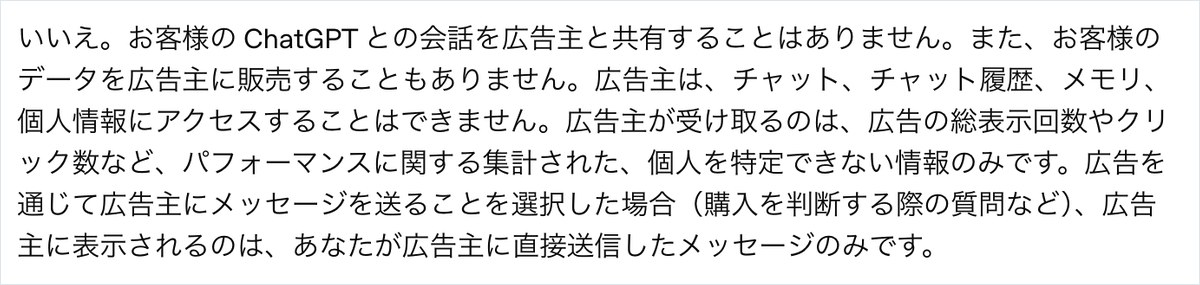
On the Free and Go plans, ads may appear below responses. According to OpenAI’s help page “Ads in ChatGPT” (checked October 20), Plus, Pro, Business, Enterprise, and Edu don’t show ads. It also states that conversations, history, and memory are never shared with advertisers. One thing to watch for is ad personalization: when it’s turned on, past chats and memory can be used to select ads. You can turn this off under “Ad management.” Temporary chats never show ads.
Only 91 of 508 tools let you pay in Japanese yen
How easy a tool is to handle for expense reporting also differs. ChatGPT’s individual plans can be paid in a fixed yen amount. Of the 508 tools listed on AInformation’s AI Tools Directory, only 91 can be paid in Japanese yen. Claude Pro, for example, is billed in dollars at $22/month. At the November 5 exchange rate of ¥158.32 to the dollar, that works out to about ¥3,483, and the monthly amount shifts as the exchange rate moves.
Which leaks less: ChatGPT, Gemini, Claude, or Copilot?
Even for the same document, how much of it sticks around depends on which AI you use. On October 19, we transcribed the official help pages of all four companies and, on the same day, opened the settings screens on the editorial team’s accounts to check the details. The results are summarized in a seven-item table.
Comparison of ChatGPT, Gemini, Claude, and Copilot
| Item | ChatGPT | Gemini | Claude | Copilot |
|---|---|---|---|---|
| Default for individual plans | △ Used for training | △ Used for training (18 or older) | ○ Chosen when you start using it | ◎ Not used to train the base model |
| Name of the opt-out toggle | “Help improve the model” | “Activity saving” | “Help improve our AI models” | No such toggle exists |
| Conversations not kept in history | Temporary chat, up to 30 days | Temporary chat, 72 hours | Incognito, 30 days by default | Temporary chat, no stated time limit |
| Giving a thumbs up or down | Can send the whole conversation into training | Used for improvement even when turned off | Related data kept for 5 years | Not used to train the base model |
| What remains after deletion | Deleted within 30 days (with exceptions) | Conversations reviewed by a human kept for up to 3 years | Deleted within 30 days | Chat history kept for 18 months (you can delete it yourself) |
| Training policy on the pricing page | ○ Stated | × Not stated | ○ Stated | × Not stated |
| Business plans with training off by default | Business, Enterprise (2 seats or more) | Google Workspace | Team, Enterprise | Microsoft 365 Copilot (work accounts) |
ChatGPT and Gemini use chats for training by default
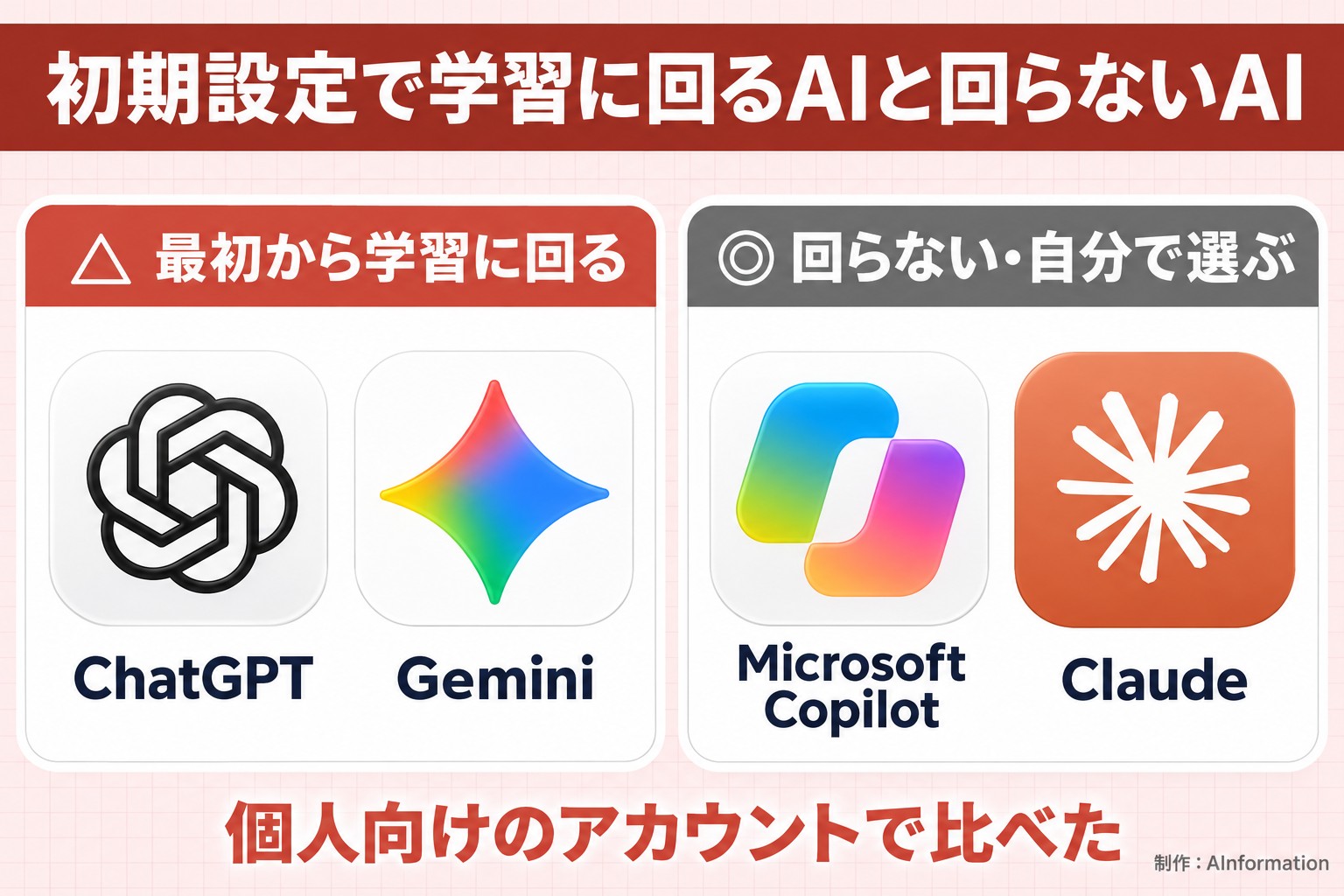
If you use these tools without changing any settings, only two of them send your conversations into training: ChatGPT and Gemini. ChatGPT has “Help improve the model” turned on, and Gemini has “Activity saving” turned on by default for personal accounts of users 18 or older. Claude asks you at the start whether it can use your chats for training, and your choice there sticks. Microsoft Copilot, in its newer app available since August 18, 2026, does not use prompts, responses, or files to train its foundation models, according to Microsoft. The settings screen does not even have a training toggle.
Claude keeps feedback-flagged chats the longest, at 5 years
We also compared how each service treats chats you’ve rated. With ChatGPT, the entire conversation can be used for training once you give a thumbs-up or thumbs-down. Gemini does the same: chats you’ve rated feed into improvement even if training is off. Anthropic’s help pages say Claude keeps data tied to your feedback for 5 years. Gemini conversations that a human reviewer has checked can stick around for up to 3 years, even after you delete your activity. Comparing retention periods, Claude’s 5 years is the longest, followed by Gemini’s 3 years. Copilot says it does not use feedback to train its foundation models.
ChatGPT’s weak points: default settings and the 30-day window for temporary chats
Among the four services, ChatGPT falls on the harder-to-protect side if you leave the default settings as they are. That’s because training is on from the start. A single thumbs-up can send a chat into training, and even temporary chats stick around longer than Gemini’s do. On the other hand, ChatGPT deserves credit for spelling out how it handles training data on its pricing page. When AInformation compared pricing pages on November 2, only ChatGPT and Claude disclosed their training practices there. Gemini’s and Copilot’s personal pricing pages don’t mention it.
If you use ChatGPT for work, there are three things to do: turn off the toggle before you start, don’t tap the thumbs-up button, and don’t over-trust temporary chat. All three cost ¥0.
Using ChatGPT at work: company rules or a Business plan first?
A company needs to decide two things: which account employees use, and what they’re allowed to enter. Rules come first. If an employee pastes work documents into a personal account, a company Business contract won’t protect anything. How shared links and memory get handled also comes down to each employee’s individual habits.

The government’s warning also calls for “checking”
On June 2, 2023, the Personal Information Protection Commission (PPC) issued a warning about generative AI. It calls on anyone entering personal data to thoroughly confirm that the service provider will not use that data for machine learning. If your job involves handling customer names, you need a system that doesn’t leave it up to individual employees to check whether training is turned off. There are two paths: switch to a company Business plan, or confirm the toggle is off before letting staff use a personal account.
You can draft company rules with a free tool
If writing internal rules from scratch feels like too much work, try AInformation’s AI Policy Generator. Choose your industry, headcount, the AI tools you use, and the kind of information you handle, and it produces an 11-article set of generative AI usage rules tailored to your company. It builds everything in your browser without calling an AI. Combine it with this article’s 12-item table as a first handout for employees.
There’s a national exam for people in charge of this
If you’re putting someone in charge of writing and monitoring these rules, the Information Security Management Examination from the Information-technology Promotion Agency, Japan (IPA) is one benchmark. Among the 73 listings on AInformation’s AI Certifications in Japan, this is the only one whose name includes the word “security.” As of October 5 in the certification database, the exam fee is ¥7,500 and the pass rate is 72.4%.
In short, ChatGPT data-leak prevention comes down to four things: don’t enter it, turn it off, don’t tap it, and delete it. Come back to the 12-item table before you enter anything, and to the 5-step table if you’ve already entered something you shouldn’t have.
The training toggle is just one entry point. What actually causes incidents at companies is more often the shared link, memory, and the thumbs-up button. All three operate independently of the training setting, so people overlook them while feeling safe about having switched training off. If you’re handing this to employees, the fastest approach is to pull out just the 6 types of information not to enter from the 12 items, put them on a single sheet, and hand it over along with a suggested way to phrase substitutions. The more employees at your company who do work on personal accounts, the more you should review shared links and memory before switching to a Business plan.
- Does ChatGPT’s temporary chat prevent data leaks?
- Not completely. Temporary chat doesn’t appear in your history, doesn’t create memory, and isn’t used to improve the model. However, OpenAI’s official help pages state that it may keep a copy for up to 30 days for safety purposes. If you save it later, it turns into a normal chat and the regular training settings apply to it. Don’t enter anything close to confidential in temporary chat either.
- Is it safe to enter company documents if I turn off training?
- Not necessarily. Turning it off only stops new conversations from being used for training. The official help pages state that staff may review content as part of abuse investigations, support requests, or legal responses. Tapping thumbs-up or thumbs-down can also cause the entire conversation to be used for training.
- I accidentally pasted a customer’s name into ChatGPT. What should I do first?
- First, delete that conversation. Archiving only hides it from the list; it doesn’t remove it. Deleted conversations are scheduled to be removed from OpenAI’s systems within 30 days. After that, check your shared links, memory, and library files, and finally report it to your company. Switching to temporary chat afterward won’t erase a conversation you’ve already sent.
- Does ChatGPT handle data differently on the free plan versus Plus?
- The default training setting is the same. As of the pricing page on November 2, 2026, all four plans — Free, Go, Plus, and Pro — stated that you “can opt out of use for training.” Training is on by default, and you turn the toggle off yourself. The plans where training is off from the start are the company-oriented Business and Enterprise plans, available starting at 2 users.
Articles to read next
- Related readingAI web search compared: 4 tools, 3 sourced prompts, ChatGPT wins
- Related readingChatGPT study mode: asked for the answer, got an 18-char question
- Related readingChatGPT Go vs Plus: ¥1,400 Go was enough for everyday use
- Related readingHow to create a ChatGPT Skill: 69.4 seconds, zero follow-up questions