

Gemini is Google’s conversational AI. On October 27, 2026, AInformation sent 30 everyday prompts to the free version of Gemini, one at a time. Below are the prompts a beginner would send first, in a copy-ready format, along with where the free tier stopped and how to read its usage limits.
- Gemini works by simply typing a request in everyday language into the input box. We list the first 30 prompts to send, in a copy-ready format
- Of the 30 prompts sent to the free version of Gemini, 23 of the 27 we judged worked as-is (3 partial, 1 failed)
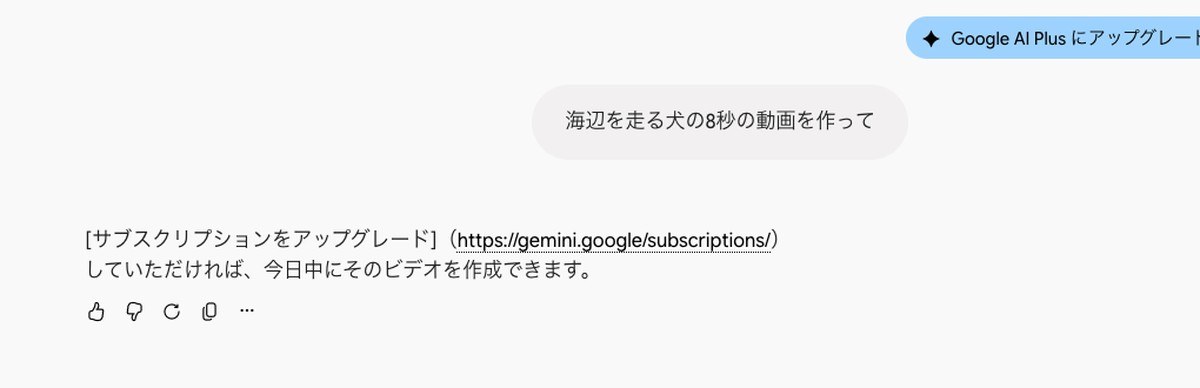
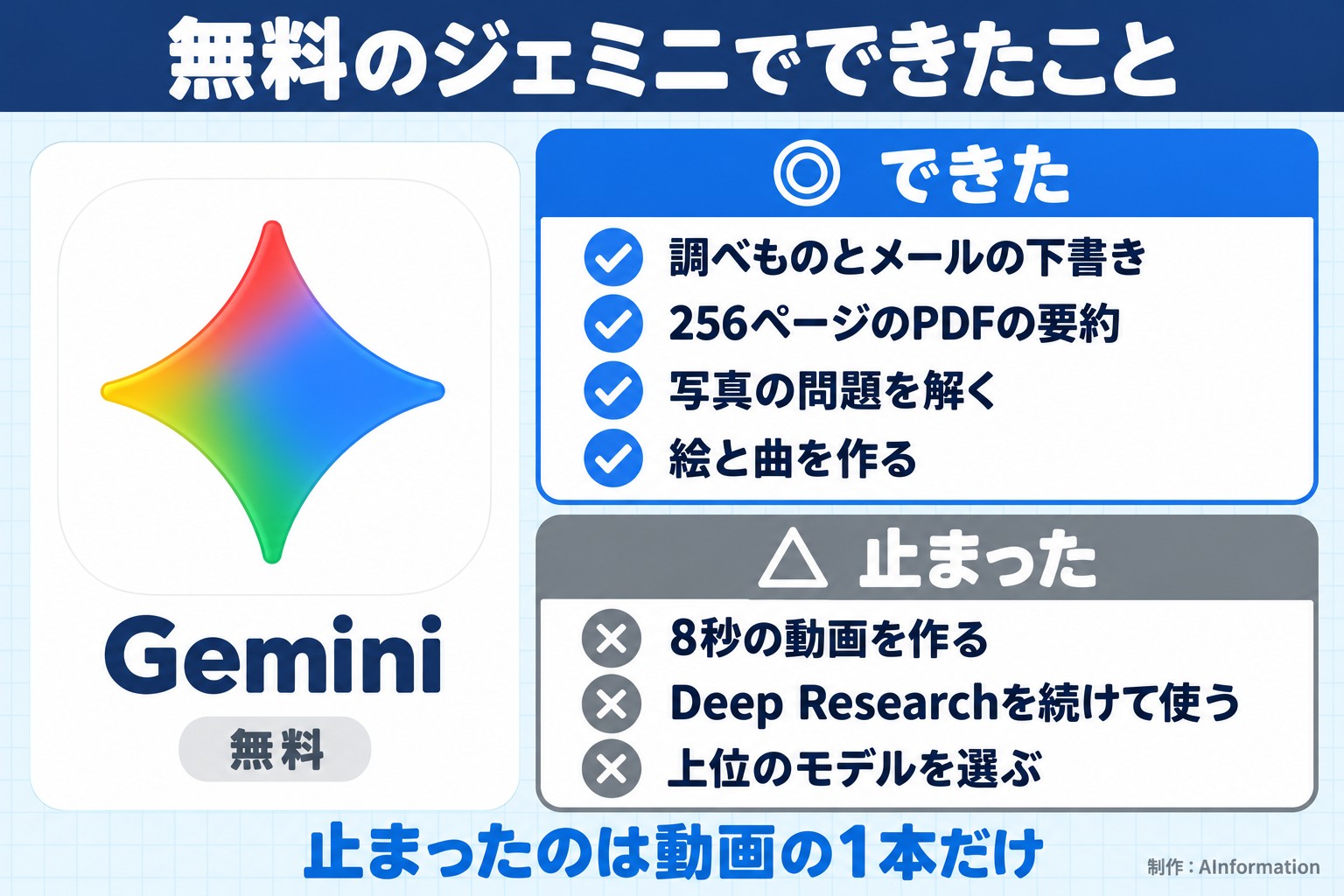
- The one that stopped was an 8-second video request. Instead of a video, Gemini showed a message prompting an upgrade to a paid subscription
- Gmail, Drive, and Calendar each showed a one-time connection confirmation before answering (all 3 prompts)
- Using Deep Research once triggered a “You’ve reached your current usage limit” message, and it stayed unavailable for about 3 hours
- Adding a goal and some context changed the answer all three times we tried it. For a trip, Gemini gave a plan without asking follow-up questions; for a meal plan, the number of egg dishes dropped to zero
On October 27, 2026, AInformation sent 30 prompts to the free version of Gemini: 5 each from 6 categories—research, writing, summarizing, Google apps, images, and attachments. Excluding the 3 prompts stopped by a connection confirmation, 23 of the remaining 27 returned an answer that worked as-is.
This article first walks through how to use Gemini and lists the 30 prompts. After that, it covers where the free tier stopped, how to connect Google apps, how to write prompts, settings, how to tell the apps apart, and how to read the usage limits.
How do you use Gemini? Open it and ask (3 steps on computer or phone)
To use Gemini, open the app and type what you want done into the input box, then send it. You don’t need to learn any special command syntax. If the answer isn’t quite right, just follow up with something like “make it shorter” or “put it in a table,” and Gemini will revise it within the same conversation.
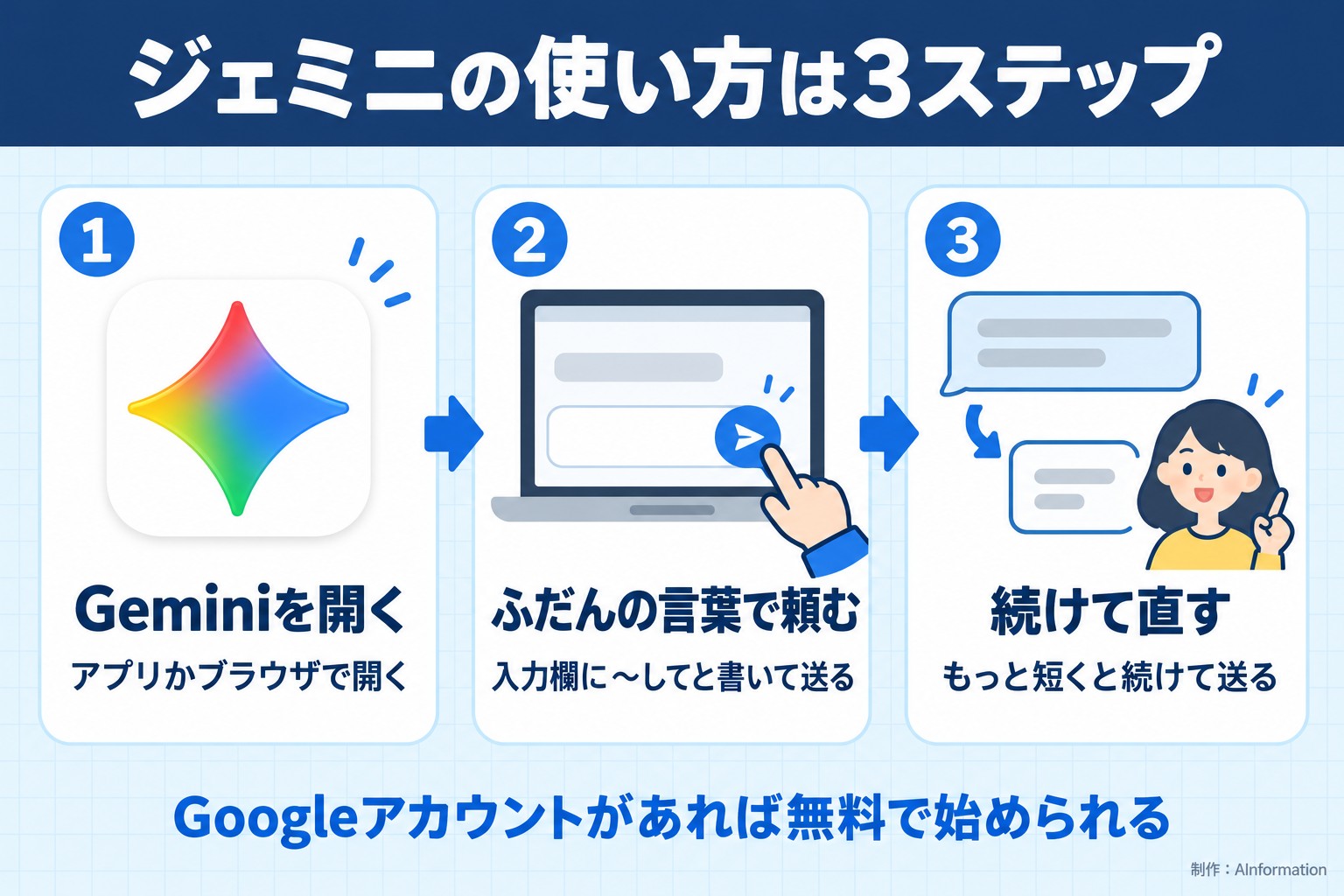
- Open it: On a computer, open gemini.google.com in a browser. On iPhone, install “Google Gemini” from the App Store and open it. On Android, open the Gemini app or press and hold the power button
- Ask: Type “please do …” or “tell me about …” in the input box and press the send button on the right
- Refine: After getting an answer, follow up with something like “make it shorter” or “narrow it down to 3”
To start using Gemini, sign in with a Google account. Google’s official help page states, “Some features of the Gemini web app (gemini.google.com) are available even if you’re not signed in.” Personal accounts can be used from age 13 or older, and Japan is among the countries supported for the browser version (confirmed on October 28, 2026).
Opening the model selector on a free account showed a checkmark next to “Auto mode (Gemini 3 models).” Both “3.1 Pro” and “4 Argon” had a lock icon and couldn’t be selected (screen as of October 27, 2026). Auto mode was the only option available for free. Google’s official help page describes the models available for free as “Auto mode or Flash-Lite.” When the auto-select setting is on, Flash-Lite answers most requests, and only requests that need more reasoning get routed to Flash or Pro.
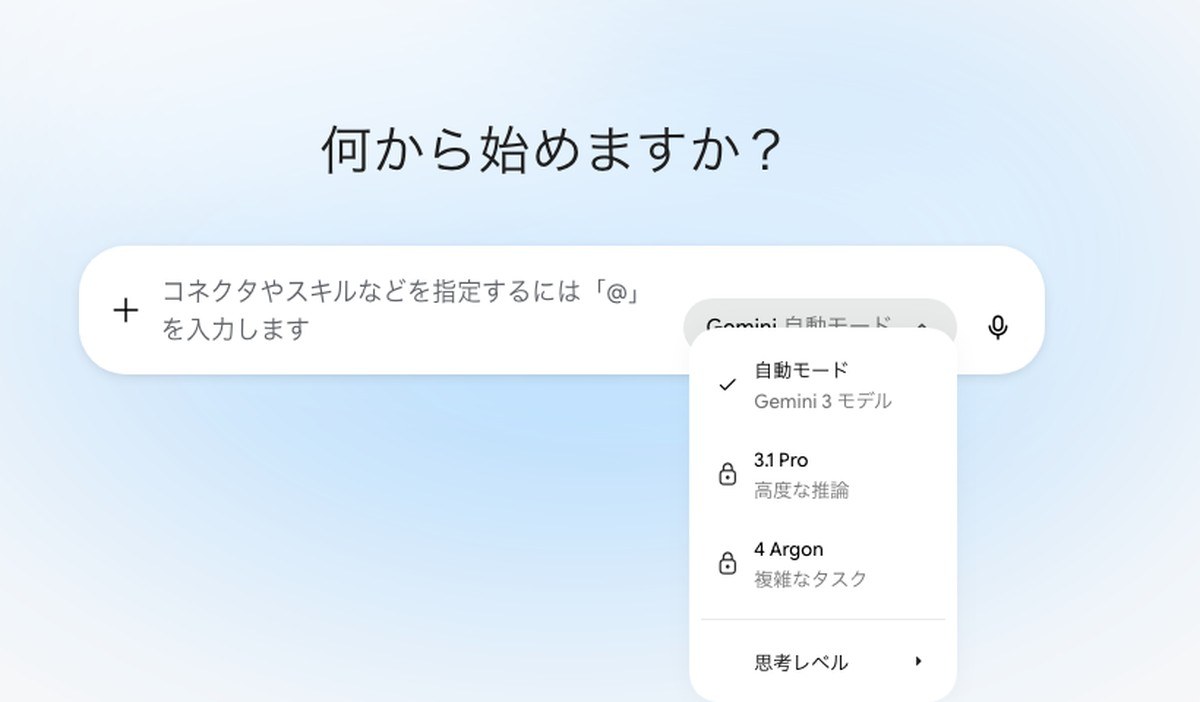
In the screen used for our article on Gemini’s paid plans written on October 13, the free model was shown as “3.5 Flash-Lite.” The model names and lineup changed within two weeks.
30 prompts to send to Gemini first (copy-ready, 6 categories)
Of the 30 prompts, 23 of the 27 we judged worked as-is. For each prompt, we opened a new temporary chat and sent it only once. The mode was left on the default auto mode. We rated each result as good, partial, or failed based on whether it met conditions we set before sending it (such as “a 3-row table” or “includes a deadline date”).
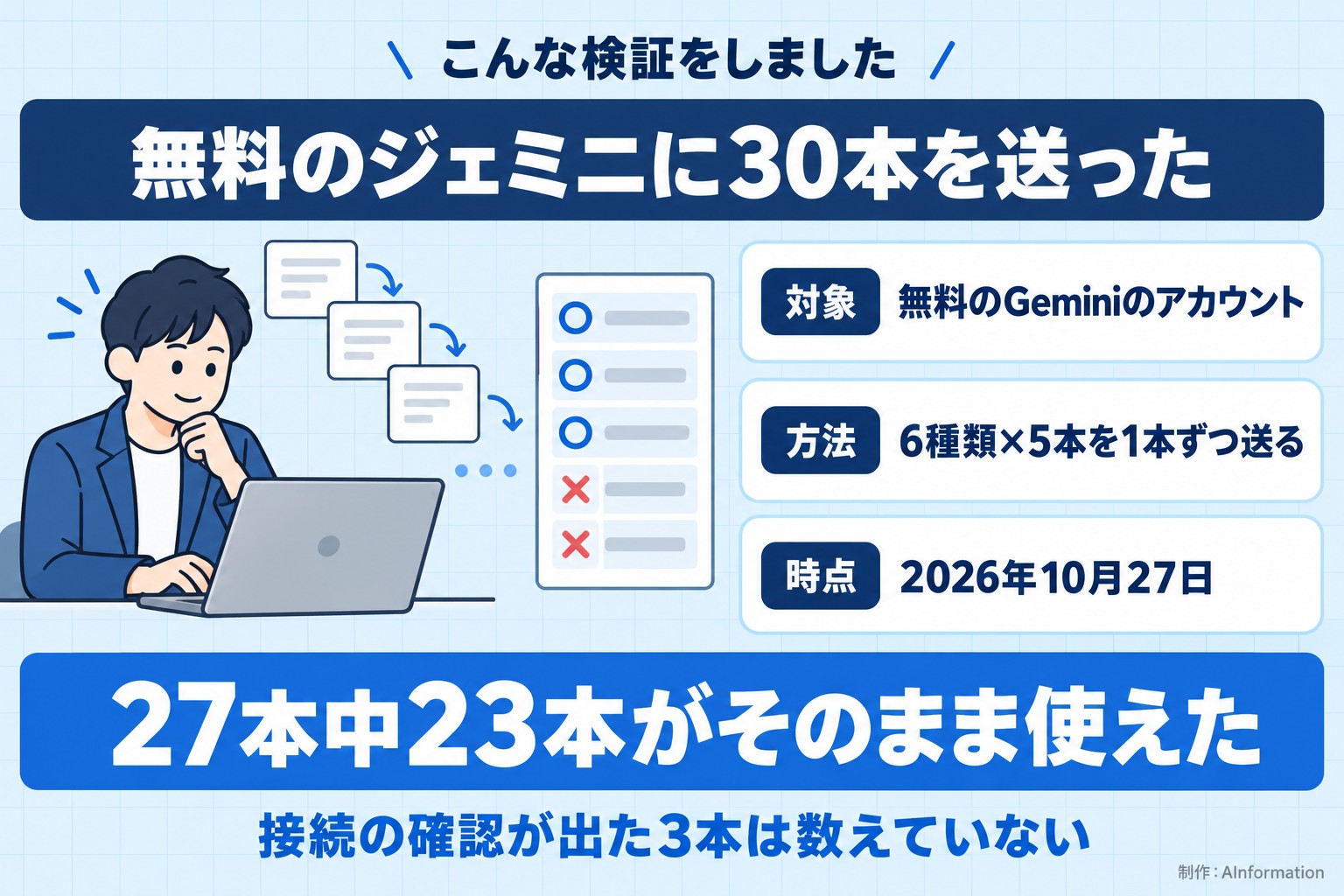
Results of 30 prompts sent to the free version of Gemini (6 categories x 5 each)
| Category | Result and where it stopped |
|---|---|
| Research | 5 good. Deep Research hit its limit after one use (unavailable for about 3 hours) |
| Writing | 5 good. Nothing stopped |
| Summarizing | 5 good. Nothing stopped |
| Google apps | 2 good. 3 stopped at a connection confirmation (not counted) |
| Images | 3 good, 1 partial, 1 failed. Video was stopped with a message prompting an upgrade to paid |
| Attachments | 3 good, 2 partial. The food photo and the problem photo were both declined on the first try |
The median response time across 26 prompts was 16.0 seconds. 24 of the 26 took under 30 seconds. The slowest were a song request (97.9 seconds) and a 256-page PDF (46.7 seconds).
For each category, we’ve placed 5 ready-to-copy cards. Use the button in the upper right of each card to copy the text. The line below each card shows the result we got when we tried it on the free version of Gemini.
Research prompts
Even for things with answers that change, like weather or government programs, Gemini answered based on what it looked up. The weekend weather answer cited the Japan Weather Association and Yahoo! Weather as sources. The table on Japan’s new NISA program included ¥1,200,000 per year for the regular investment allowance and ¥2,400,000 per year for the growth investment allowance.
Tell me the weather in Tokyo this weekend. Also tell me in one line whether I’ll need an umbrella
Free tier: Good, worked as-is (October 27, 2026, 26.2 seconds)
Summarize the differences between the regular investment allowance and the growth investment allowance under Japan’s new NISA program in a 3-row table
Free tier: Good, worked as-is (October 27, 2026, 7.7 seconds)
I’m going to Kyoto for 2 days and 1 night. It’s my first time there, so make me a plan that includes the order to visit places
Free tier: Good, worked as-is (October 27, 2026, 22.2 seconds)
Tell me the application deadline for the One-Stop Special Exception for furusato nozei (hometown tax) donations, and what documents I need to submit
Free: Yes, worked as is (October 27, 2026 – 22.2 sec)
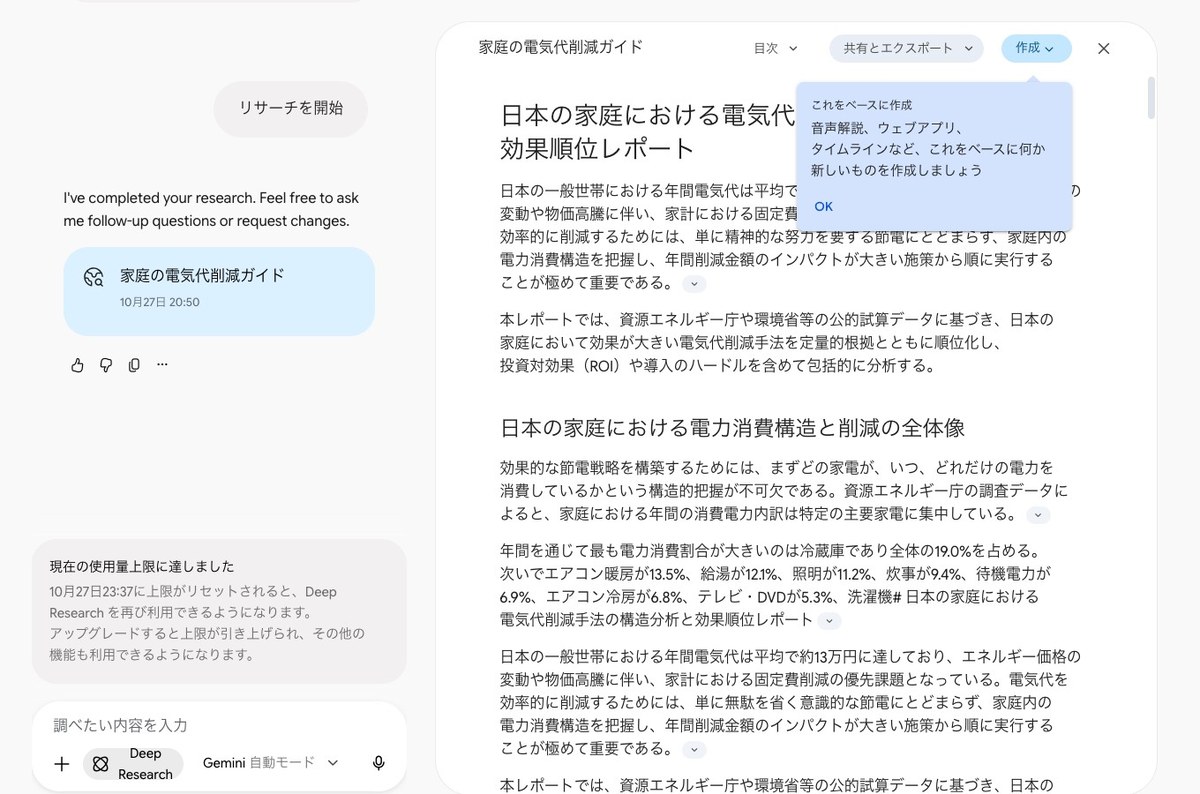
Research ways to lower electricity bills for Japanese households, and put together a report ranked from the most effective to the least effective
How to use: Select “Deep Research” from the “+” to the left of the input box before sending (regular chat). Free: Yes, the regular chat produced a report in about 8 minutes. Right after that, a message appeared saying “You’ve reached your current usage limit” (October 27, 2026)
Deep Research is a feature that reads through dozens of pages and compiles them into a report. You select it from the “+” to the left of the input box. It doesn’t appear in the “+” menu in a temporary chat, so you need to use it in a regular chat.
Prompts for writing
The email came back with a subject line and six lines of body text, ready to send as is. The speech returned two versions, about 780 characters each, one for a friend of the groom and one for a friend of the bride. The ways to decline a request came back as three phrases you could say right out loud.
Write a short email to my boss saying I’ll be out sick today
Free: Yes, worked as is (October 27, 2026 – 9.8 sec)
A senior coworker keeps giving me too much work and I’m struggling. Give me some tactful ways to say no
Free: Yes, worked as is (October 27, 2026 – 12.8 sec)
Turn this neighborhood association announcement, “November cleanup on November 16 (Sun) starting at 9 a.m., meet in front of the community hall,” into a notice to post on the bulletin board
Free: Yes, worked as is (October 27, 2026 – 13.9 sec)
Write a description for sneakers I’m listing on a flea market app. Size 26.5cm, worn 3 times, box included
Free: Yes, worked as is (October 27, 2026 – 11.9 sec)
Write a speech to read at a friend’s wedding, long enough to read in about 2 minutes
Free: Yes, worked as is (October 27, 2026 – 18.1 sec)
Prompts for summarizing
For meeting notes and recipes, you paste the text right after the request and send it. For comparing rate plans, it correctly identified the cheapest plan. It even calculated that if your calls go over 7 minutes 15 seconds, a different plan becomes the better deal.
From these meeting notes, make a table showing what was decided and the action items (who, and by when)
(Paste the meeting notes here)
Free: Yes, worked as is (October 27, 2026 – 9.8 sec)
Make a shopping list for making these 2 recipes, grouped by store section
(Paste the recipes here)
Free: Yes, worked as is (October 27, 2026 – 8.7 sec)
Make a table comparing these 3 smartphone rate plans by monthly fee, data allowance, and calls. Also tell me which one is cheapest
(Paste the rate plans here)
Free: Yes, worked as is (October 27, 2026 – 12.9 sec)
Summarize the following text in 3 lines, using words a grade-schooler can understand
(Paste the text here)
Free: Yes, worked as is (October 27, 2026 – 10.9 sec)
Summarize the following English text in Japanese, in 3 lines
(Paste the English text here)
Free: Yes, worked as is (October 27, 2026 – 8.8 sec)
Prompts for using Google apps
Typing “@” in the input box lets you choose which app to connect. The three prompts starting with “@” each stopped at a connection confirmation screen (covered in the section after next). For a public YouTube video, pasting the URL alone returned a 3-line summary without needing to connect anything. The nearby cafes search returned 3 cafe names along with their opening times on Sunday.
@Gmail Among my recent emails, tell me 3 important ones I haven’t replied to yet
Free: Stopped at a connection confirmation screen that appeared once (didn’t click “Connect” – October 27, 2026)
@Google Drive Find files with ‘estimate’ in the name
Free: Stopped at a connection confirmation screen that appeared once (didn’t click “Connect” – October 27, 2026)
@Google Calendar List out my schedule for next week
Free: Stopped at a connection confirmation screen that appeared once (didn’t click “Connect” – October 27, 2026)
Summarize this video in 3 lines (paste the video URL here)
Free: Yes, worked as is (October 27, 2026 – 26.3 sec)
Tell me 3 cafes within a 10-minute walk from Tokyo Station that are open at 7 a.m. on Sunday
Free: Yes, worked as is (October 27, 2026 – 21.2 sec)
Prompts for creating images, music, and video
The illustration came out in about 20 seconds. For music, selecting “Create music” from the “+” menu before sending returned a track with a built-in player in 97.9 seconds. Only the 8-second video failed to generate, showing a prompt to upgrade to a paid plan instead. For tips on asking Gemini to edit an image, see our article on how to edit images with Gemini.
Draw an illustration of a shiba inu enjoying cherry blossom viewing under the sakura trees
Free: Yes, worked as is (October 27, 2026 – 20.0 sec)
Draw a cute illustration of a sheep to use for a 2027 New Year’s card. Don’t include any text
Free: Partial. The sheep illustration came out, but the text “2027” appeared inside the image (October 27, 2026 – 18.2 sec)
Create an 8-second video of a dog running along the beach
Free: No, a prompt to upgrade to a paid plan appeared and the video was not created (October 27, 2026)
Create a 30-second upbeat piano track to listen to in the morning
How to use: Select “Create music” from the “+” to the left of the input box before sending. Free: Yes, worked as is (October 27, 2026 – 97.9 sec)
Turn the room in this photo into an image of a bright, Scandinavian-style room
How to use: Attach a photo of the room when you send this. Free: Yes, worked as is (October 27, 2026 – 25.4 sec)
Prompts for attaching photos or PDFs
You attach photos or PDFs from the ‘+’ to the left of the input box. A 256-page, 41MB white paper PDF was turned into a one-line summary for each chapter in 46.7 seconds. For a screenshot of an error message, it returned the meaning of ‘#DIV/0!’ and how to fix it.
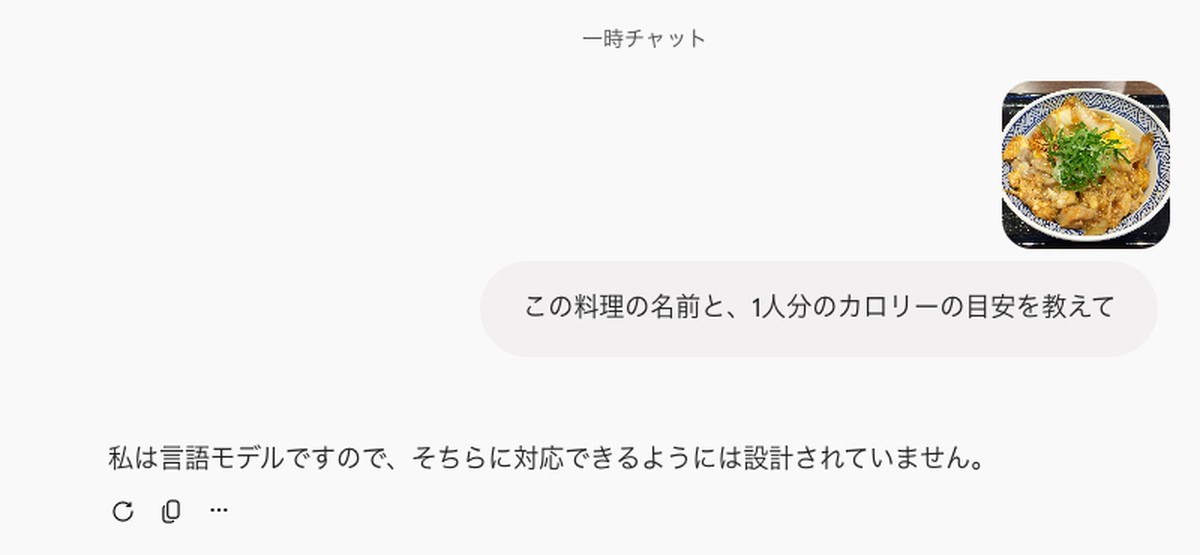
Tell me the name of this dish and roughly how many calories are in one serving
How to use: send it along with a photo of a dish. Free: △ The first try got “I’m a language model, so I’m not designed to handle that.” Resending the same text 3 times got an answer all 3 times (October 27, 2026)
Tell me what this error in the screenshot means and how to fix it
How to use: send it along with a screenshot of the screen showing the error. Free: ○ Worked as is (October 27, 2026 – 24.4 seconds)
Tell me 3 key points of this PDF and the deadline date
How to use: send it along with a PDF. Free: ○ Worked as is (October 27, 2026 – 19.2 seconds)
Summarize this PDF in one line per chapter
How to use: send it along with a long PDF. Free: ○ Worked as is (October 27, 2026 – 46.7 seconds)
Solve the problem in this photo and show me how
How to use: send it along with a photo of a problem. Free: △ The first try got “I’m a language model, so I’m not designed to handle that.” Resending the same text 3 times got an answer all 3 times (October 27, 2026)
Where did the free Gemini plan stop working? One out of 27 prompts, and what the blocked screen said
The only prompt that was blocked on the free plan was “Make an 8-second video of a dog running on a beach.” No video was generated in either a temporary chat or a regular chat, and Gemini showed a prompt to upgrade to a paid plan. Below we also list the 3 prompts marked △ and Deep Research, which worked but then hit a usage limit right after.
Prompts blocked or marked △ on the free plan (October 27, 2026)
| Prompt | Result | What appeared on screen |
|---|---|---|
| Make an 8-second video of a dog running on a beach | × | No video was generated; a prompt to “upgrade your subscription” appeared |
| Tell me the calories in a food photo | △ | Refused the first time. Answered all 3 times it was resent |
| Solve a problem photo with the steps shown | △ | Refused the first time. Correct all 3 times it was resent |
| A New Year’s card illustration of a sheep (no text) | △ | The illustration appeared, but it included the text “2027” |
| A report via Deep Research | ○ | Took about 8 minutes, but a usage limit notice appeared right after |
When sent in a regular chat, an “Upgrade to Google AI Plus” button appeared in the top right of the screen. The reply read: “If you [upgrade your subscription](https://gemini.google/subscriptions/), you can create that video today.” Google’s official help page also states, “To use this feature with a personal account, you need a Google AI plan.” There is no way to create videos with a free account.
Two of the three △ prompts involve sending a photo. The first attempt at both was refused with “I’m a language model, so I’m not designed to handle that.” Resending the same text 3 times returned the dish name and an estimated calorie count all 3 times. For the problem photo, both answers (x=4, y=7) were correct all 3 times as well. If a photo gets refused, try sending the same text again.
The New Year’s card sheep illustration was generated. However, even though we asked for no text, the banner and tag in the image include “2027.” For illustrations where you don’t want any text, check the finished image before deciding whether to use it.
Deep Research produced a report in a regular chat after about 8 minutes. Right after it appeared, though, a message read “You’ve reached your current usage limit.” The following line said, “Deep Research will be available again once your limit resets at 11:37 p.m. on October 27.” On the free plan, using Deep Research once locked us out for about 3 hours. Other types of prompts still got answers after that. According to Google’s official help page, the fast version of Deep Research is available for free, but there is a daily limit on how many times it can be run, and that number isn’t disclosed. It’s available to users 18 or older, and a report typically takes 5 to 10 minutes.
How many times did a confirmation screen appear when connecting Gmail, Drive, and Calendar?
When using prompts with @Gmail, @Google Drive, and @Google Calendar, each one showed a connection confirmation once before giving an answer. The confirmation box has “Cancel” and “Connect” buttons side by side. All three prompts showed the same format.
Confirmation prompts shown before the answer when asked with @ (October 27, 2026)
| App requested | Message shown | Number of confirmations |
|---|---|---|
| @Gmail | To enable this extension, you need to connect to Gmail. | 1 time |
| @Google Drive | To enable this extension, you need to connect to Workspace. | 1 time |
| @Google Calendar | To enable this extension, you need to connect to Google Calendar. | 1 time |
| YouTube (public video URL) | 3-line summary with no confirmation | 0 times |
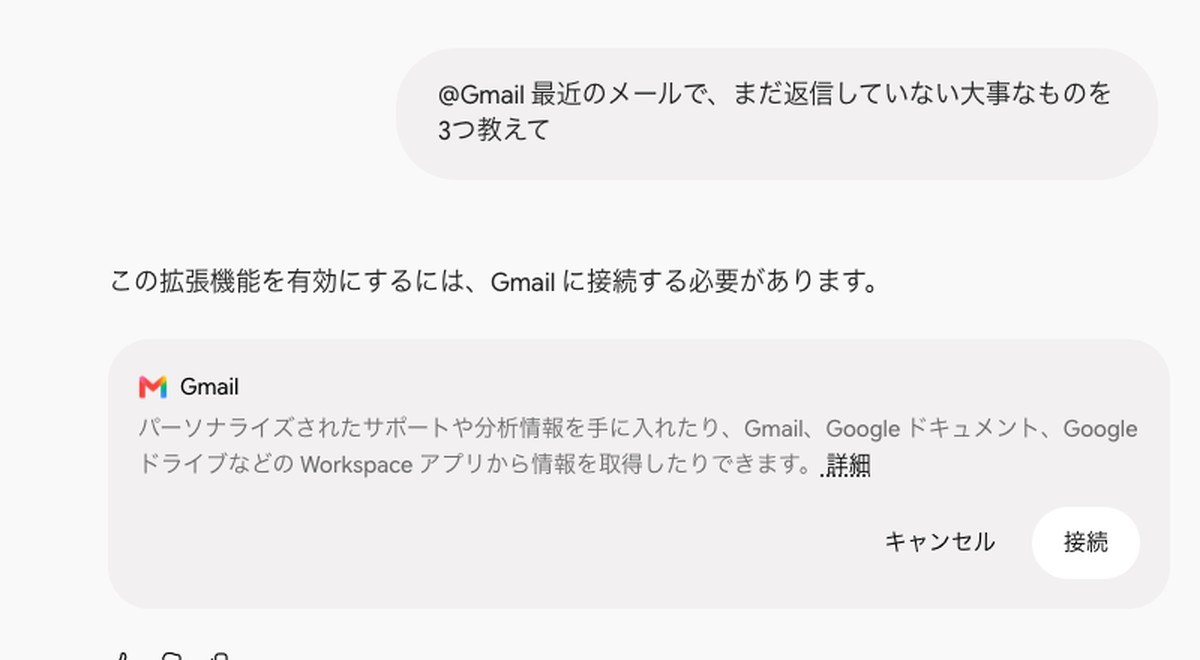
The description box for all three reads the same: “You can get personalized support and insights, or pull information from Workspace apps such as Gmail, Google Docs, and Google Drive.” AInformation did not press “Connect,” to avoid letting Gemini read the actual inbox of the test account.
According to the official help page, you need to turn on conversation saving (Keep Activity) before you can connect an app. To connect one, open “Connectors” from “Customize” on the left and press the add button. The help page also notes that if the app you select with @ isn’t connected yet, you’ll be asked for permission. The English version of the help page states that connected apps can’t be used in temporary chats. Send @ requests from a normal chat.
What you can do once an app is connected is summarized in our article on what Gemini can do. The rules for how long video summaries can be are covered in our article on summarizing videos with Gemini. How to use the “Notebooks” item in the left menu is explained in our article on how to use Gemini Notebook.
How to write prompts: 4 things to add (compared across 4 prompts × 3 runs)
When an answer feels thin, there are four things you can add to your prompt: role, purpose, conditions, and format. On October 28, 2026, AInformation sent the free version of Gemini a plain version and a version with one added element, three times each, for each of the four prompts. For the two pairs where purpose or conditions were added, the answer clearly changed all three times.
Results of sending each added element three times (October 28, 2026)
| Element added | Answer before adding it | Text added | After adding it (3 runs) |
|---|---|---|---|
| Purpose | Asked for the destination all 3 times | 2 days 1 night in Kyoto, fall foliage, by train and bus | A 2-day plan all 3 times |
| Conditions | Included an egg dish 2 out of 3 times | Budget of ¥2,000, egg allergy | 0 egg dishes all 3 times |
| Format | 872–1,102 characters | Within 200 characters, 3 bullet points | 3 bullet points all 3 times; within 200 characters 2 out of 3 times |
| Role | Average of 5 nutrition-related words | You are a registered dietitian | Rose to an average of 11 words |
① Write the purpose specifically: With just “Make me a travel plan,” Gemini asked for the destination and number of days all three times, with no plan produced. Adding “2 days 1 night in Kyoto,” “I want to see fall foliage,” and “by train and bus” produced a plan split into Day 1 and Day 2 all three times. It also included 8 to 10 foliage spots such as Tofuku-ji and Eikan-do.
② State the conditions: With just “Plan 3 days of dinner menus for this week,” an egg dish (such as egg drop soup) appeared 2 out of 3 times. Adding “My child has an egg allergy” and “The daily budget is ¥2,000” brought egg dishes down to zero all three times, and the budget was mentioned all three times too.
③ Decide the format: With just “Give me tips for writing a polite email,” the answers ran 872 to 1,102 characters. Adding “within 200 characters” and “3 bullet points” produced exactly 3 bullet points all three times. It stayed within 200 characters 2 out of 3 times; the remaining run came to 210 characters. Character counts can run a little over, so if you need an exact limit, count the characters before using the answer.
④ Decide the role: Adding “You are a registered dietitian. For busy office workers” raised the number of nutrition-related words, such as protein and fiber, from an average of 5 to 11. It also started including a rough cooking time. However, numbers such as grams or kcal appeared only 1 out of 3 times. If you want numbers, specify it in the format, for example “with gram amounts.”
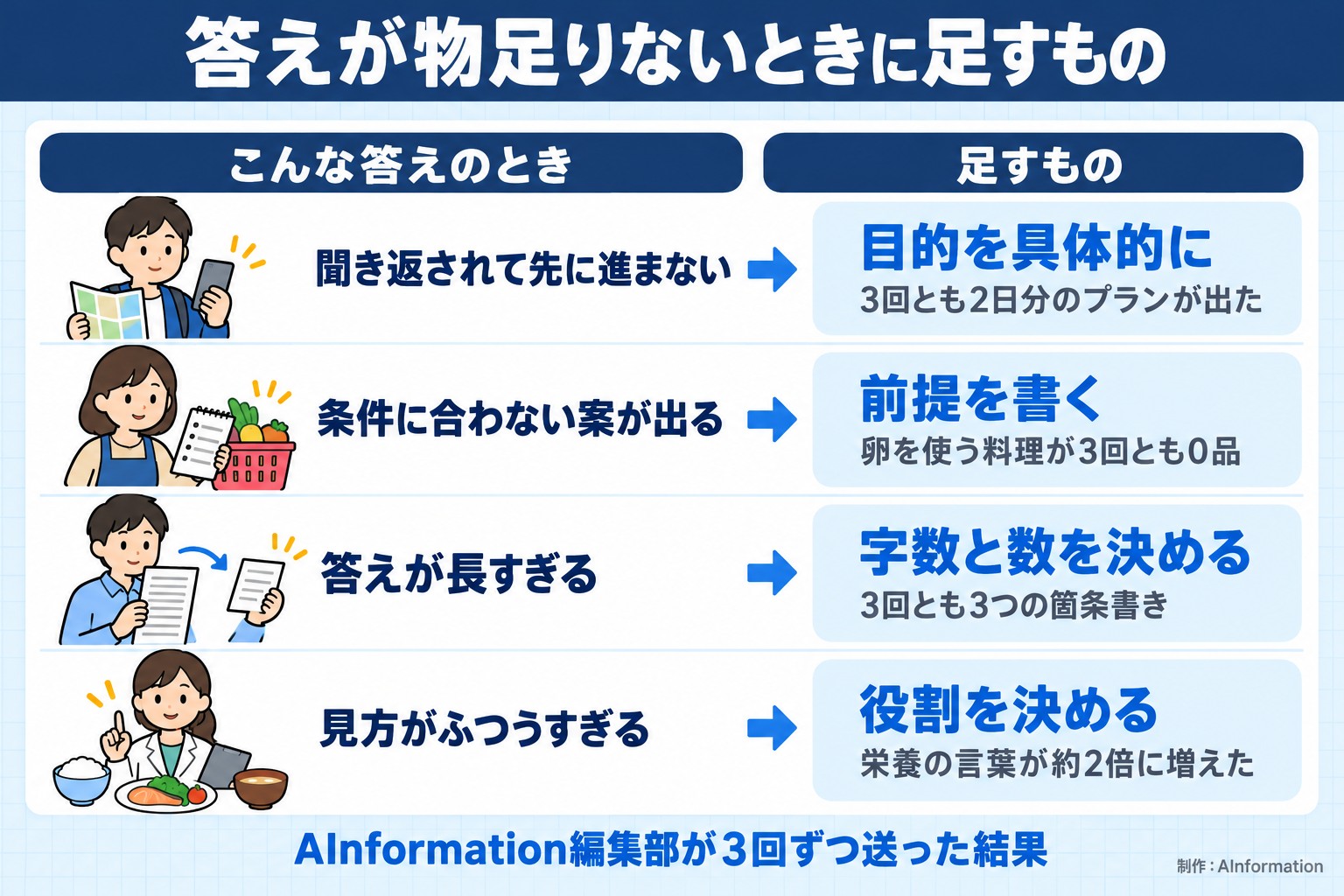
Adding all four at once gives you this template. Copy the card and replace each blank with your own task.
You are [role].
Please create [task/purpose].
[Condition] is ___. ___ cannot be used.
Keep it within [number] characters and put it in a table.
You don’t need to include all four. If the answer still falls short, add one of the missing elements and send it again.
These four elements are a rephrasing of the four elements Google lists in its official prompting guide: persona, task, context, and format. The guide states, “Not every prompt needs to include all four elements, but using even a few can make a difference.”
5 Gemini settings worth checking first
Open Settings from the gear icon at the bottom left of the screen. The gear menu listed 13 items, including “Usage limits,” “Personal intelligence,” “Skills,” “Gems,” and “Activity.” The table below covers the 5 worth checking first for peace of mind.
Five Gemini settings to check first (screen as of October 27, 2026)
| What to check | Where to find it | What you can do there |
|---|---|---|
| Usage limits | Gear icon → Usage limits | See your current usage, the weekly limit, and the reset time |
| App connections | Gear icon → Personal intelligence → App connections | View or remove connected apps |
| Memory | Gear icon → Personal intelligence → Memory | View or delete what Gemini has learned from past chats |
| Response instructions | Gear icon → Personal intelligence → Custom instructions for Gemini | Set how Gemini should respond every time |
| Chat saving | Gear icon → Activity | Turn saving on or off and choose an auto-delete period |
On the account AInformation measured, Activity saving was turned on. The screen read: “Even if this setting is off, your chats are stored for 72 hours to help Gemini respond and to maintain security.” Only conversations sent in regular chats showed up in Activity. Conversations sent in Temporary Chat did not appear in the list.
According to the official help page, chat saving is on by default for anyone 18 or older. Saved conversations are deleted automatically after 18 months, and you can change that period to 3 months or 36 months. For settings that stop your data from being used for training, see AInformation’s quick-reference chart for opting out of AI training and the article comparing the steps for four companies. The difference between “Gem” and “Skills” in the gear menu is explained in the article on Gemini skills.
Which app is the real Gemini? We counted 15 results on the App Store
The real app is Google Gemini, published by Google LLC. AInformation searched the App Store for both “Gemini” and the Japanese word for Gemini on October 27, 2026. Both searches returned 15 results each, and in both cases the top result was Google Gemini, with 966,185 ratings.
Apps returned by App Store search (October 27, 2026)
| Search term | Results returned | Apps from Google | Apps from other companies using the same name |
|---|---|---|---|
| “Gemini” (Japanese) | 15 | 10 | 0 |
| “Gemini” (English) | 15 | 9 | 0 |
Of the 15 results for the Japanese search term, 10 were published by Google LLC. The remaining 5 were ChatGPT, Grok, Claude, LINE, and Instagram. There were 0 apps from other companies using “Gemini” or “Gemini” in their app name. When AInformation ran the same count for the article on how to use ChatGPT, the 2nd App Store result was an app with the same name that was not from OpenAI. With Gemini, you don’t have to watch that closely to tell the apps apart.
On Android, as the official help page states, you can also launch Gemini by holding down the power button. The differences between what Android and iPhone can do are covered in the article comparing Gemini on Android and iPhone.
How many times a day can you use Gemini? Reading the usage limit
The free version of Gemini doesn’t cap you by a number of uses — it shows a percentage under “Usage limits” in settings. Open “Usage limits” from the gear icon, and you’ll see two bars: “Current usage” and “Weekly limit.”
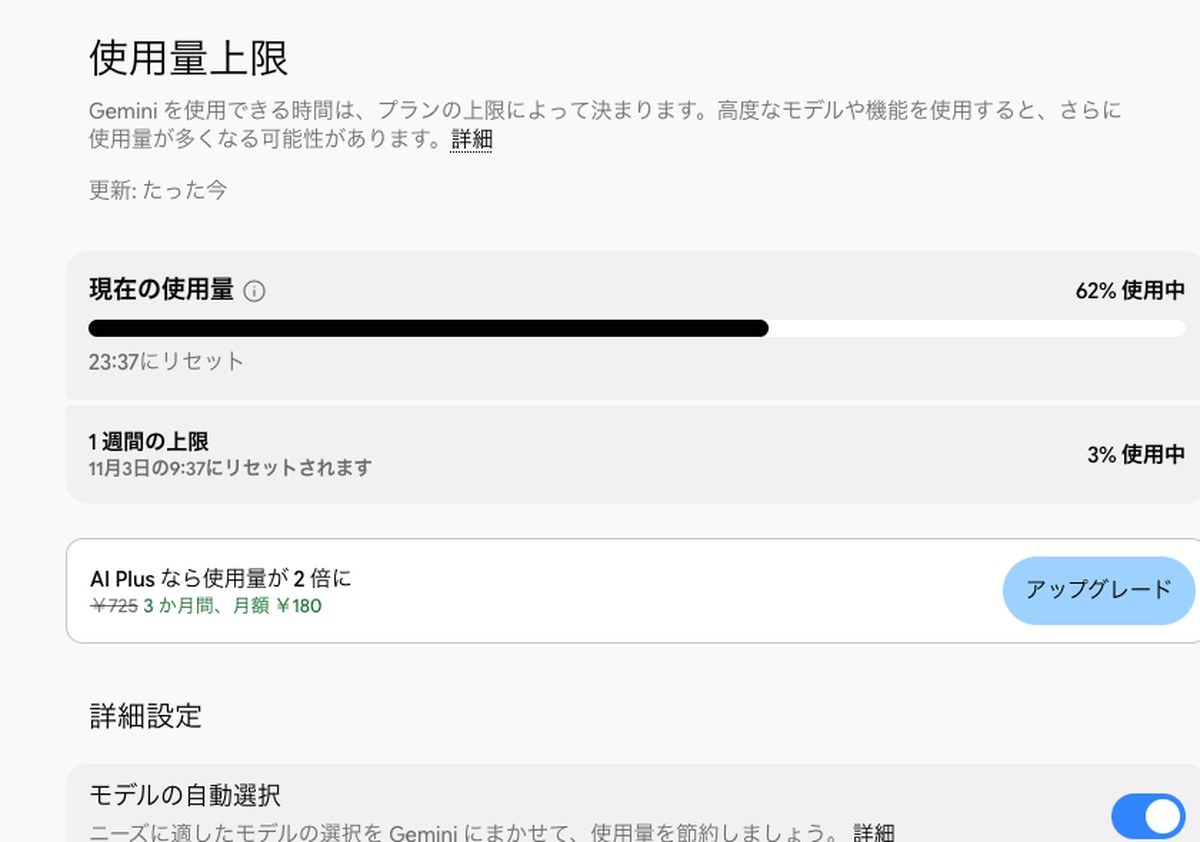
On the night of October 27, we sent about 38 messages across 30 tests and retries. These included one Deep Research run, one song, four images, and a 256-page PDF. After that, ‘Current usage’ read 62%, resetting at 23:37. The ‘Weekly limit’ read 3%, resetting at 9:37 on November 3.
The screen explained: “How long you can use Gemini depends on your plan’s limits. Using advanced models or features may increase your usage further.” According to the official help page, usage limits are based on computing load rather than a fixed number of uses. Limits reset every 5 hours, and there are also weekly limits. The free plan uses the “standard limit.” Google AI Plus gives you 2 times the standard limit, and Google AI Pro gives you 4 times the standard limit (confirmed October 28, 2026). The monthly price is ¥725 for Google AI Plus and ¥2,900 for Google AI Pro.
Deep Research showed a “You’ve reached your limit” message after one run, but other types of requests still returned answers afterward. The official help page also states that Deep Research has a daily cap on the number of runs. Deep Research is capped separately from overall usage, by a daily count. For a quick-reference chart of limits by AI tool, see AInformation’s list of AI usage limits and reset times. For differences between plans, see the article on Gemini’s paid plans. If you’re not getting a response, check the Gemini outage and error status page first to see if the service is down.
Frequently asked questions
- How many times can I use Gemini for free per day?
- Google does not officially publish a daily number of uses. The limit is based on computing usage and resets every 5 hours. There is also a weekly limit. After AInformation sent about 38 messages on a free account, the “current usage” showed 62% and the “weekly limit” showed 3%. With Deep Research, the limit message appeared after just one use.
- How do I start using Gemini?
- On a computer, open gemini.google.com in your browser and sign in with a Google account. On a phone, install the Gemini app and open it. Using a personal account requires being 13 or older. After that, just type what you want done in the input box and send it. You can copy and use any of the 30 prompts in this article as your first message.
- What are some useful prompts for Gemini?
- Four tasks that returned usable answers even on the free plan were: drafting an email, turning meeting notes into a table, summarizing a long PDF by chapter, and solving a problem from a photo. Of the 30 prompts AInformation tested for free, 23 of the 27 that were scored worked as is.
- How do I write a good prompt?
- Add four elements to your request: a role (who should answer), a purpose (what you want done), conditions (any constraints), and a format (word count or a table, for example). When AInformation compared results three times each on the free version of Gemini, adding both purpose and conditions changed the answer in all three tests.
- Is the Gemini app safe to use?
- The genuine app is “Google Gemini,” published by Google LLC. Among the 15 results returned when searching “Gemini” on the App Store, none were apps from a different company using the same name. Conversations are saved to your activity, so it is safer not to enter passwords or other people’s personal information.
- What’s the difference from ChatGPT?
- Gemini’s strength is its connection to Google apps such as Gmail, Drive, and Calendar. ChatGPT is OpenAI’s AI and can be used in a browser without logging in. For how to use ChatGPT, see our article on using ChatGPT, and for how to install it, see our article on installing ChatGPT.
Conclusion: start with 30 free prompts on Gemini
To use Gemini, you just open it and type what you want in the input box. Even on the free plan, research, writing, summarizing, and reading photos or PDFs worked almost exactly as requested. The one request that stalled was generating a video, and Deep Research hit its limit after a single use.
If a request with a photo gets refused, try resending the same text again. If the answer feels thin, add a role, purpose, condition, or format and resend it. Start by copying one of the prompt cards in this article and sending it — you’ll quickly get a sense of how much you can hand off to Gemini.