

You can check your Claude usage on the settings usage page (claude.ai/settings/usage). On November 4, 2026, we asked Claude Ultra a short question, had it read a PDF, write a 3,000-character guide, and check its remaining usage, and the weekly limit display stayed at 3% the whole time. When asked directly, Claude answered that it does not know its current remaining usage.
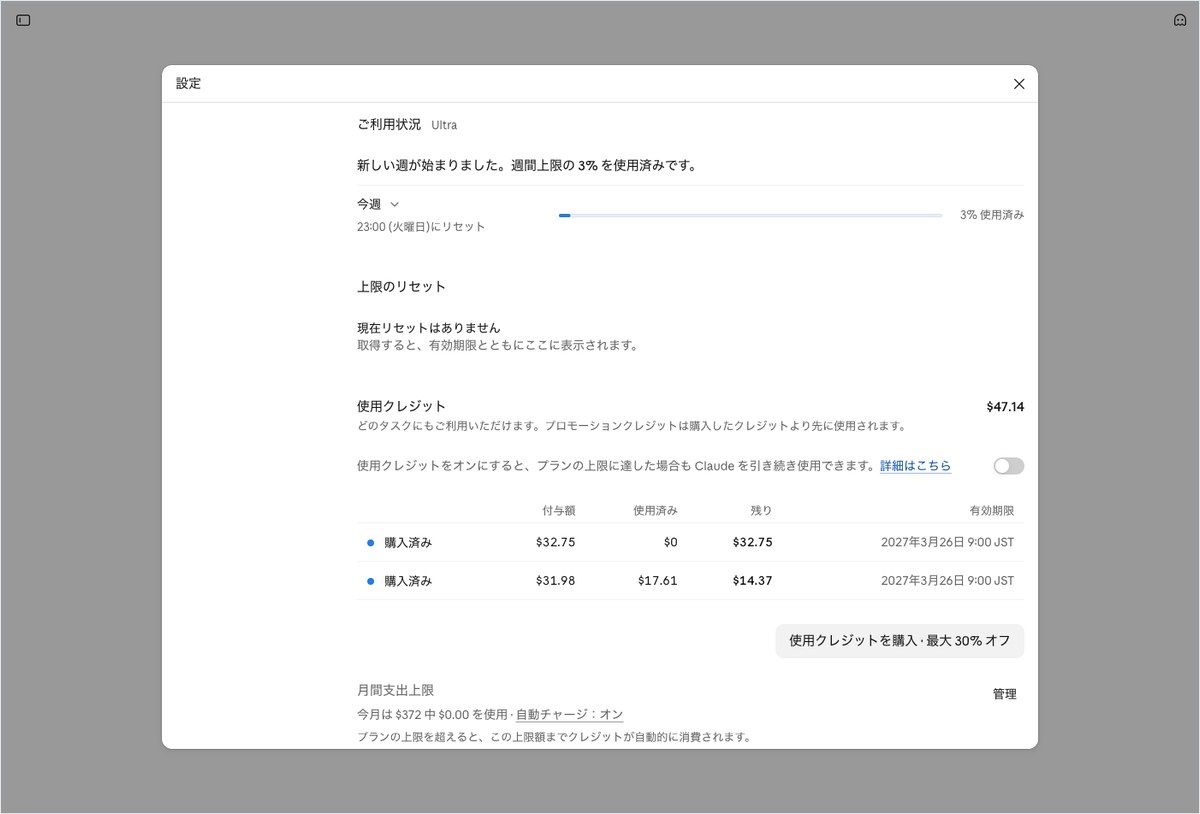
- You can check Claude usage by opening claude.ai/settings/usage, where the weekly limit percentage and the day and time it resets appear on a single screen
- Four tasks — a short question, reading a PDF, writing a 3,000-character guide, and checking remaining usage — all left the weekly limit display unchanged at 3%
- In the usage page’s text breakdown, Chat rose from 9% to 11% (Cowork stayed at 17%)
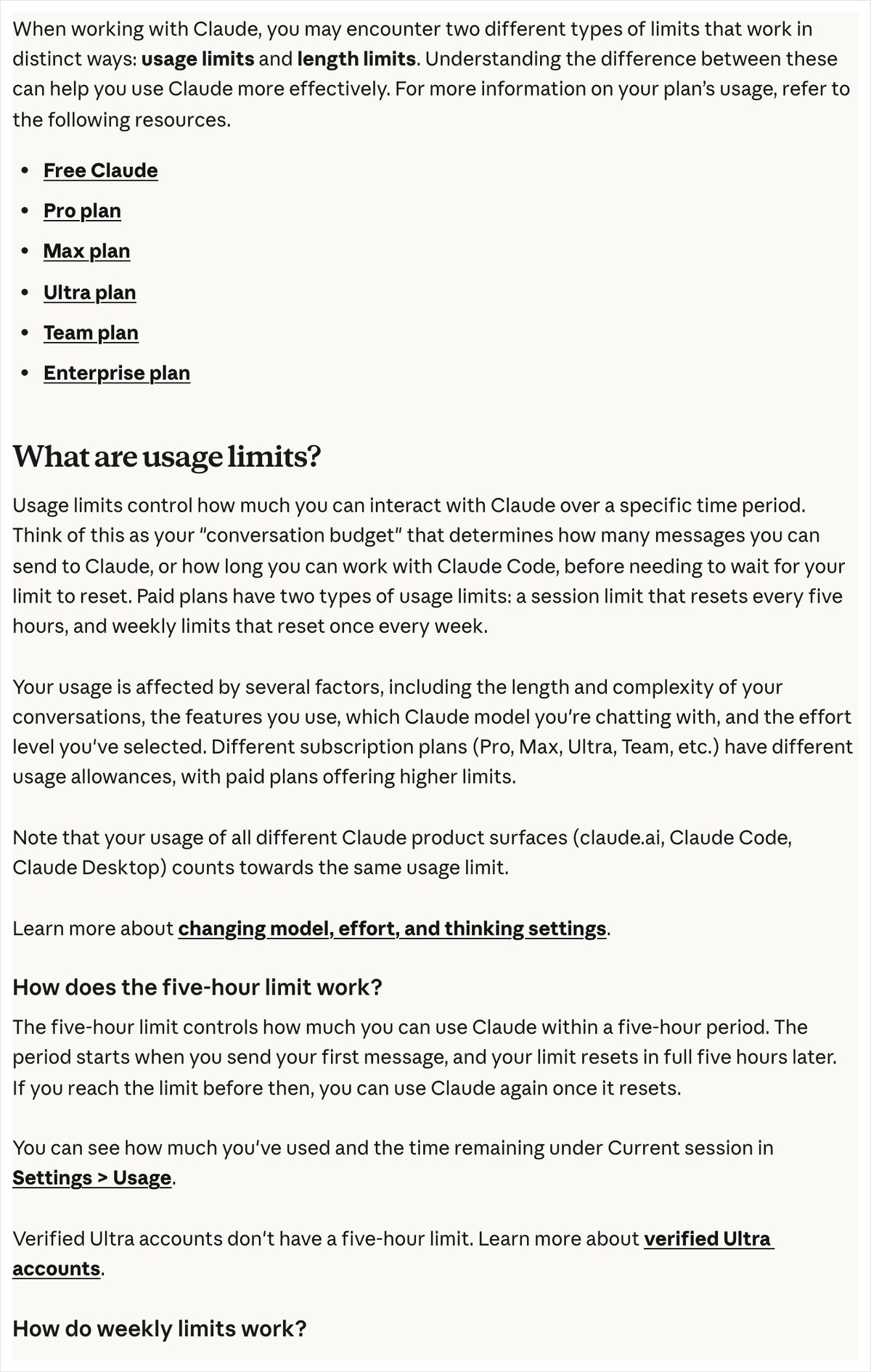
- The Claude Ultra usage page showed no five-hour limit bar. The official help page also states that verified Ultra accounts don’t have a five-hour limit
- When asked about its current remaining usage, Claude answered in 29.4 seconds that it didn’t know, and correctly pointed to where to check
- Includes two ready-to-use prompts and three things to watch for when checking usage
How to check Claude usage: just open the settings usage page
There is one way to check Claude usage. Open claude.ai/settings/usage in your browser, or open Settings from the Claude screen and look at the usage section. AInformation opened this page on a Claude Ultra account on November 4, 2026. We used the browser version on a computer, and the model shown on screen was “Opus 4.8 High.”
Typing in the address opens a settings panel above Claude’s new chat screen. At the top of the panel are the words “Usage” and the plan name “Ultra.” Below that was the line: “A new week has started. You’ve used 3% of your weekly limit.” Further down is a bar for “This week” and a display showing when the weekly limit resets. On this day, the display showed a reset on Tuesday night.
If you’re not sure where to look, you can also just ask Claude. You can copy the text we actually sent, shown below, using the button in the top right of the box.
Can you tell me what percentage of my current five-hour limit I’ve used on this account? If you don’t know, please say “I don’t know” and tell me where I can check.
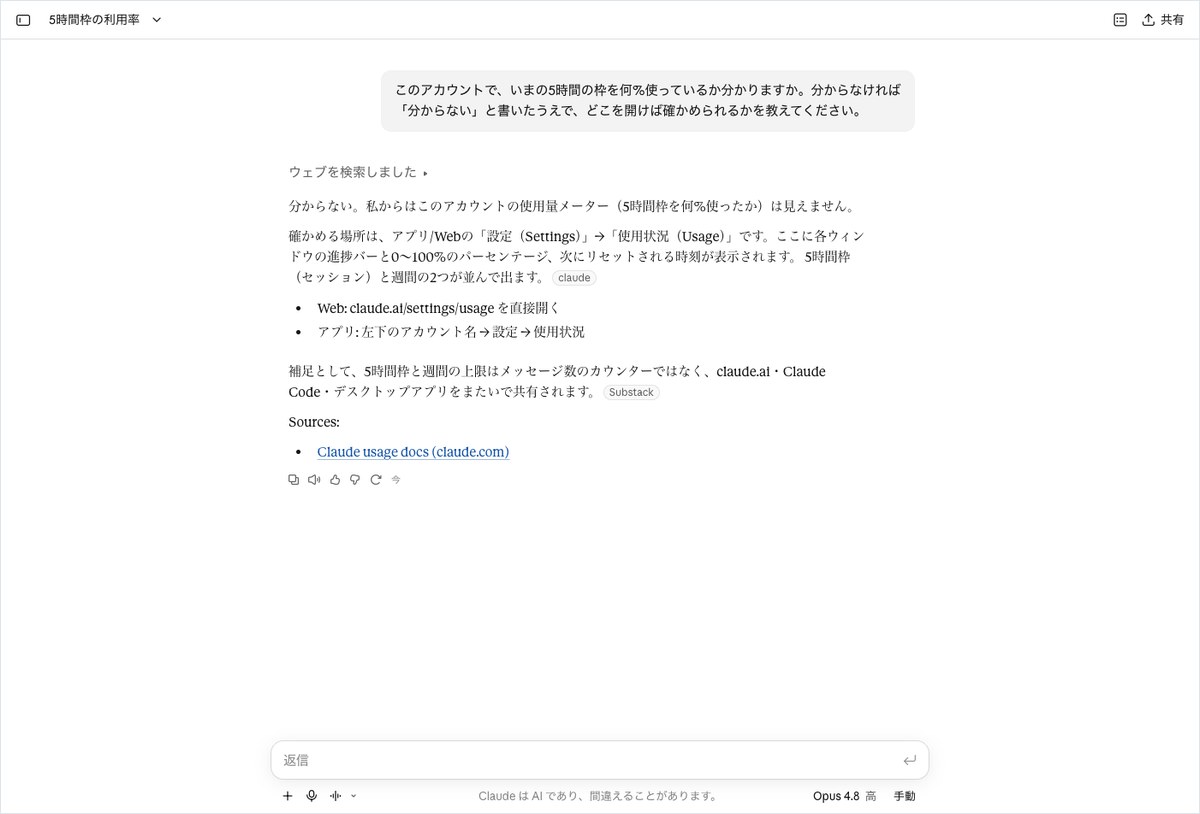
The answer to this prompt came back in 29.4 seconds and was 470 characters long. Claude first wrote, “I don’t know. I can’t see this account’s usage meter (what percentage of the five-hour limit has been used).” It then pointed us to “Web: open claude.ai/settings/usage directly.” Claude can’t read usage numbers from within a conversation, so opening the settings page yourself is the reliable way to check.
The next sections cover how to read the usage page and how the numbers moved after the four tasks.

Claude’s weekly limit stayed at 3% even after four tasks
The weekly limit on the usage page stayed at 3% even after the four tasks. We decided in advance to record any change, even a single percentage point, and opened and screenshotted the usage page after each task. All four checks showed a 0% difference.
Here is the order we tested. First we opened and screenshotted the usage page, then sent a short question in a new chat. Next, we gave Claude a PDF of financial results and asked it to turn the data into a table. Third, we asked it to write a guide of about 3,000 characters. Finally, we asked Claude itself how much usage remained. We opened a new chat for each task and returned to the usage page each time.
The weekly limit display shows whole-number percentages. Small amounts of usage from a single task would not show up at this resolution. Neither reading the PDF nor writing the long guide produced any visible change in the length of the bar.
Reading the text on the usage page, however, showed a breakdown by category. When we first opened it, it read “Chat 9% Cowork 17% Other 0%.” After the four tasks, it read “Chat 11% Cowork 17% Other 0%.” Only Chat rose, from 9% to 11%. This breakdown was outside the area we had screenshotted, and the screen gives no explanation of how it relates to the overall 3% figure. We could not determine this from our testing.
The usage page also had two sections below the weekly limit. One was “Limit reset,” which on this day showed “No reset currently scheduled.” The other was a “Usage credits” section. Its description states that turning on usage credits lets you keep using Claude even after hitting your plan’s limit. On this account, it remained off. Whether you stop or keep going once you hit the limit depends on this toggle.
Because Cowork stayed at 17%, there’s no sign that other usage was mixed in during the same period. Still, the percentage on the usage page reflects the whole account. If you’re running another conversation or Claude Code at the same time, that usage gets added in as well.

Claude Ultra’s usage page showed no five-hour limit
This account’s usage page had no bar for the five-hour limit. Only the “This week” limit appeared. The official help page “How do usage and length limits work?” (updated October 30, 2026) states: “Verified Ultra accounts don’t have a five-hour limit,” confirming that verified Ultra accounts have no five-hour limit. What we saw on screen matched this explanation.
The same help page explains that paid plans have two kinds of limits: a session limit that resets every five hours, and a weekly limit that resets once a week. The five-hour limit starts when you send your first message and fully resets five hours later. The weekly limit applies across all models and resets on a day and time fixed per account. Some plans have a separate weekly limit for Fable.
Pro and Max users’ usage pages should also show a five-hour limit bar. The help page says you can check the remaining five-hour limit under “Current session” in “Settings > Usage.” Since we tested on Ultra this time, we did not capture a screenshot of the five-hour limit display. We did not check the Pro or Max screens in this test.
How we measured Claude usage: four tasks and repeated checks of the usage page
Here is the procedure. All tests used the browser version of Claude Ultra on a computer, with the default model left unchanged. The model shown on screen read “Opus 4.8 High” all four times.
- Opened claude.ai/settings/usage and took a screenshot of the usage page before sending the request (weekly limit at 3%)

Claude’s usage page before the request, showing 3% of the weekly limit already used. Screen operated by AInformation on November 4, 2026 - In a new conversation, sent a short question asking how the usage limit system works
Screen showing Claude searching the web to answer a question about how the limit system works. Screen operated by AInformation on November 4, 2026 - In a new conversation, attached a self-made financial results PDF (for a fictional company, Sample Trading Co.) and had Claude turn it into a table
Screen showing Claude turning the three main metrics and increased cost items from the financial results PDF into a table. Screen operated by AInformation on November 4, 2026 - Went back to the usage page and took a screenshot (weekly limit still at 3%)
Screen showing Claude’s weekly limit still at 3% after reading the PDF. Screen operated by AInformation on November 4, 2026 - In a new conversation, had Claude write a business email guide of about 3,000 characters
- In a new conversation, asked Claude whether it could tell the current percentage used of the 5-hour window
Screen showing Claude answering that it did not know the percentage used of the 5-hour window. Screen operated by AInformation on November 4, 2026 - Took a final screenshot of the usage page and read the character breakdown (weekly limit at 3%, chat at 11%)
Claude’s usage page screen after completing the four requests. Screen operated by AInformation on November 4, 2026
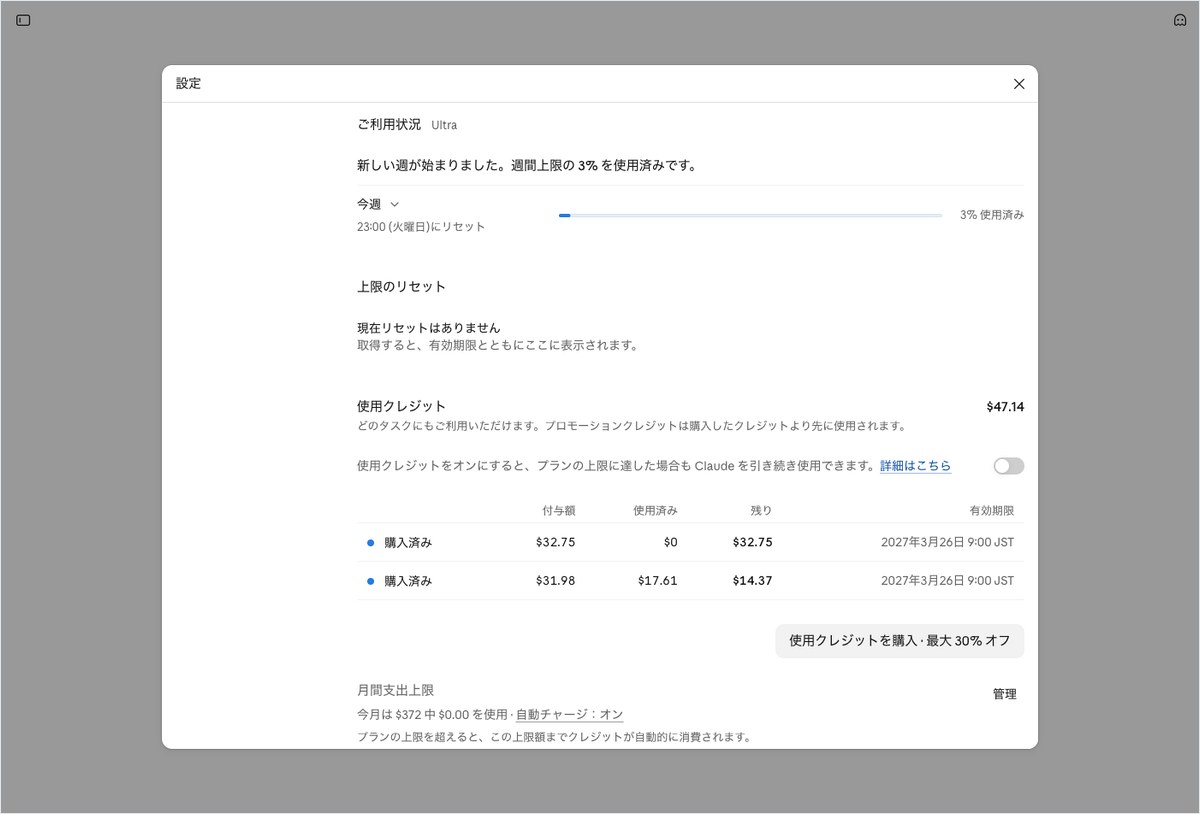
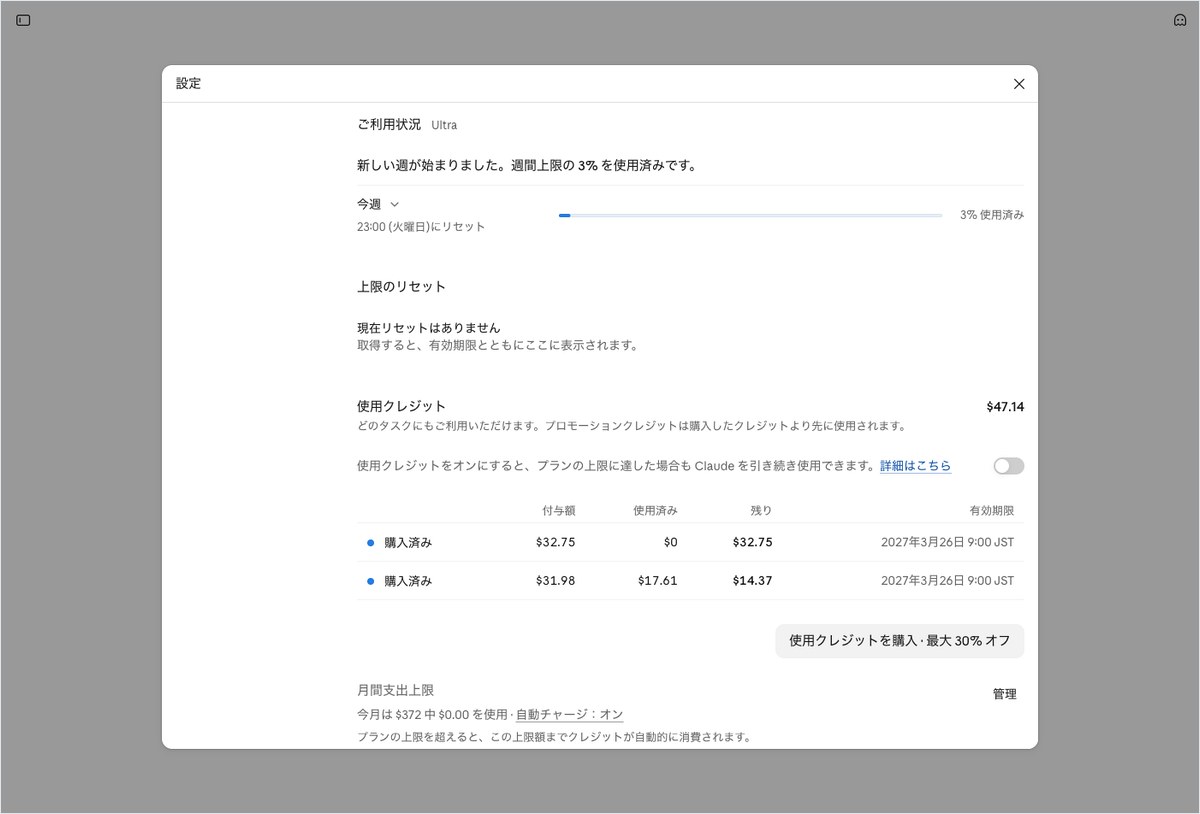
There was a reason for opening a new conversation for each request. The official help documentation states that usage varies with the length and complexity of the conversation, the features used, the model, and the effort level. Sending requests one after another in the same conversation piles up the amount Claude has to re-read from earlier requests. To see the usage of each request separately, we started every one from a blank conversation.
Here is the text sent for the second request. You can copy it and try it yourself.
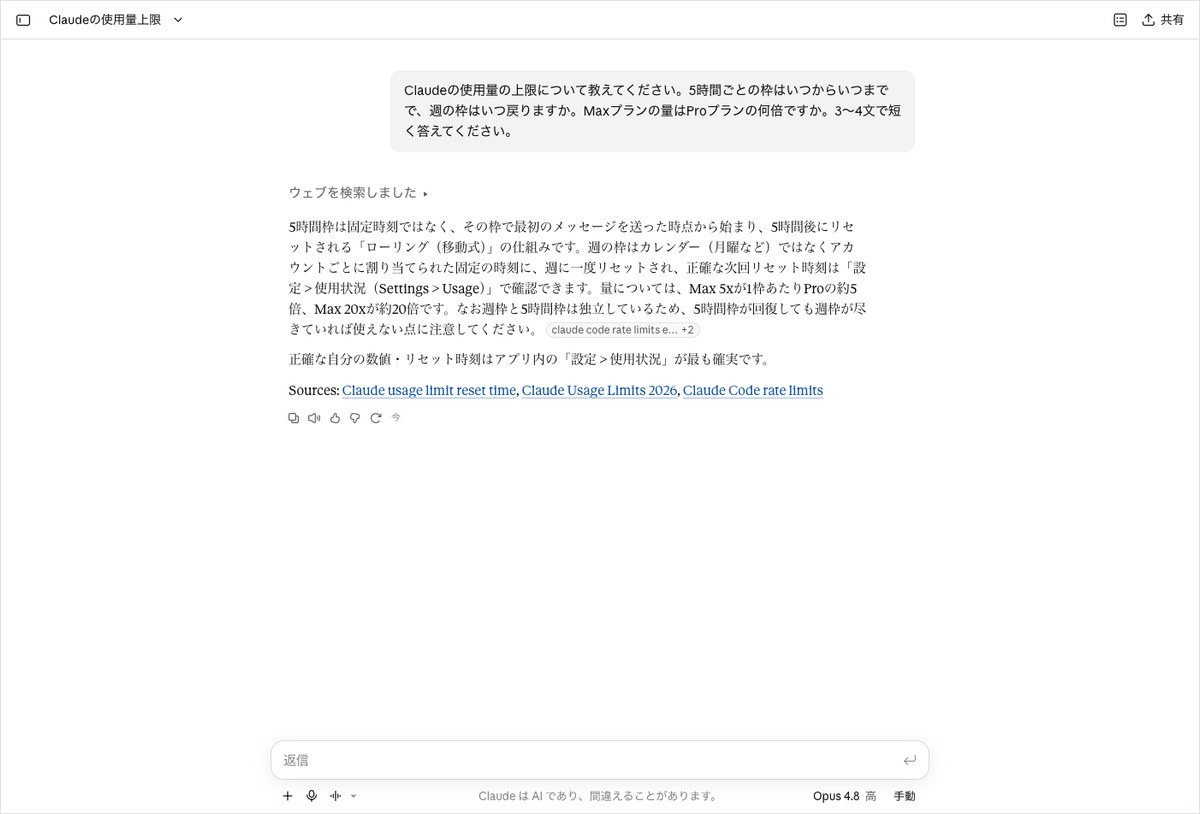
Please tell me about Claude’s usage limits. When does the 5-hour window start and end, and when does the weekly limit reset? How many times more usage does the Max plan have compared to the Pro plan? Please answer briefly in 3 to 4 sentences.
Here are the texts sent for the third and fifth requests as well.
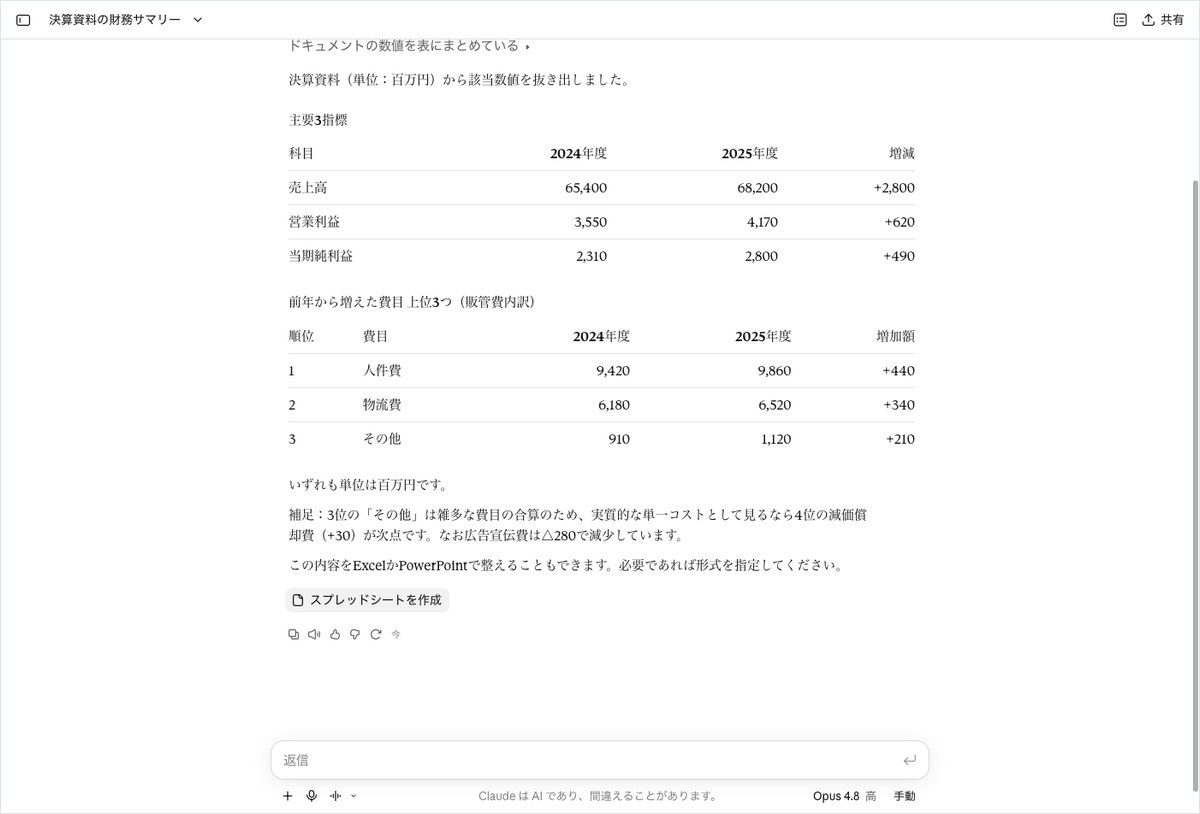
Please read the attached financial results document (PDF) and create a table showing revenue, operating profit, and net income for the period, along with the top 3 cost items that increased from the previous year. Please include the units.
Please write a business email writing guide of about 3,000 characters for new employees at a fictional company called ‘Sample Trading Co.’ Include 5 headings, each with one good example and one bad example.
For the long guide request, the answer appeared not in the conversation but on a separate document screen. That screen showed information tied to the account, so it is not included in this article.
Asking Claude how the limit system works: an answer in 29.3 seconds with one sentence containing a figure not found in the help documentation
For the short question, we set the passing standard as matching all three points in the official help documentation: when the 5-hour window starts and resets, how the weekly limit resets, and that Max has 5 times the usage of Pro. Any sentence that stated a figure not found in the help documentation was counted as an error. The result: two points matched, and the remaining point included a figure not found in the help documentation.
The answer came back in 29.3 seconds and ran 649 characters. Before answering, Claude searched the web on its own. For the 5-hour window, it wrote that the window “starts from the moment you send your first message” and resets 5 hours later. This matches the help documentation. It stated that the weekly limit resets once a week at a fixed time assigned to each account, which also matches. It did not mention the separate weekly limit for Fable.
On the usage multiplier, it answered, “Max 5x gives about 5 times the usage of Pro per window, and Max 20x gives about 20 times.” The part about Max 5x being about 5 times matches the help documentation. However, the Max plan help documentation, updated October 30, 2026, only explains the 5x figure and does not mention a 20x figure. Under our stated standard, this sentence was counted as an error.
Below the answer were three page titles listed as sources. All three were titles of English-language explainer articles, not Anthropic’s official help documentation. Usage limit figures can change over time. Rather than taking Claude’s answer at face value, check the official help documentation or the usage page yourself for the final word.
We also took a screenshot of the usage page after this short question. The weekly limit remained at 3%, a 0% difference from before sending the request.
Claude read the financial results PDF in 29.7 seconds and got all 6 figures right
For the PDF request, we set the passing standard as matching all 6 items, including units: revenue, operating profit, net income, and the increase amounts for the top 3 cost items that rose. All 6 items matched, so it passed.
The answer came back in 29.7 seconds and ran 494 characters. The table was split into two parts. The first covered the three main metrics: for fiscal year 2025, revenue of 68,200, operating profit of 4,170, and net income of 2,800. It also included the fiscal year 2024 figures of 65,400, 3,550, and 2,310. The second part covered the top 3 cost items that increased: personnel costs +440, logistics costs +340, and other costs +210. For units, it wrote, “All figures are in millions of yen.”
A note was added at the end of the answer. Since the third-ranked “other costs” item is a sum of miscellaneous costs, it explained that if viewed as a single cost item, the fourth-ranked depreciation (+30) would be the next runner-up. It also noted that advertising expenses fell by 280. Both points match the correct answers based on the source material.
The usage page after this request also showed the weekly limit still at 3%. Even after having Claude read one PDF, the displayed figure showed no change, a 0% difference. We could not tell from the rounded percentage display how much more usage reading the PDF consumed compared with the short question.
Claude turned the 3,000-character guide into a document in 106.2 seconds, and the weekly limit stayed at 3%
For the long-text request, we set the passing standard as the body falling between 2,400 and 3,600 characters. A further condition was that each of the 5 headings include one good example and one bad example. In this case, we could not judge the result against this standard.
The reason lies in how the answer appeared. Claude did not write the full text in the conversation. Instead, it wrote, “I will create the business email guide as a document,” and created a Claude Docs file. Only 491 characters remained on the conversation side. We did not count the character count of the document body in this test.
It took 106.2 seconds for the full answer to appear, the longest of the four requests. At the end of the conversation was the note, “Here is the full text with good and bad examples included under all 5 headings.” Within what appeared on screen, the first heading, “Write subject lines so the purpose is clear at a glance,” included one good example and one bad example. We were also able to confirm the second heading, but we did not check the remaining three in this test.
Even after this test, the weekly bar on the usage page stayed at 3%. Even after having Claude create a document of about 3,000 characters, the weekly bar showed a 0% change. We cover how to use Claude Docs itself in AInformation’s article on how to use Claude’s Docs.
When asked how much is left, Claude said it did not know and pointed to the settings page
For the test asking how much usage remained, we counted it as a pass if Claude wrote that it did not know and then pointed to the usage page in settings. The standard was to fail the answer if it stated a specific % as if it were fact, since that would count as a fabrication. The result was a pass.
The answer came back in 29.4 seconds and ran 470 characters. In this test too, Claude searched the web before answering. The first sentence was “I don’t know,” and it did not state a single %. It described two ways to check. For the web version, the method was to open claude.ai/settings/usage. For the app, it said to go to settings from the account name in the lower left, then open usage.
One sentence did not match what this account’s screen showed. It was the part saying “the 5-hour limit (session) and the weekly limit appear together as 2 limits.” On this account’s Ultra usage page, only the weekly limit appeared this time. This may be accurate for the Pro and Max screens, but we did not check that in this test.
It makes sense that Claude, inside a conversation, cannot state the current %, when you consider how the screens are built. The usage page sits inside the settings window, a separate location from the chat screen. This time, Claude wrote that it did not know when it did not know, rather than making up a number. Not fabricating an answer is the most important result from this test.
The answer also noted that the 5-hour limit and the weekly limit are shared across claude.ai, Claude Code, and the desktop app. The official help pages also state that usage on claude.ai, Claude Code, and Claude Desktop all count toward the same limit. This part was accurate.
Of Claude’s four tasks, two passed and one could not be judged
We summarized the four tasks in a table. Two passed. For the short question, one sentence included a figure not found in the help pages. For the long guide, we could not count the characters in the document body, so we could not judge that result.
Response times were 29.3 seconds for the short question, 29.7 seconds for the PDF, 106.2 seconds for the long guide, and 29.4 seconds for the remaining-usage check. Answer lengths were 649, 494, 491, and 470 characters. The 491 characters for the long guide reflect only the chat-side text; the body of the document itself is not included.
The weekly bar on the usage page stayed at 3% before the request, after the short question, PDF, and long guide, and at the end. Only the chat portion of the character breakdown moved, rising from 9% at the start to 11% at the end.
Readers on Pro or Max plans should note one thing about this table. This test’s Ultra account only had a weekly limit, with no 5-hour limit. On Pro and Max, the 5-hour limit can kick in first, so the same four requests would likely look different on those plans. We did not measure how many percentage points Pro or Max would drop in this test.
Results of the four tasks given to Claude
| Task | Seconds | Answer length | Accuracy check |
|---|---|---|---|
| Short question about how limits work | 29.3 sec | 649 characters | △ 2 points match / included a 20x figure not in the help pages |
| Reading an earnings PDF and making a table | 29.7 sec | 494 characters | ○ All 6 items and units match |
| Writing a 3,000-character guide | 106.2 sec | 491 characters (chat side only) | Could not be judged (document character count not measured) |
| Asking how much usage remains | 29.4 sec | 470 characters | ○ Said it did not know and pointed to the right location |
How Claude’s usage page display changed
| Point in time | Weekly limit | Character breakdown (chat) | Character breakdown (Cowork) |
|---|---|---|---|
| Before the requests | 3% | 9% | 17% |
| After the short question | 3% | Not recorded | Not recorded |
| After the PDF | 3% | Not recorded | Not recorded |
| After the long guide | 3% | Not recorded | Not recorded |
| After all four requests | 3% | 11% | 17% |
Three things to watch when checking Claude’s usage
Across the four requests, we found three things worth watching when checking the usage page.
Caution 1: The weekly % is a whole number, so single requests are hard to see
On this Ultra account, the weekly limit stayed at 3% whether we had Claude read a PDF or write a 3,000-character document. If you want to know how many percentage points a single request uses, it’s easier to send several requests together and compare before and after. The chat portion of the character breakdown moved from 9% to 11%, so some figures moved more finely than the overall %.
Caution 2: Check any usage-limit figures from Claude against the official source
Claude searched the web both times it answered, and the sources it cited were unofficial explainer articles. One answer about the multiplier included “about 20x,” a figure not found in Max’s help pages. The official help pages were updated on October 30, 2026, right before this test, regarding the usage limit rules. Check the numbers directly on the support.claude.com help pages.
Caution 3: The usage page’s layout changes by plan
Ultra’s usage page had no 5-hour limit, only a weekly limit. If you read it assuming it looks the same as other plans, you may end up searching for a 5-hour limit that isn’t there. According to the official help pages, the remaining 5-hour limit appears in the “Current session” field. The time the weekly limit resets also appears on the same usage page.
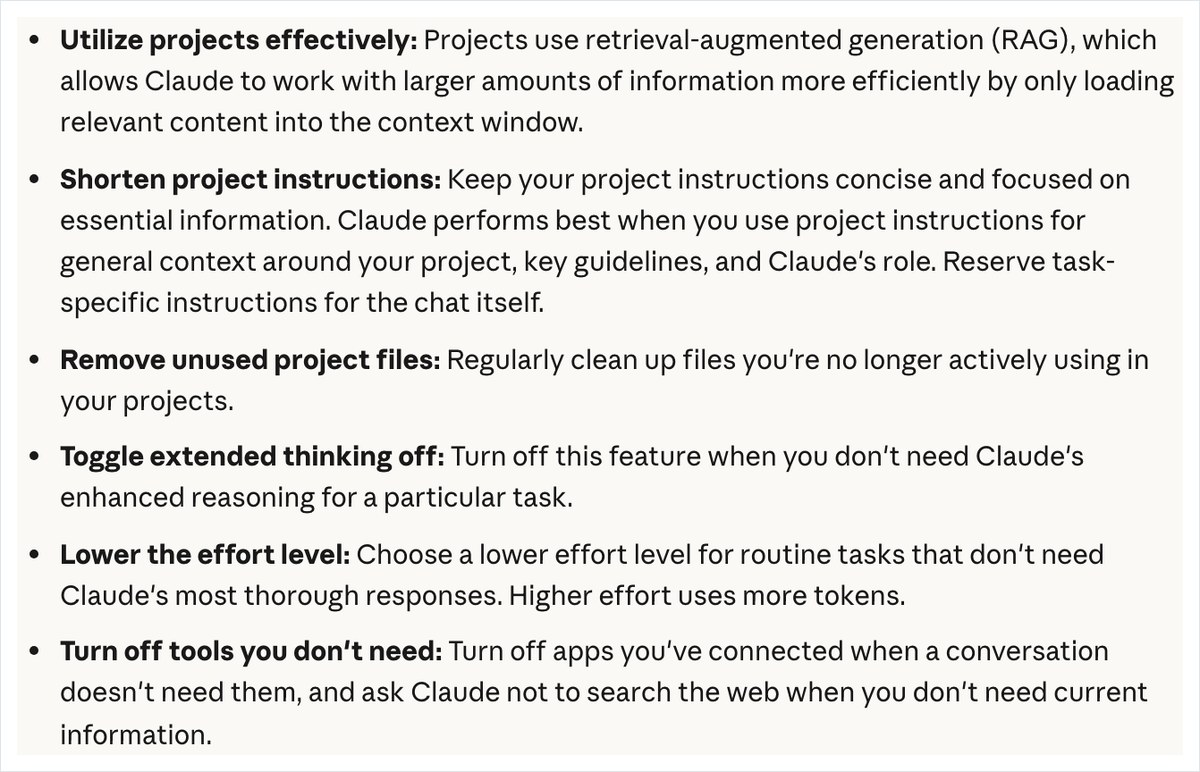
On the practical side, the official help pages list ways to slow down how fast the limit is used.
- Turn off extended thinking when you don’t need it
- Lower the effort level for routine tasks
- Turn off connected apps or web search when you don’t need them
In this test, Claude searched the web on its own for both the short question and the remaining-usage check, even though it wasn’t asked to. If a question doesn’t need the latest information, adding a note asking Claude not to search is one option. However, we did not measure how usage changes when you add that note in this test.

Articles and tools related to checking Claude’s usage
- Claude (AInformation’s AI tools database)
- Anthropic removes the 5-hour limit on Ultra: weekly cap is 10 times Pro’s
- Claude Code errors and limits: how to fix 18 error messages, plus reset times and slowdown causes
- How to use Claude’s weather and recipe cards, with 6 prompts
- Comparing 4 AI project features, with 3 prompts for asking about 3 documents
The fact that the weekly bar on the usage page didn’t move by even 1% after four requests is a result unique to Ultra, which has a wide upper cap. Pro and Max users will hit the 5-hour limit first, so get into the habit of checking the 5-hour bar’s percentage on the same screen. Asking Claude directly won’t tell you how much is left, and the usage multiplier it gave included a figure that isn’t in the official help pages. The fastest way to confirm the limit numbers is to check the usage page and the official help pages, not to ask in a chat.
- Where can I check my Claude usage?
- You can check it on the usage settings page. In a browser, open claude.ai/settings/usage and the “Usage” section of the settings window shows the weekly bar’s percentage along with the day and time it resets. When we opened Claude Ultra on November 4, 2026, it showed “3% of weekly limit used.” Asking Claude directly won’t tell you your current percentage.
- When does Claude’s 5-hour limit reset?
- It starts when you send your first message and fully resets 5 hours later. That’s what the official help page, updated October 30, 2026, says. It doesn’t reset at a fixed time of day. The same help page also notes that verified Ultra accounts have no 5-hour limit, and our own Ultra usage page showed only the weekly bar, with no 5-hour bar.
- When does Claude’s weekly limit reset?
- It resets once a week, on a fixed day and time set for each account. According to the official help page, it doesn’t depend on when you started using the service or when you signed up. The next reset time appears next to “This week” on the usage page. On our account, it showed a time on Tuesday night.
- Does having Claude read a PDF or write a long piece of text use up a lot of my usage?
- In our tests on Claude Ultra, the weekly bar’s display didn’t change. Both after having it read an earnings report PDF and after having it write a 3,000-character guide, the usage page we opened afterward still showed 3%. Because the display only shows whole-number percentages, it’s hard to see the difference from a single request. We haven’t verified how much the 5-hour limit drops on Pro or Max.
- How much more can you use on Claude’s Max plan compared to Pro?
- The official help page for the Max plan, updated October 30, 2026, states 5 times Pro’s usage. When we asked Claude, it mentioned 5 times and also said “Max 20x is about 20 times,” but that figure wasn’t in the help page. Before signing up, confirm the details on the official help page and the plan’s signup screen.