
To turn a hand-drawn sketch into an app with Gemini, you just upload a photo and send one sentence. When AInformation tested this on November 6, 2026, the habit tracker became an app in 19.1 seconds, matching the hand-drawn checkmark positions. The board game, though, got the order of the squares wrong.
The tests in this article were done in Japanese. AInformation wrote the prompts in Japanese and judged the answers in Japanese, and any character counts are counts of Japanese characters. The prompts shown here are our translations of the Japanese originals, so results in English may differ. Japanese original
- How to turn a hand-drawn sketch into an app with Gemini: just upload a photo and send one sentence. This article includes four prompts you can copy and use as they are
- In testing on November 6, 2026, a preview of the app opened in 19.1 seconds even in a normal conversation that did not use Canvas
- The habit tracker sketch came through with checkmark positions matching the hand-drawn original. The completion rate was calculated at about 48%, not the 60% written on the sketch
- Changes to colors and fonts were made in the same conversation, with a 138-character reply in 19.1 seconds
- The board game sketch produced a 12-square board in 25.1 seconds, but Gemini misread the order in which the second row wrapped around
- When asked with text only, with no sketch, Gemini replied in English in 22.2 seconds and produced a different, purple design
Turning a hand-drawn sketch into an app with Gemini takes just one photo and one sentence
To turn a hand-drawn picture into an app with Gemini, upload a photo of the sketch into the conversation and send, “Can you turn this app into code?” AInformation tested this on November 6, 2026, using a Google AI Pro account and opening the browser version of Gemini. The model shown on screen was Flash-Lite.
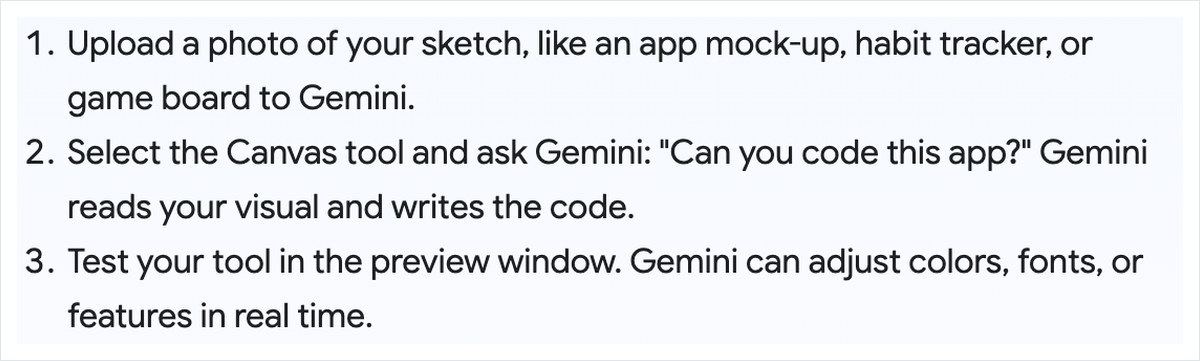
The process has four steps. Each one just requires pressing a button on screen; there is no coding involved.
- Draw the app screen on paper or a tablet, then take a photo with your phone
- Upload that photo using the “+” icon to the left of Gemini’s input field
- According to the official instructions, select “Canvas” at this point (in this test, the preview opened even without selecting it)
- Send the prompt below, then check how it behaves in the preview that appears on the right
Here is the text AInformation sent. A second sentence was added because the goal was to use the app on a phone.
Can you turn the app in this sketch into code? Please make it usable on a smartphone.
Google’s official blog introduced this method on November 5, 2026. It describes three steps: upload a photo of the sketch, select Canvas, and ask whether the app can be turned into code.
The examples shown included a habit tracker and a game board. AInformation drew the same two by hand and tested them.
What AInformation drew was a fictional habit tracker. It laid out checkboxes for three habits across one week in November, with “3-day streak!” written in red at the top.
Below that were a “+ Add habit” button and a “This week’s completion rate” bar marked 60%. A note also explained the rule that pressing a box checks it, and pressing it again unchecks it.
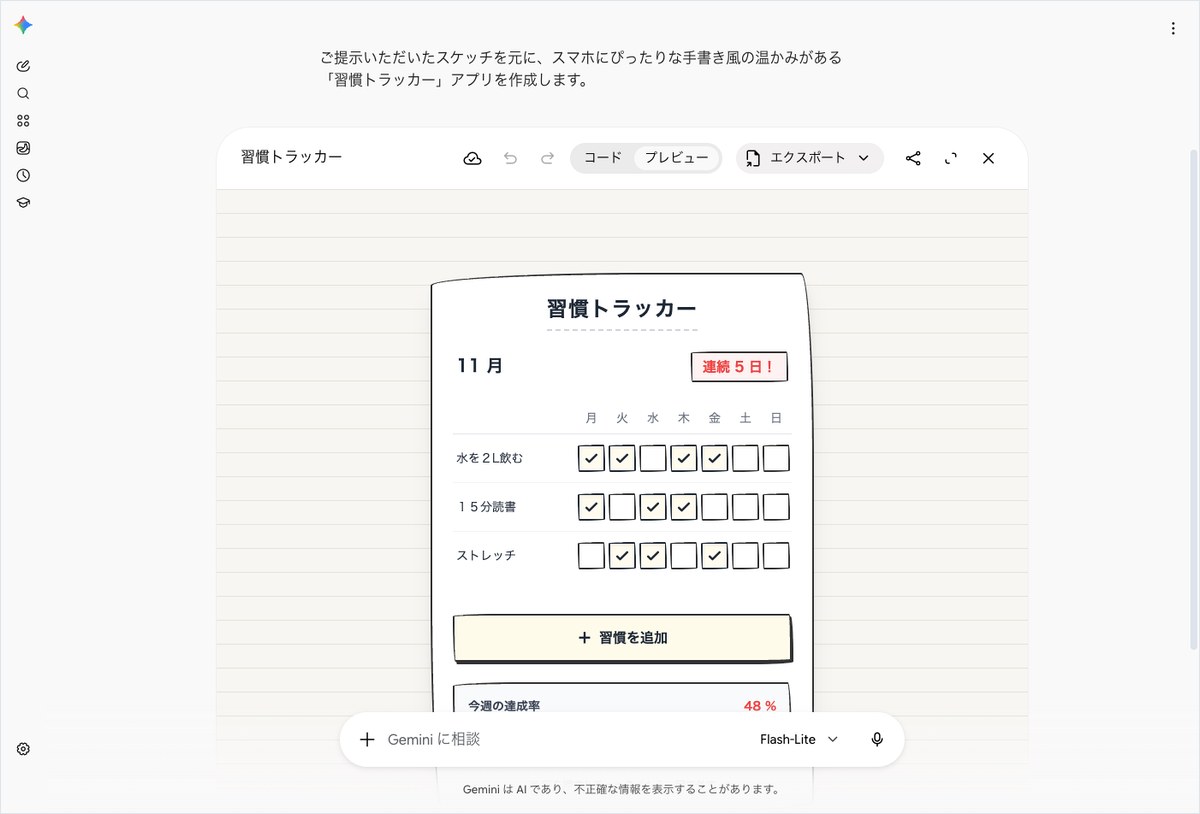
When this photo and the sentence above were sent, Gemini replied in 19.1 seconds. The reply was a short 81 characters, and a preview window opened right below it. Above the window were buttons labeled “Code,” “Preview,” and “Export,” and the app was drawn in a hand-drawn-style frame on a lined notebook background.
Note: The charts and screenshots in this article are the same images as in the original Japanese edition, so the text inside them is in Japanese. The captions and image descriptions have been translated.
What mattered when drawing the sketch
Here are the key points about drawing that emerged from these two sketches. First, write text clearly. Habit names and days of the week, when written legibly, came through almost exactly as drawn.
Second, use color to mark what you want to emphasize. The “streak” badge and the completion rate, drawn in red on the sketch, stayed red in the preview.
Third, write the rules for how things should behave directly in the drawing as text. The rule for checking a box by pressing it, and the rules of the board game, were written as notes.
Gemini’s reply addressed those rules. This test did not confirm whether pressing actually triggers the behavior, so after sending your sketch, be sure to press the preview yourself to check.
Conclusion: the sketch became an app in 19.1 seconds, matching the hand-drawn look
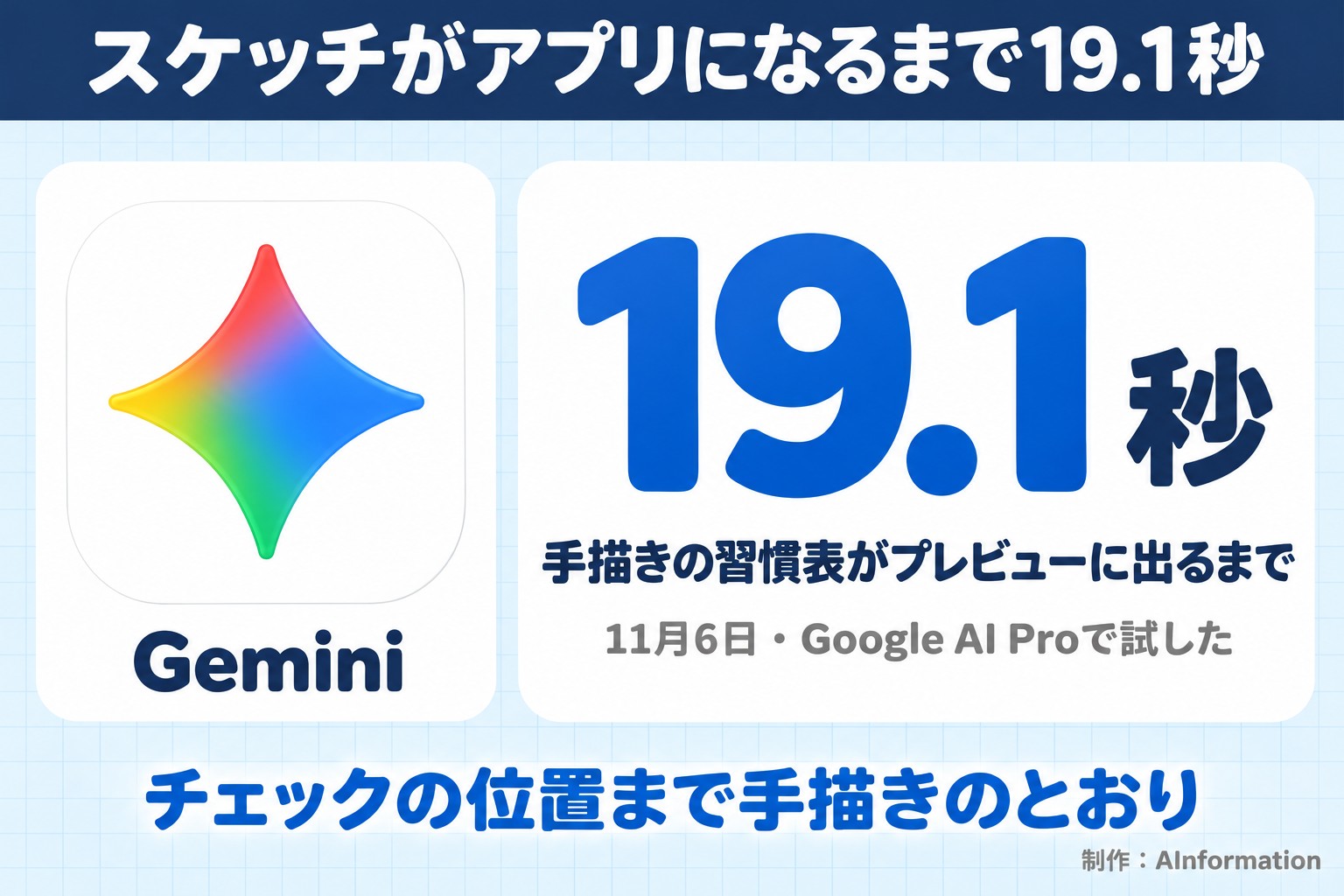
A hand-drawn sketch becomes an app, look and all, once you hand it to Gemini. When the habit tracker sketch was submitted, the preview opened in 19.1 seconds. The checked boxes also matched the hand-drawn original.
The official blog’s introduction is brief. It simply says to upload a photo, select Canvas, and ask whether it can be turned into code.
It also mentions that colors, fonts, and features can be adjusted in the preview. It does not say how accurately Gemini reads the sketch, so AInformation set its own criteria for checking accuracy before testing.
The hand-drawn habit tracker contains 10 checkmarks. Drinking 2L of water is checked on Monday, Tuesday, Thursday, and Friday—four days.
Reading for 15 minutes is checked on Monday, Wednesday, and Thursday—three days. Stretching is checked on Tuesday, Wednesday, and Friday—three days. Gemini’s preview reproduced these positions exactly.
Since 10 of the week’s 21 boxes are checked, the correct completion rate is about 48%. The preview showed 48% as the completion rate, not the 60% written on the sketch.
At the same time, some shortcomings showed up. In the board game sketch, Gemini failed to read that the second row wrapped from right to left.
When asked using text only, with no sketch, the reply came back in English even though the request was made in Japanese. Details on each of these are covered in the sections below.
The preview opened in 19.1 seconds even in a normal conversation without Canvas
The official instructions call for selecting the Canvas tool after uploading the photo. In this test, however, the app window opened the same way even without selecting Canvas. AInformation’s conclusion is that forgetting to select it does not cause a problem.
This point was confirmed in two rounds of testing. The first habit tracker round ended up being sent without selecting Canvas, due to how AInformation operated the interface.
In the second round, a new conversation was started and the same photo and the same sentence were sent, this time deliberately without selecting Canvas. In both cases, the preview window opened.
In the first round, Gemini asked, “Which response is more helpful?” Two answers, labeled option A and option B, appeared side by side, each with its own preview window. Option A’s description mentioned features such as “saving to local storage.” Option B said it had reproduced the design of a hand-drawn notebook.
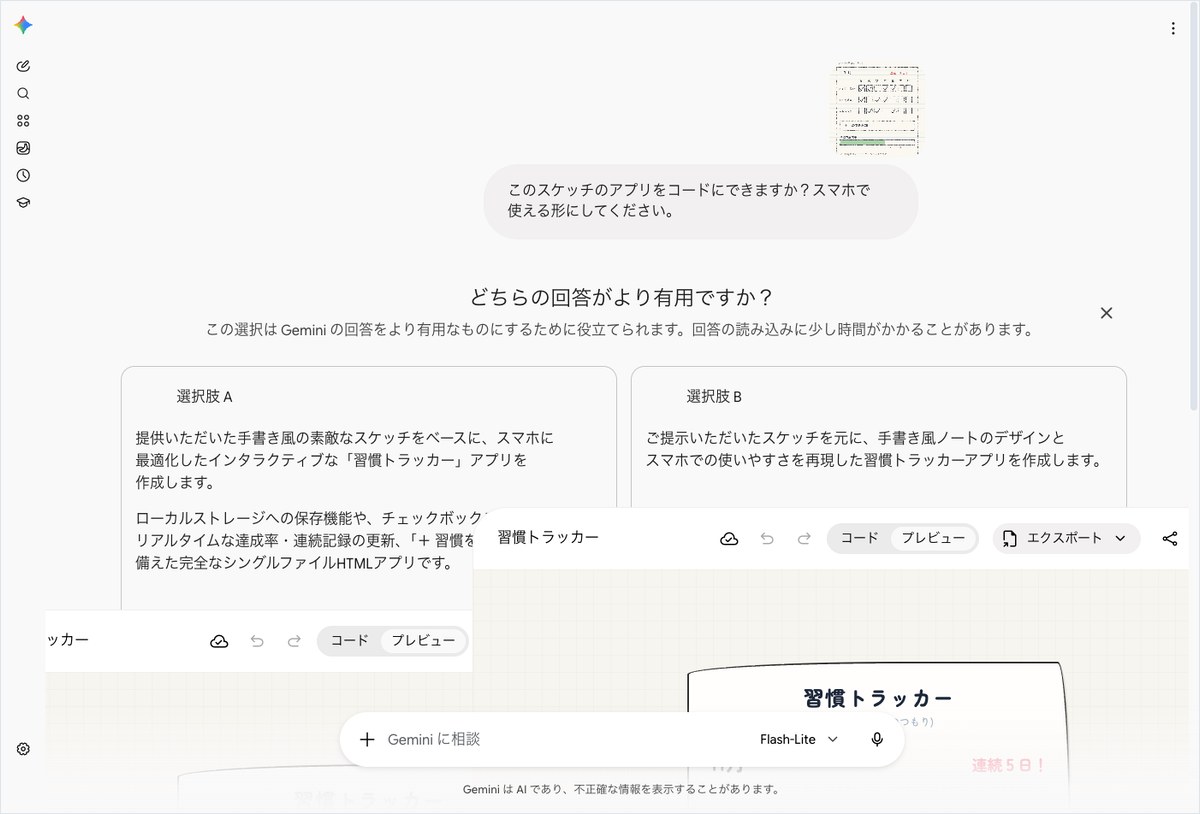
This two-option screen is meant for users to choose which of Gemini’s answers is better. The text on screen stated that the choice would be used to improve Gemini’s responses.
Whether this two-option screen always appears is not something this test can determine. In the second conversation, no two-option screen appeared, and only a single answer came back.
For the first attempt, the editorial team’s system failed to capture the reply text, so the time and character count for that attempt could not be measured. The second attempt took 19.1 seconds and produced 81 characters. The reply included this passage:
“Based on the sketch you provided, I’ll create a warm, hand-drawn style ‘habit tracker’ app that fits perfectly on a smartphone.”
The reply text was short and gave almost no explanation of the specs. The design seems built around trying the preview rather than reading an explanation.
Color and font edits applied in 19.1 seconds with a 138-character reply
The official blog states that users can adjust colors, fonts, and features while viewing the preview. Continuing from the first conversation, the editorial team asked for two things—appearance and a calculation—in a single message.
Please change the color to a calm green tone and make the font look like a rounded sans-serif style. Also, instead of showing the 60% from the sketch as a fixed number, please make the “this week’s completion rate” calculate automatically from the number of checks.
We set three pass criteria: the preview updates within the same conversation, and the color and font actually change. The third criterion was that the completion rate shows about 48% (10 checks divided by 21 squares); if it stayed fixed at 60%, that would be a fail.
The reply took 19.1 seconds and ran 138 characters. Gemini wrote, “I’ve changed the color to a calm sage green and deep green tone, and unified the font into a rounded sans-serif style.” The preview’s borders and check marks turned deep green, and the heading text switched to a rounded typeface.
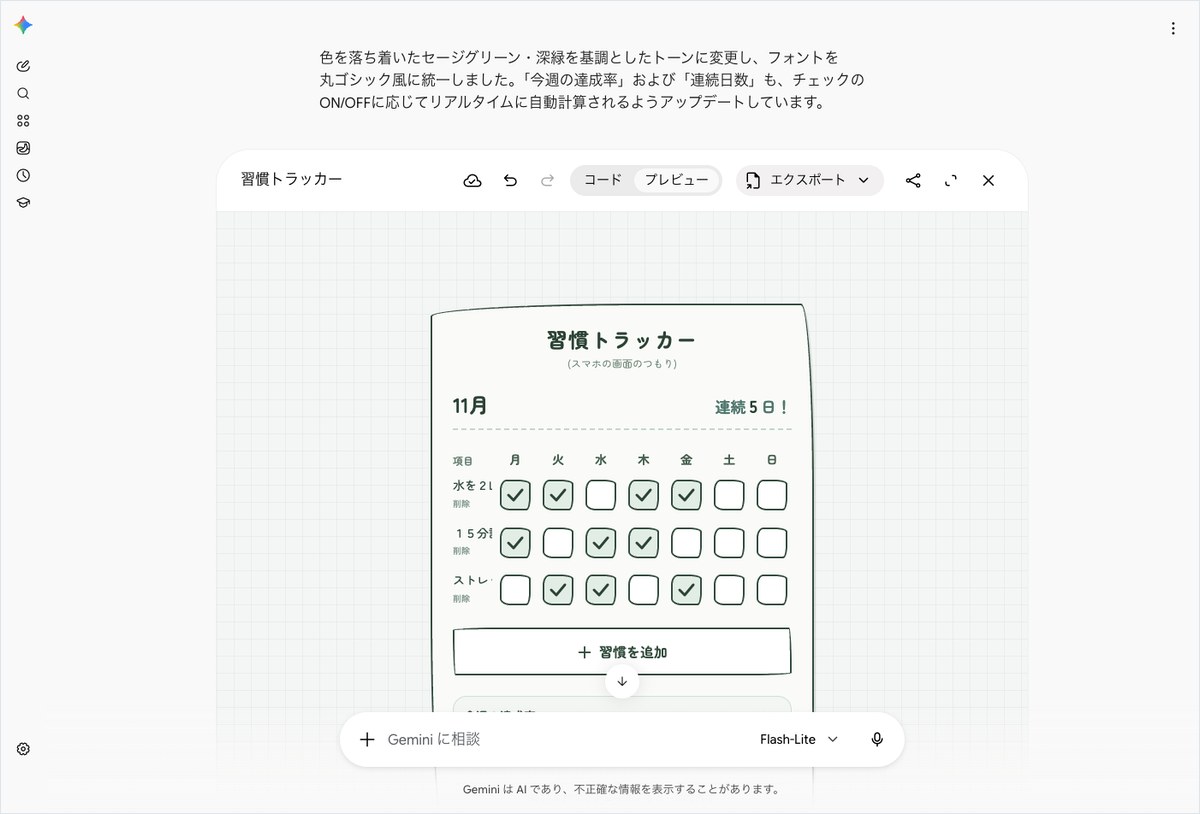
The reply also said the completion rate and streak count would update automatically based on whether checks were on or off. However, in the captured screenshot, the completion rate field was cut off at the bottom and the number could not be read.
We were unable to confirm the completion rate number on screen in this conversation. We also did not test whether the number changes when a check box is pressed this time.
Even the sketch’s margin note became on-screen text
Two things stood out in this version. First, the note written in the margin of the sketch—“(meant to represent a smartphone screen)”—appeared as small text directly below the title, exactly as written. Gemini read what was meant as a note to the person drawing the sketch as text for the app itself.
Second, the habit names were cut off partway through. The left column was narrow, so text like “Drink 2L of wat,” “15 min,” and “Stretc” had their endings hidden. A small “Delete” link had been added to each row—a feature that was not in the sketch.
The number of days on the “streak” badge at the top also differed from the three days written in the sketch. The reason for this is unclear from this test.
Board game rendered in 25.1 seconds with 12 squares, but the order was wrong on the second row
The second sketch was a board for a two-player board game (sugoroku). It depicted 12 squares across three rows. The first row moves left to right.
The second row turns back and moves right to left. The third row moves left to right again. From start, the path goes through squares 2 and 3 to “skip a turn,” then through 5 and 6 and “move back 3 squares” down to 8 and 9.
It finishes by passing through “go again” and 11 before reaching the goal. Below the board, we wrote rules such as “the red and blue pieces take turns moving” and “landing exactly on the goal wins.”
We selected Canvas in a new conversation and sent the photo along with this message:
Can you turn this board game sketch into code? Please make it playable by two people, following the rules written on it.
We set four pass criteria:
- Correctly reading the zigzag order of the squares
- Including the rules for the four special squares
- Having red and blue pieces
- The pieces taking turns moving
The reply took 25.1 seconds and ran 205 characters. Gemini wrote, “I’ve fully reproduced the rules,” and the preview showed a “board game (for two players)” board. Red and blue round pieces were placed on the start square, and the “skip a turn,” “move back 3 squares,” “go again,” and goal squares were highlighted in red text.
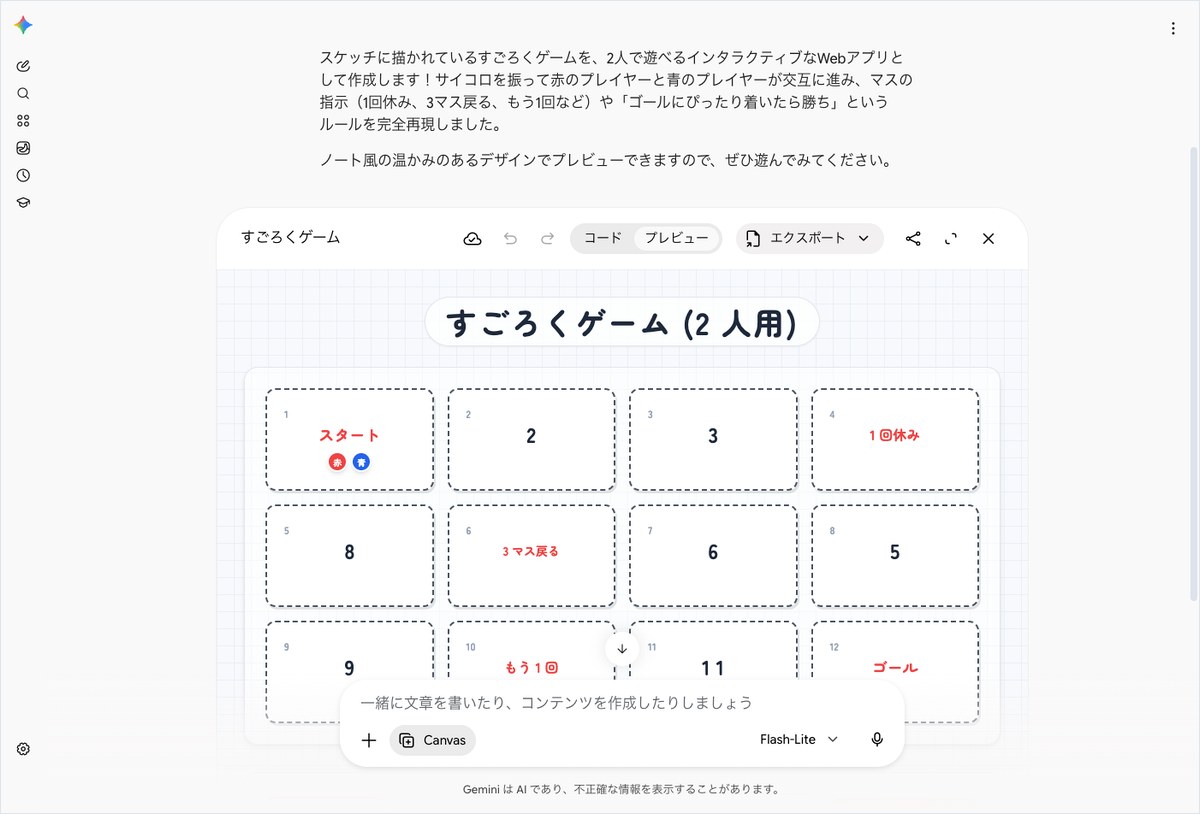
The turn on the second row was not read correctly
The problem was the small sequence numbers in the upper-left corner of each square. The first row was numbered correctly from 1 to 4.
The second row was also numbered 5, 6, 7, and 8 from left to right, but the text inside the squares stayed in the sketch’s visual layout: “8,” “move back 3 squares,” “6,” and “5.” In other words, square number 5 was labeled “8,” and square number 8 was labeled “5.”
Order of squares on the second row of the board game
| Gemini’s sequence number | Text inside the square | Order in the sketch |
|---|---|---|
| 5 | 8 | 8th |
| 6 | Move back 3 squares | 7th |
| 7 | 6 | 6th |
| 8 | 5 | 5th |
In the sketch, “move back 3 squares” is the seventh square. On Gemini’s board, it became the sixth. Even though the visual layout was copied, the meaning behind the movement order was not understood.
When handing over a hand-drawn board, drawing arrows or writing numbers directly on the squares might reduce this kind of misreading, though we did not test that approach this time.
We marked the red and blue pieces as a pass, and the special squares as a pass since three of the labels appeared on the board. The rule that landing exactly on the goal wins was included in the reply text.
However, since the editorial team did not actually roll dice and play, we could not confirm on screen whether this rule works or whether the pieces take turns moving.
A text-only request produced an English reply and a purple screen in 22.2 seconds
To see whether providing a sketch actually matters, we also ran a test requesting the same content using text alone. In a new conversation, we selected Canvas but did not upload a sketch, sending only this message:
Please turn a habit tracker app into code. On a smartphone screen, show November and “3-day streak!” at the top, a checklist with 7 columns for Monday through Sunday and 3 rows for “Drink 2L of water,” “Read for 15 minutes,” and “Stretch,” and at the bottom, a “+ Add habit” button and a “this week’s completion rate” bar. Pressing a checkbox should check it, and pressing it again should uncheck it.
The pass criterion was matching the same nine elements as the version built from the sketch. We also compared how close the appearance was and how long the reply took.
The reply took 22.2 seconds and ran 209 characters. What stood out was that even though the request was in Japanese, the reply text was in English. It began, “I will now generate a responsive habit tracker web application designed for mobile screens.” The text inside the preview itself was in Japanese.
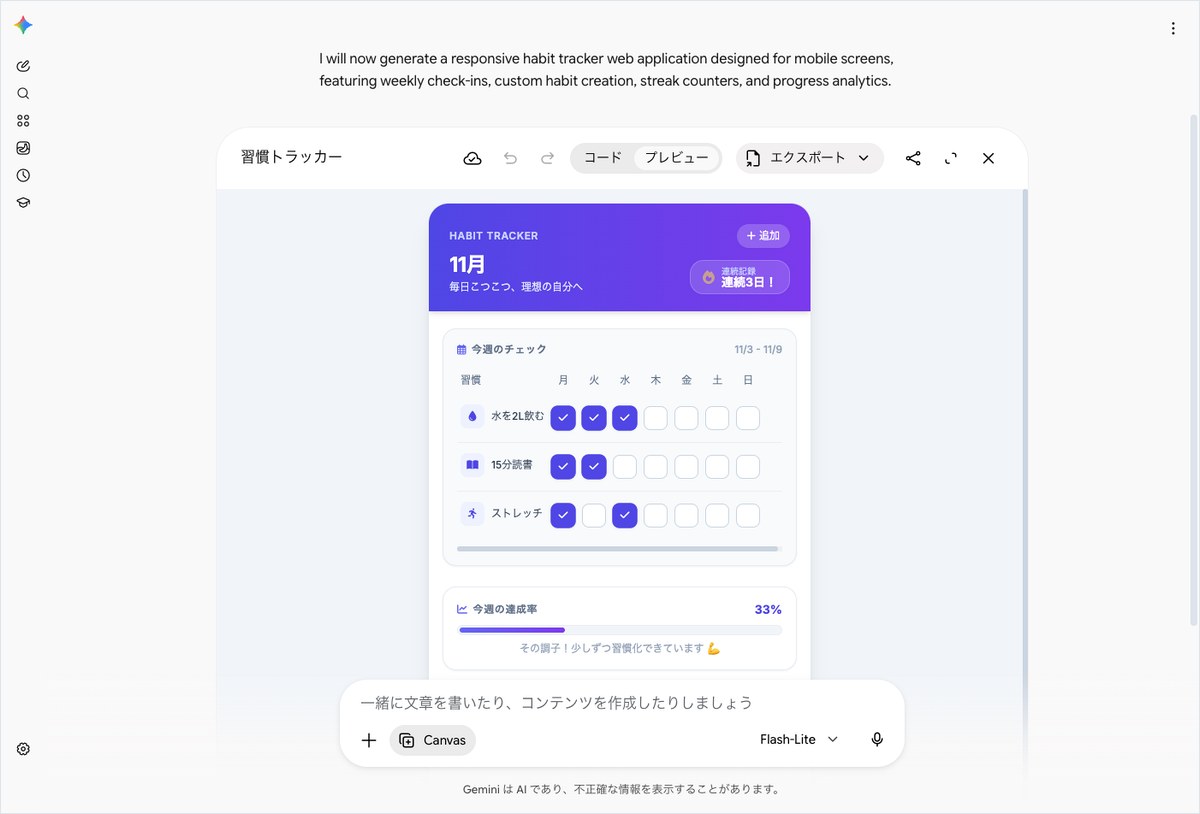
The appearance was completely different from the sketch-based version. The top banner was purple, with the English heading “HABIT TRACKER” in white text. The November label and the “3-day streak!” badge matched the request.
The 7 columns for Monday through Sunday and the 3 habits were also included. Small icons—a water droplet and a book—were added next to the habit names.
However, the “+ Add habit” button was placed at the top right as “+ Add,” not at the bottom as requested. The checked squares were also arranged differently from the sketch. Since the text request did not specify the position of the checks, this is an expected result.
The sketch and text-only versions differed in appearance and placement
We asked for the same habit tracker in two ways: with a sketch photo, and with text only. The results are compared below, broken down into nine elements.
A result marked “Yes” means it appeared in the preview; “Partly correct” means it was off. We did not test whether tapping the boxes actually works, so those two items are marked “not verified.”
Differences between the sketch-based version and the text-only version
| Element | From sketch (19.1 seconds) | Text only (22.2 seconds) |
|---|---|---|
| Title “Habit Tracker” | Yes | Partly correct — shown in English as HABIT TRACKER |
| November | Yes | Yes |
| 3-day streak | Partly correct — different number of days | Yes |
| 7 columns for days of the week | Yes | Yes |
| 3 habits | Yes | Yes — with icons |
| Tap a box to check it | Not verified | Not verified |
| Tap again to uncheck | Not verified | Not verified |
| + Add habit | Yes — large button at the bottom | Partly correct — a + Add button at the top right |
| This week’s completion rate | Yes — 48% | Yes — with a bar |
The clearest difference was in appearance. The sketch version used a ruled-notebook look with hand-drawn-style frames, and it showed the “streak” label and the completion-rate number in red.
It copied the red markings exactly as they were drawn. The text version had a purple banner and icons, the common look of an everyday app.
The sketch version also placed elements more accurately. The “+ Add habit” button appeared as a large button below the checkboxes in the sketch version.
In the text version, even though the prompt said “at the bottom,” the button moved to the top. The sketch version took 19.1 seconds, and the text version took 22.2 seconds — not a large difference.
The text version also had a point in its favor. “3-day streak!” came out exactly as the day count written in the text.
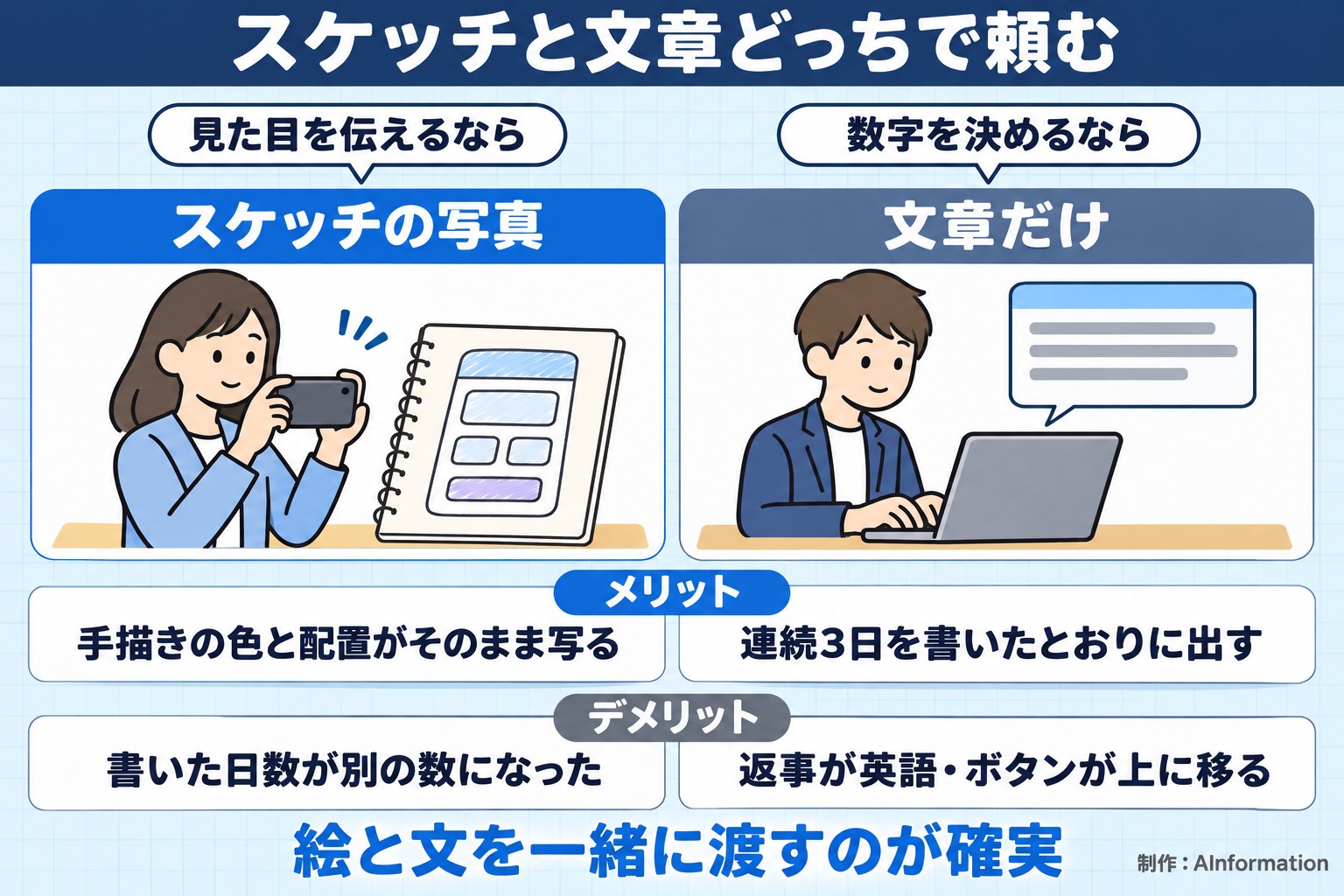
The sketch version showed a different day count even though 3 days was hand-written on it. When you want a specific number to appear, it helps to write it out in text in addition to the sketch.
In short, leave the parts that are faster to convey visually to a sketch. Numbers and fixed rules are better handled in text.
A sketch can communicate both the look and the layout at once. Rather than spelling out the number of habits or button placement in detailed text, drawing it and handing it over takes less effort.
The 4 requests we could time all produced a preview in 19.1 to 25.1 seconds
Here is a table of the results from 5 requests. We set the passing line as whether a working app screen appeared in the preview.
By this standard, all 4 requests we could time passed. The one request we couldn’t time also produced a preview on screen.
Time taken and results for 5 requests
| Request | Canvas | Time taken | Reply length | Result |
|---|---|---|---|---|
| Habit tracker sketch (1st time) | Not selectable | Not measured | Not measured | Yes — 2 draft replies and a preview |
| Fixing colors, font and completion rate | Not selectable | 19.1 seconds | 138 characters | Yes — switched to green and a rounded sans-serif font |
| Board game sketch | Selected | 25.1 seconds | 205 characters | Partly correct — order of the second row was off |
| Text-only habit tracker | Selected | 22.2 seconds | 209 characters | Partly correct — reply came back in English |
| Habit tracker sketch (2nd time) | Not selected | 19.1 seconds | 81 characters | Yes — checkbox position and 48% |
Times ranged from 19.1 to 25.1 seconds. The longest was the board game at 25.1 seconds, which had more rules.
Both the habit tracker built from a sketch and the one where we fixed the color and font took 19.1 seconds. The sketch version’s reply was the shortest at 81 characters, while the text-only version’s reply was 209 characters.
The reply text was short in every case, ending in just a few lines. The actual content is left to the preview.
If you only read the reply text and take a line like “reproduced it perfectly” at face value, you will miss issues like the order mix-up in the board game. Always check the preview with your own eyes.
In this test, the model shown on screen was Flash-Lite for all 5 runs. We did not test whether switching to a different model would change the results.
What this test showed as a good use case is prototyping small tools for internal or household use. Things like checklists or duty rosters, where you already have a clear picture of the screen layout in mind, are especially well suited.
A single photo can replace the effort of drawing something on paper and then rewriting it as a text description.
3 things to watch for when turning a handwritten sketch into an app with Gemini
Hand-drawn sketches are read quite accurately. That makes it important to draw with the assumption that everything you draw will end up in the app. Here are 3 cautions from our testing.
Notes in the margins also become text in the app
In the version where we fixed the colors of the habit tracker, a margin note reading “(meant to represent a phone screen)” ended up inserted below the heading. Erase notes to yourself or draft scribbles before taking the photo, or place them well outside the frame.
A sketch alone doesn’t convey the order in which squares should be followed
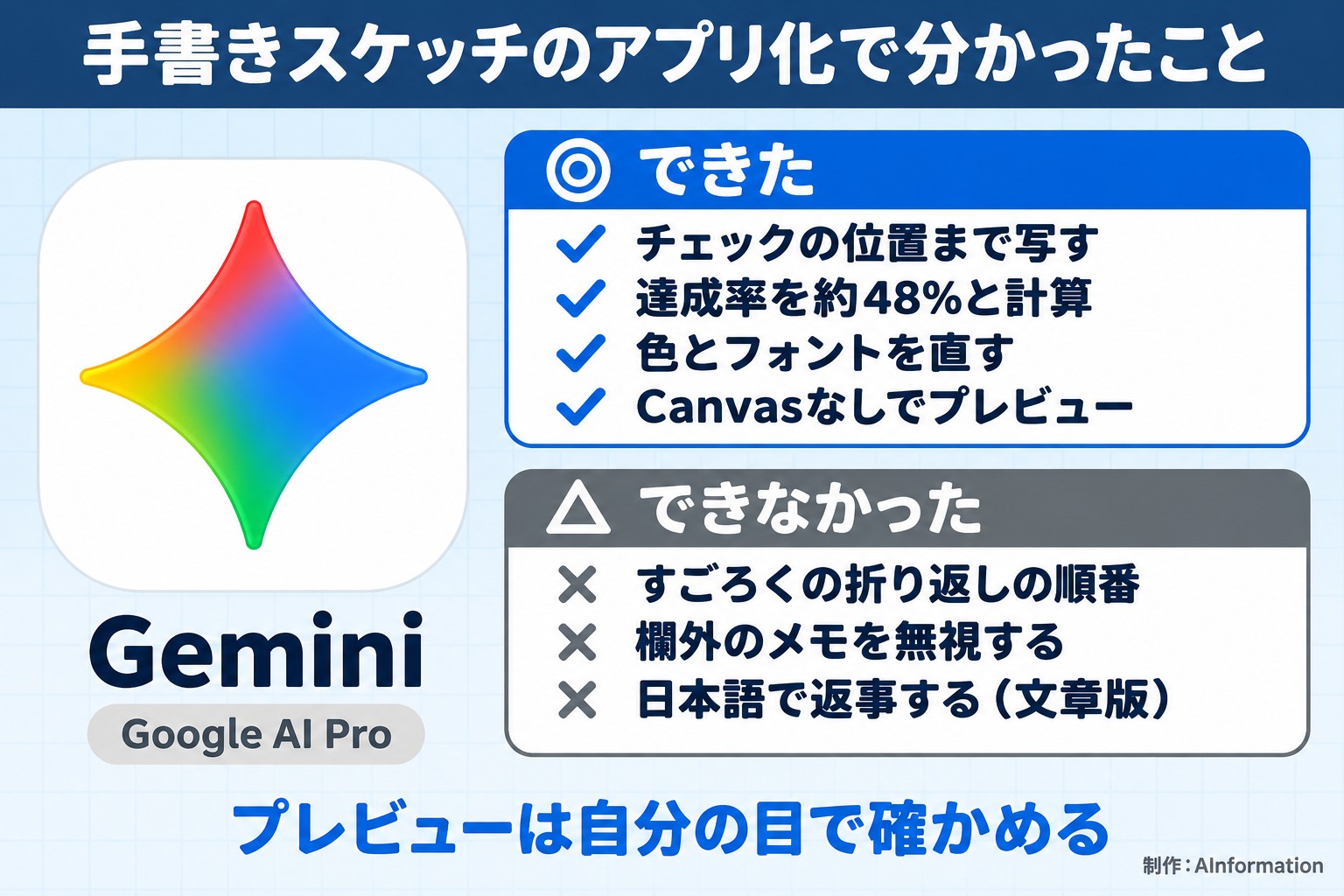
In the board game, the model failed to read that the second row moves from right to left. It can copy visual positions, but it doesn’t necessarily pick up on meaning like the order of movement.
For things with a sequence, like a game board or a set of steps, draw clear arrows or numbers. On top of that, write out the order in text as well.
Check the wording and numbers in the reply against the preview
In the text-only run, the reply came back in English even though the request was in Japanese. In the board game, the reply said “reproduced it perfectly” even though the order was off. Don’t take the reply text at face value — checking each item in the preview one by one is the surest approach.
Pricing and plan conditions are not stated in the official blog. This test used only a Google AI Pro account. We did not check whether the same results can be achieved with the free plan.
The preview window had an “Export” button and a share button. We did not test whether an app you build can be placed on a phone’s home screen for daily use, or whether the exported code runs as is. Google’s introduction page describes Canvas as a place that turns ideas into apps and games.
We also tested making documents and slides with Canvas in our Canvas comparison article. If you want to learn how Gemini works overall first, start with our beginner’s guide to using Gemini to get the full picture.
Related articles and tools
- Gemini (AI tool profile page)
- How to create PDFs with Gemini and where to check the numbers
- How to create quizzes with Gemini and 3 ready-to-use prompts
- Canvas compared: 3 prompts for asking AI to make documents and slides
- Google opens up 7 types of document editing in Gemini — smartphones get PDF only
Even AInformation’s editors were surprised that a hand-drawn sketch came through with the check marks and red text intact. For a small in-house tool, just drawing it on paper and handing it over produced a working prototype in 19.1 seconds. On the other hand, Gemini misread the meaning behind something like the turn order in a board game. The reply text said “I’ve recreated it exactly,” but that doesn’t save you the step of checking the preview piece by piece. Right now, the safest approach is to convey the look through a drawing and spell out numbers and rules in writing.
- Can Gemini turn a hand-drawn sketch into an app?
- Yes. When AInformation sent a sketch of a habit tracker on November 6, 2026, an app preview opened in 19.1 seconds. The checked boxes matched the hand-drawn sketch exactly, and the completion rate was calculated at about 48% based on the number of checks. All you need to do is upload a photo and ask, “Can you turn this app into code?” — no coding required.
- Do you have to select Canvas to get an app?
- In our test, a preview opened even in a normal conversation without selecting Canvas. We sent the same sketch and the same text, and got an 81-character reply plus an app window in 19.1 seconds. That said, Google’s official blog describes the steps using Canvas, so if it doesn’t open properly, try selecting Canvas before sending again.
- Does this work with the free version of Gemini?
- We did not test this. AInformation only tried it with a Google AI Pro account. The official blog post from November 5, 2026 also does not state which plans support the feature. If you want to try it on the free version, the quickest way is to send a short sketch first and see if a preview opens.
- Can Gemini read hand-written Japanese text correctly?
- Habit names, the month of November, days of the week, and button labels were all read correctly. On the other hand, a margin note that said “(this is meant to be a smartphone screen)” also got pulled in as text inside the app. In the board game sketch, Gemini could read the characters in each square but misread the turn order, in which the second row moves right to left. For anything involving sequence, draw arrows or numbers and also describe it in words.
- Can you change the look of the app afterward?
- Yes. In the same conversation, we asked Gemini to make the colors green-based and the text look like a rounded sans-serif font. The preview updated along with a 138-character reply in 19.1 seconds. The borders and check marks turned a deep green, and the headings switched to a rounded typeface. Export and share buttons were visible on screen, but we did not use them in this test.
Articles to read next
- Related readingGemini data leak: 12-item checklist, 0 of Claude's 9 sources official
- Related readingGemini 4 Argon release date: pricing and four AIs give different answers
- Related readingHow to use Gemini for beginners: 30 prompts and what the free plan allows
- Related readingGemini face photo risks: 10-item check and how to delete it